
Modeling Goals
Feature overview
Purpose
Modeling goals use business questions to define what ontology needs to answer, and tracks coverage by correlating Object Types, Object Type Relationships and manual verification records.
In practice: First write clearly what questions you want to answer, and then check whether the model is enough to answer.
Main features
- Problem Definition: Save problem sources, business scenarios, acceptance criteria and priorities.
- Element Association: View the Object Types and relationship supporting the target in the details.
- Manual verification: Fill in the judgment and reasons for whether it is covered or not.
Scope
The information on this page belongs to the current project and version; entry, editing, deletion and other operations are subject to corresponding authorization controls. After switching projects or versions, lists and associated objects should be rechecked.
Before you begin
Prerequisites
- You have logged in to qOntology and have obtained the permissions for this page and the required operations.
- The project has been created in [Basic Management], and the correct project and version have been selected at the top of [Ontology Modeling].
- Business problems, problem sources, application scenarios and acceptance criteria have been organized.
Navigation path
【Ontology Modeling】 > 【Modeling Goals】
Page overview
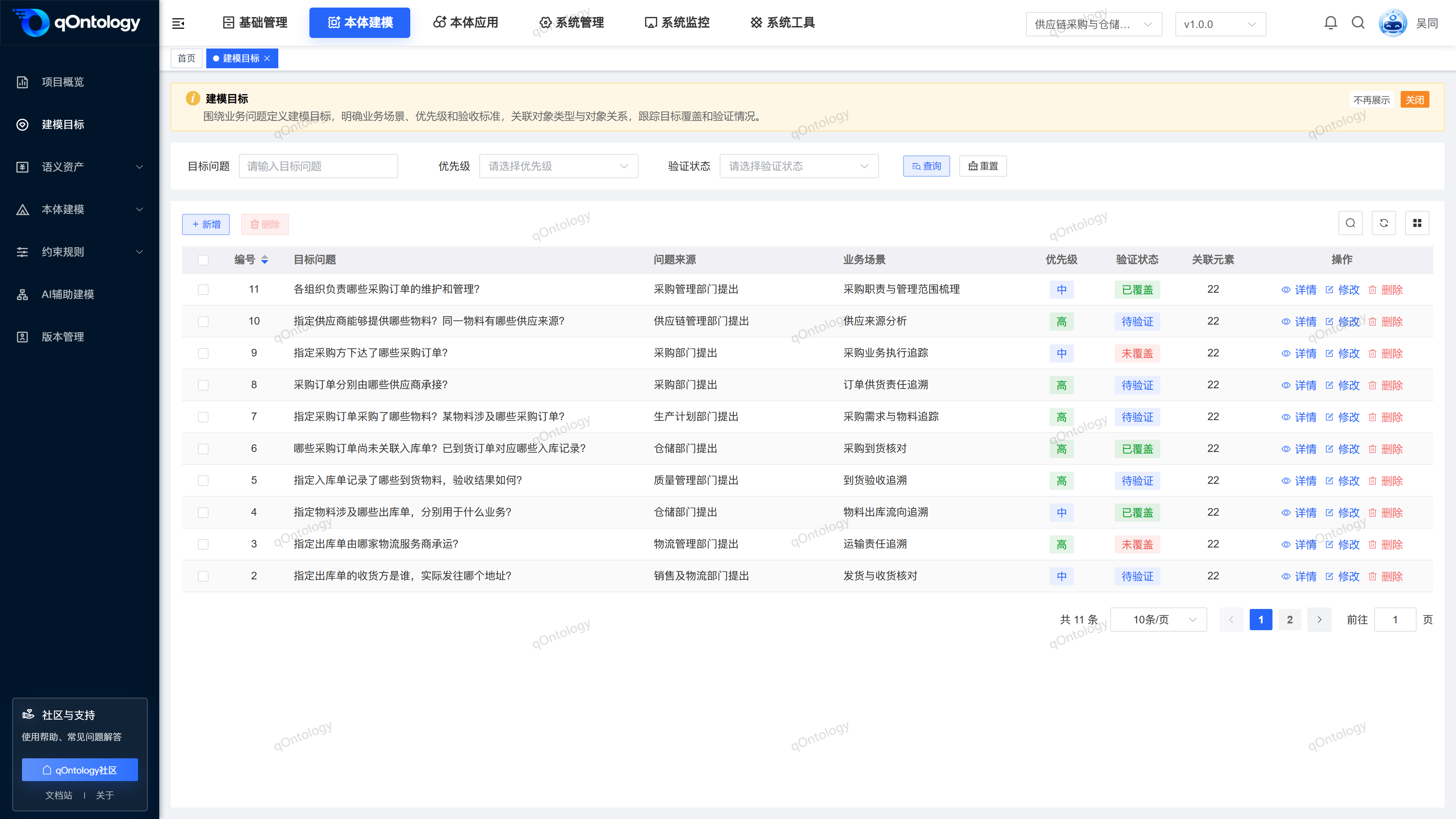
The list supports querying by target issue, priority, and verification status, and displays related elements and verification status. Details include the [Object Types] [Object Type Relationships] [Verification Task] tab.
Recommended workflow
Create a new target → Establish objects and relationships and associate the target → Check coverage in details → Record the verification conclusion.
Functional operation instructions
Query and reset
- Fill in or select the target question, priority and verification status in the query area.
- Click [Query].
- Click [Reset] when you need to restore conditions.
Result: The list is reloaded according to conditions and can be viewed in paging.
Added Modeling Goals
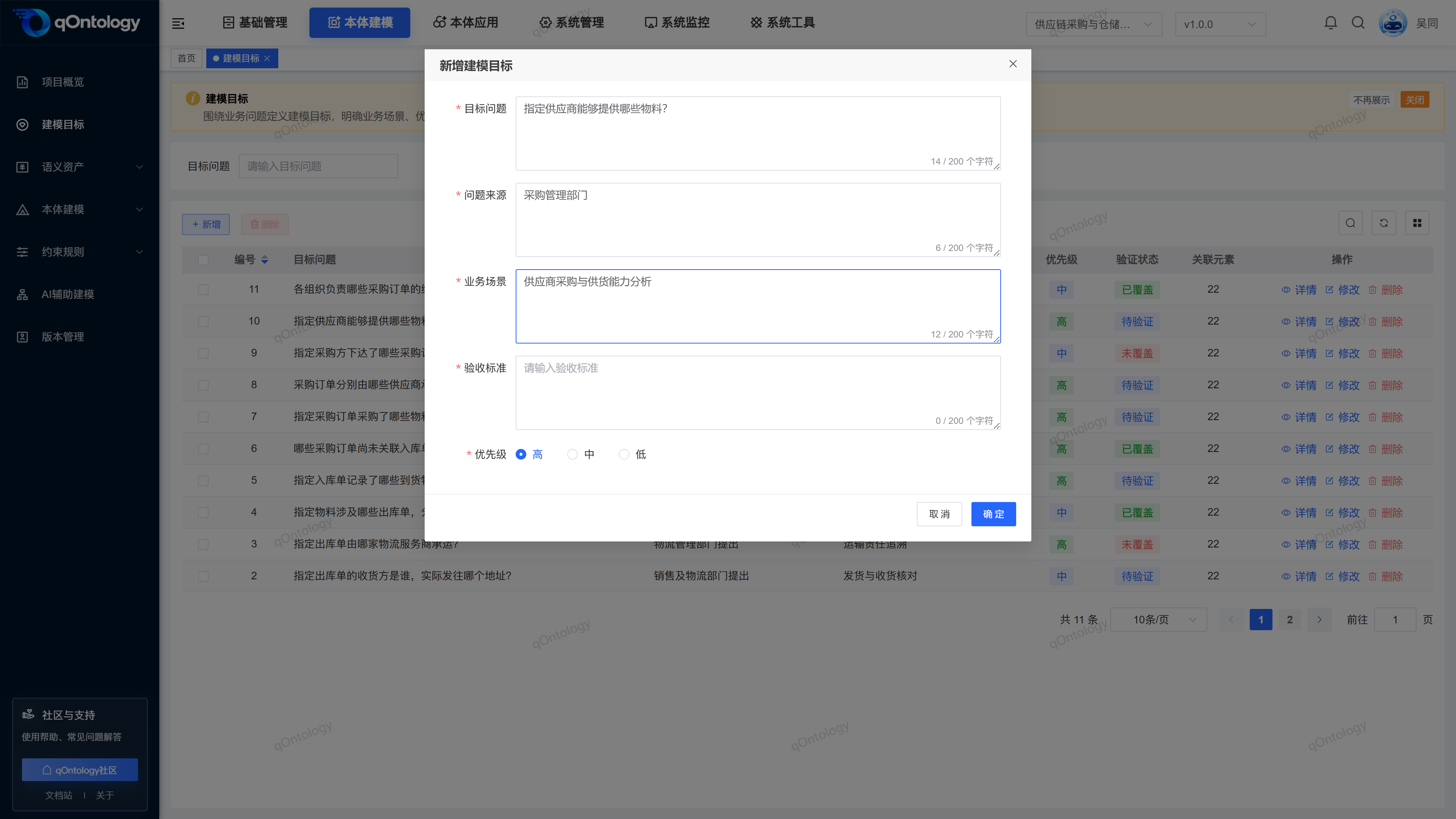
- Click [Add].
- Fill in the target problem, problem source, business scenario and acceptance criteria.
- Choose a priority.
- Click [OK].
- Target Question: Use business language to describe the question to be answered, up to 200 characters. (required)
- Problem Source: Describe the source of the requirement, up to 200 characters. (required)
- Business Scenario: Describe the scenario where the problem occurs, up to 200 characters. (required)
- Acceptance Criteria: Specify what results are considered to be target covered, up to 200 characters. (required)
- Priority: Select high, medium, or low; add default high. (required)
Result: After the addition is successful, the target will appear in the current version list.
View associated elements
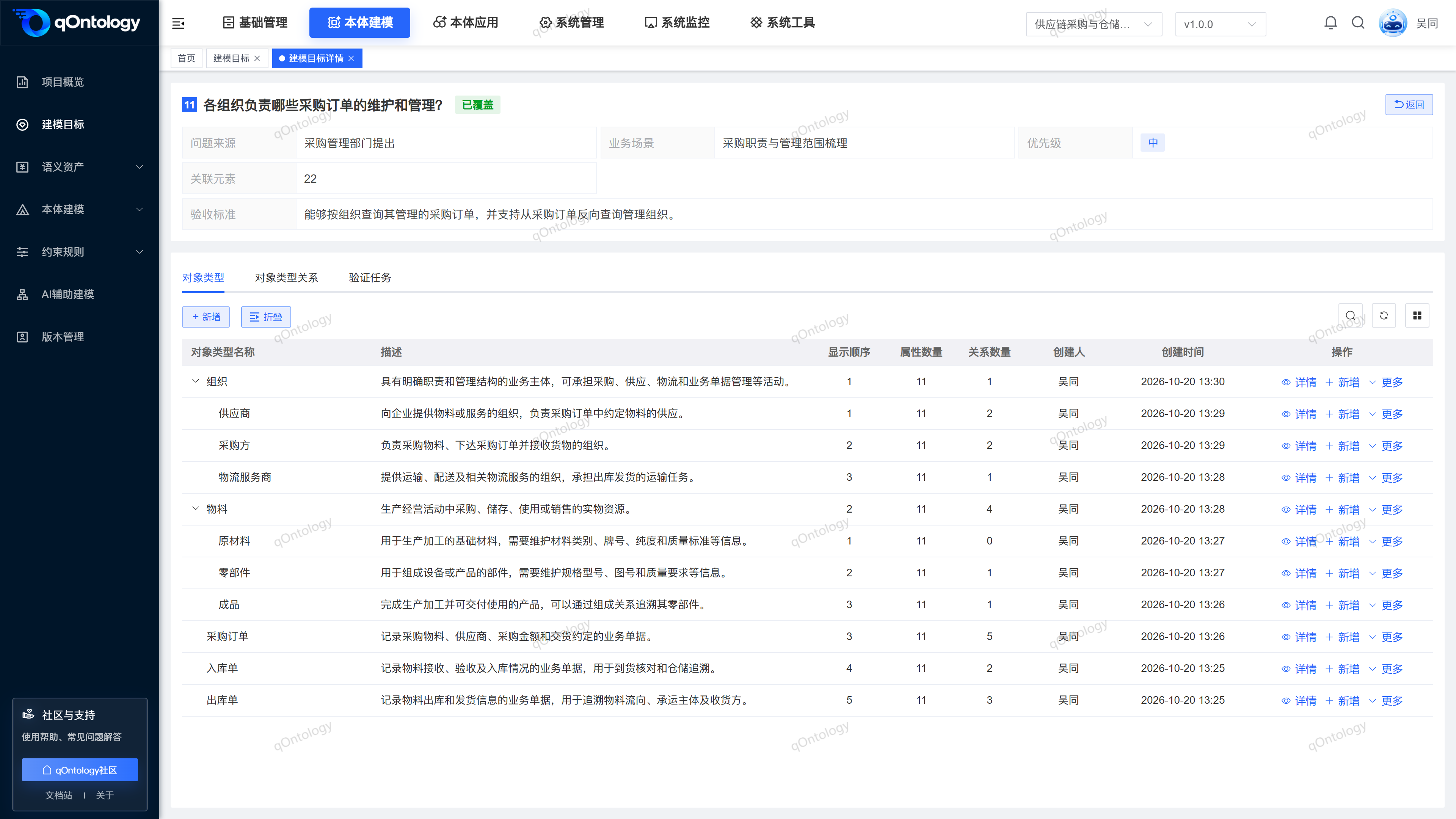
- Click [Details] on the target row.
- View the target's business information.
- Switch to the [Object Types] tab.
- Switch to the [Object Type Relationships] tab.
Result: You can check which model elements are associated with the target.
The associated targets of objects and relationships can be maintained in their respective new or modified forms. The related quantity represents the summary of relationship records and cannot alone prove that the business goal has been accepted.
Fill in the verification conclusion
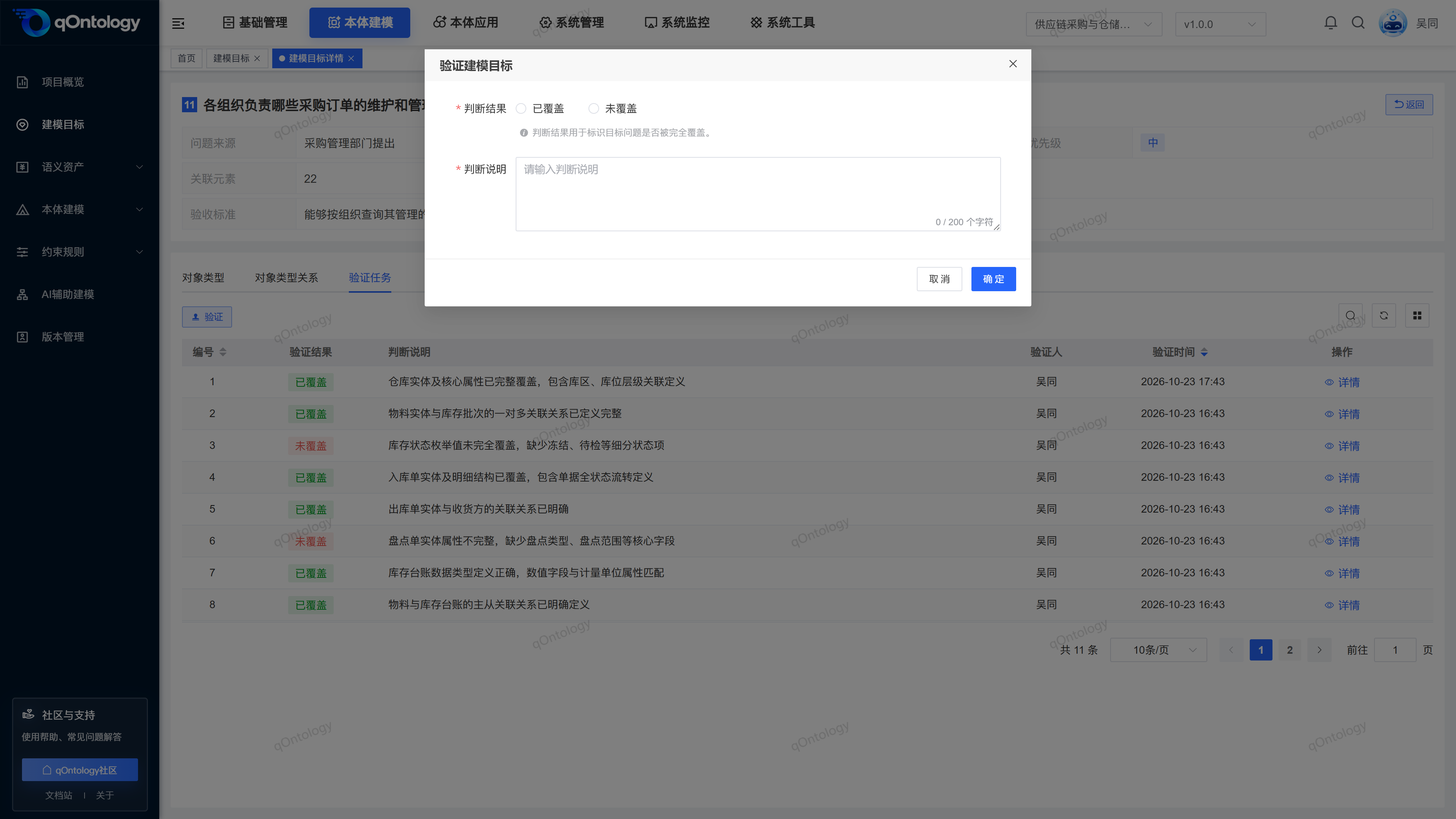
- Switch to [Verification Task] in the target details.
- Click [Verify].
- Select [Covered] or [Uncovered] in [Judgment Result].
- Fill in the [Judgment Description].
- Click [OK].
Result: After successful submission, "Verification Successful" is displayed, and the verification record is updated.
The judgment description is required and can be up to 200 characters. This process records manual judgment; clicking [Verify] will not automatically infer or automatically generate a passing conclusion.
Modify Modeling Goals
- Click [Modify] on the target record row.
- Adjust the fields that need to be modified.
- Click [OK].
Result: The list will be refreshed after successful saving; reopen the record to check the modification results.
Delete Modeling Goals
- Click [Delete] on the target record row.
- Check the target record in the confirmation box.
- Confirm deletion.
Result: After the deletion is successful, the list is reloaded and the target record is no longer displayed.
You can also check records and use [Delete] above the list to process them in batches.
Warning
Check the business purpose and related information before deleting. This page does not provide a recycle bin recovery entry.
FAQ
Does it mean that the object has been overwritten if it is associated?
cannot judge this way. Objects and relationships should be checked according to acceptance standards, and then manual verification conclusions should be filled in.Why don't other versions see this target?
modeling information is organized by version, please check the top item and version selection.
Summarize
Write down clearly what question you want to answer first, and then check whether the model is sufficient to answer it. Create a new target → Establish objects and relationships and associate the target → Check coverage in details → Record the verification conclusion.