
AI-assisted modeling
Feature overview
Purpose
AI-assisted modeling generates modeling candidates from the uploaded business data, which are written into the current project version after manual modification, evidence verification and adoption.
In practice: Let AI provide a modeling draft, and then business personnel decide what content becomes the formal model.
Main features
- Step-by-step tasks: Processed in three stages: basic information, AI analysis, and result review.
- Candidate review: Classification check goals, terms, enumeration, objects, attributes, relationships, axioms and Data Rules.
- Dependency Adoption: Adopt the referenced data first, and then process the candidates that depend on it.
Scope
The information on this page belongs to the current project and version; entry, editing, deletion and other operations are subject to corresponding authorization controls. After switching projects or versions, lists and associated objects should be rechecked.
Before you begin
Prerequisites
- You have logged in to qOntology and have obtained the permissions for this page and the required operations.
- The project has been created in [Basic Management], and the correct project and version have been selected at the top of [Ontology Modeling].
- The documents to be analyzed have been prepared to clarify the business scope and modeling issues that need to be solved.
- The administrator has configured available model connections; parsing depends on the model service and file content. Completion of material preparation does not necessarily mean successful parsing.
Navigation path
【Ontology Modeling】 > 【AI-Assisted Modeling】
Page overview
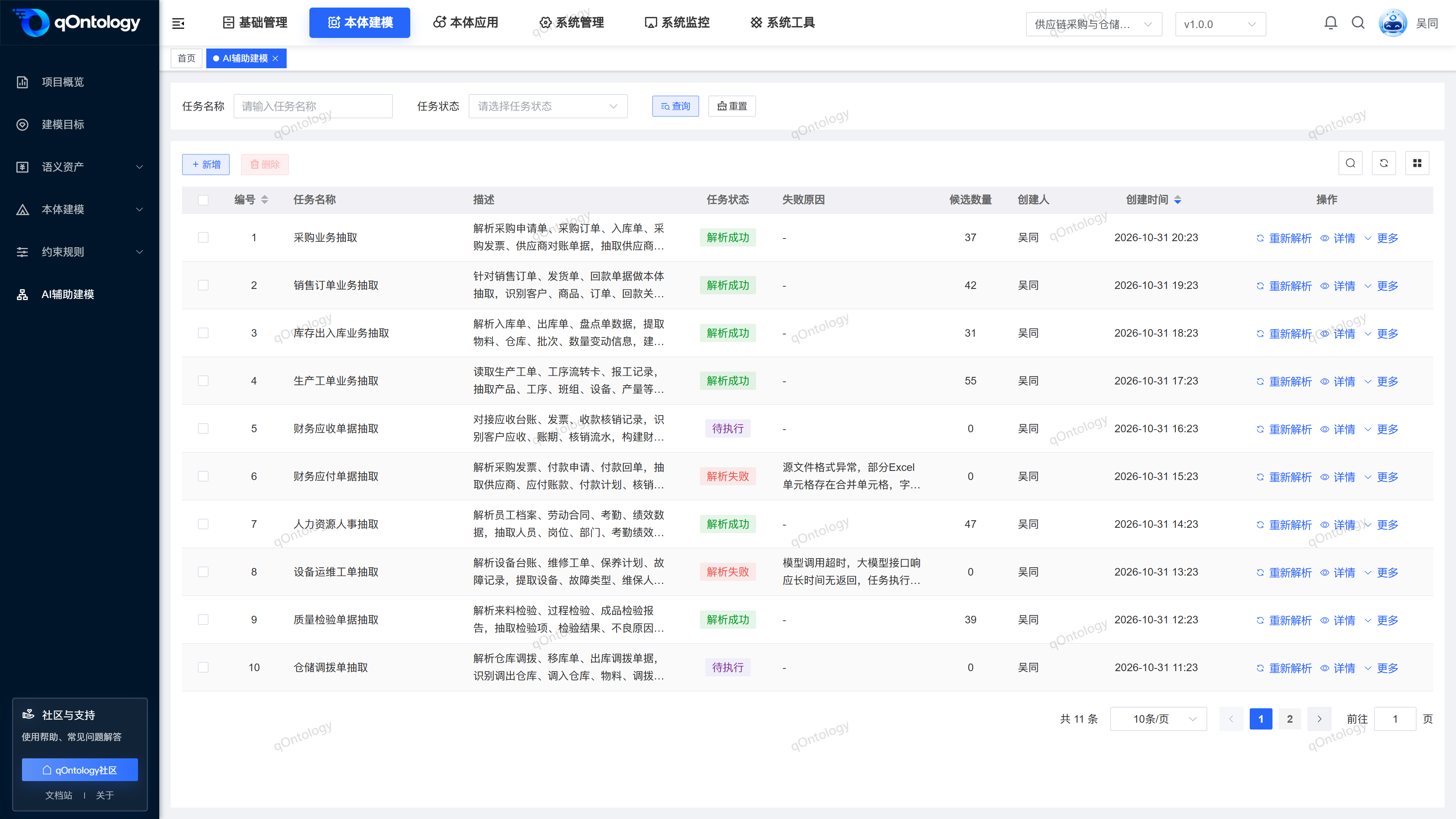
The page is filtered by [Task Name] and [Task Status], and the list displays the name, description, task status, failure reason, number of candidates, and creation information. In-line [Details] enters candidate review, [Reparse] is used to regenerate candidates, and [More] provides access to task modification and deletion.
Task states include [Pending], [Running], [Analysis Succeeded] and [Analysis Failed]. The candidate count indicates how much content was generated; it does not mean that all candidates have been adopted or reviewed. Wait for running tasks to finish before making further changes.
Tips
New tasks are processed according to "Basic Information → AI Analysis → Result Review"; for existing tasks, you can view the candidates and "Analysis Process" from [Details]. The AI generates modeling suggestions, which only enter the formal model of the project version to which the task belongs only after they are successfully adopted.
Recommended workflow
Select the project version → Upload materials → AI analysis → Check candidates and evidence → Modify and complete → Adopt according to dependencies → Go to the modeling page for review.
Functional operation instructions
Query and reset
- Fill in or select the task name and task status in the query area.
- Click [Query].
- Click [Reset] when you need to restore conditions.
Result: The list is reloaded according to conditions and can be viewed in paging.
Create and parse tasks
- After confirming the target project and version at the top, click [Add].
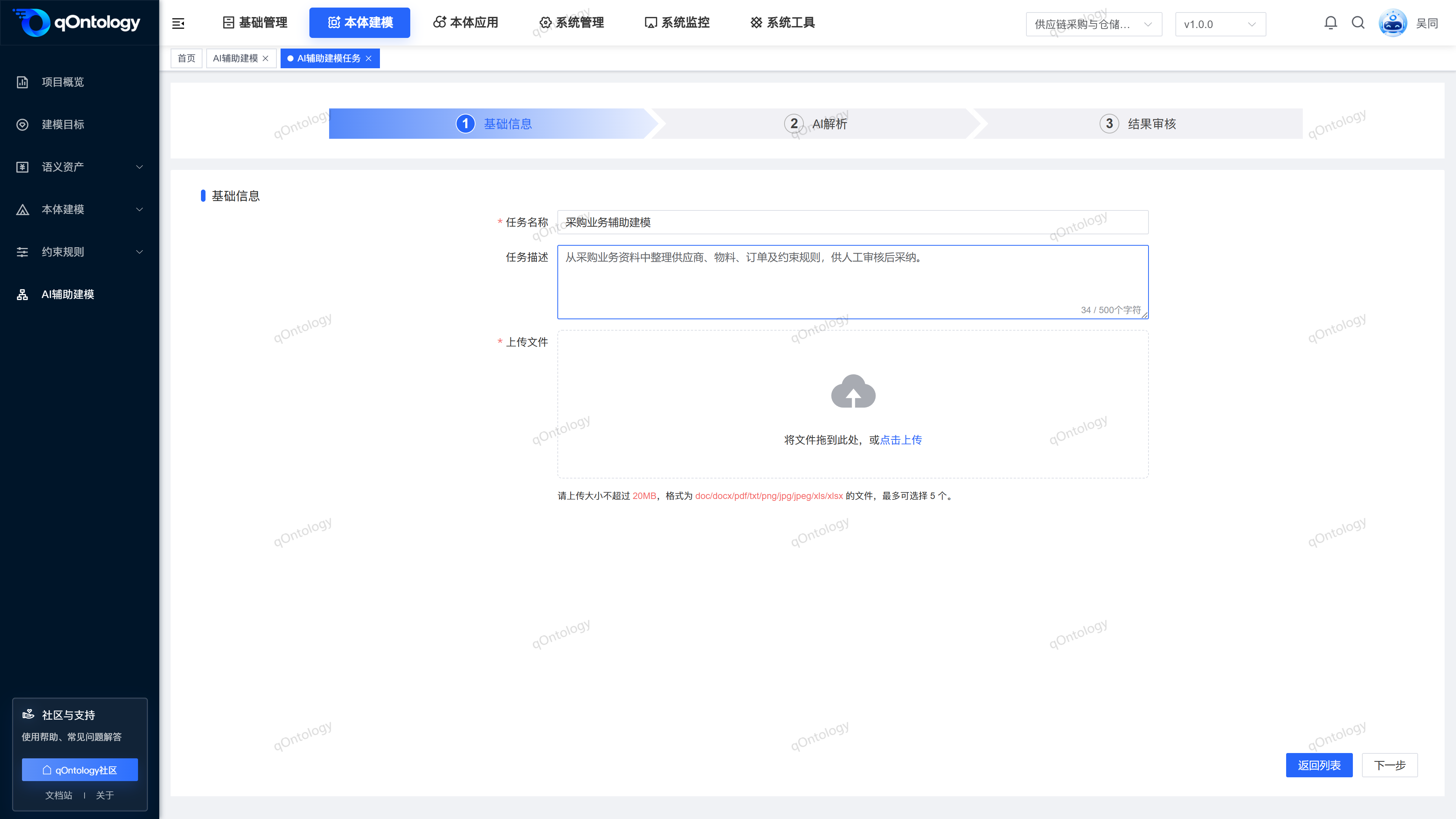
- Fill in the task name and description in [Basic Information].
- Upload business materials to be analyzed.
- Click [Next].
- Check the progress and tips in the [AI Analysis] stage.
- Task Name: To facilitate the differentiation of materials and modeling purposes, maximum 100 characters. (required)
- Task Description: Describe the scope, up to 500 characters. (optional)
- Upload files: At least one file, up to 5 files; the current task form file limit is 20 MB. (required)
Result: After submitting the basic information, create a task and start parsing; only after the parsing is successful can you enter the result review.
Supports doc, docx, pdf, txt, png, jpg, jpeg, xls, xlsx. Check the format and size before selecting materials; it is recommended to use materials with clear text, clear table structure, and concentrated business scope, and supplement the terminology, coding, and business rules descriptions. Don't rely solely on the file extension to determine that the content must be parsable.
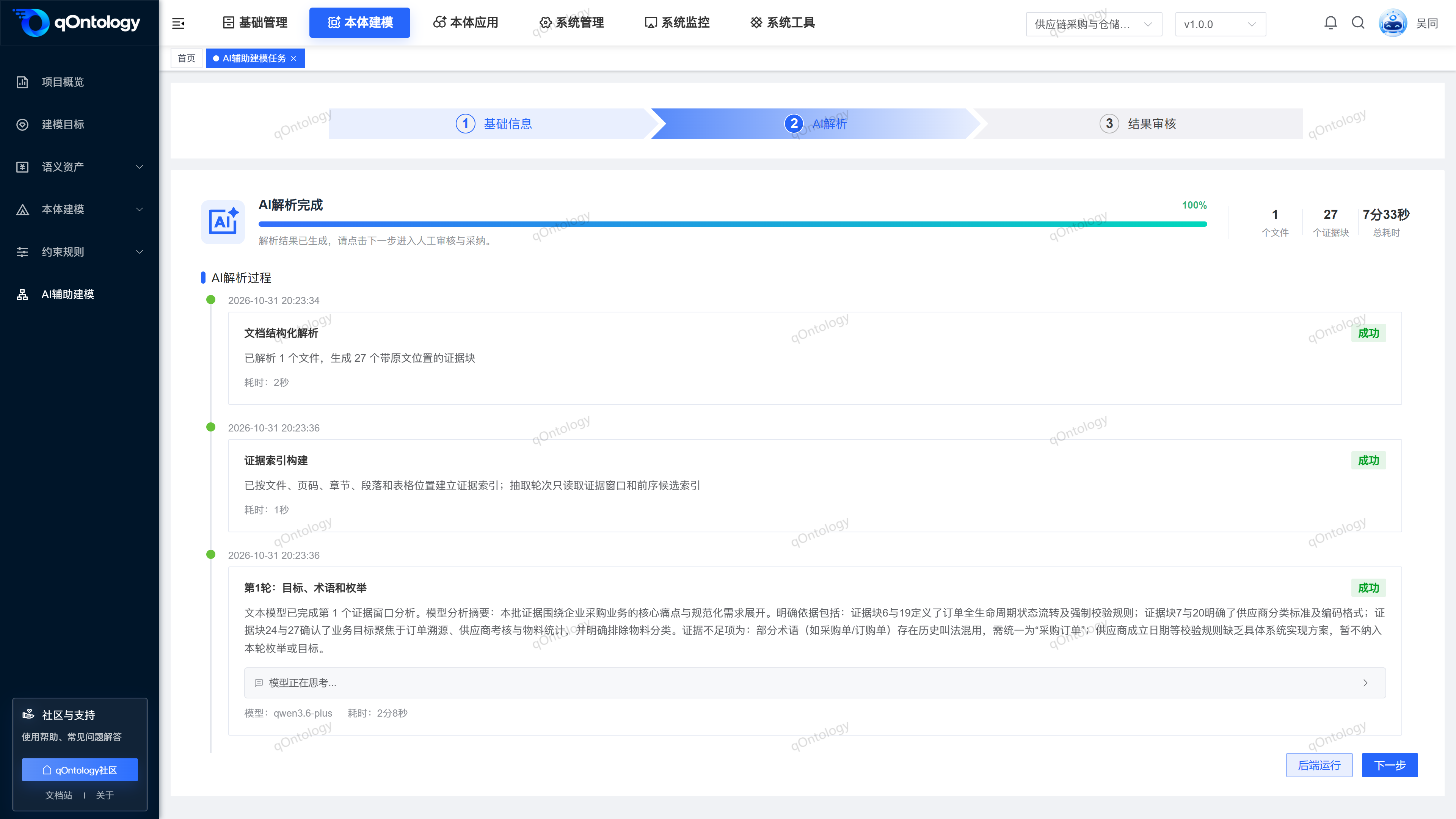
[AI Analysis] The stage displays the overall progress, stage status, summary, and actual recorded model information and time consumption. Parsing includes file processing, evidence indexing, and multiple rounds of candidate generation. Success in this stage does not mean that all candidates have been approved. During the parsing period, you can click [Backend Run] to return to the list, and the background task will continue to be processed; this does not mean canceling the task, and there is no need to click and reparse repeatedly to view the progress.
After the parsing is successful, the page displays [AI parsing completed], click [Next] to enter the result review. If you need to process it later, you can also return to the task list and continue the review from [Details]. When parsing fails, first check the cause of the failure, correct the file or model service configuration, and then try again.
Review and complete candidates
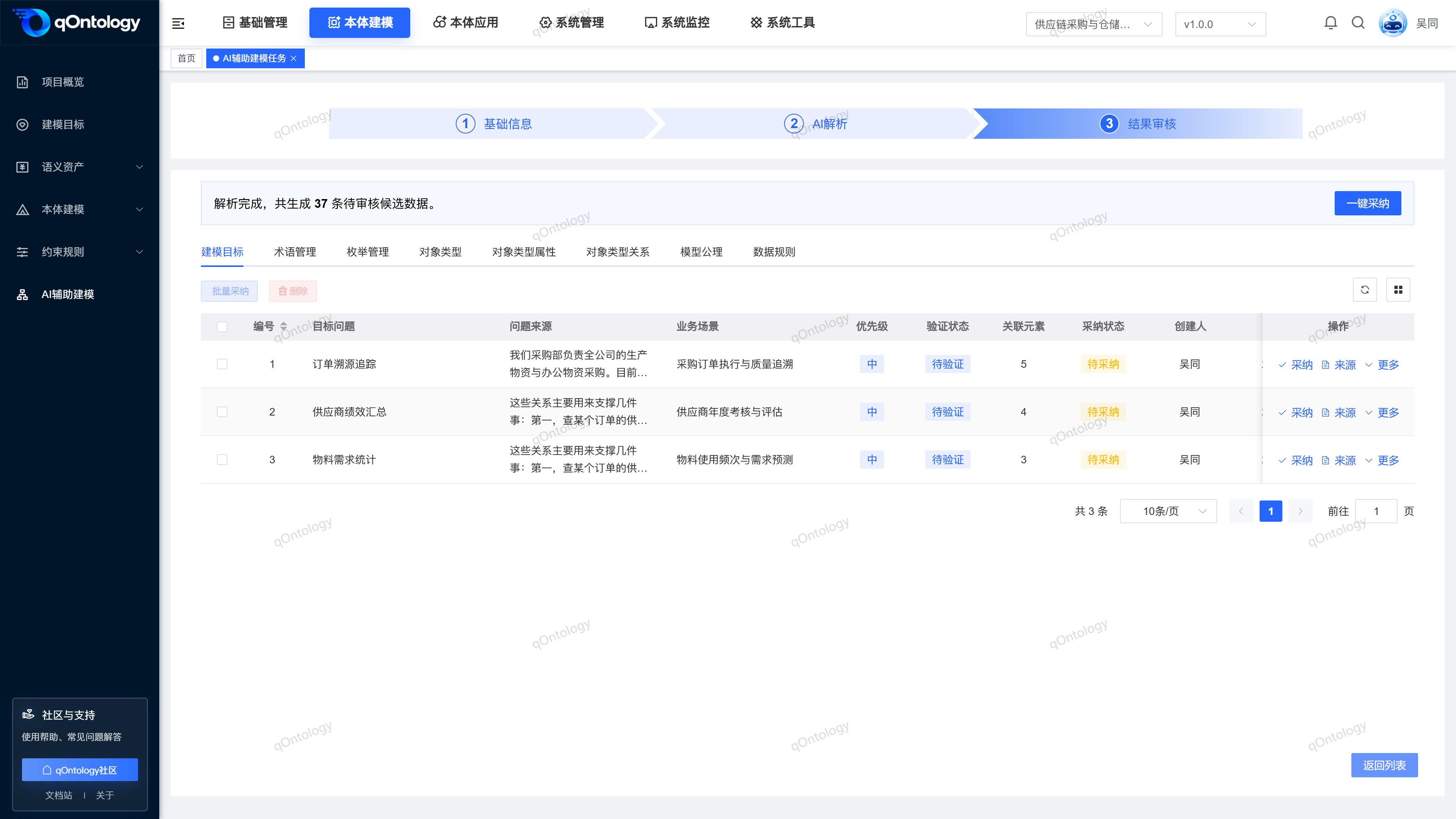
- After successful analysis, click [Next] to enter [Result Review].
- Switch the candidate category tabs that need to be reviewed.
- Click the candidate line [Source] to check the business meaning against the original text.
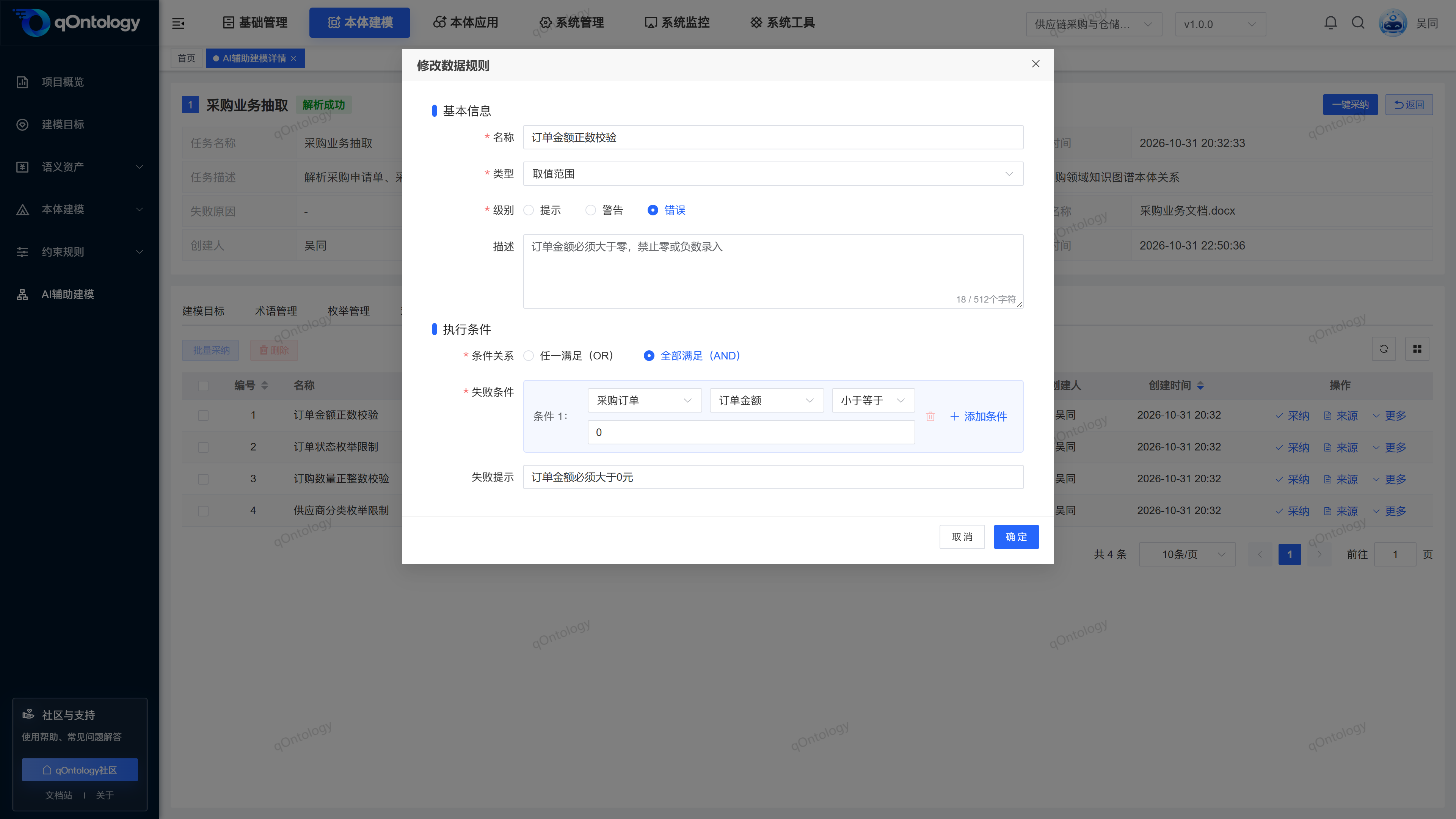
- Complete the necessary fields and related information from the candidate row [More] > [Modify].
- Save changes.
Result: The revised candidates can continue to be reviewed and adopted, and the content that has not yet been adopted is not equivalent to the formal model.
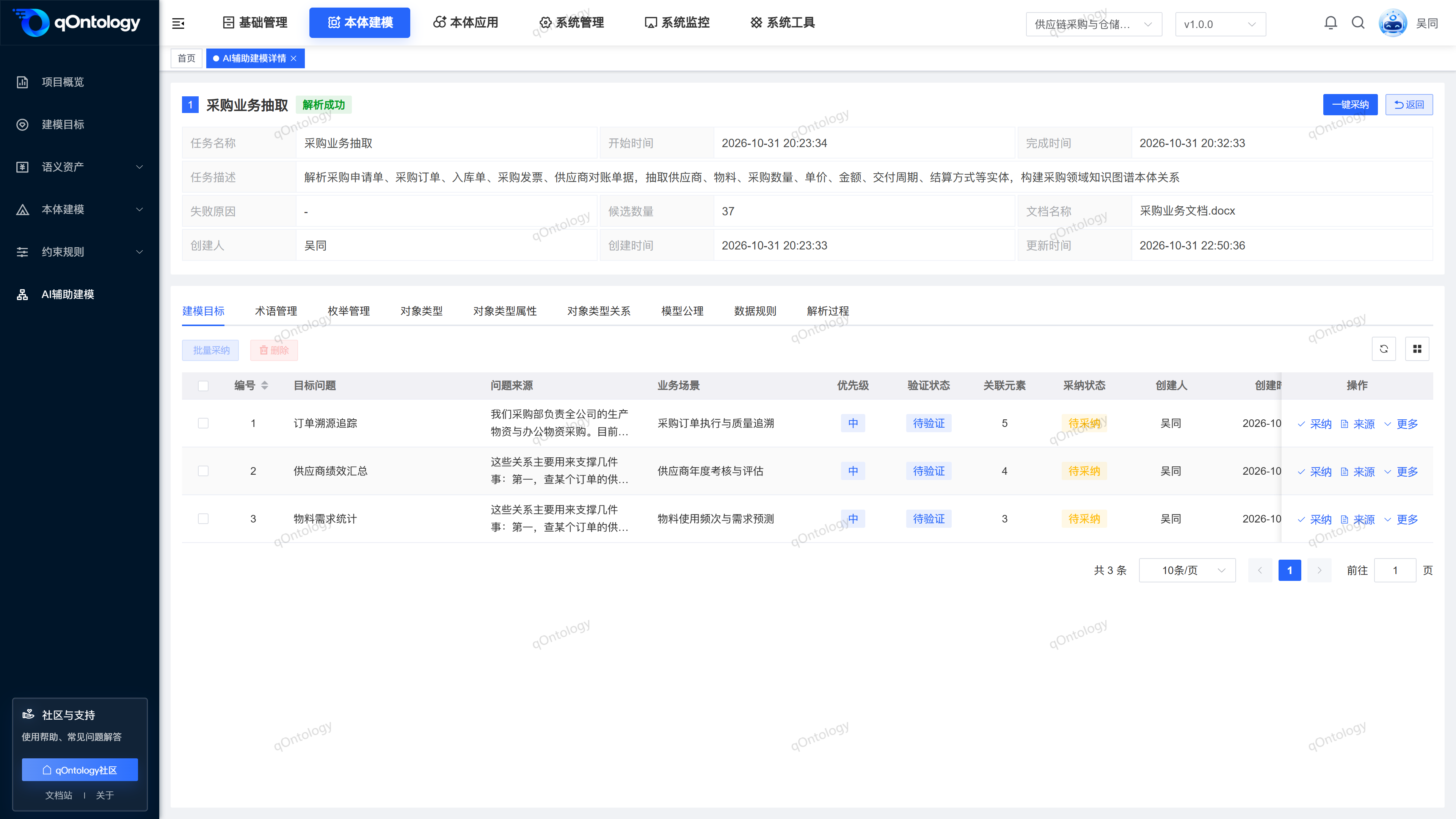
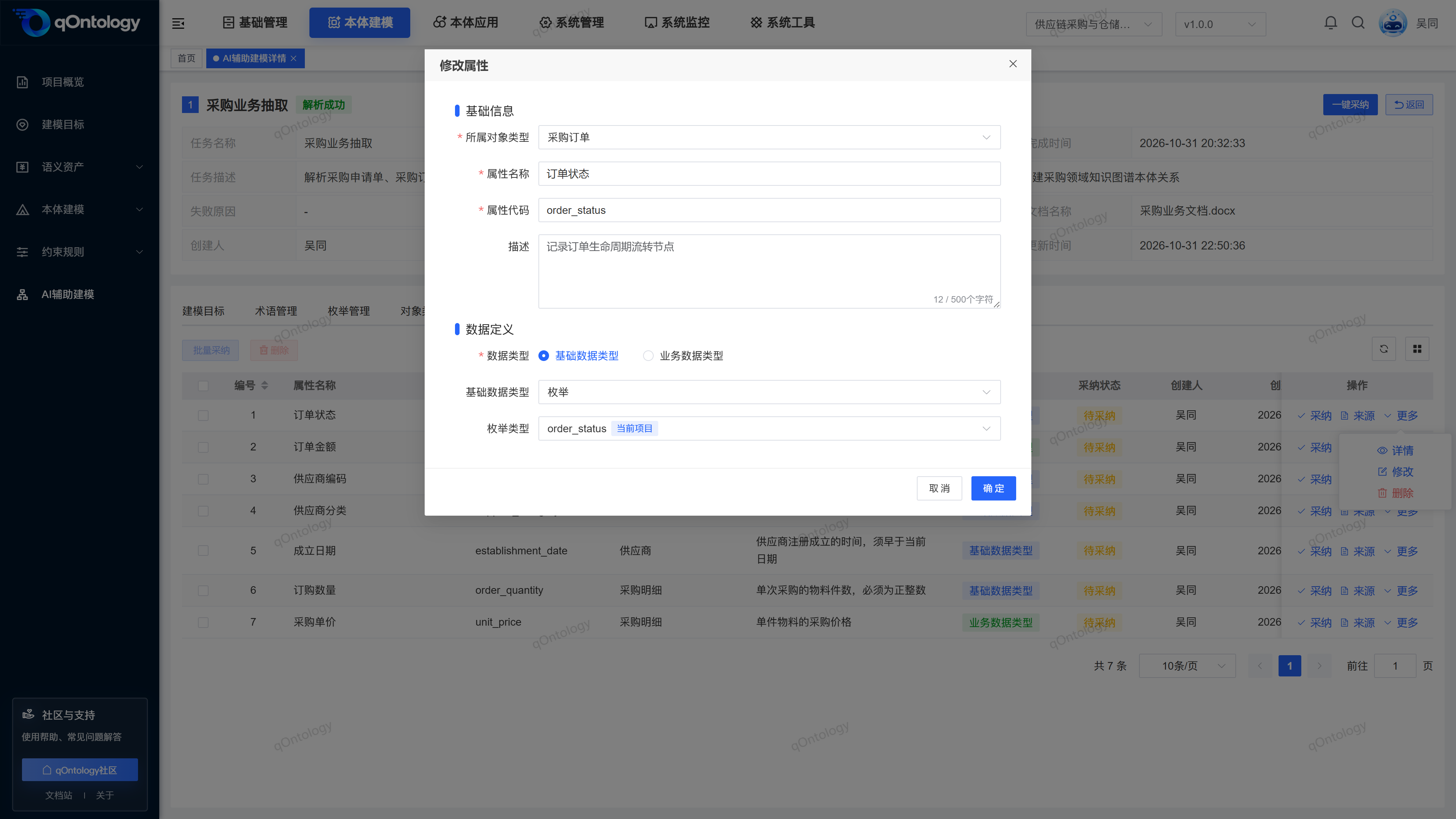
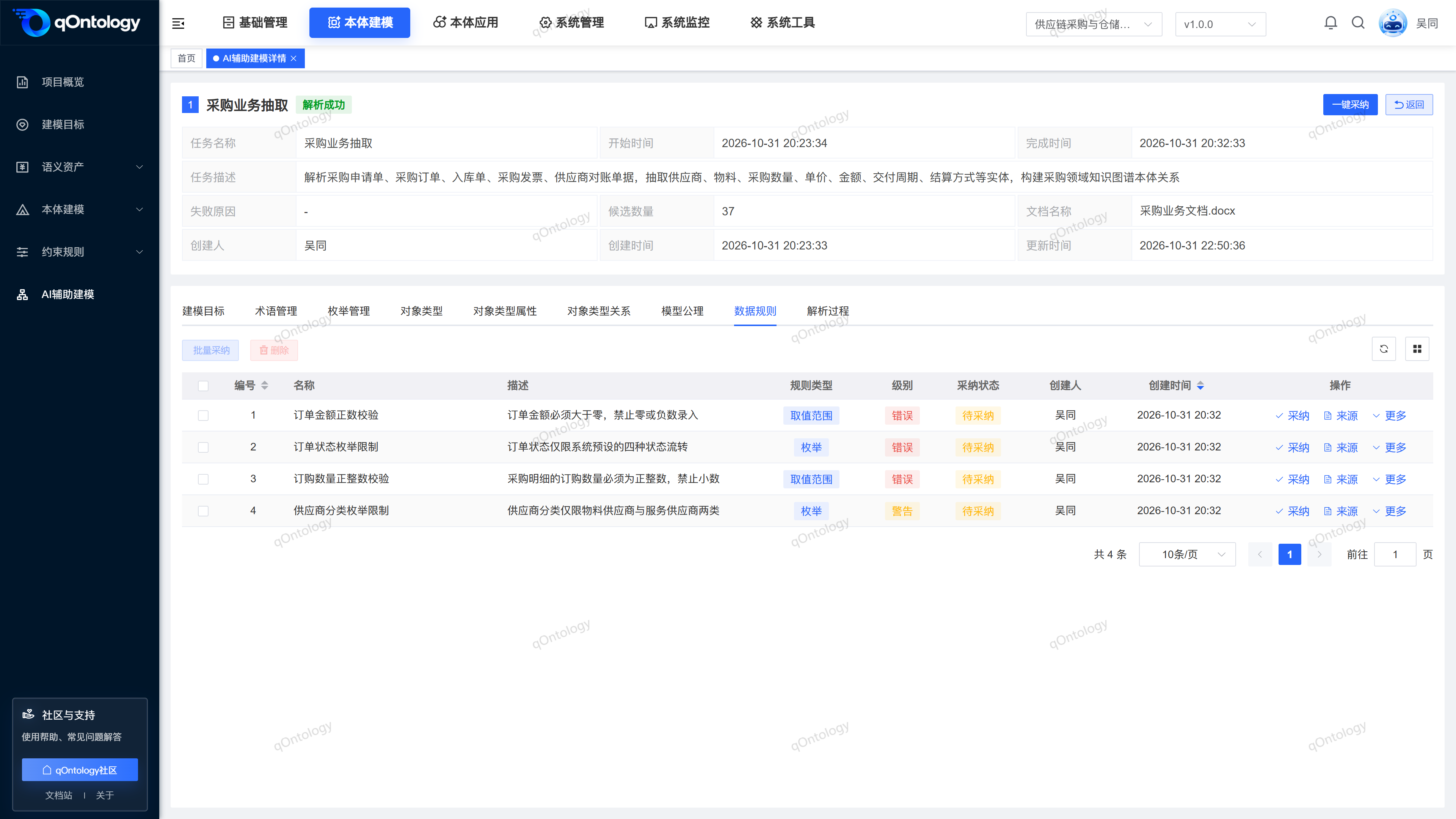
The details page provides eight categories of candidates [Modeling Goals] [Term Management] [enumeration Management] [Object Types] [Object Types Attributes] [Object Type Relationships] [Model Axioms] [Data Rules], as well as the [Analysis Process] tab. Each type of candidate is paged independently and should be checked page by page during review.
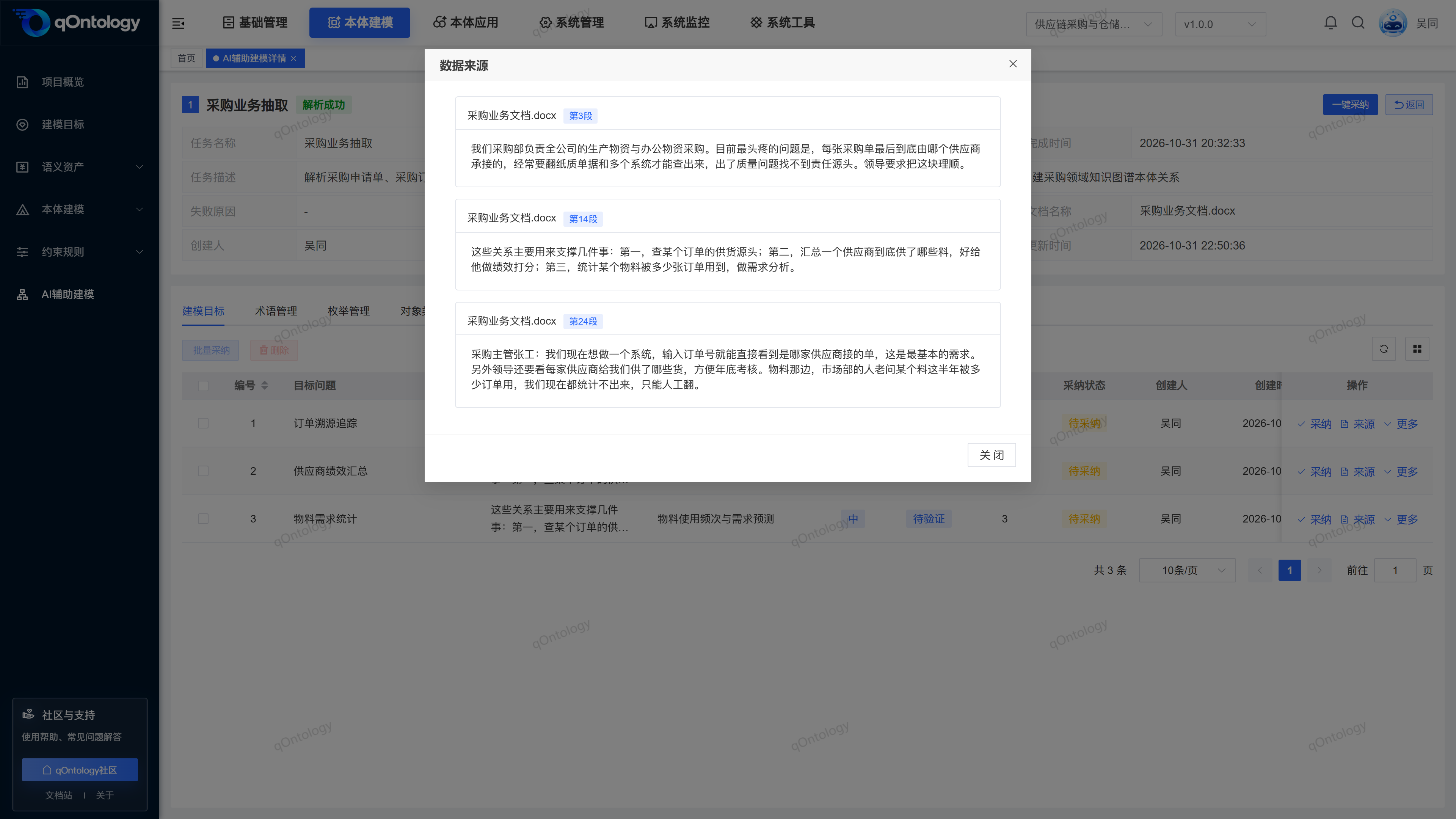
Check source evidence: After clicking [Source], you can view the original file name, original text fragments, and the actual recorded page numbers, chapters, paragraphs, or table row and column positions. The source is used to explain why the candidate was generated, which does not mean that the AI conclusion is correct; when there is no source evidence, the original document should be returned for manual verification and it is not suitable to be adopted directly.
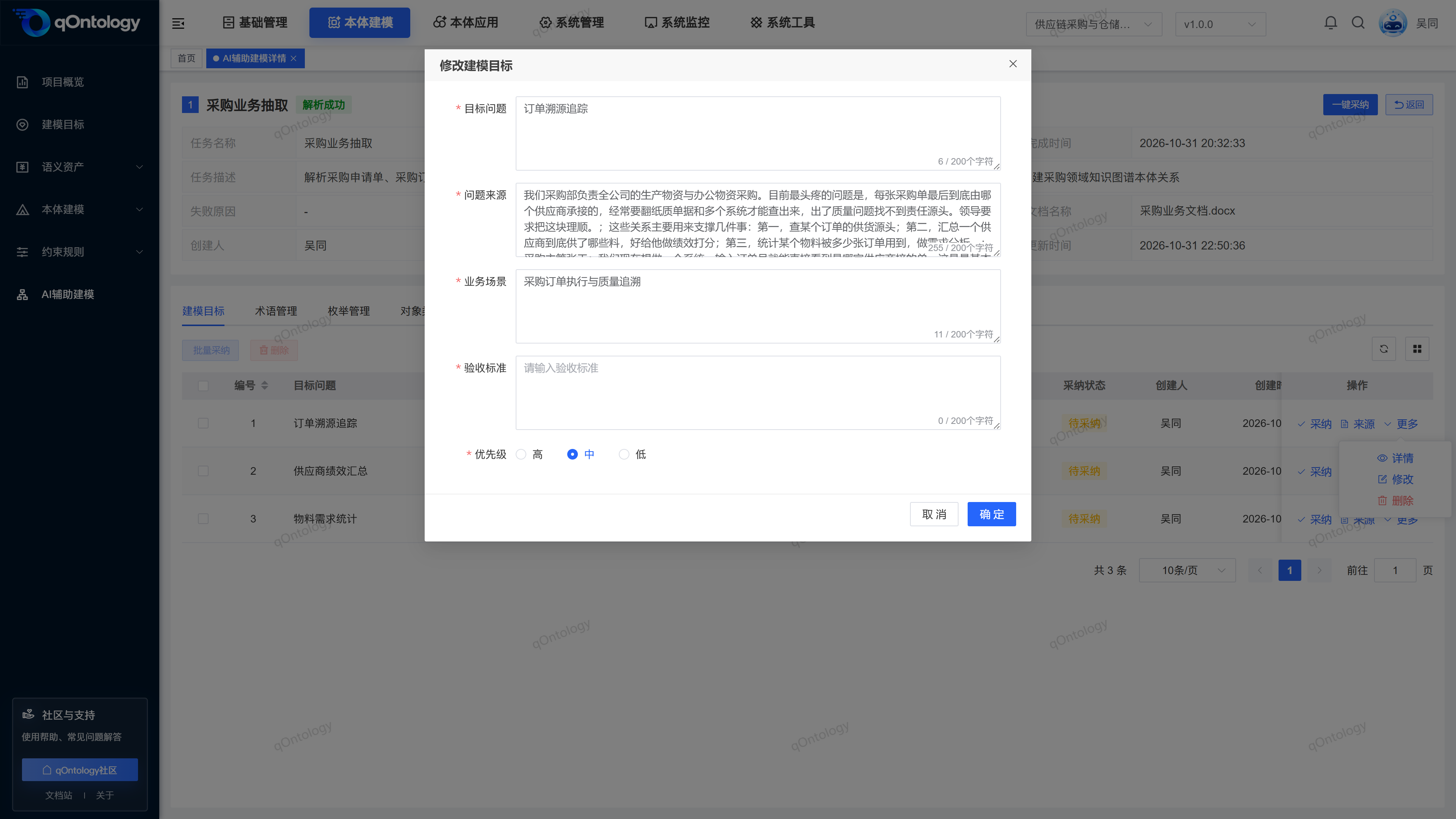
Review points for various candidates:
| tab | Key points to check | Preparation for adoption |
|---|---|---|
| Modeling Goals | Target problems, problem sources, business scenarios, acceptance criteria and priorities. | Complete the required fields such as acceptance criteria and confirm that the target falls within the current modeling scope. |
| Terminology management | Name, English name, aliases, abbreviations, origin and description. | Unify synonyms and historical names to avoid repeated adoption of the same concept. |
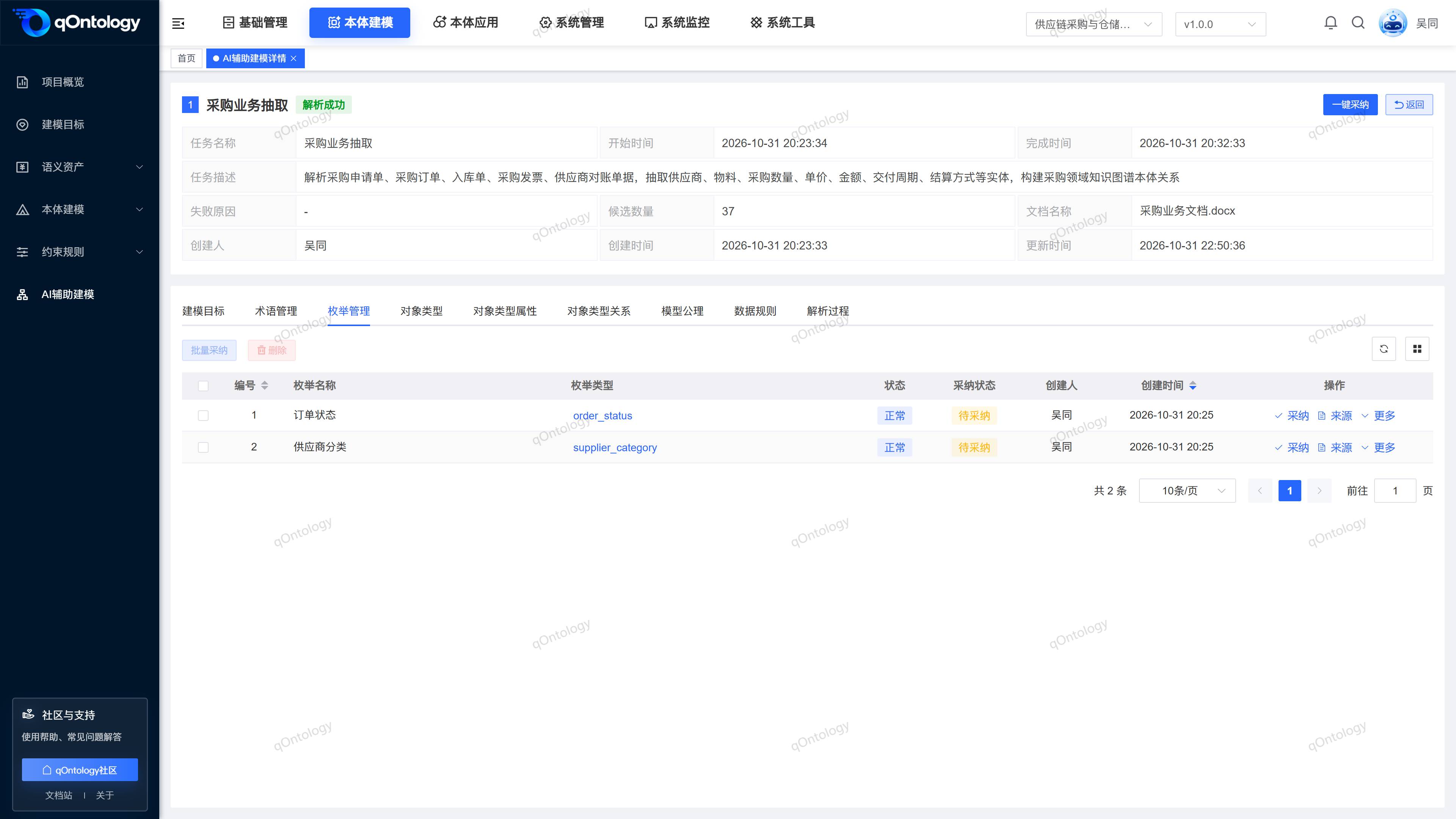
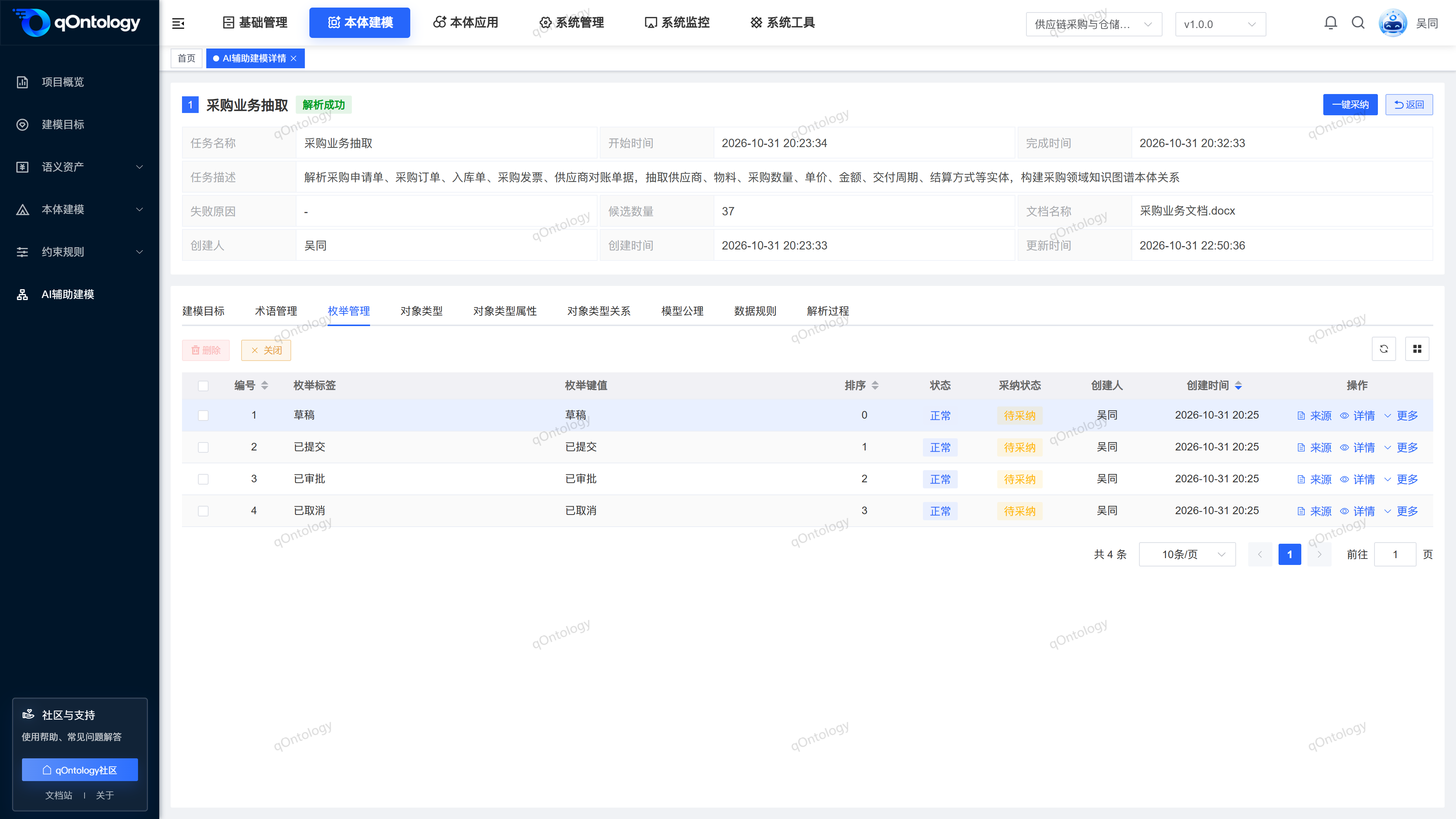
| enumeration Management | enumeration name, type code, status and the label, key value and sorting of the enumeration items under it. | Enter the enumeration data page corresponding to the type code to check the options to avoid mixing labels with actual codes. |
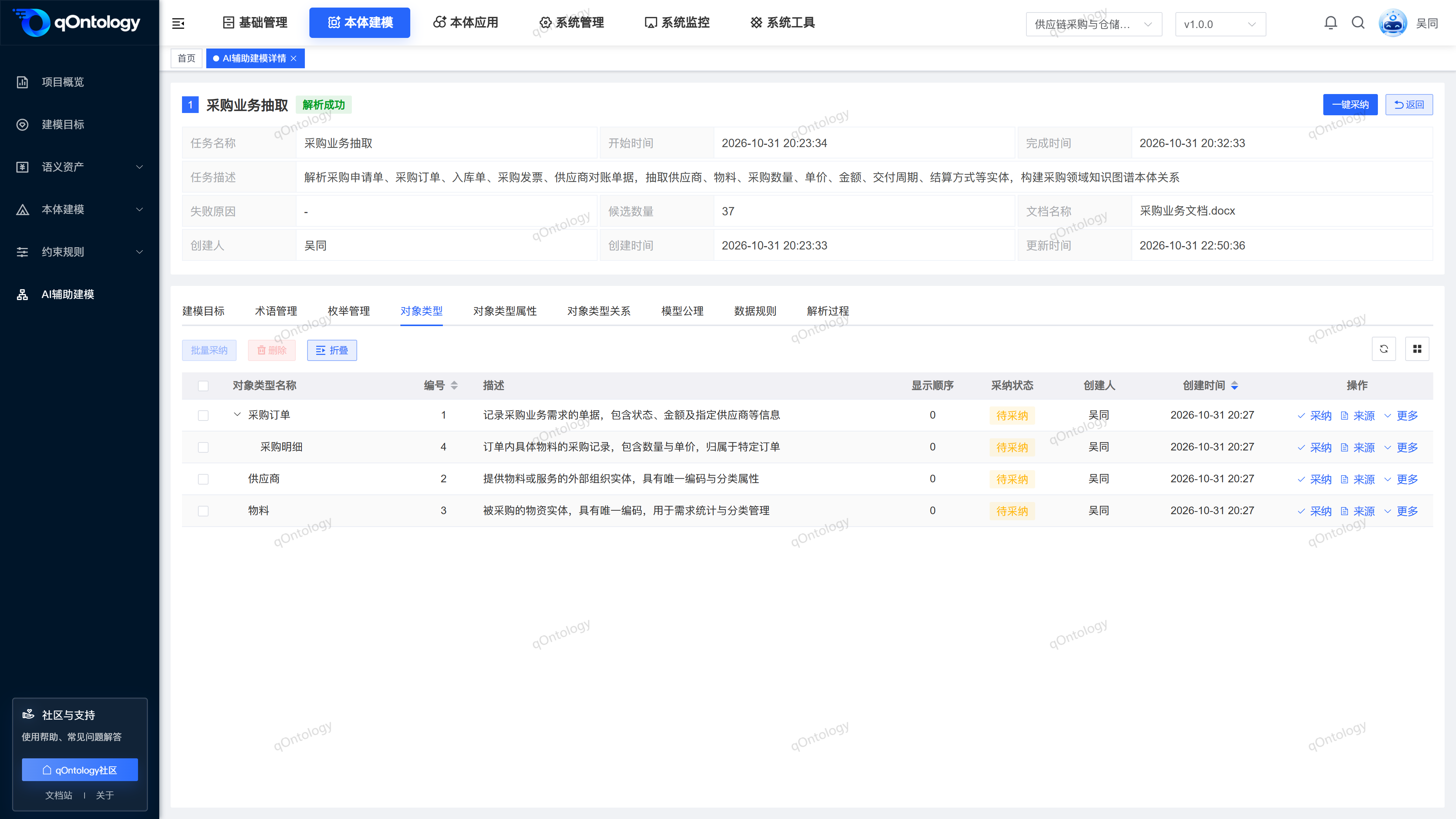
| Object Types | Object name, parent-child level, description and association Modeling Goals. | The associated target is adopted first; when a parent type candidate exists, the parent type is adopted first. |
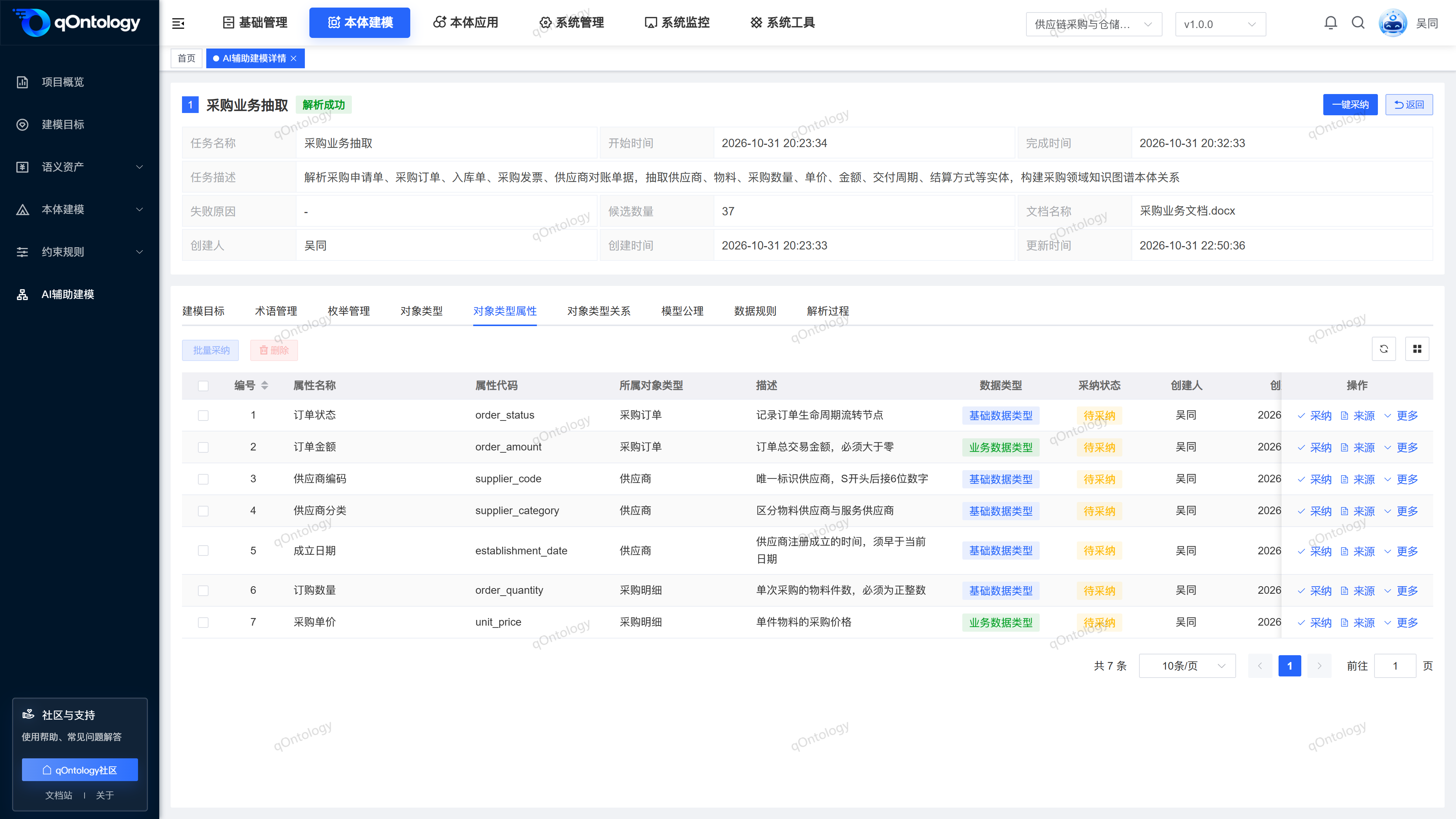
| Object Type Attributes | The attribute belongs to the object, name, code, base or Business Data Types, as well as the unit, decimal places, date format, enumeration and other parameters. | First adopt the belonging object and check whether the attribute code and type parameters conform to the business meaning. |
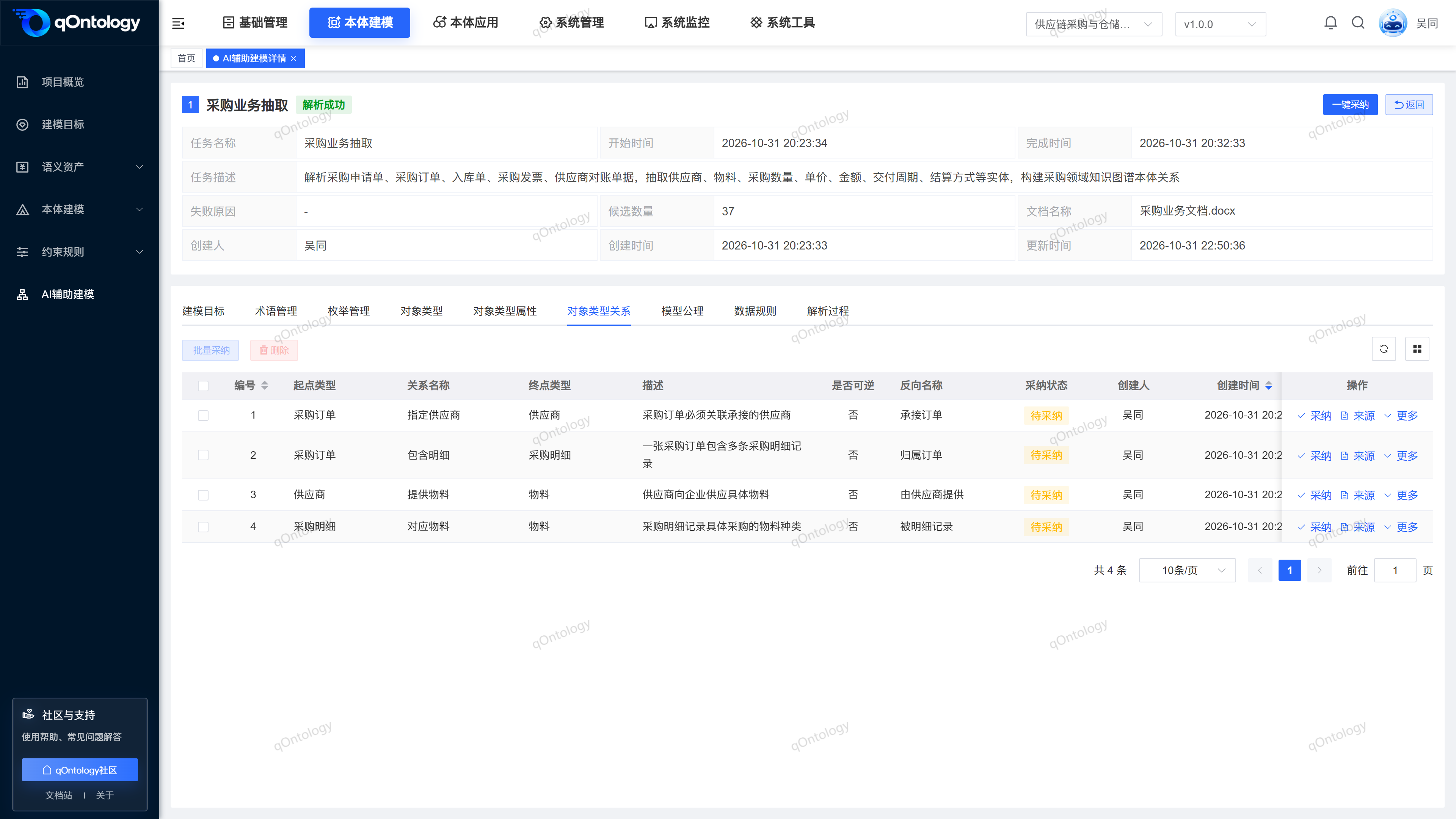
| Object Type Relationships | Starting point, relationship name, end point, reversible setting, reverse name and associated target. | First adopt the objects at both ends and the associated goals to check the direction of the relationship. |
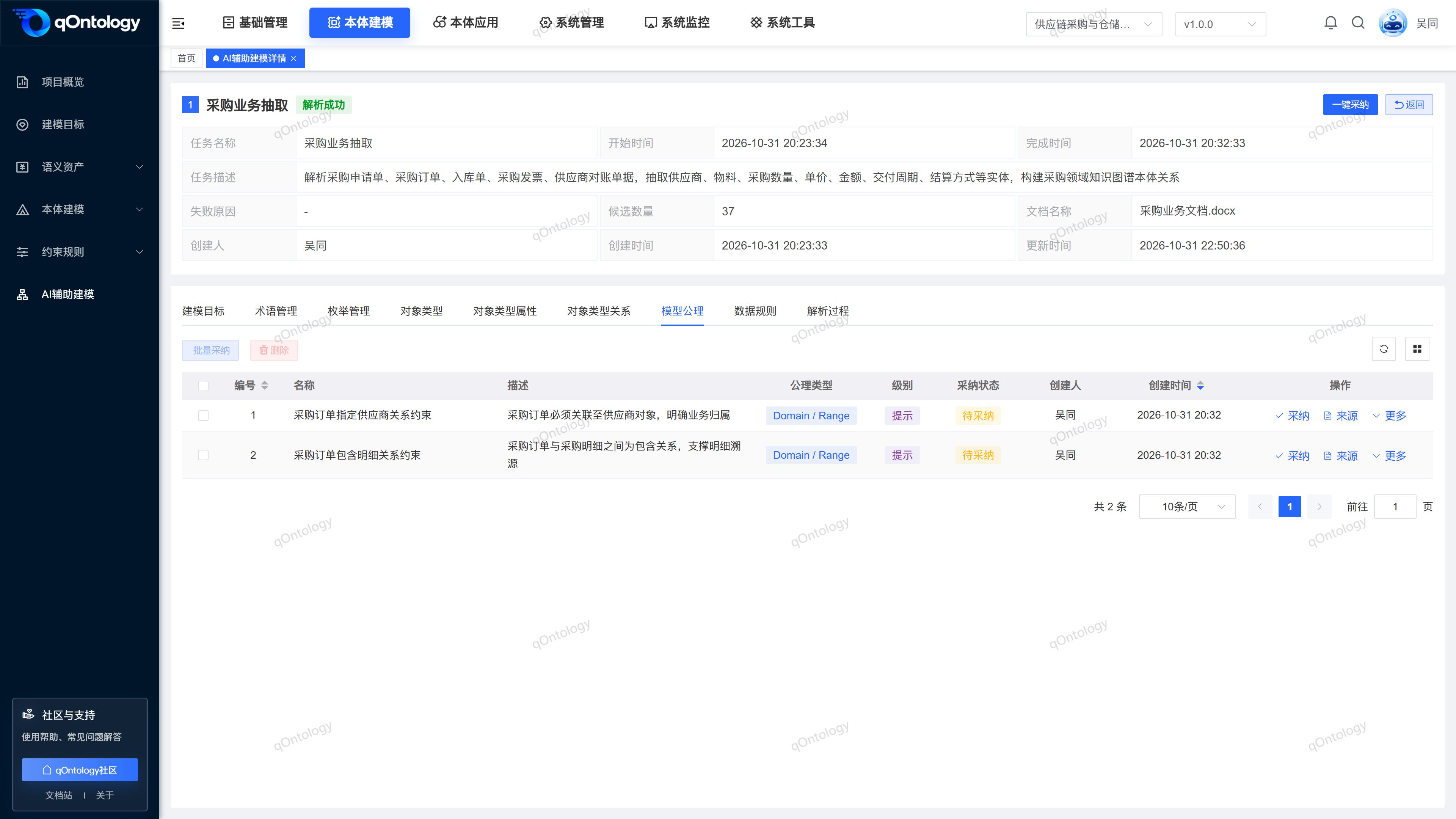
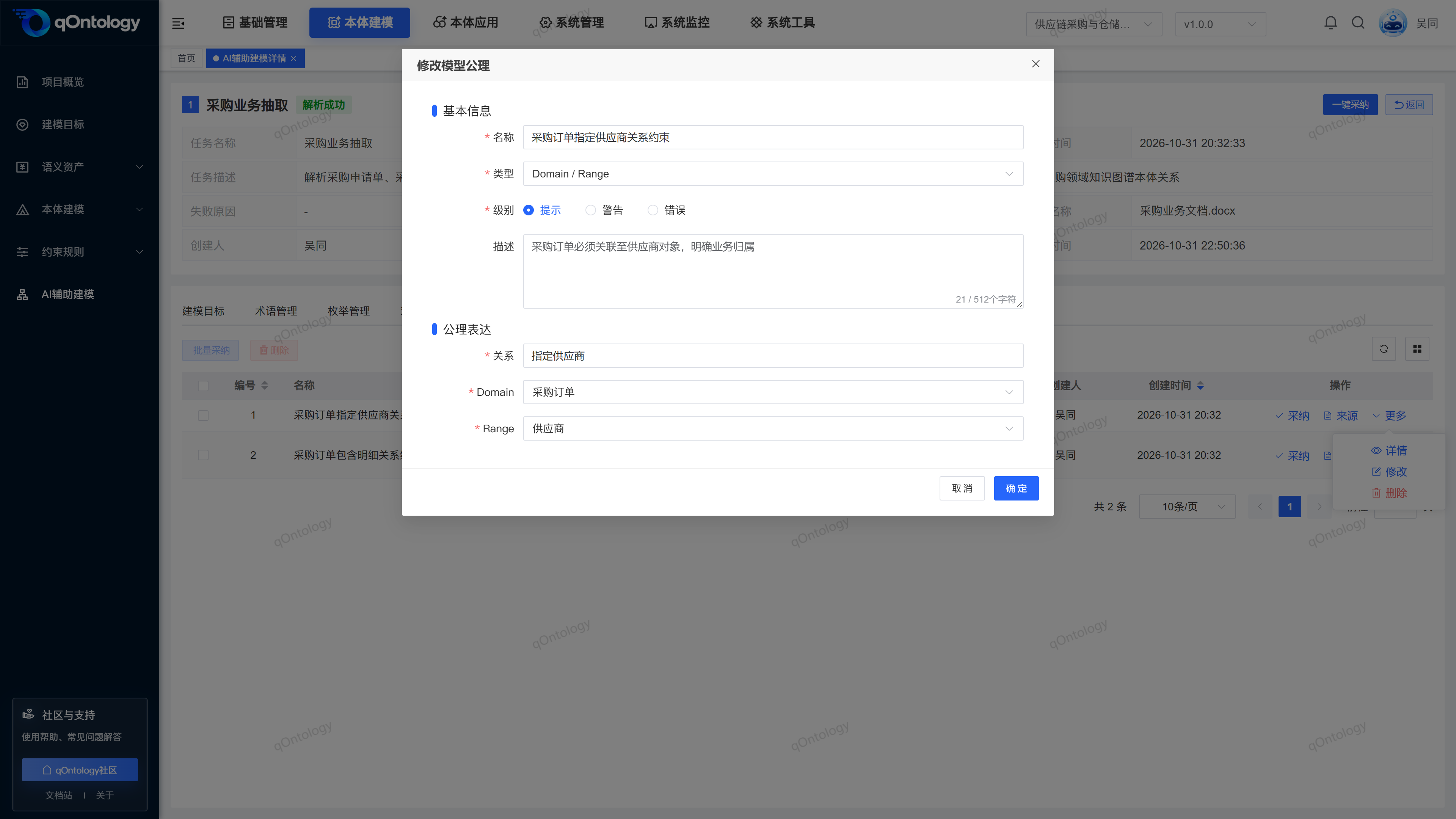
| Model Axioms | Axiom type, level, and corresponding object, attribute, relationship name, Domain/Range or attribute range. | First adopt the objects and attributes referenced by the axiom, and then check whether the type-specific fields are complete. |
| Data Rules | Rule type, level, failure condition, OR/AND condition relationship and failure prompt. | First adopt the objects and attributes referenced by the condition; make it clear that the condition describes the unqualified situation. |
Modeling Goals and terminology: The goal should be able to explain what questions need to be answered and how to judge that the model has been covered; the terminology should express stable business meaning. Candidate modifications only update the draft, and clicking [OK] in the modification window will not replace adoption.
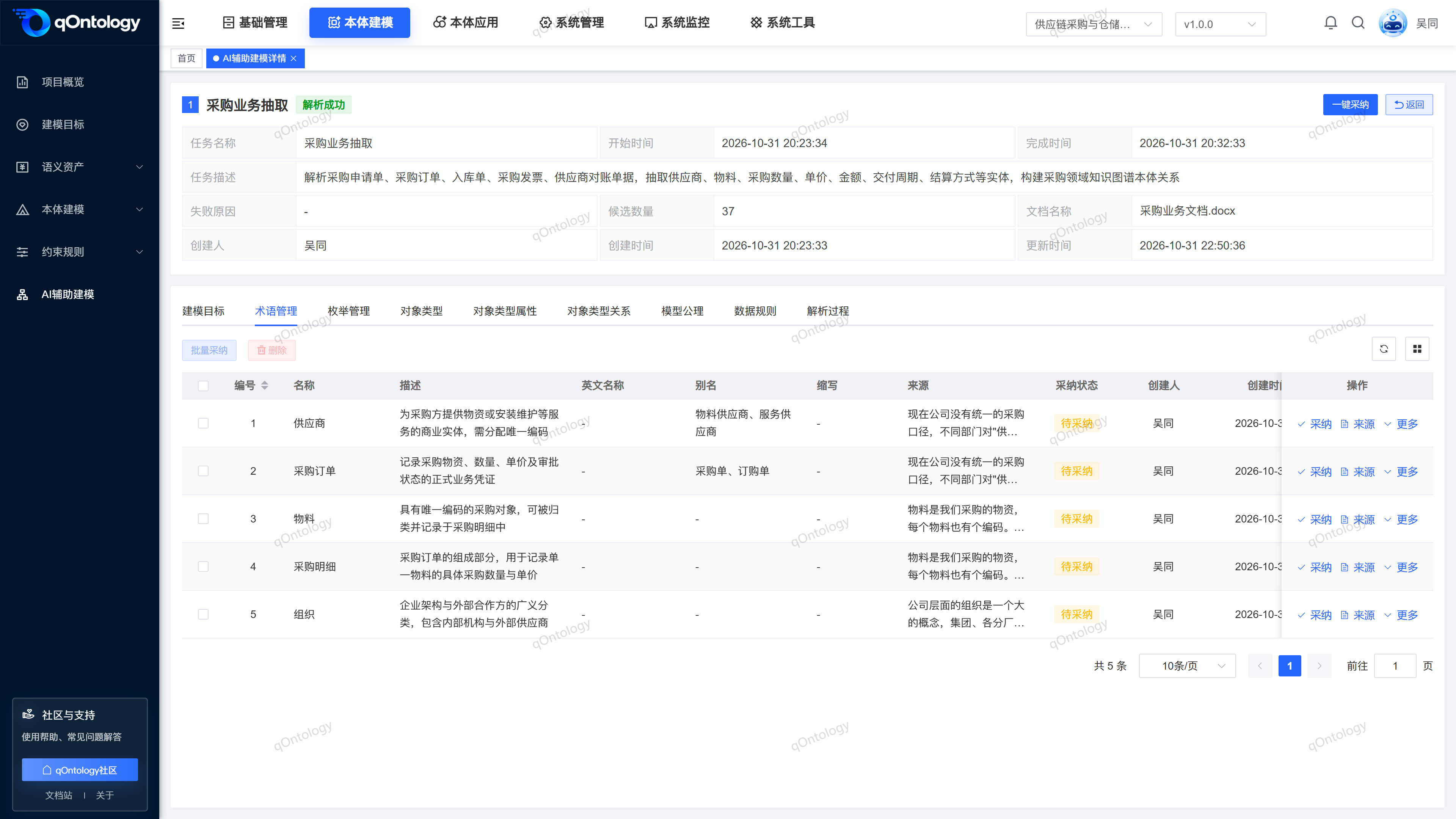
enumeration type and enumeration data: Check the type first, then click the type code to view the enumeration item under it. The enumeration item is adopted together with the enumeration type it belongs to. You cannot just check the type name and ignore the specific value.
Objects, attributes and relationships: Object Types represents the business category, the attributes describe the information the category has, and Object type relationships describe the connection between categories. Do not take the specific supplier name as Object Types, and do not write the direction of "supplier provides materials" in reverse.
Axioms and Data Rules: Axioms are used to express semantic constraints of types and attributes, and Data Rules is used to define value failure conditions. For example, if the qualified quantity should be greater than 0, then the failure condition should express "less than or equal to 0". When there are multiple failure conditions, the comparison direction and OR/AND must be checked one by one. The correct logic cannot be judged just based on the rule name.
Adopt candidate results
- First check and adopt basic candidates such as Modeling Goals, terminology, and enumeration.
- Then adopt Object Types and the attributes, relationships and rules that depend on them.
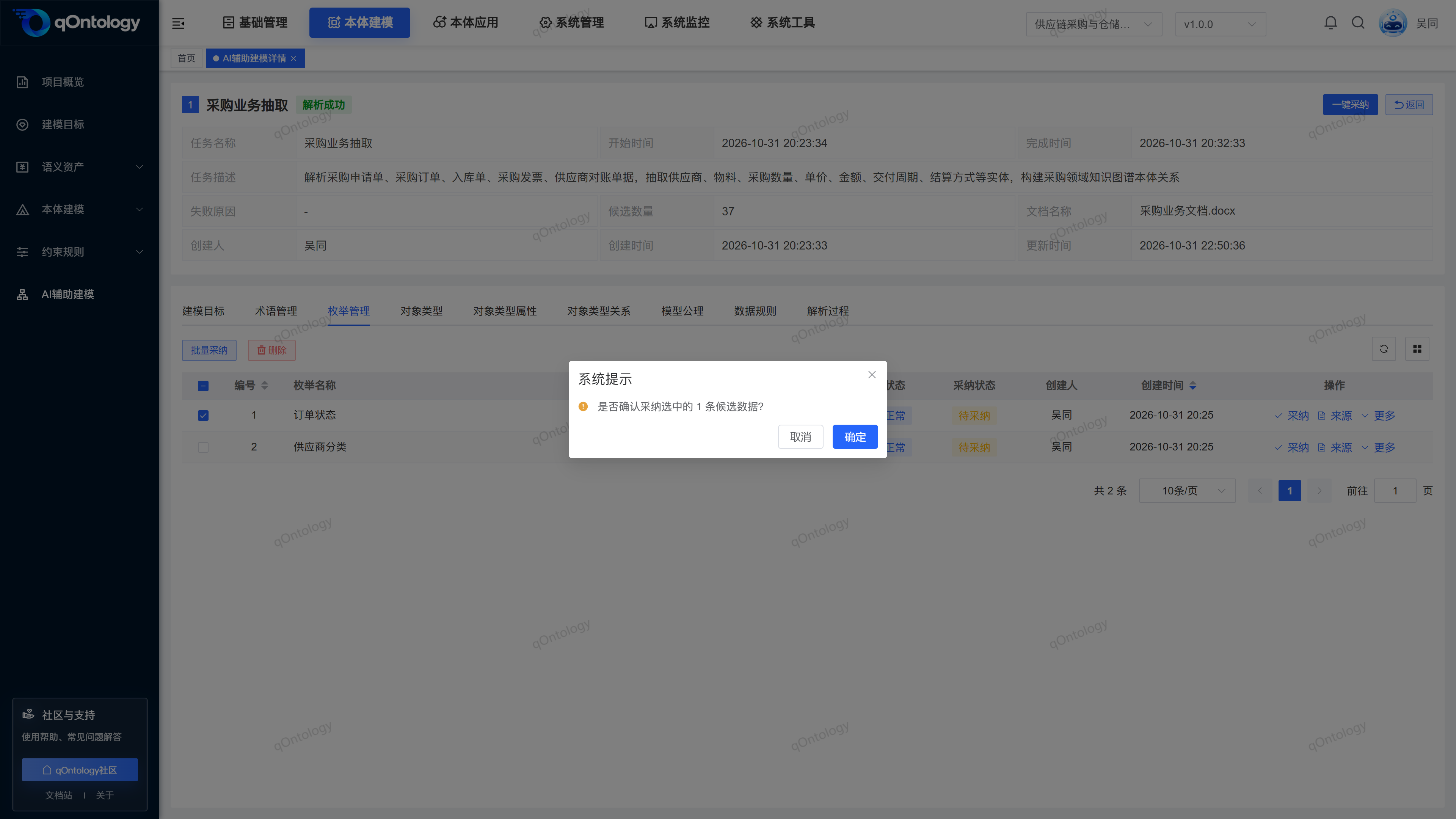
- Click [Adopt] in the row as needed, or check the candidates in the same category and click [Batch Adopt].
- Check the confirmation prompt during batch operations.
- View the number of successes, failures, and reasons for failure.
- Enter the corresponding formal modeling page to review.
Result: Successfully adopted content is written to the version to which the task belongs; failed items need to complete the data or adopt dependencies first and then try again.
A single [Adopt] will directly submit the candidate. Please check the content before clicking. When required fields are missing, follow the prompts to add them from [More] > [Modify]; when there are unadopted dependencies, process the pre-candidates first. Adoption is also subject to uniqueness requirements such as names, codes, or relationship combinations of the formal model.
[Batch Adoption] Only process the unadopted candidates selected in the current category, and the confirmation box will display the current number of entries. The failure of a certain item does not mean that other items in the same batch have also failed. You should check the success and failure numbers separately according to the prompts; do not interpret batch operations as all successes or all rollbacks at once.
[One-click adoption] For the entire task, after confirmation, try to process it in the order of Modeling Goals, terminology, enumeration, object, attribute, relationship, axiom, and Data Rules. Partial failures may still occur when dependencies are incomplete, missing fields, or duplicates of saved model data; "Adoption Complete" cannot be used in lieu of a check result count. The dependencies of parent and child objects should also be checked separately. If necessary, adopt the parent object first and then retry the child object.
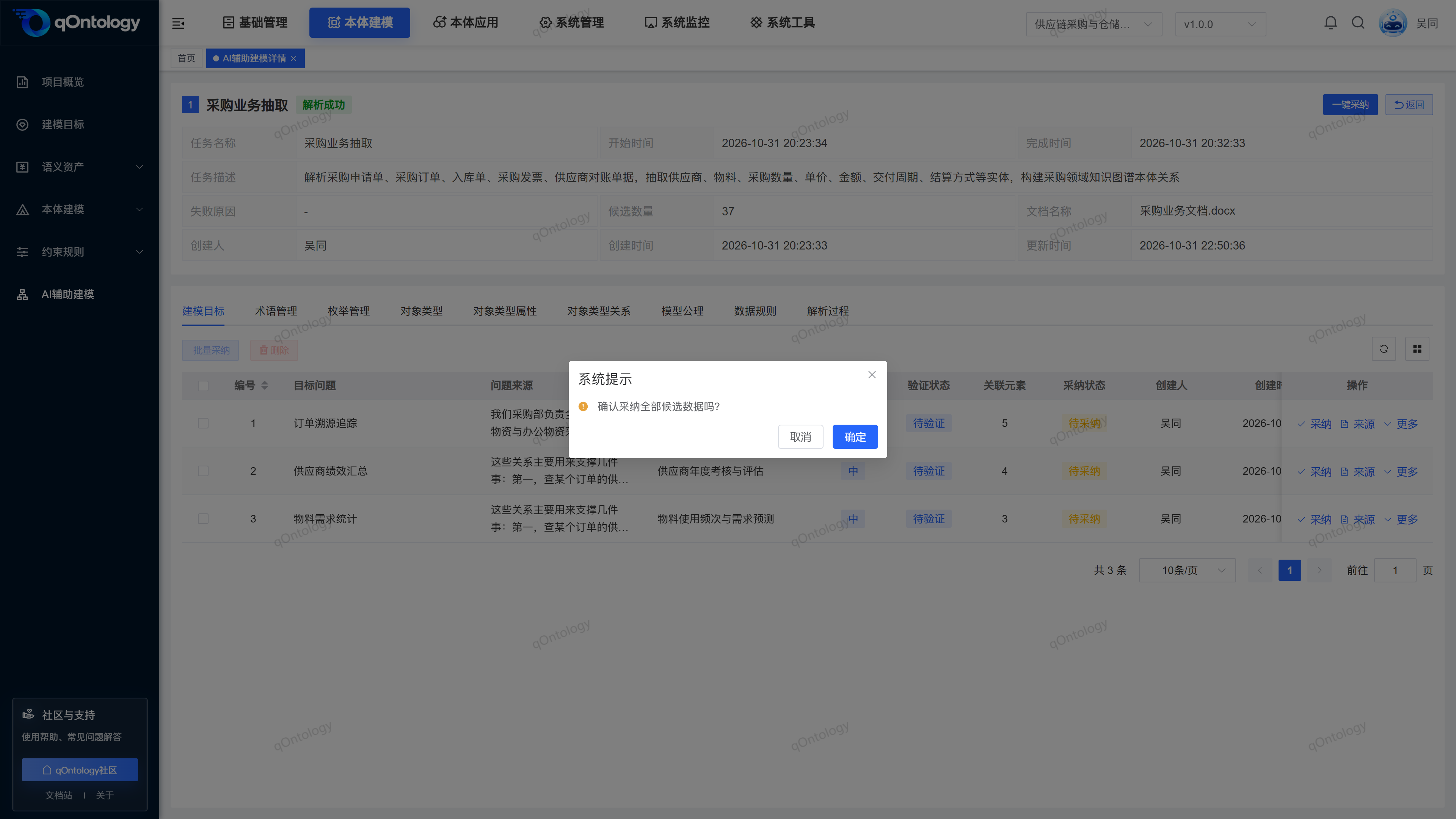
After success, check the [Adoption Status] of the corresponding candidate, and check the saved record and related information on the Modeling Goals, Semantic Assets, Object Types, Object Type Relationships or constraint rules page of the same project version. Entries for modification and deletion of adopted candidates are restricted; when it is necessary to maintain the formal model, enter the corresponding formal page for processing, and the adoption cannot be revoked by deleting the candidate.
Reparse and maintain tasks
- Locate the target task in the task list.
- Click [Reparse] when you need to try again.
- Check the prompts and submit again to try again.
- View tasks and results through [Details].
Result: Retry and restart the analysis. The completion status is judged by the task status and failure reason.
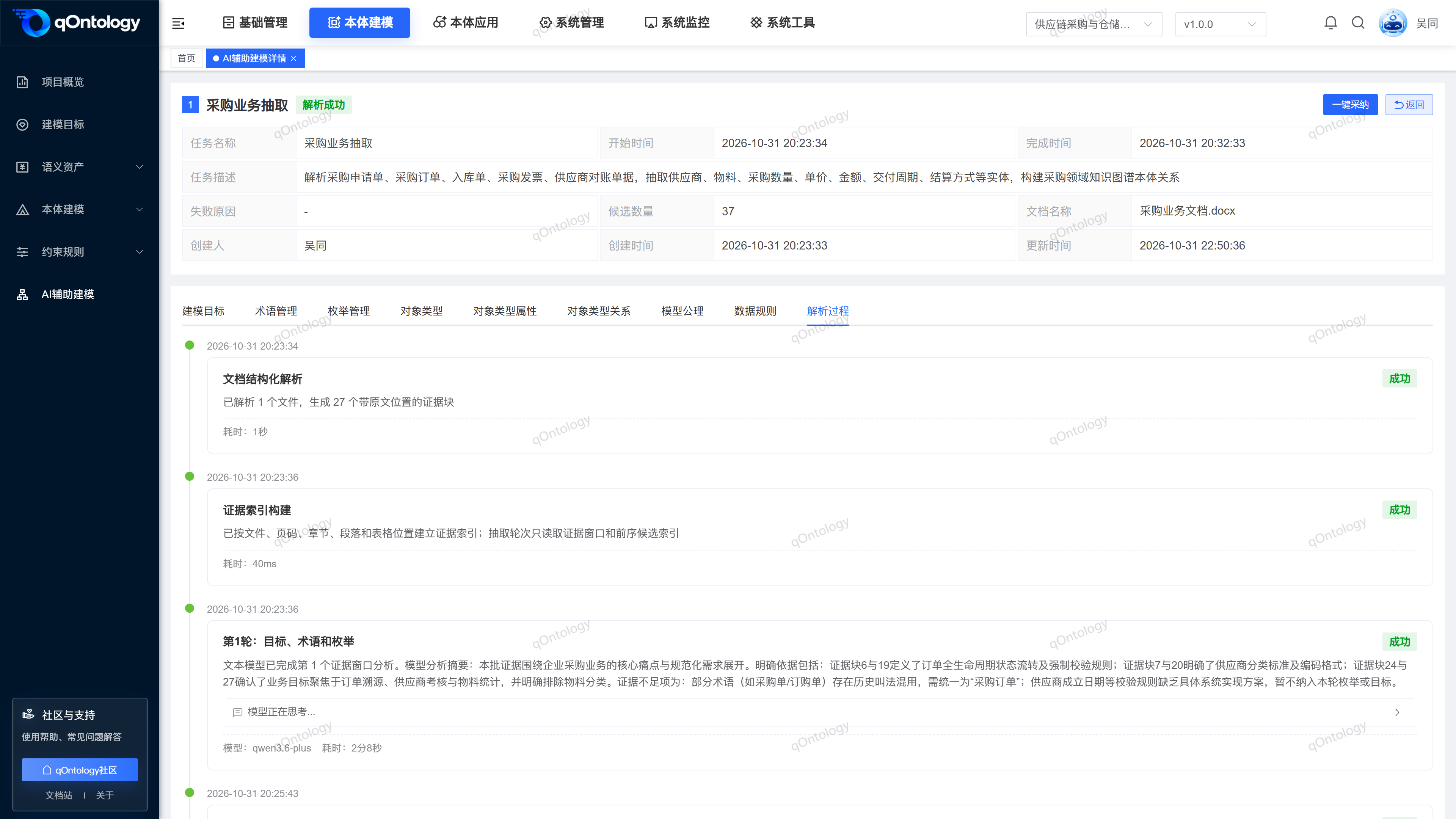
Switch to [Parse Process] in [Details] to view stages such as file parsing, evidence indexing, multiple rounds of candidate generation, and task completion by time, and check stage status, summary, time consumption, and actual saved model information. Whether a stage or task is completed depends on the status. You cannot judge that the task is still running just by the "thinking" prompt in a certain folding area.
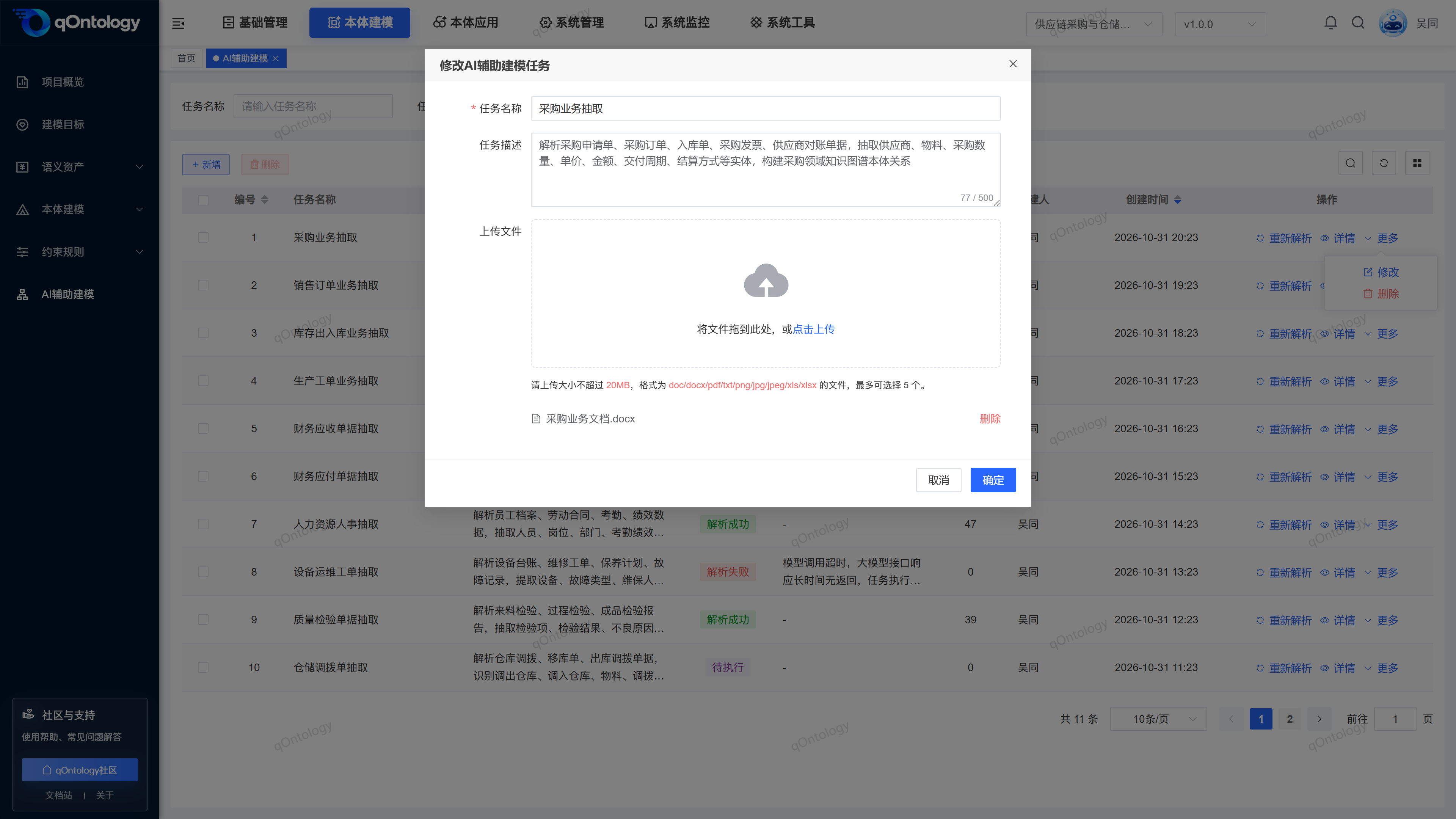
Tasks in execution cannot be modified or deleted. For non-executing tasks, you can adjust the task name, description, and files from [More] > [Modify]; files can be retained, removed, or added, and must still meet quantity, format, and size restrictions. Simply changing the name or description will not regenerate candidates; after updating the file, follow the page prompts and click [Reparse].
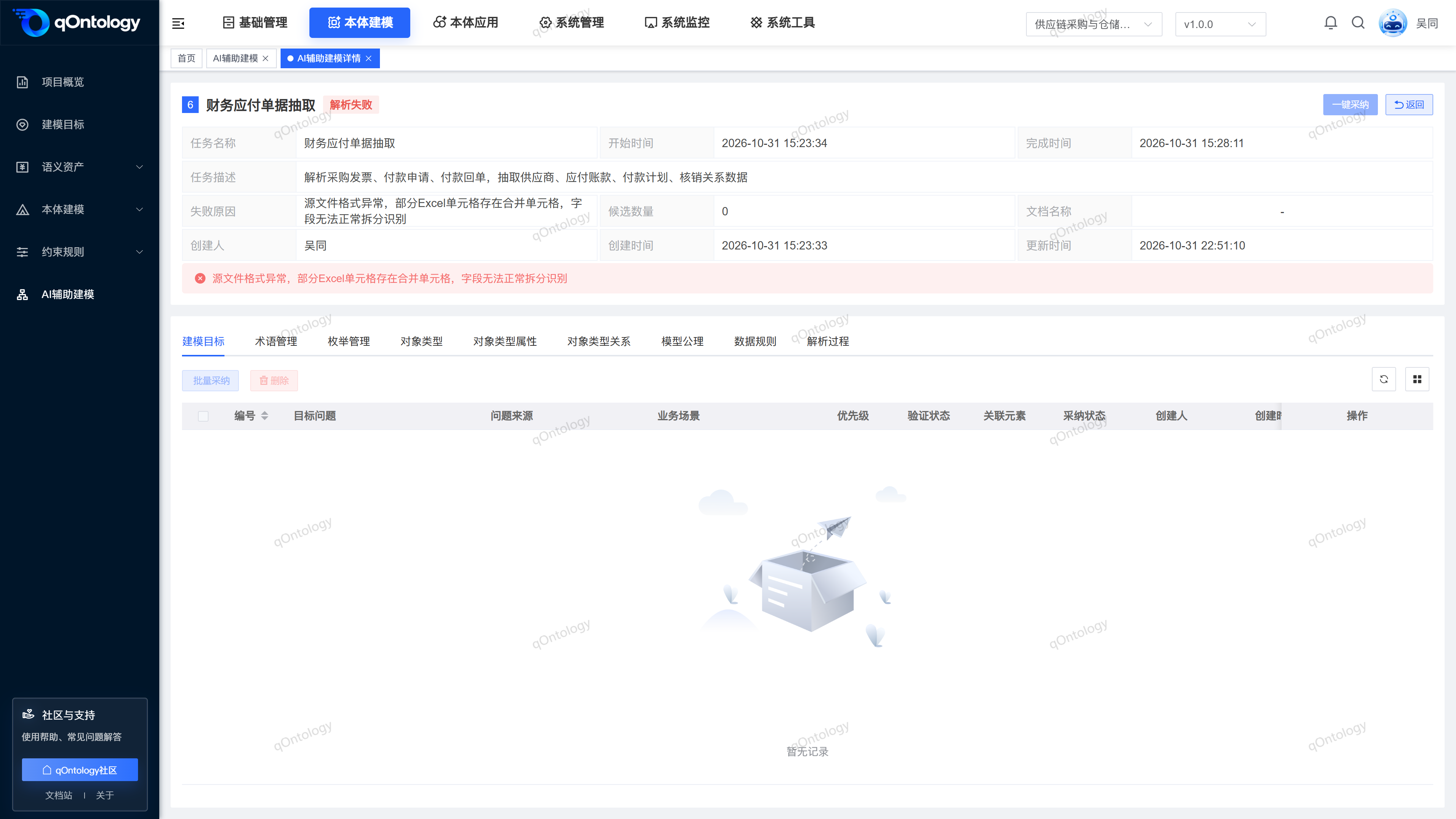
If there is a lack of readable original files, it cannot be parsed again. You should first check and supplement the files in the task modification window; if it still cannot be restored, re-establish the task. When the analysis fails, check the cause of the failure from [Details], and then combine it with [Analysis Process] to determine whether it is a material problem, model connection, or timeout. Correct the cause and try again. You cannot just click to re-analyze.
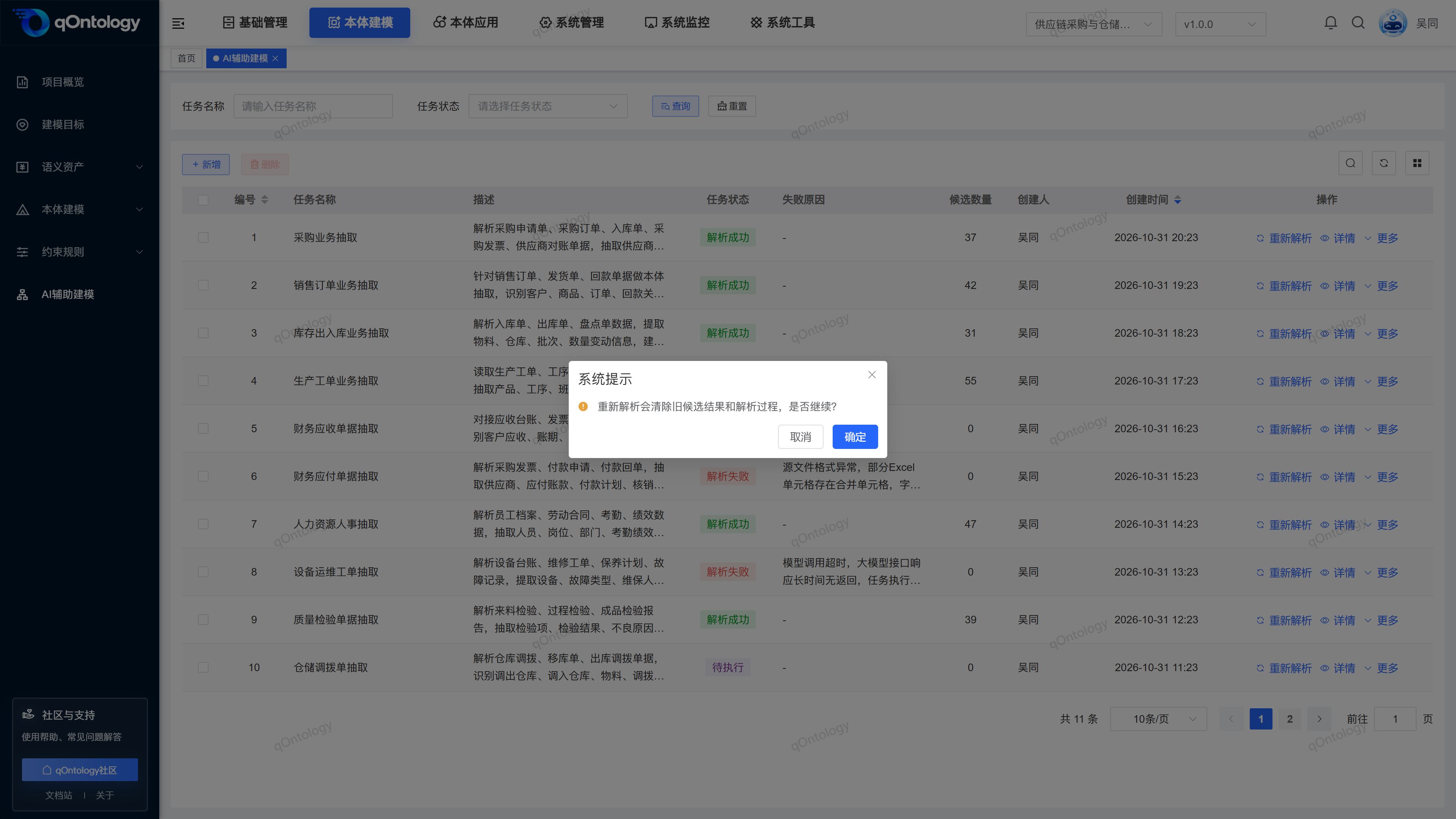
Re-parsing will clear old candidate results and parsing processes, and you should confirm that necessary retention has been completed before submission; re-parsing cannot be regarded as a continuation operation that retains all old audit records. Data that has been adopted into the formal model will not be automatically revoked, and new candidates still need to be re-examined and checked for duplication with existing formal records.
When deleting a task, go to [More] > [Delete] in the task row or click [Delete] above the list after selecting it, and check the confirmation prompt before operating. After the deletion is successful, the task is removed from the list; deleting the task cannot undo the adopted model record, and adjustments to the saved model data should still be completed on the corresponding business page.
FAQ
How to deal with the prompt that there is no permission?
Please ask the administrator to assign corresponding menu and operation permissions; do not treat the non-permission status as the task list is empty.Can successful AI analysis be directly used in business?
should first check the candidate evidence, fields and relationships, and complete the adoption and formal page review.What should I do if the adoption fails and the associated data has not been adopted?
first processes dependencies such as the referenced target or object, and then re-adopts the current candidate.**Why is the parsing successful but the candidate still cannot be adopted?**Successful parsing of
means that the candidate generation process has been completed, but does not mean that required fields, associated dependencies, or formal model uniqueness checks have all passed. Follow the prompts to complete the candidates and try again.Why is there no data for a certain category?
First check the current task, project version and paging; when the data does not provide corresponding information, AI may not generate this type of candidate. Don’t make up business facts just to fill the tabs.Will switching back to the list interrupt parsing?
Using [Backend Run] to return to the list will not cancel the background parsing; you can continue to view the task status and details later.Can re-parsing undo the adopted content?
cannot. Re-parse the reconstruction candidates and process records, and the data that has entered the formal model needs to be maintained on the corresponding business page.Some parts of the one-click adoption failed. Do I need to reprocess everything?
First review the successfully adopted records, only correct required content, dependencies or duplicate issues for failed items and try again to avoid repeatedly establishing the same business definition.
Summarize
Let AI provide draft modeling, and then business people decide what becomes the formal model. Select the project version → Upload materials → AI analysis → Check candidates and evidence → Modify and complete → Adopt according to dependencies → Go to the modeling page for review.