
Knowledge Graph
Feature overview
Purpose
Knowledge Graph displays the gathered business entities and relationships with nodes and connections, and supports viewing entity attributes, associated triples and available source data.
Easy to understand: Follow the connections on the graph to see "which object has what relationship with which object".
Main features
- Graphic Browsing: Locate entities via tree list, zoom and pan.
- Details Traceability: View attributes, relationships and corresponding sources.
- Result Maintenance: Revise entity data with editing enabled, or export the current image.
Scope
This page is used for tasks or map data in Ontology Applications. Menu access, operation entry and task status jointly determine the executable operations.
Before you begin
Prerequisites
- You have logged in to qOntology and have obtained the permissions for this page and the required operations.
- Entities and relationships that can be viewed have been generated by extracting tasks; first check the task release status before importing release data.
- Check task status, release status, and target records before executing operations.
Navigation path
【Ontology Applications】 > 【Knowledge Graph】
Page overview
The tree on the left lists the entities, and the graph on the right. The toolbar provides zoom out, zoom in, full screen, move left, move right, restore perspective, export, reset and search from left to right.
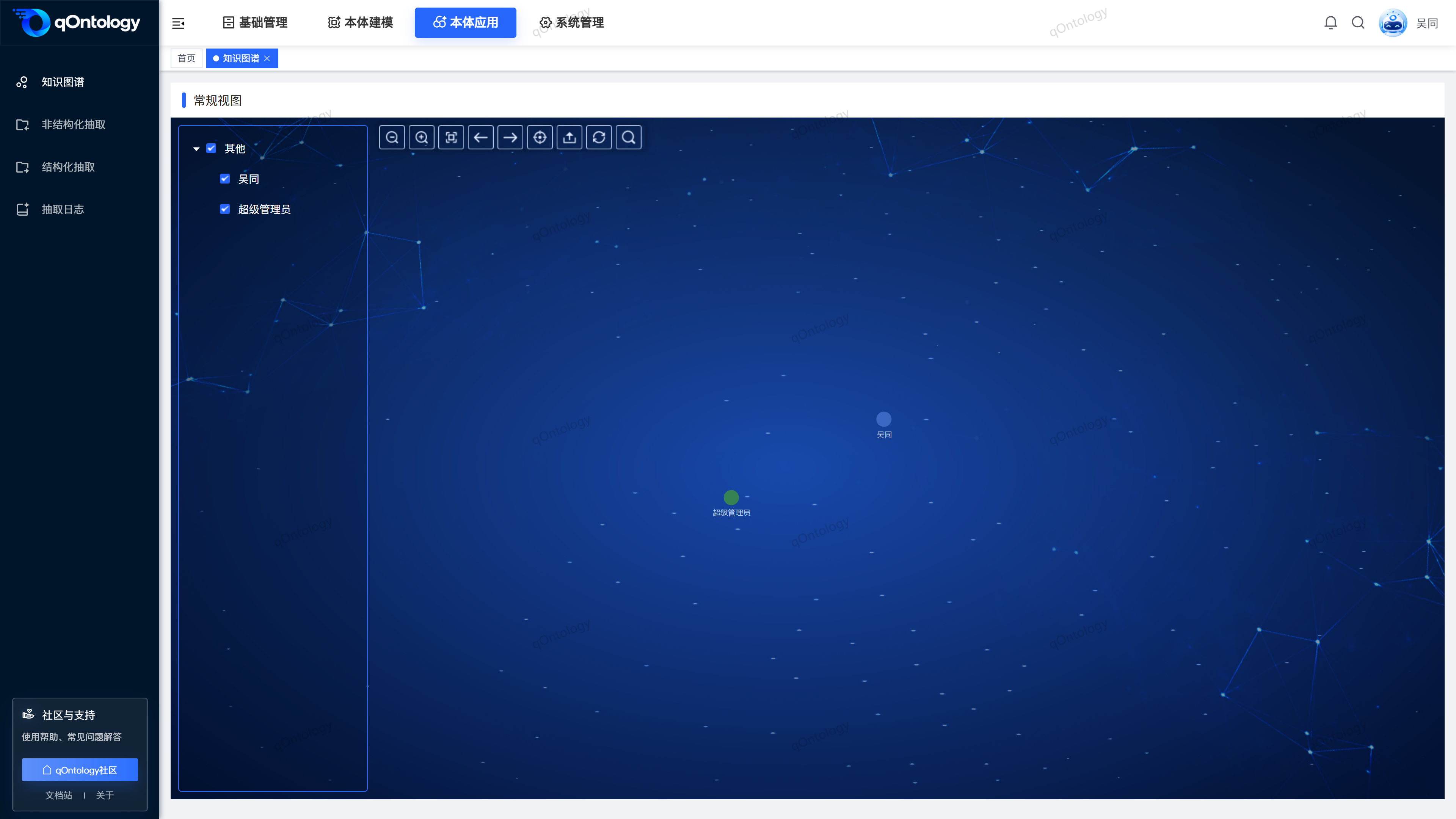
Recommended workflow
Complete the extraction and check the publishing status → Open Knowledge Graph → Locate the entity → View attributes and relationships → Revise or export the image as needed.
Functional operation instructions
Browse and locate entities
- Expand the group on the left.
- Click on the name of the entity you want to view.
- Check or uncheck entities as needed.
- Use the [Zoom In], [Zoom Out] and pan tools to adjust the view.
Result: You can locate the entity and adjust the current display range; unchecking only affects the display and does not delete the data.
Search and recovery perspective
- Click the [Search] icon on the toolbar.
- Enter the entity name or relationship information in the search box.
- Select a match.
- Click [Restore Perspective] when you need to re-view the entire image.
Result: Search and locate the matching map content, restore the perspective and re-adapt the map to the visible range.
[Move left] [Move right] move the canvas position, not the browsing history or undo; [Reset] reload the map data.
View entities and sources
- Click on the entity name or node in the diagram.
- Expand [Property Information].
- View the starting point, relationship and end point in the [Associated Triplet].
- View [Associated Segment] [Associated File] or associated Data Sources information by data source.
Result: Detailed display of entity values and connected relationships; further tracing can be done when source data is available.
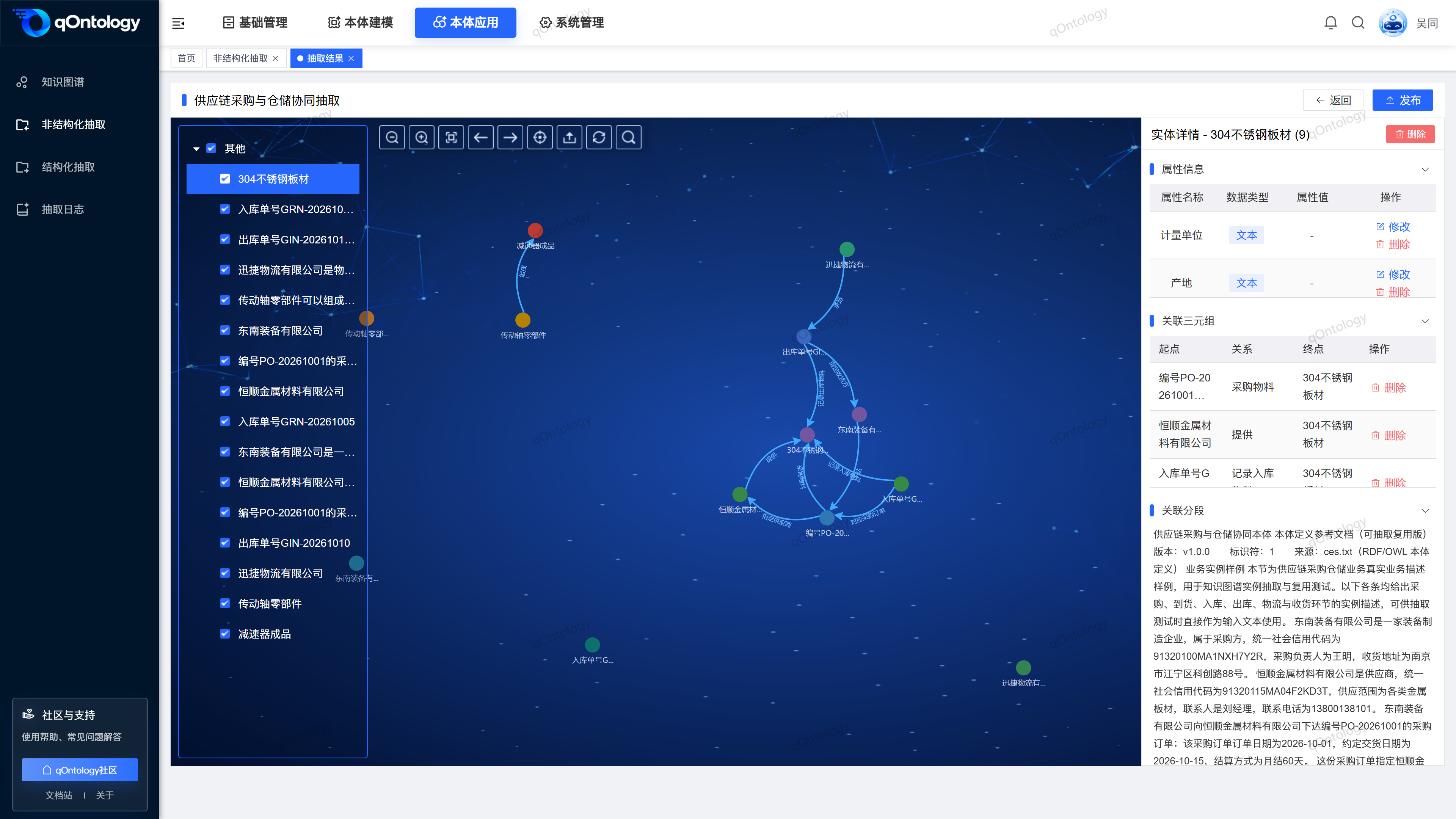
Modify entity properties
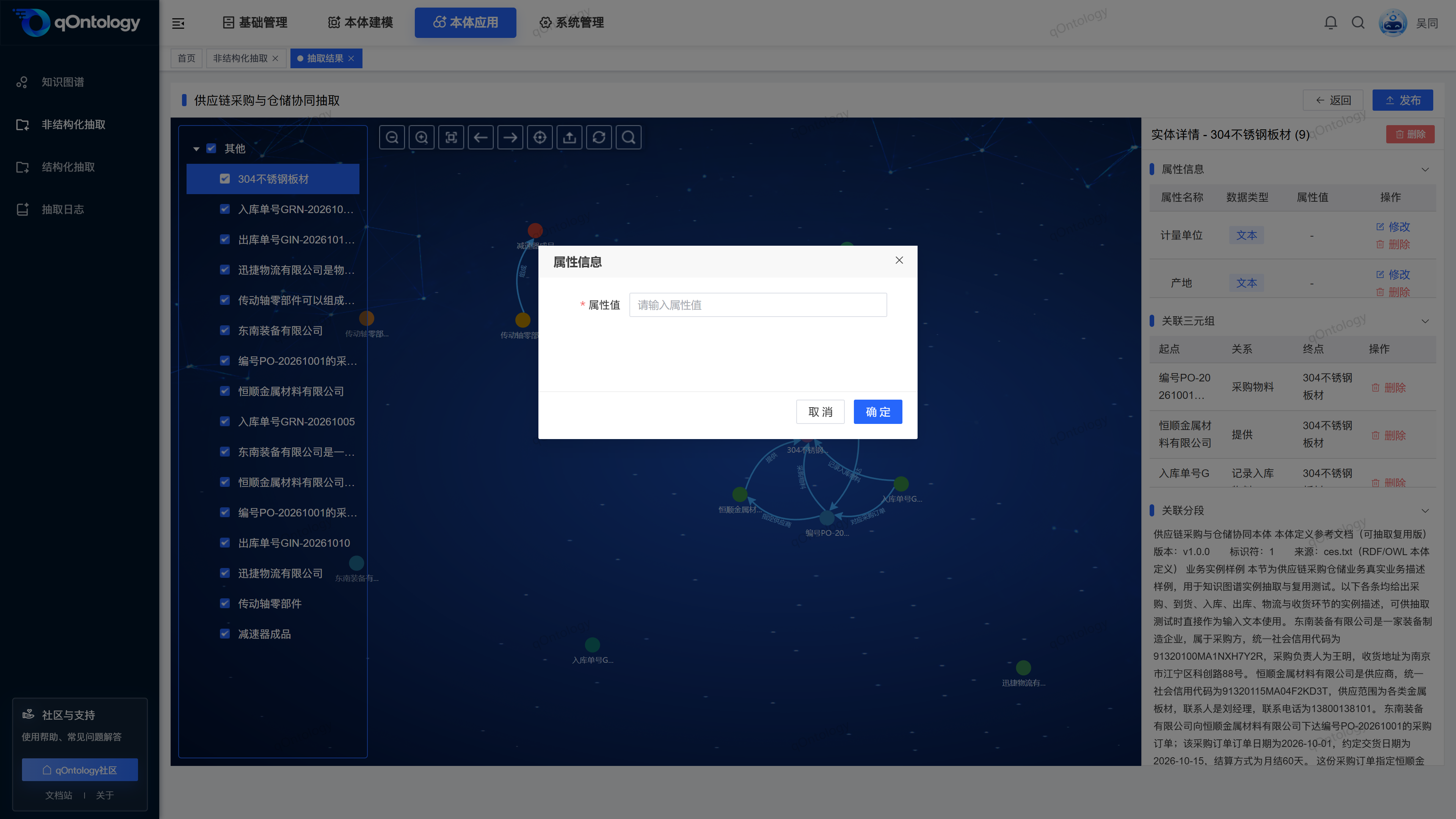
- Find the attribute that needs to be modified in the entity details.
- Click [Modify] on the attribute row.
- Enter the correction value in [Attribute Value].
- Click [OK].
Result: After success, "Modification Successful" will be prompted, the details will be closed and the relevant map data will be refreshed.
Only operate if editing is allowed in the current state. The entity name and associated triplet relationship name in the details can also be edited by double-clicking when editing is allowed; leaving the input box after input will trigger saving. Please confirm the content before moving the focus. What is modified here is the map data, which is not equivalent to modifying the source database or ontology type definition.
Delete an entity, attribute, or triple
- Open the target entity details.
- Select [Delete] at the top of the entity, attribute row or triplet row according to the deletion range.
- Double check the objects in the confirmation prompt.
- Confirm deletion.
Result: After success, "Delete Successfully" will be displayed, and the relevant map content will be refreshed.
Caution
These operations will modify the graph data, not hide the graph. First confirm whether you want to delete an entity, a single attribute or a relationship; cancel the confirmation if deletion is not needed.
Export map image
- Adjust the current map perspective.
- Click [Export] on the toolbar.
- Check the browser download results.
Result: Download a PNG image for displaying the map screen; it does not export ontology TTL or complete structured business data.
FAQ
Why can’t I see the Object Types I just created?
Object Types belongs to the model definition, and the diagram shows business examples. Please complete the data extraction first and check the task results and release status.Will unchecking an entity delete it?
will not, check the box to control the current display; [Delete] in the details is the data deletion operation.Why can’t the published task results be edited?
task result view will restrict editing according to the release status; you need to cancel the release according to the task process first, and then confirm whether maintenance is allowed.
Summarize
Follow the connections on the diagram to see which object is related to which object. Complete the extraction and check the publishing status → Open Knowledge Graph → Locate the entity → View attributes and relationships → Revise or export the image as needed.