
Unstructured Extraction
Feature overview
Purpose
Unstructured Extraction extracts entities, attributes and relationships from imported business files based on the uploaded ontology TTL file, and then checks and publishes the extraction results.
Easy to understand: Organize the business description in the document into a viewable map.
Main features
- Material pairing: Prepare the file to be extracted and the TTL file describing the model at the same time.
- Asynchronous execution: Enter the queue after submission, and the execution status can be viewed through status and logs.
- Result release: Publish after reviewing the extraction results. If necessary, cancel the release and then maintain it.
Scope
This page is used for tasks or map data in Ontology Applications. Menu access, operation entry and task status jointly determine the executable operations.
Before you begin
Prerequisites
- You have logged in to qOntology and have obtained the permissions for this page and the required operations.
- The files to be extracted have been prepared in [File Management] and the ontology TTL file consistent with the business scope has been obtained.
- Check task status, release status, and target records before executing operations.
Navigation path
【Ontology Applications】 > 【Unstructured Extraction】
Page overview
The list is filtered by task name, task status, release status, and creation time. Each line provides [Execution] [Extraction Result] [More], and More includes execution log, modification, and deletion.
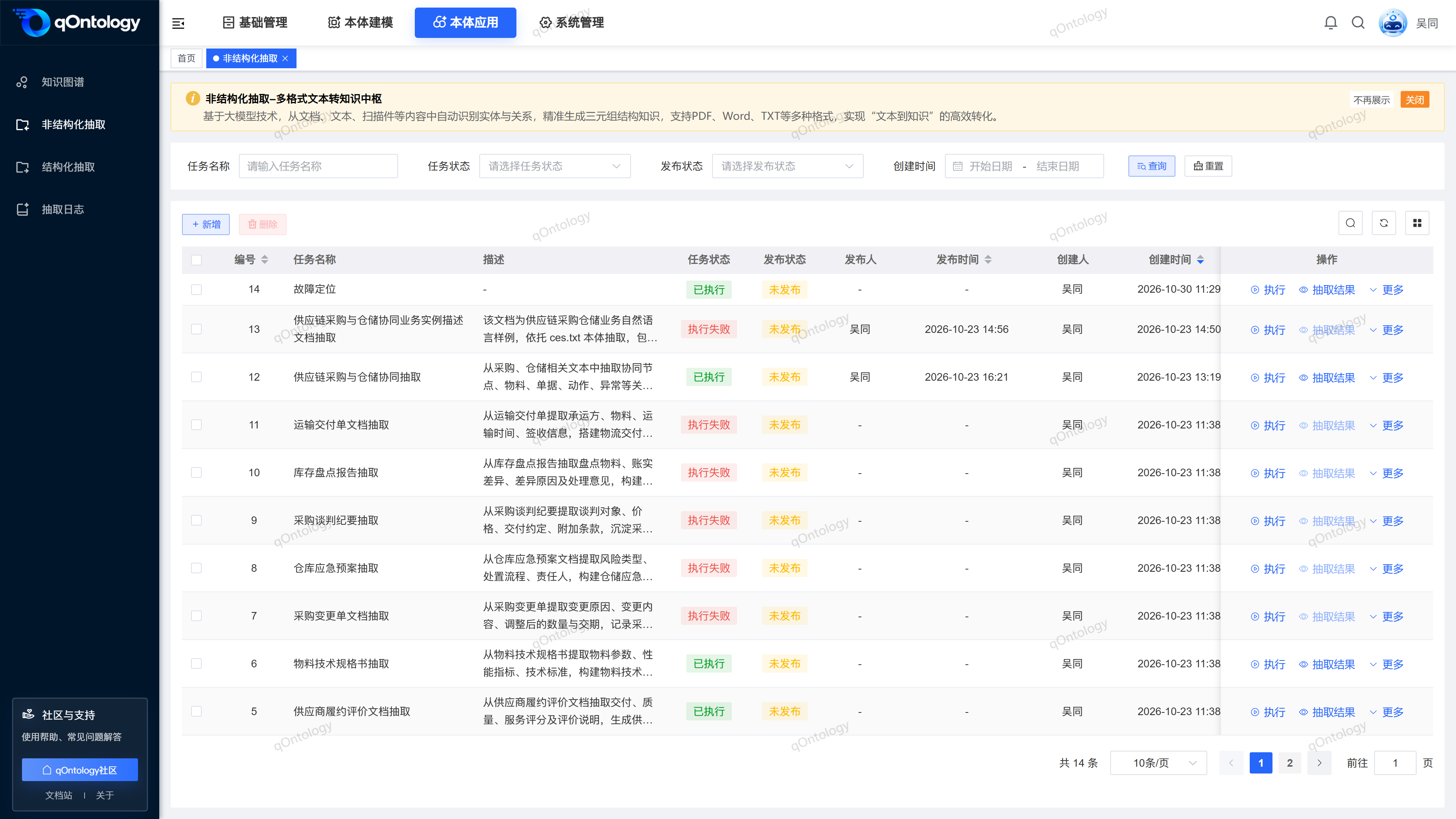
Recommended workflow
Prepare files and TTL → Add task → Execute → View log → Check extraction results → Publish.
Functional operation instructions
Query and reset
- Fill in or select the task name, task status, release status and creation time in the query area.
- Click [Query].
- Click [Reset] when you need to restore conditions.
Result: The list is reloaded according to conditions and can be viewed in paging.
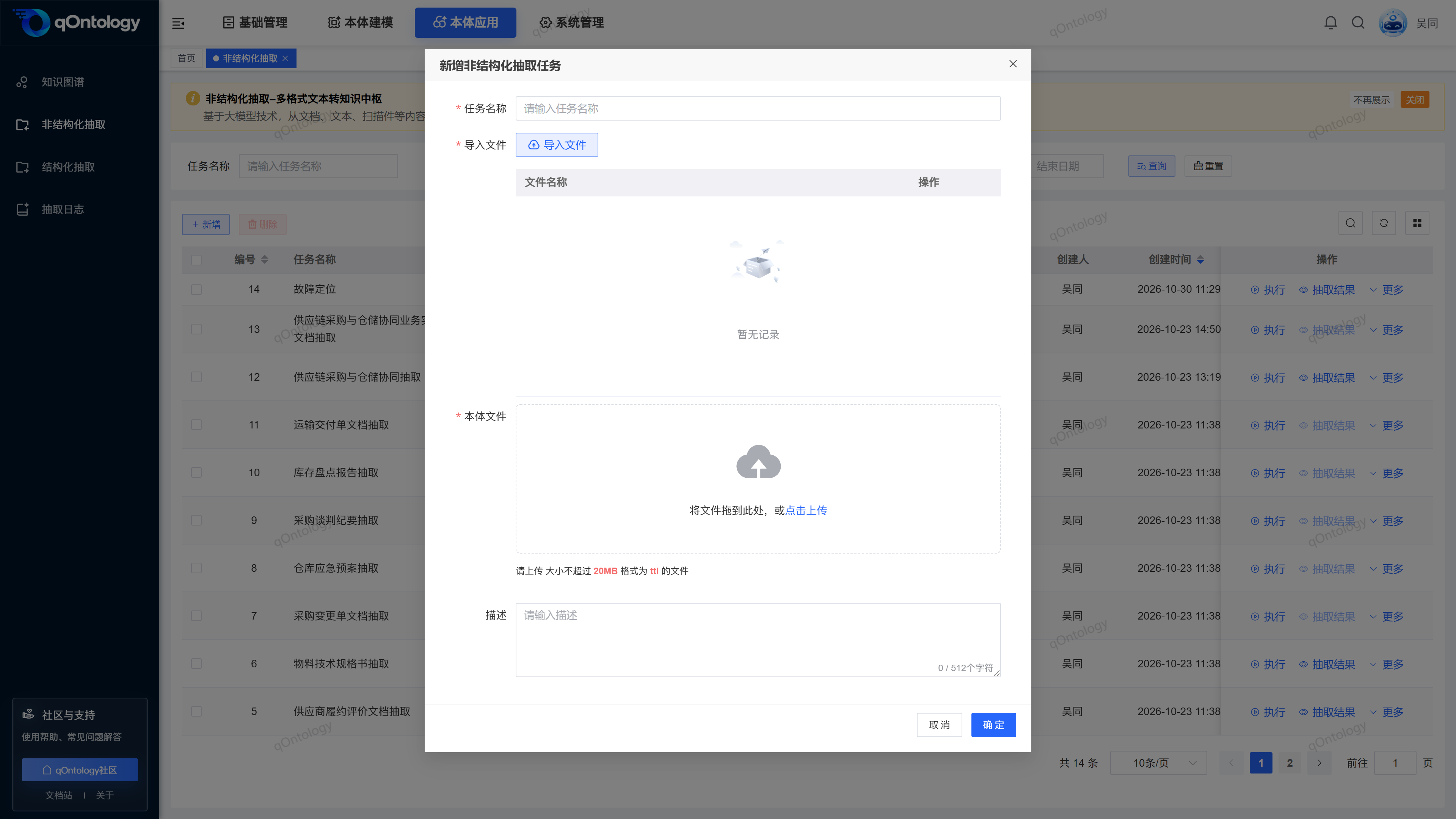
Add new extraction task
- Click [Add].
- Fill in the task name and description.
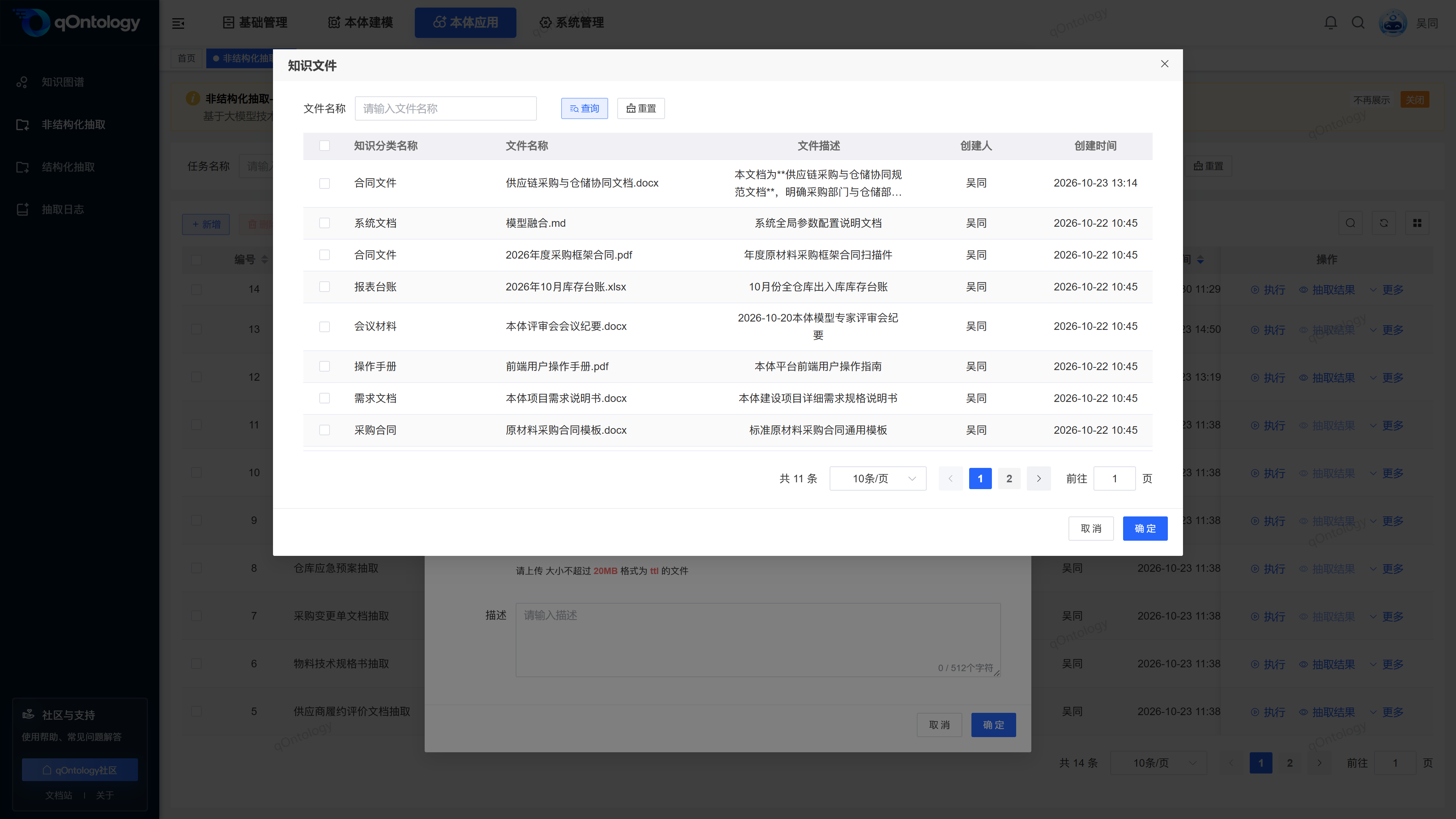
- Click [Import File].
- Check the files to be extracted.
- Confirm file selection.
- Upload the ontology TTL file.
- Click [OK].
- Task name: Identifies the purpose of extraction. (required)
- Description: Description range, up to 512 characters. (optional)
- Import files: Select the files to be extracted from the file management. You can select multiple items. (required)
- ontology file: Upload .ttl file, the upper limit of a single file on the current page is 20 MB. (required)
Result: The task appears in the list after the addition is successful; saving the task does not mean that the execution is completed.
The files to be extracted should first be prepared in [Basic Management]>[File Management]. ontology TTL can be exported by project management in the required version. Deleting a selected file item only cancels this selection and does not mean deleting the original file in file management.
Execute and view progress
- Click [Execute] on the target task row.
- Verify the task name and confirm execution.
- Refresh the list to view task status.
- If you need to troubleshoot, click [More].
- Click [Execution Log] to view the process.
Result: Successful submission prompts "The task has entered the extraction queue"; the waiting status changes to executed or failed.
Tasks that have been published, executed, or queued cannot be executed repeatedly. The queue means waiting for scheduling; do not submit continuously because the results are not immediately available.
Review and publish extraction results
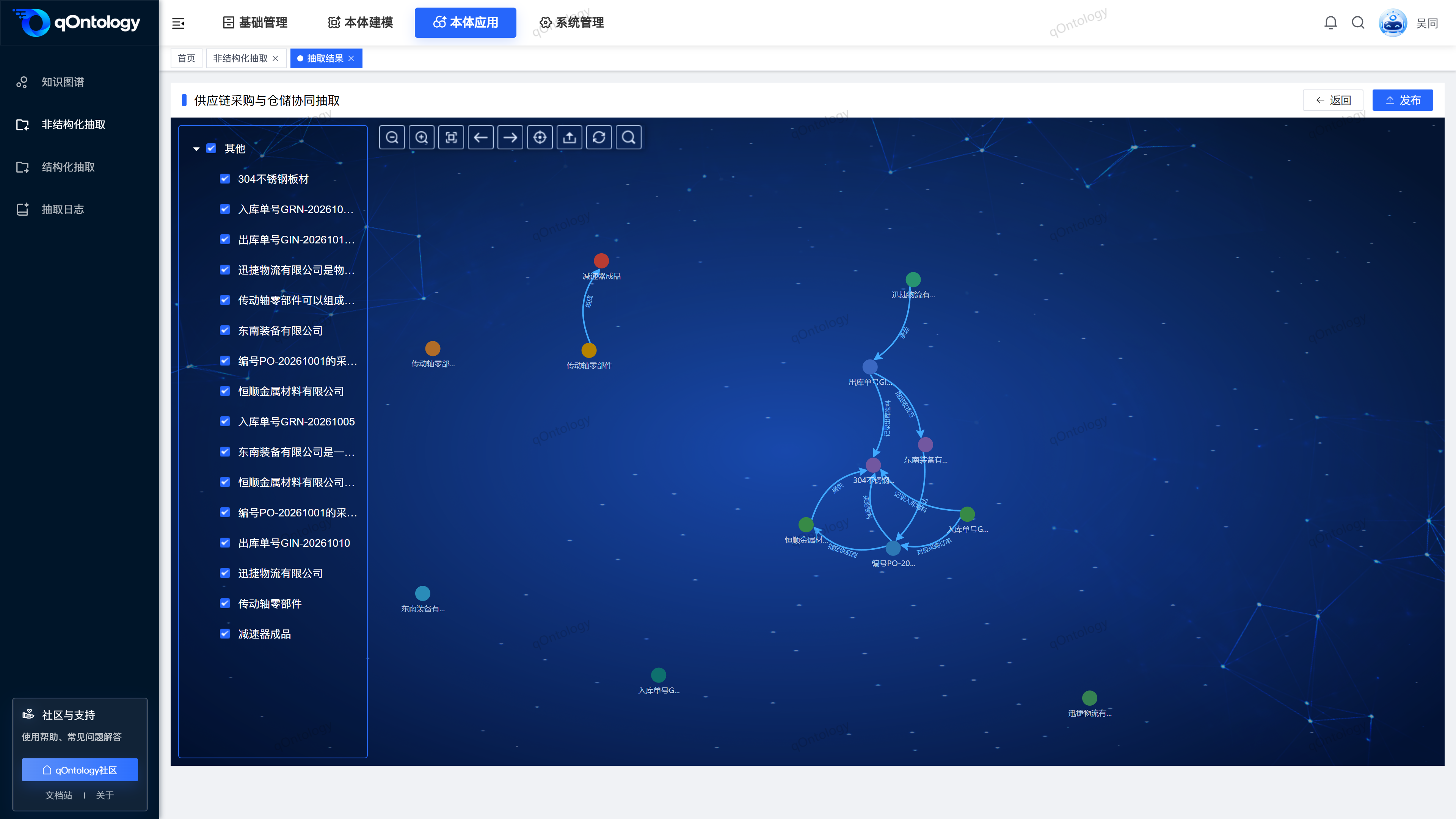
- Click [Extract Results] in the executed task row.
- Click on the map entity to check the properties and relationships.
- Check the extracted content against the source data.
- After confirming the results, click [Publish].
- Check the confirmation prompt and confirm publishing.
Result: After the release is successful, the task release status is updated and the relevant map data enters the release state.
When you need to withdraw, click [Cancel Publish] on the results page, check the prompts and confirm, and check the status after success. Please refer to [Knowledge Graph] for the method of map verification and attribute revision before release. AI extraction results still need to be checked manually.
Modify or delete tasks
- Click [More] on the maintainable task row.
- Click [Modify] when adjustments are needed.
- Adjust editable fields.
- Click [OK].
Result: The list is updated after successful saving.
Some file fields of executed tasks cannot be changed directly, please refer to the disabled status of the form. Modification and deletion of tasks that have been published, in execution, or in the queue are restricted. When deleting, select [Delete] and check and confirm. The task will be removed after success; the implementation will clean up the extraction map related to the task and cannot be regarded as just deleting the list name.
Supplementary page reference
The figure below shows the import file selection window. You can refer to its list fields when confirming the task input file.
FAQ
There is a task but no extraction result entrance is available?
[Extraction results] are only available in the executed state; please check the task status and execution log first.What should I do if the log prompts that the TTL file does not exist?
Check whether the ontology file associated with the task and the server file storage are valid. After asking the administrator to handle the missing files, reconfigure and execute according to the process allowed by the page.Why can’t a published task be executed again?
release status limits re-extraction; you should cancel the release first and check the data impact before deciding whether to re-execute it.
Summarize
Organize the business description in the document into a viewable map. Prepare files and TTL → Add task → Execute → View log → Check extraction results → Publish.