
Extraction Logs
Feature overview
Purpose
Extraction logs centrally record the execution of structured and unstructured tasks, supports locating records by task and status, and viewing step-by-step execution information.
In practice: Continue from "the task failed" to "at which step the failure occurred".
Main features
- Unified Query: Filter by task name, execution type and execution status.
- Step Tracking: View the step description and time of each execution.
- Record Cleaning: Delete execution records as needed and retain necessary troubleshooting information.
Scope
This page is used for tasks or map data in Ontology Applications. Menu access, operation entry and task status jointly determine the executable operations.
Before you begin
Prerequisites
- You have logged in to qOntology and have obtained the permissions for this page and the required operations.
- There are records of the execution of structured or unstructured tasks, and the tasks to be investigated and the time range are clearly defined.
- Check task status, release status, and target records before executing operations.
Navigation path
【Ontology Applications】 > 【Extraction Logs】
Page overview
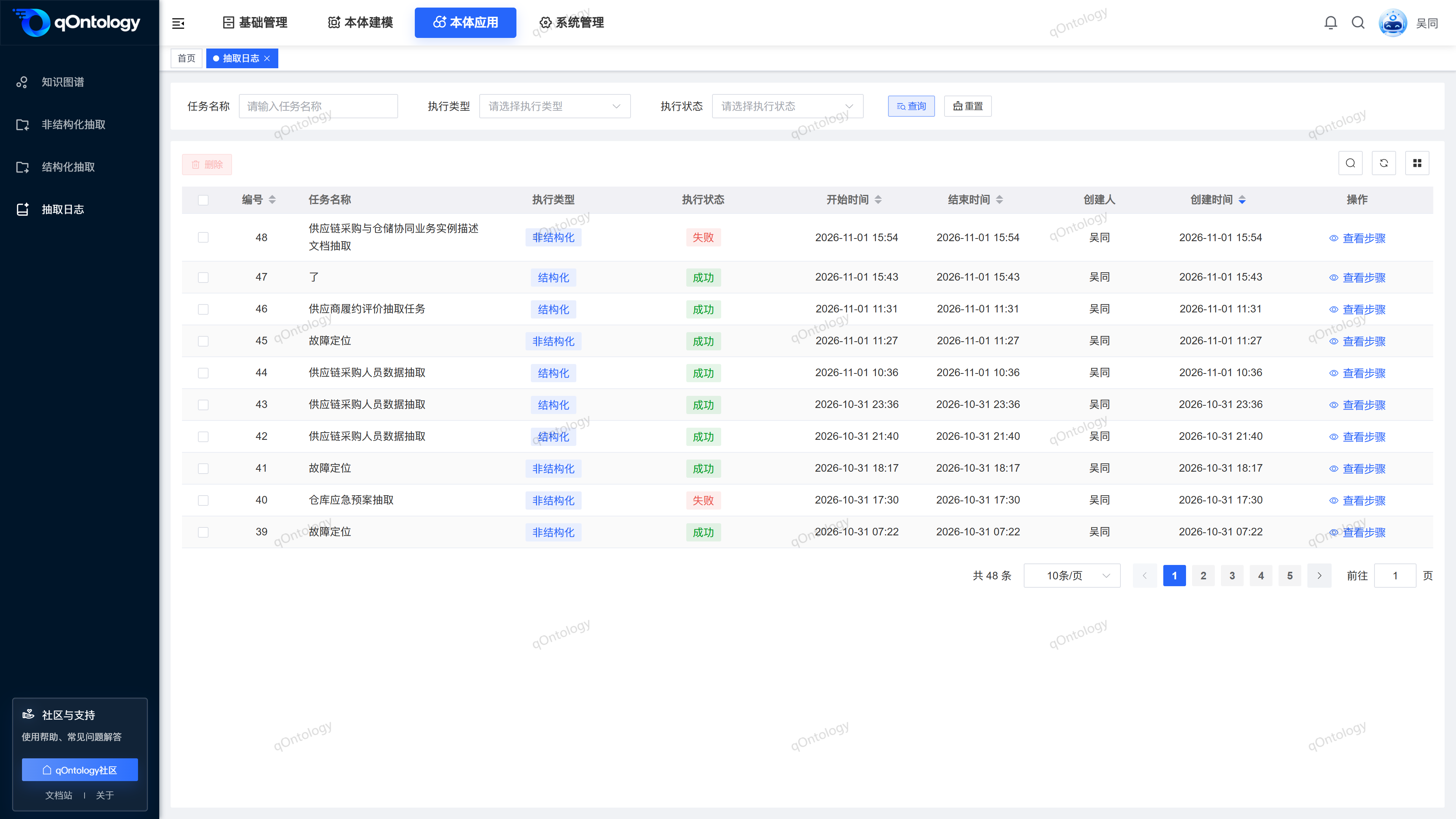
The list contains information such as task name, execution type, execution status, start and end time; [View Step] in the row opens the extraction step window.
Recommended workflow
Locate the task execution record → View the steps → Confirm the failed link → Return to the task or dependency configuration processing → Review after re-executing.
Functional operation instructions
Query and reset
- Fill in or select the task name, execution type and execution status in the query area.
- Click [Query].
- Click [Reset] when you need to restore conditions.
Result: The list is reloaded according to conditions and can be viewed in paging.
View execution steps
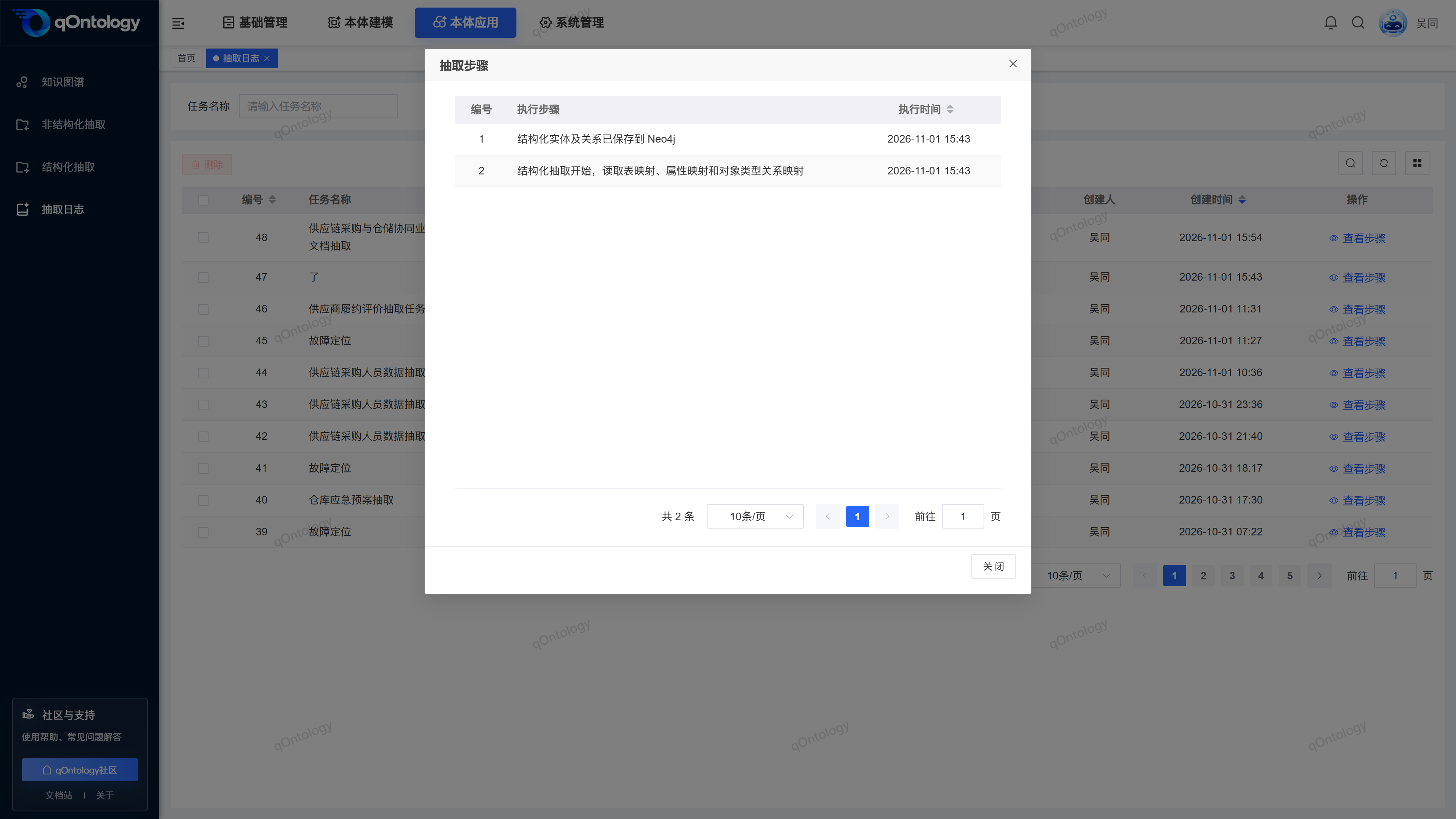
- Click [View Steps] in the target execution record line.
- Read the steps in chronological order.
- Prompts before and after failed verification.
- Check if there are any next page steps.
- Close the step window.
Result: Obtain the step instructions and time for executing the task to facilitate problem location.
Troubleshoot failed tasks
- Filter failure records by execution status.
- Check the task name and execution type.
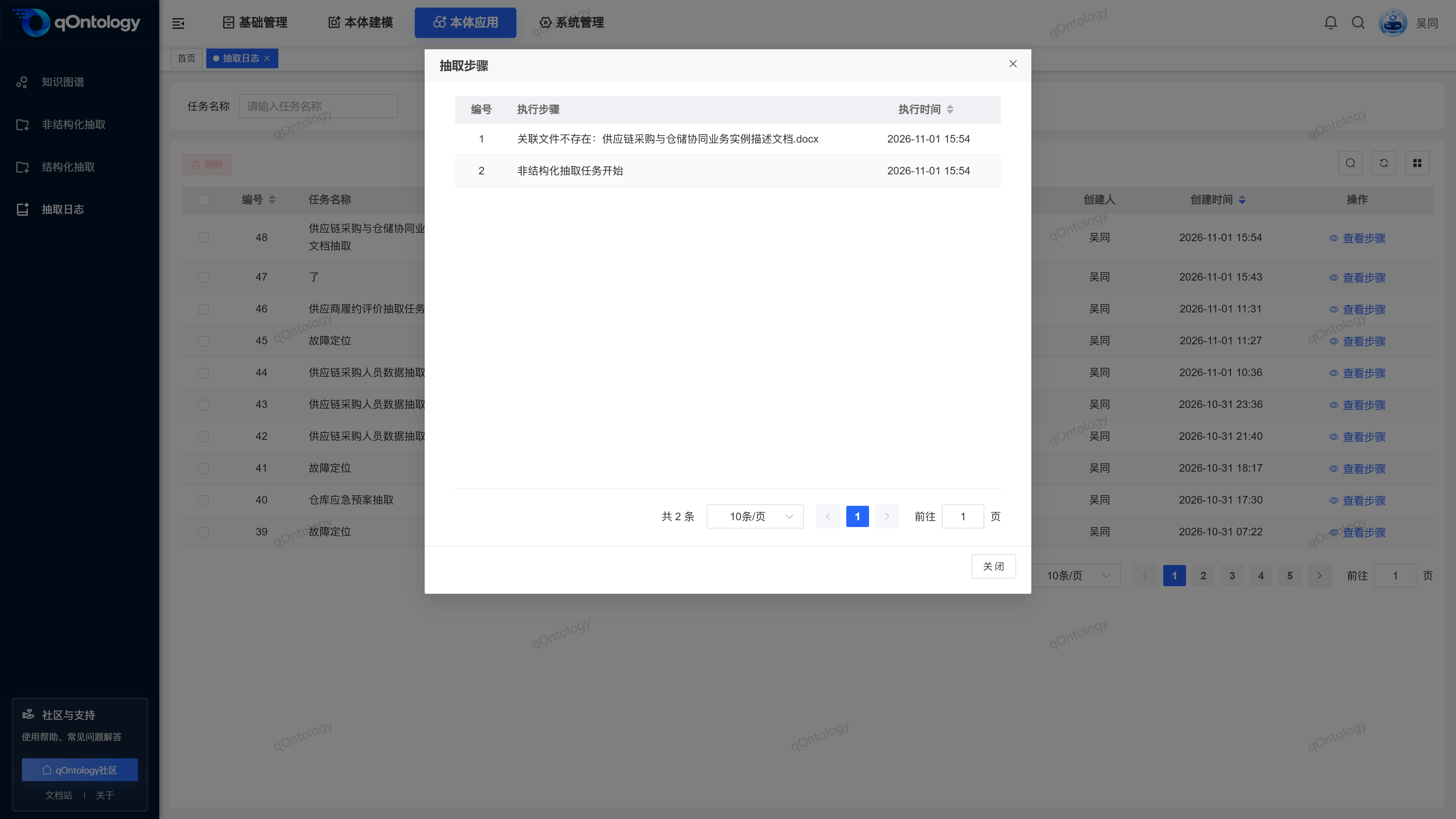
- Click [View Steps].
- Record the specific errors and the link where they occurred.
- Return to the corresponding extraction task or basic configuration processing reason.
- After re-executing, query the new execution records on this page.
Result: Check whether the problem is solved through the new record; there is no re-execute task button on the log page itself.
For example, the step prompts that the ontology file does not exist. You should check the server storage and task file configuration. Simply deleting the failure log will not fix file or connection issues.
Delete log records
- Check the execution records that are no longer needed.
- Click [Delete] above the list.
- Check the confirmation prompt.
- Confirm deletion.
Result: After the deletion is successful, the list is refreshed and the selected log record is removed.
Save necessary error information before deleting. Log cleaning does not mean deleting the extraction task or re-executing the task, nor does it undo the generated map.
FAQ
Where to look first when execution fails?
First check the execution type and task name, and then open [View Steps] to locate the last successful step and error message.Can deleting the log allow the task to be re-executed?
cannot. You should return to the corresponding extraction task page to handle the problem and execute it.Why are there multiple records for the same task?
A task can be executed multiple times. The one that needs to be checked should be located based on time and status.
Summarize
Continue from "the task failed" to "at which step the failure occurred". Locate the task execution record → View the steps → Confirm the failed link → Return to the task or dependency configuration processing → Review after re-executing.