
Model Axioms
Feature overview
Purpose
Model axioms are used to define semantic constraints between object categories and on attributes, including subtypes, equivalence, mutual exclusion, relationships domain and range, and attribute ranges.
Easy to understand: Use clear rules to describe which types are related in the model, and what relationships and attributes can connect.
Main features
- Five Category Axioms: Select the corresponding configuration according to the semantic purpose.
- Reference model element: Select the existing Object Types and attributes.
- Level identification: Use prompts, warnings, and errors to distinguish rule levels.
Scope
The information on this page belongs to the current project and version; entry, editing, deletion and other operations are subject to corresponding authorization controls. After switching projects or versions, lists and associated objects should be rechecked.
Before you begin
Prerequisites
- You have logged in to qOntology and have obtained the permissions for this page and the required operations.
- The project has been created in [Basic Management], and the correct project and version have been selected at the top of [Ontology Modeling].
- The Object Types and attributes to be referenced already exist, and the business semantics of each axiom have been confirmed.
Navigation path
【Ontology Modeling】 > 【Constraint Rules】 > 【Model Axioms】
Page overview
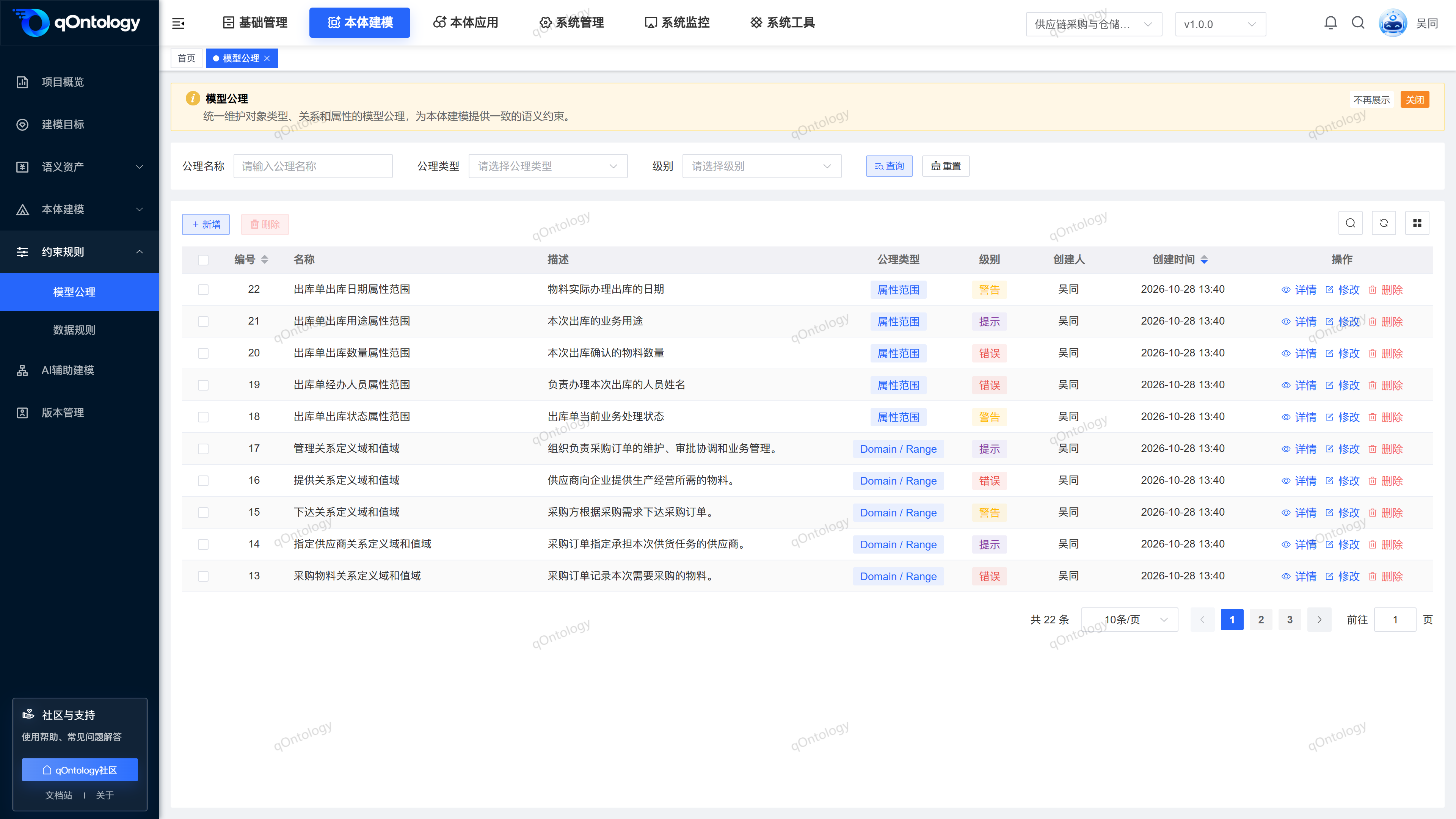
The list is filtered by axiom name, axiom type, and level. The form switches fields based on the selected axiom type; this page provides rule maintenance and does not provide an independent execution verification button.
Recommended workflow
Prepare objects and attributes → select the axiom type → fill in the corresponding references → save → view details for review.
Functional operation instructions
Query and reset
- Fill in or select the axiom name, axiom type and level in the query area.
- Click [Query].
- Click [Reset] when you need to restore conditions.
Result: The list is reloaded according to conditions and can be viewed in paging.
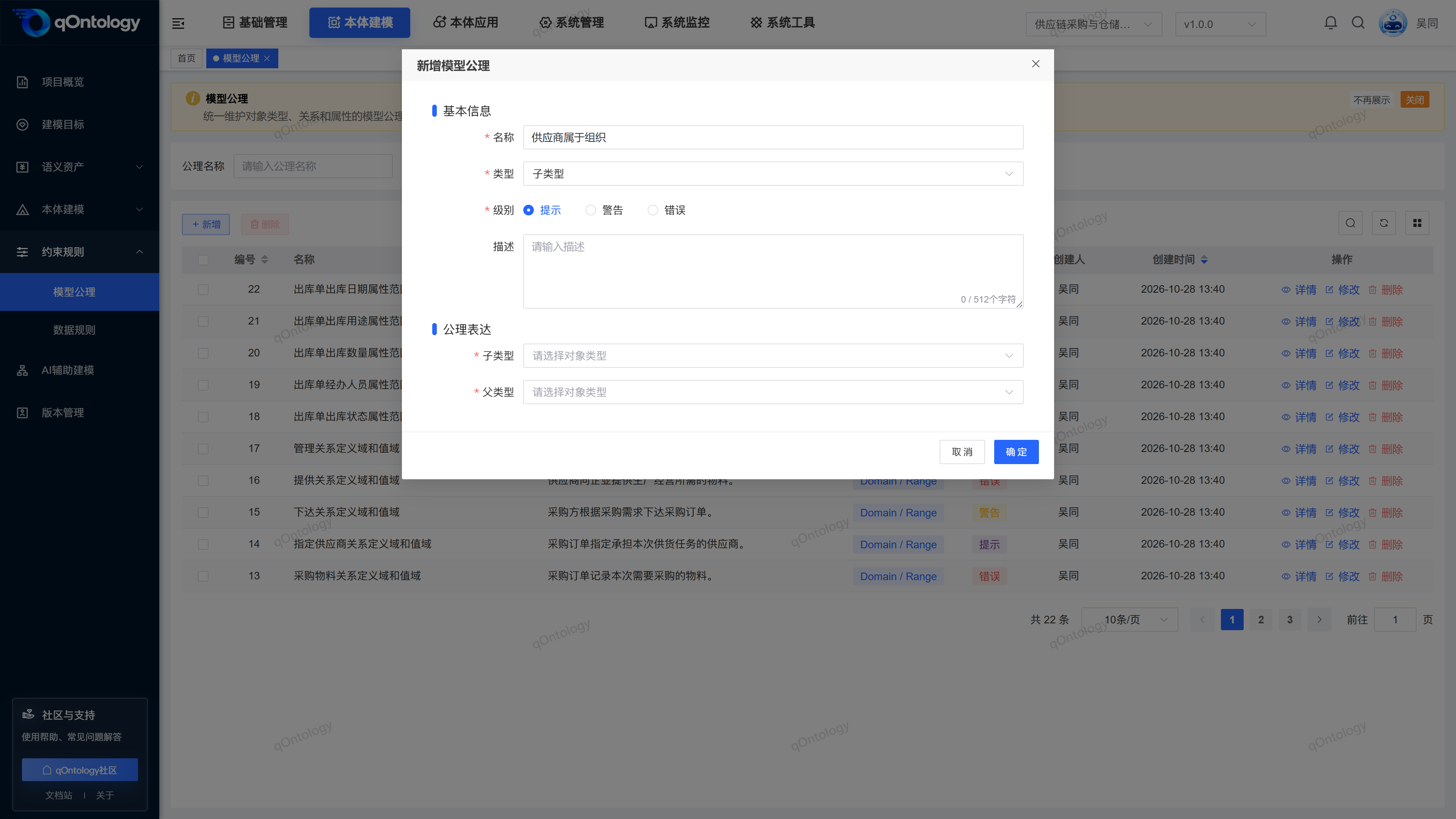
New type relationship axiom
- Click [Add].
- Fill in the name.
- Select [Subtype] [Equivalent] or [Mutually Exclusive].
- Select level.
- Select the two Object Types required by the form.
- Fill in the description if required.
- Click [OK].
| Field name | illustrate | Is it required? |
|---|---|---|
| name | Axiom business name, up to 128 characters; cannot be repeated within the same project version. | yes |
| type | Subtype, equivalence, mutual exclusion, Domain / Range, property range. | yes |
| level | Prompt, warning, error; default prompt. | yes |
| describe | Supplemental Rules Purpose, maximum 512 characters. | no |
| Object Types field | Fill in the child/parent type for the subtype; fill in the two types for equivalence and mutual exclusion, and the two Object Types must be different. | Required when corresponding to the type |
| Relationship, Domain, Range | Fill in the name manually for the relationship; select the starting point category for Domain, and select the end point category for Range. The two must be different. | Required when Domain/Range |
| Object Types attributes and data type | Select the object and attributes first, then select the basic type or business type and corresponding parameters. | Required for attribute range |
Result: After the addition is successful, the axiom list displays the selected type and level.
Subtypes express inheritance semantics such as "the supplier belongs to the organization"; equivalence means that the two categories have the same meaning; mutual exclusion means that the two categories should not be established at the same time. Business personnel should first confirm the semantics before selecting objects.
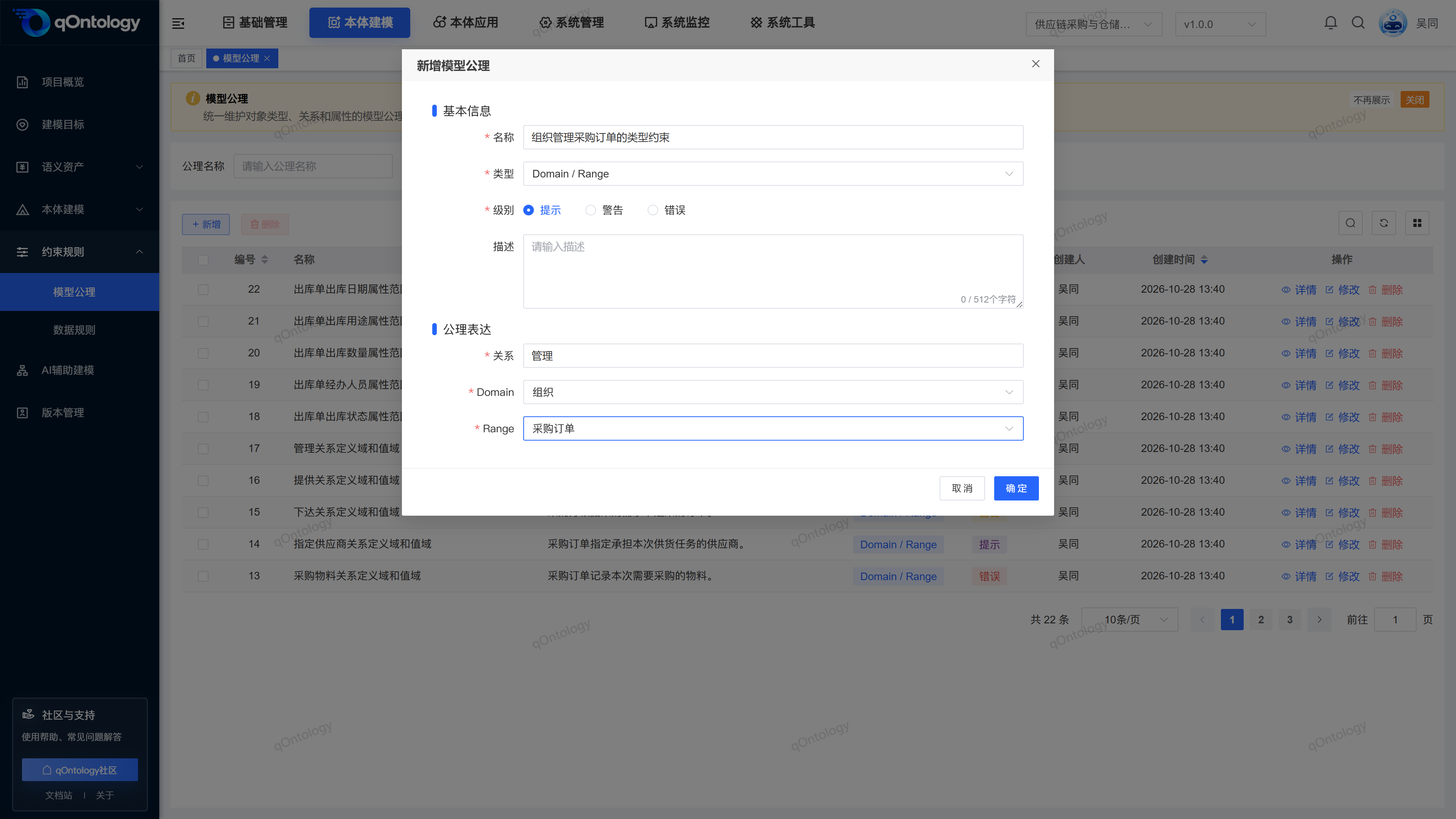
Domain and Range that define relationships
- When adding a new axiom, set [Type] to [Domain/Range].
- Fill in the relationship name.
- Select [Domain]Object Types.
- Select [Range]Object Types.
- Complete public information such as name, level, etc.
- Click [OK].
Result: Save the relationship name and start and end point category constraints.
The current [Relationship] is a text input box. Please keep it consistent with the name maintained in Object Type Relationships; you cannot operate by drop-down selection relationship. The allowed type combinations are maintained here and are saved separately from the structure definition of Object Type Relationships; after adjusting the name or starting and end points in one place, the other needs to be checked and will not be automatically synchronized.
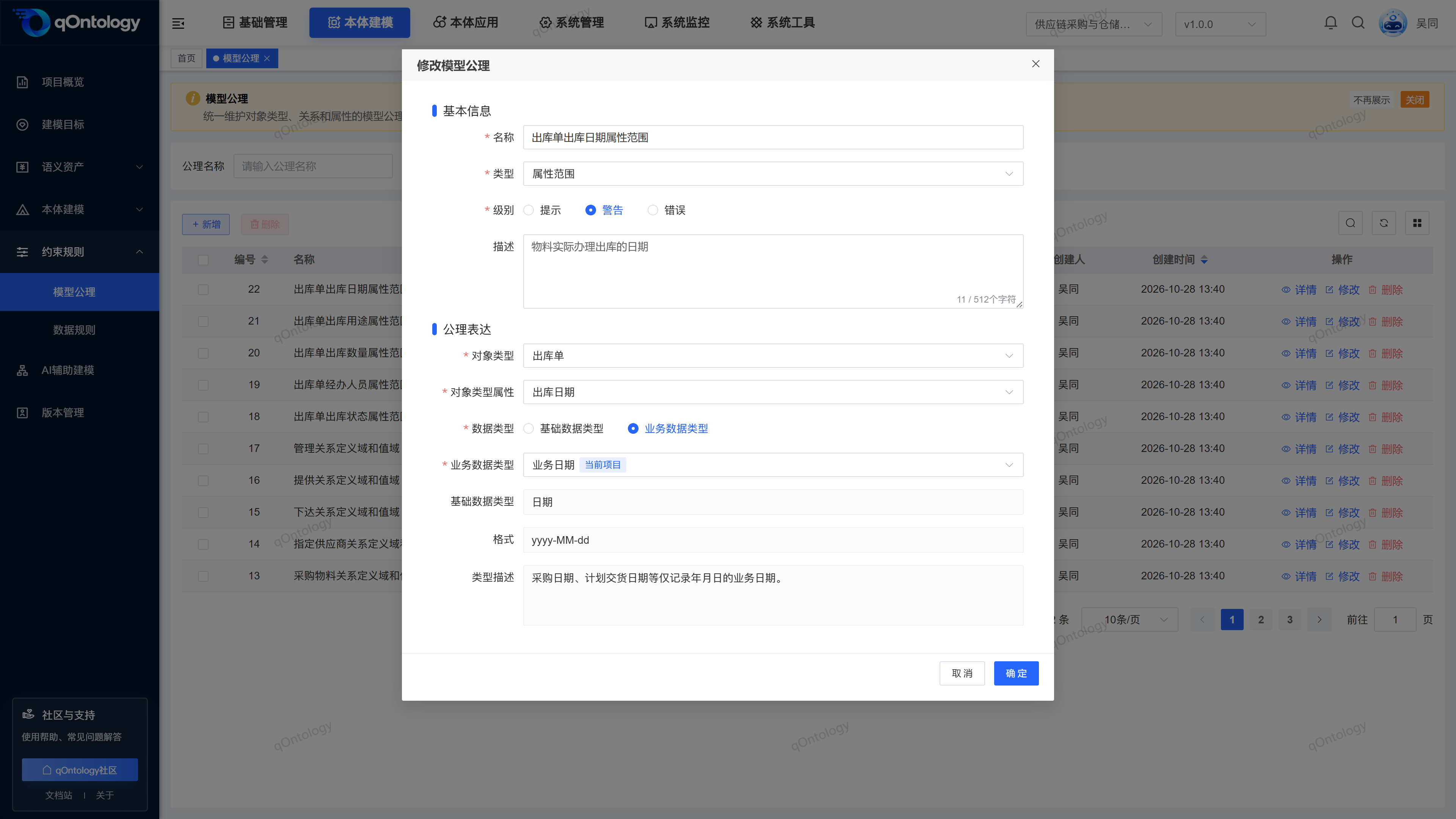
Define attribute scope
- When adding a new axiom, set [Type] to [Attribute Range].
- Select Object Types.
- Select [Object Types Properties].
- Choose base data type or Business Data Types.
- Add corresponding type parameters.
- Complete public information.
- Click [OK].
Result: Save the type range definition of the attribute.
Object Types attributes are loaded from the selected object; Business Data Types is selected according to the [Current Project] and [Global] groups, and does not require to be referenced by other attributes of the object in advance. After switching objects, properties and type configurations should be rechecked.
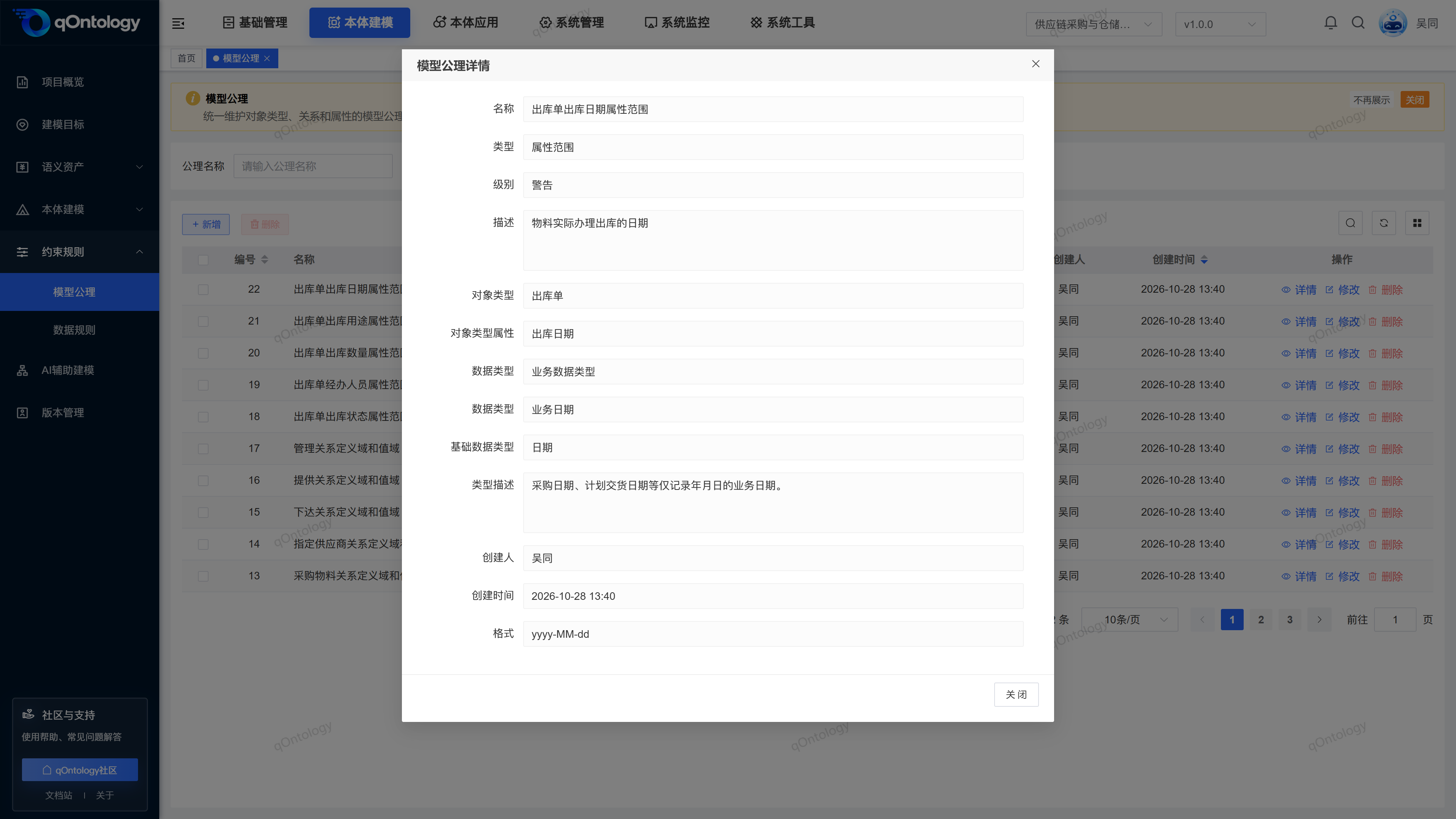
View and modify axioms
- Click [Details] on the target row.
- Check the type and its corresponding parameters.
- Close details.
- Click [Modify].
- Adjust the parameters that need to be modified.
- Click [OK].
Result: The saved axioms are displayed in detail; the list is updated after the modification is successful.
Delete Model Axioms
- Click [Delete] on the target record row.
- Check the target record in the confirmation box.
- Confirm deletion.
Result: After the deletion is successful, the list is reloaded and the target record is no longer displayed.
You can also check records and use [Delete] above the list to process them in batches.
Warning
Check the business purpose and related information before deleting. This page does not provide a recycle bin recovery entry.
FAQ
Will all data be automatically verified after saving?
This page saves the axiom definition and does not have an independent full execution entrance; successful saving cannot be regarded as passing data verification.Does level Error necessarily block all subsequent tasks?
This page records the rule level. It cannot be inferred that all downstream processes will be blocked based on this field alone.
Summarize
Use clear rules to describe which types are related in the model and what relationships and attributes can connect. Prepare objects and attributes → select the axiom type → fill in the corresponding references → save → view details for review.