
Data Rules
Feature overview
Purpose
Data rules define quality conditions for object attribute values. Configure which situations count as failures and the business message displayed when a failure occurs.
In practice: First clarify what values are unqualified, and then combine these failure conditions into rules.
Main features
- Failure Condition: Define rules around Object Types, attributes and comparison values.
- Combination Logic: Use any one that satisfies (OR) or all that satisfies (AND) to combine the conditions.
- Result Description: Configuration level and failure prompts to facilitate explanation of the purpose of the rules.
Scope
The information on this page belongs to the current project and version; entry, editing, deletion and other operations are subject to corresponding authorization controls. After switching projects or versions, lists and associated objects should be rechecked.
Before you begin
Prerequisites
- You have logged in to qOntology and have obtained the permissions for this page and the required operations.
- The project has been created in [Basic Management], and the correct project and version have been selected at the top of [Ontology Modeling].
- Object Types and attributes to be verified have been established, and the unqualified conditions that need to be identified have been clarified.
Navigation path
【Ontology Modeling】 > 【Constraint Rules】 > 【Data Rules】
Page overview
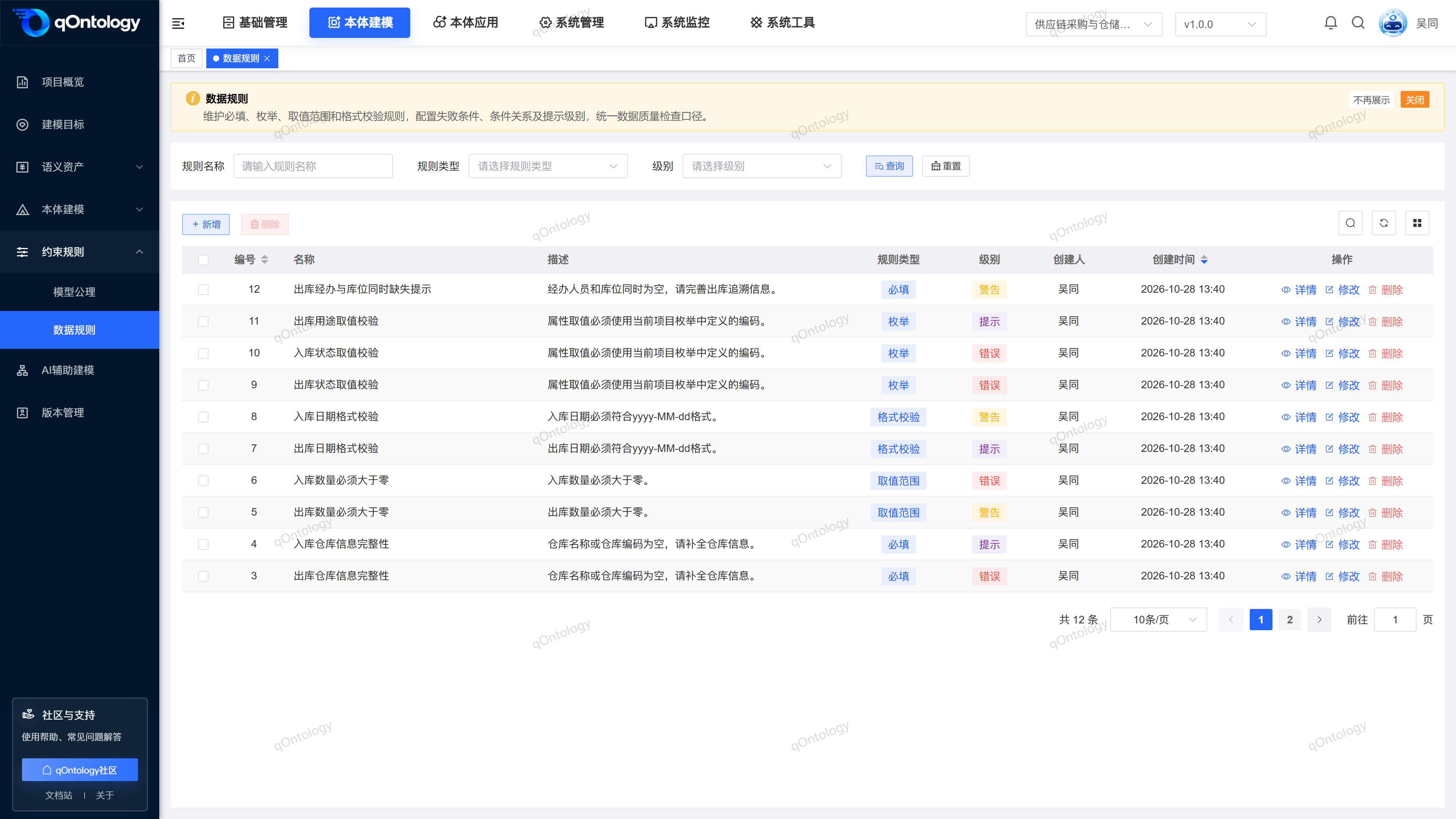
The page provides rule name, rule type and level filtering, as well as adding, details, modifying and deleting. When adding and modifying, configure object properties, failure conditions, conditional relationships, and failure prompts according to the rule type.
Warning
Execution conditions describe which situations should be considered a failure. Saving rules only maintains definitions and does not mean that all business data has been checked.
Recommended workflow
Prepare object properties → Select rule type → Configure failure conditions → Check OR/AND → Save rule.
Functional operation instructions
Query and reset
- Fill in or select the rule name, rule type and level in the query area.
- Click [Query].
- Click [Reset] when you need to restore conditions.
Result: The list is reloaded according to conditions and can be viewed in paging.
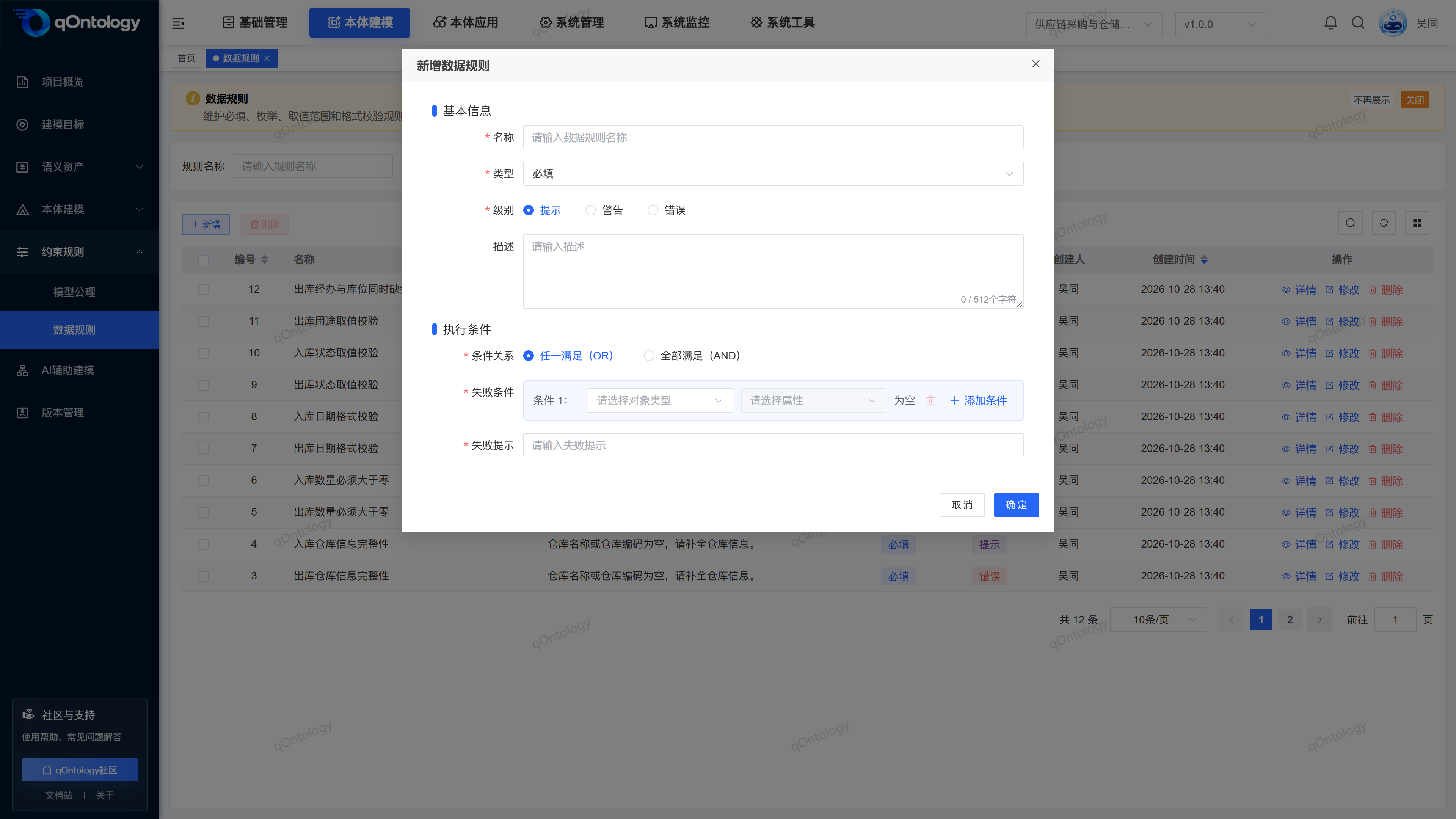
Added Data Rules
- Click [Add].
- Fill in the name.
- Select type.
- Select level.
- Select [Conditional Relationship] in the [Execution Conditions] area.
- Select Object Types in the failure condition.
- Select the object's properties.
- Set comparators and values by rule type.
- If you need multiple conditions, click [Add Condition].
- Fill in the failure prompt.
- Click [OK].
| Field name | illustrate | Is it required? |
|---|---|---|
| name | Rule name, up to 128 characters; cannot be repeated within the same project version. | yes |
| type | Select [Required] [enumeration] [Value Range] or [Format Verification]. | yes |
| level | Prompt, warning, error; default prompt. | yes |
| describe | Supplementary purposes, maximum 512 characters. | no |
| conditional relationship | Either satisfies (OR) or all satisfies (AND); default OR. | yes |
| failure condition | Keep at least one entry, select Object Types and attributes for each entry, and fill in the comparator and value required for the current type. | yes |
| Failure prompt | Describe the business meaning when the trigger fails, up to 512 characters. | yes |
Result: After passing the form verification and saving successfully, the rules will be displayed in the list.
The null value rule determines that the attribute is empty; the range rule only allows integer or decimal attributes, and the condition value should be a valid number; the format rule requires a date attribute and selects a date format; the enumeration rule requires a list of allowed values to be entered, and multiple values are separated by commas.
Set condition combination
- Determine the nonconformities to be identified.
- Configure each failure condition separately.
- Select any one (OR) or all (AND) according to the business relationship.
- Review the comparison direction item by item before saving.
Result: The rule saves the failure condition configuration according to the selected logic.
For example, if the passing score is 0 to 100, the failure condition can be written as "less than 0" and "greater than 100", and the combination is OR. If AND is selected by mistake, the two conditions cannot be true at the same time. This is a configuration example and does not mean that verification has been performed in the current environment.
View, modify and delete rules
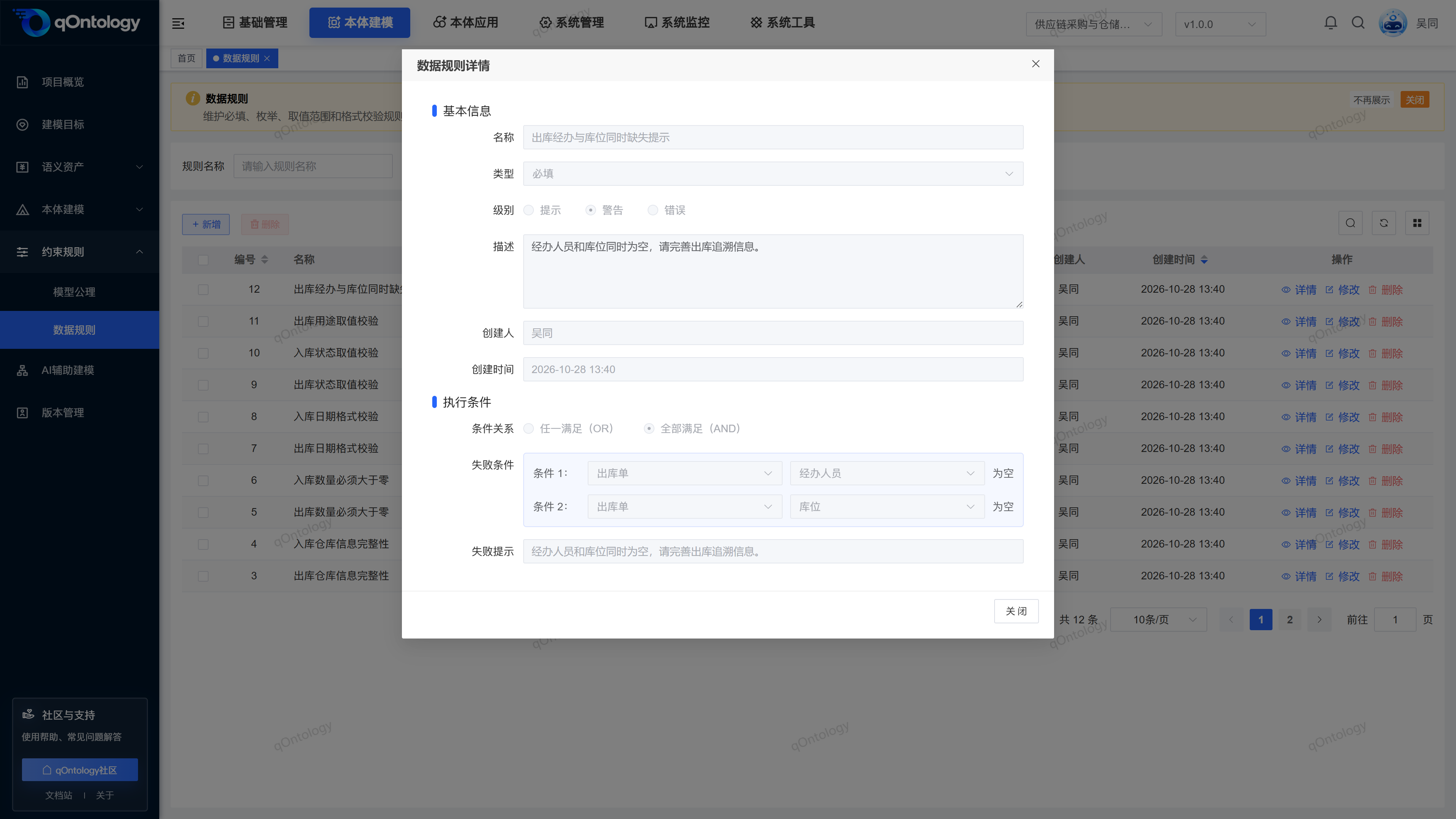
- Click [Details] on the target row.
- Check the rule type, failure conditions, and failure prompts.
- Close details.
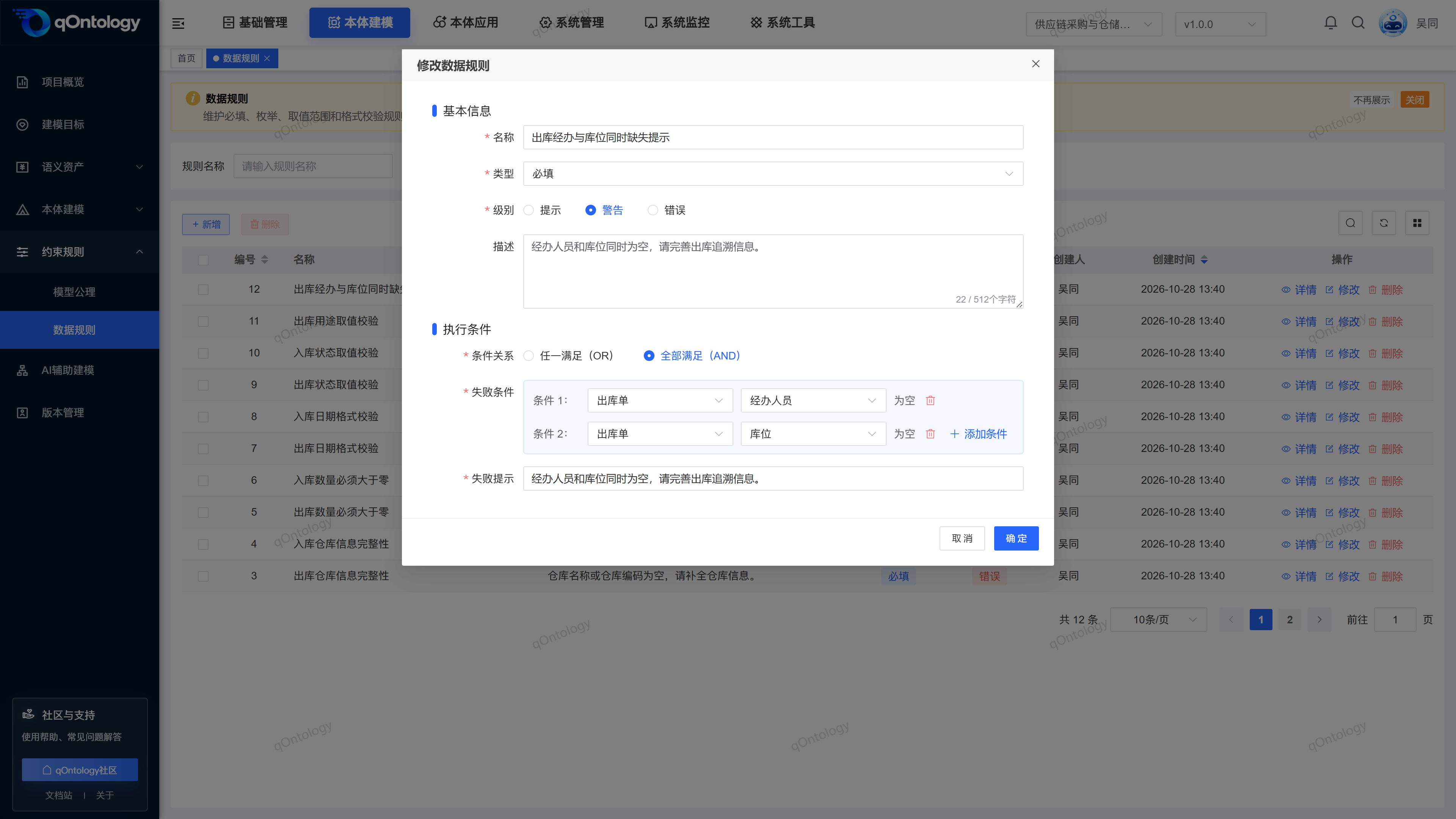
- Click [Modify] when adjustments are needed.
- Click [OK] after modification.
Result: After the modification is successful, reopen the details to check the configuration.
When deleting, use [Delete] in the row or after checking, check the target and confirm; the list will be refreshed after success. There is no independent execution verification button on the rule maintenance page.
FAQ
What should I do if the page is blank after entering it?
First try to refresh and check the access permissions; if it still cannot be loaded, feedback the page address, appearance time and error message to the administrator. Empty space does not mean there are no rules.Does successful saving mean that all data is qualified?
is not. Saving only maintains rule definitions; data quality should be judged based on the actual execution process and its results.
Summarize
First clarify what values are unqualified, and then combine these failure conditions into rules. Prepare object properties → Select rule type → Configure failure conditions → Check OR/AND → Save rule.