
Object Type Relationships
Feature overview
Purpose
Object type relationships describe the connection method between two business categories, clarifies the starting point, relationship name, end point and whether it is reversible, and associates the supported Modeling Goals.
In practice: Use a sentence like "purchase order-specified supplier-supplier" to define how objects are contacted.
Main features
- Clear Direction: Select the start and end points types respectively.
- Reverse semantics: Reversible relationships require filling in the reverse name.
- Target Relation: Record which modeling problem this relationship serves.
Scope
The information on this page belongs to the current project and version; entry, editing, deletion and other operations are subject to corresponding authorization controls. After switching projects or versions, lists and associated objects should be rechecked.
Before you begin
Prerequisites
- You have logged in to qOntology and have obtained the permissions for this page and the required operations.
- The project has been created in [Basic Management], and the correct project and version have been selected at the top of [Ontology Modeling].
- The starting point, end point Object Types and association Modeling Goals have been established, and the meaning of forward and reverse business has been confirmed.
Navigation path
【Ontology Modeling】 > 【Ontology Modeling】 > 【Object Type Relationships】
Page overview
The query area supports relationship name and whether it is reversible. The list displays information such as relationship direction, reversible status, etc. For details, please view basic information and Modeling Goals.
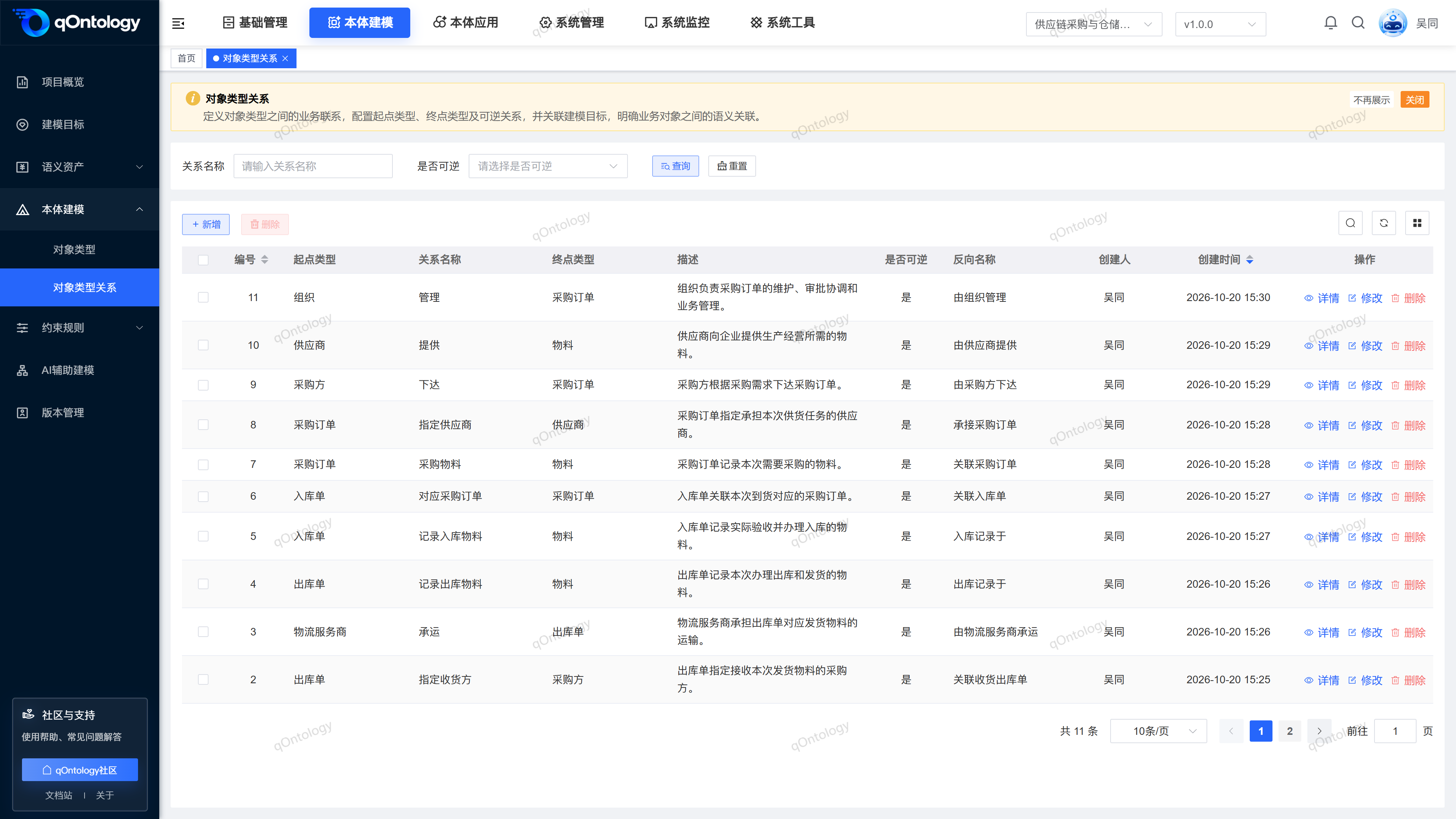
Recommended workflow
Prepare Object Types and the target → Define the forward relationship → Define the reverse name as needed → Associate the target → View details.
Functional operation instructions
Query and reset
- Fill in or select the relationship name and whether it is reversible in the query area.
- Click [Query].
- Click [Reset] when you need to restore conditions.
Result: The list is reloaded according to conditions and can be viewed in paging.
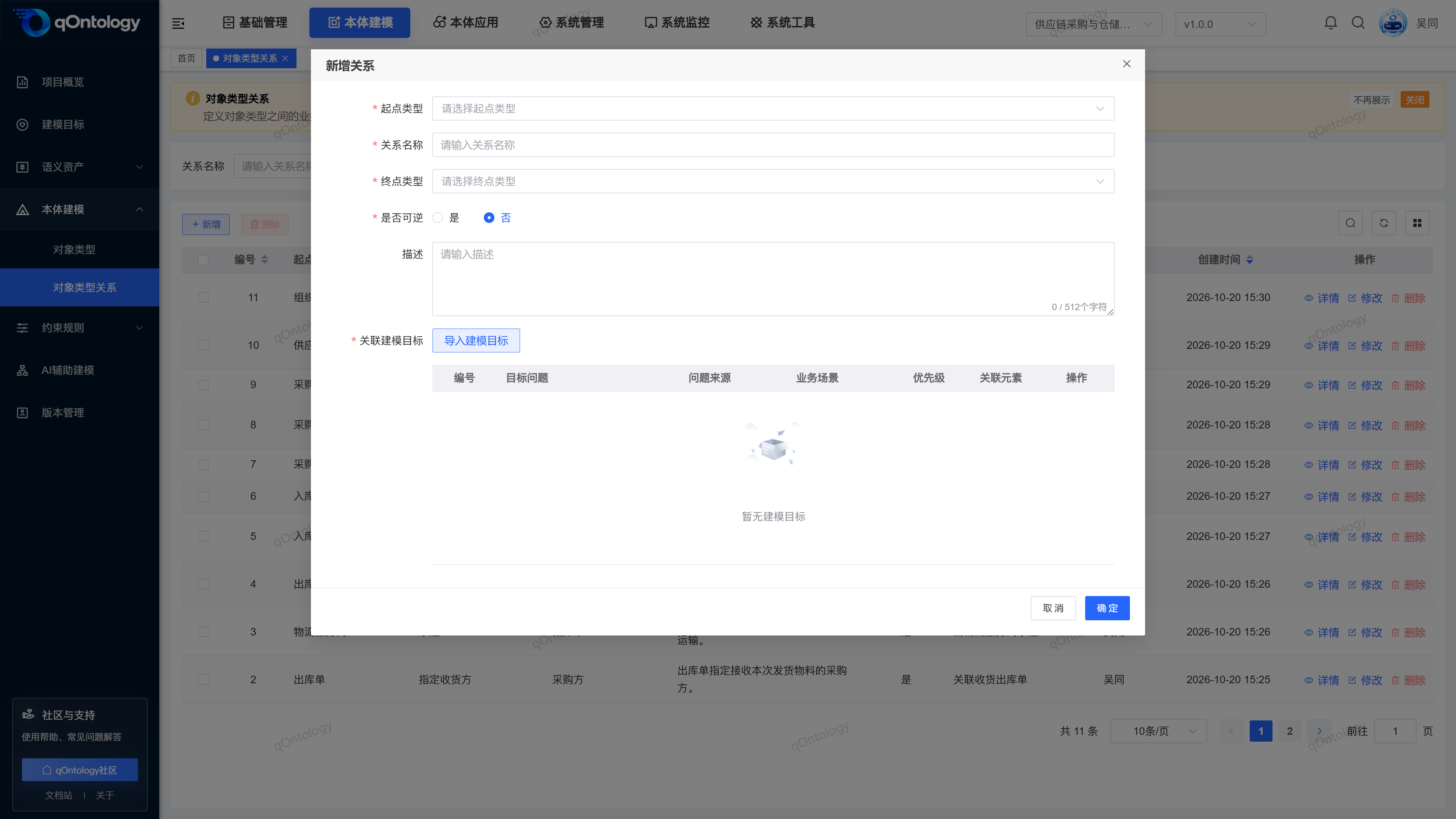
Added Object Type Relationships
- Click [Add].
- Select the starting point type.
- Fill in the relationship name.
- Select the end point type.
- Choose whether it is reversible.
- If you select Yes, fill in the reverse name.
- Click [Import Modeling Goals].
- Select and confirm relevant goals.
- Click [OK] on the form.
| Field name | illustrate | Is it required? |
|---|---|---|
| Starting point type | The object class at which the relationship originates. | yes |
| relationship name | Describe the business relationship from the start point to the end point; the combination of "start point type + relationship name + end point type" cannot be repeated in the same version. | yes |
| end type | The object class of the destination of the relationship. | yes |
| Is it reversible? | Select Yes or No, default No. | yes |
| reverse name | Describe the relationship from the end point looking back to the starting point. | Required if reversible |
| describe | Supplementary relationship meaning, up to 512 characters. | no |
| Related Modeling Goals | Select the support target through [Import Modeling Goals]. | yes |
Result: After the new addition is successful, the relationship appears in the current version list.
This page maintains the relationship structure in the model; the Domain / Range axioms in the constraint rules independently maintain the allowed type combinations. Adding or modifying Object Type Relationships will not automatically synchronize the axioms. After adjusting the name or start and end points, you should check the two definitions respectively.
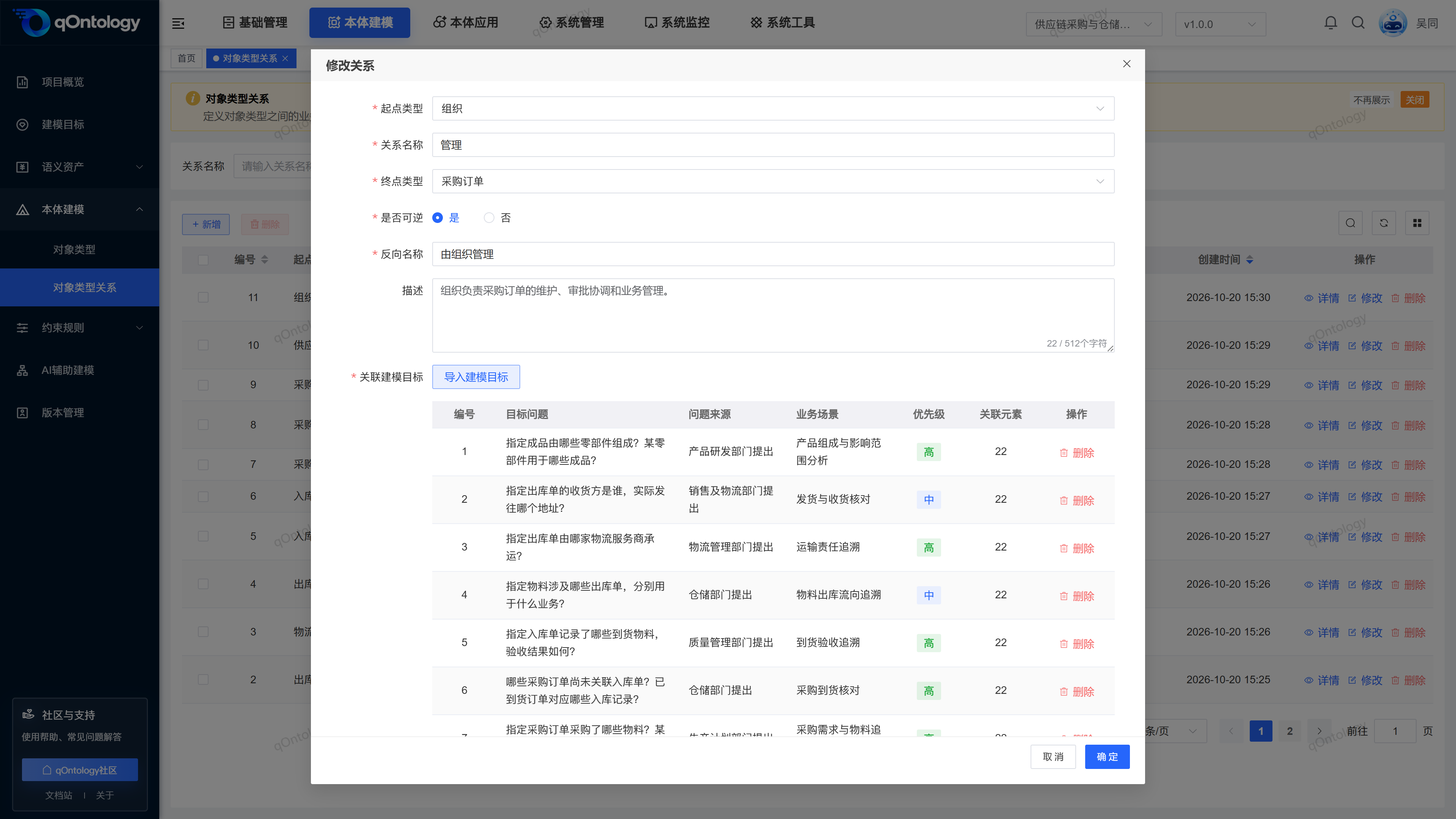
Configure reverse relationship
- Open the modification form for the target relationship.
- Set [Is it reversible] to [Yes].
- Fill in the [reverse name].
- Click [OK].
Result: Save the forward and reverse semantic configuration.
For example, the forward name can be "Purchaser - Release - Purchase Order", and the reverse name can express "Released by the Purchaser". Reversibility does not mean that the same relationship name is still used after exchanging the start and end points, nor does it mean that actual business data has been generated.
View relationship details
- Click [Details] on the target row.
- Check the start, end, and relationship names.
- View the [Modeling Goals] tab.
Result: Ability to trace relationship definitions and their associated targets.
Modify Object Type Relationships
- Click [Modify] on the target record row.
- Adjust the fields that need to be modified.
- Click [OK].
Result: The list will be refreshed after successful saving; reopen the record to check the modification results.
Delete Object Type Relationships
- Click [Delete] on the target record row.
- Check the target record in the confirmation box.
- Confirm deletion.
Result: After the deletion is successful, the list is reloaded and the target record is no longer displayed.
You can also check records and use [Delete] above the list to process them in batches.
Warning
Check the business purpose and related information before deleting. This page does not provide a recycle bin recovery entry.
FAQ
Can you fill in the specific company name as Object Types?
Select a category here, such as supplier; the specific company belongs to the subsequent map entity.Will the connection appear immediately on the map after the relationship is established?
does not generate business instances just by defining relationships; actual data needs to be extracted and the results viewed.
Summarize
Use a sentence like "Purchase Order - Designated Supplier - Supplier" to define how objects are contacted. Prepare Object Types and the target → Define the forward relationship → Define the reverse name as needed → Associate the target → View details.