
Object Types
Feature overview
Purpose
Object types define the object categories and levels in the business, such as organizations, suppliers, and purchase orders; maintain object attributes in details and view the associated Modeling Goals.
In practice: First define what categories there are, and then explain what information should be recorded for each type of object.
Main features
- Hierarchical organization: Use the superior Object Types to form a tree structure.
- Attribute Definition: Configuration attribute code, base type or Business Data Types.
- Target traceability: Associate Object Types to Modeling Goals that needs support.
Scope
The information on this page belongs to the current project and version; entry, editing, deletion and other operations are subject to corresponding authorization controls. After switching projects or versions, lists and associated objects should be rechecked.
Before you begin
Prerequisites
- You have logged in to qOntology and have obtained the permissions for this page and the required operations.
- The project has been created in [Basic Management], and the correct project and version have been selected at the top of [Ontology Modeling].
- The Modeling Goals to be associated has been maintained; when you need to reuse terms, business types or enumeration, prepare the corresponding definitions first.
Navigation path
【Ontology Modeling】 > 【Ontology Modeling】 > 【Object Types】
Page overview
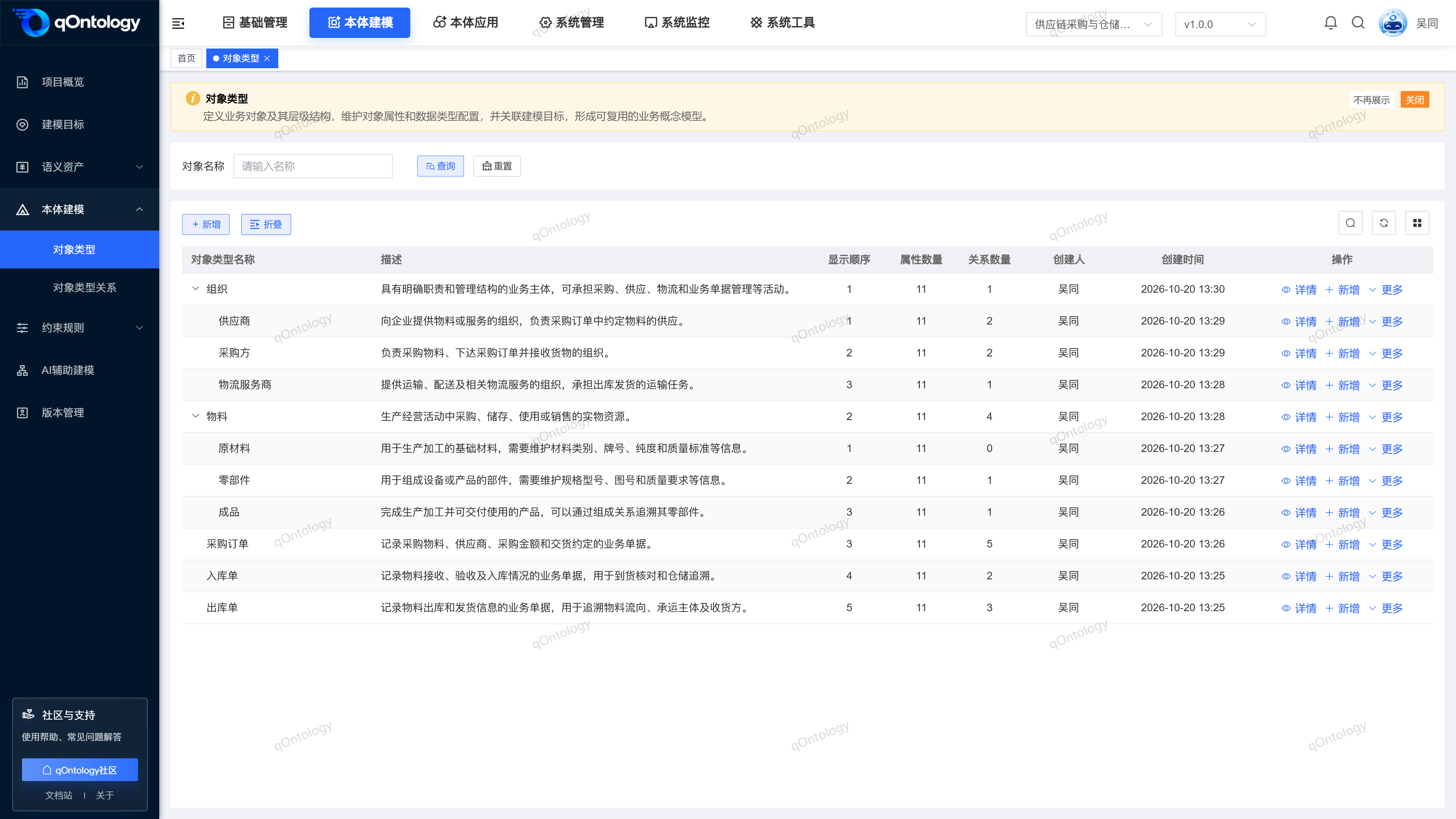
The page displays Object Types in a tree list. The new or modified window contains basic information and association Modeling Goals; details include [Object Types attributes] and [Modeling Goals].
Recommended workflow
Prepare the target and terminology → Create Object Types → Associate the target → Add attributes → Check the type and attribute information.
Functional operation instructions
Query and reset
- Fill in or select the Object Types name in the query area.
- Click [Query].
- Click [Reset] when you need to restore conditions.
Result: The tree list is reloaded according to conditions, and nodes can be expanded to view subordinate types.
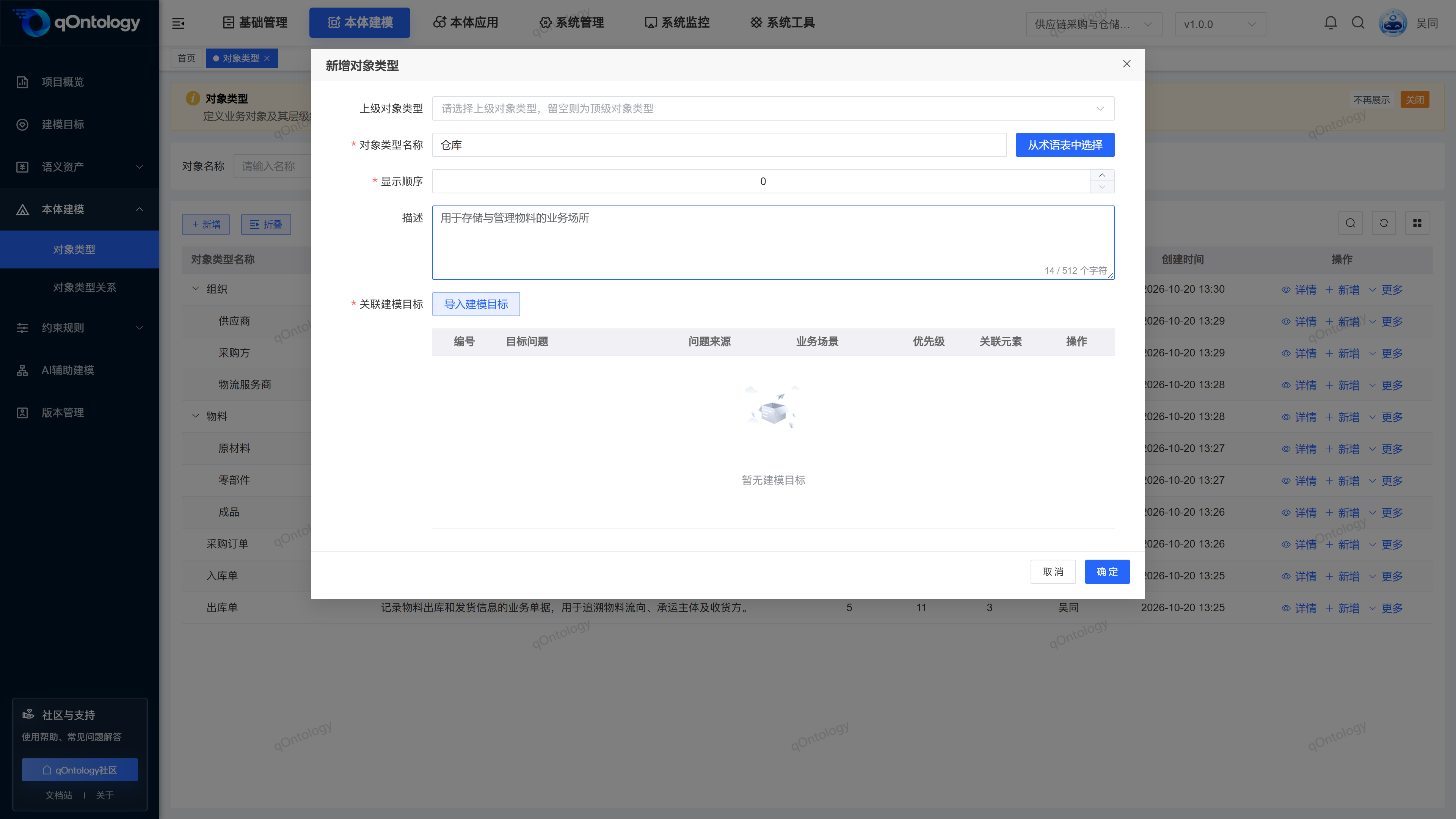
Added Object Types
- Click [Add].
- Select the superior Object Types as needed.
- Fill in a name or select a term using Select from Glossary.
- Fill in the display order and description.
- Click [Import Modeling Goals].
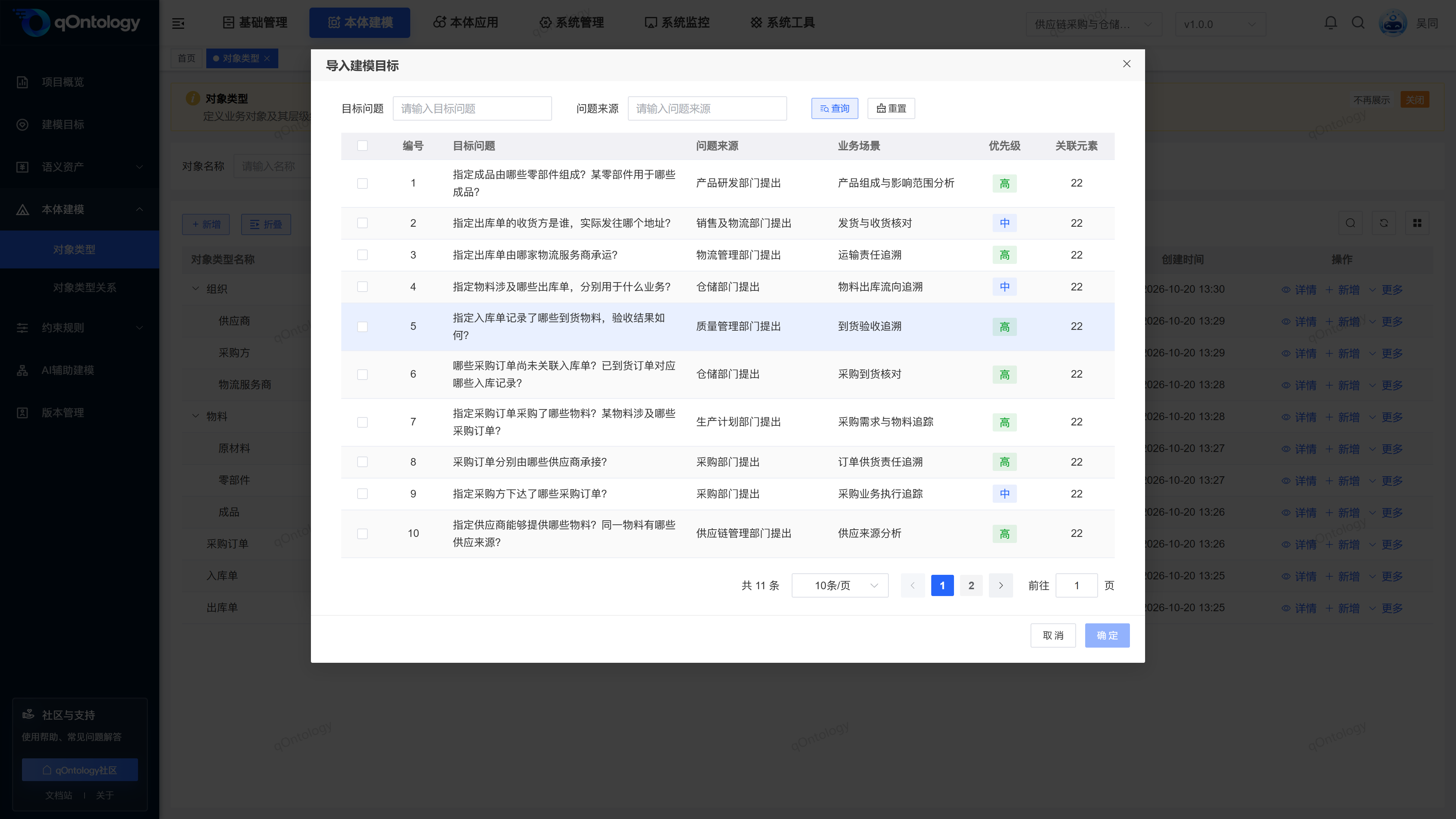
- Check the relevant goals.
- Confirm target selection.
- Click [OK] on the Object Types form.
- Superior Object Types: Select the parent type; if not selected, create the top-level Object Types. (optional)
- Object Types Name: Fill in the type name, or select it from the glossary and check it; the same project version cannot have the same name, including types located under different parent nodes. (required)
- Display order: Set the display order of the same layer, the default is 0. (required)
- Description: Describe the meaning and boundaries of the object, up to 512 characters. (optional)
- Associate Modeling Goals: Select one or more targets through [Import Modeling Goals]. (required)
Result: After successful saving, the tree list displays the new type and its level.
You can also click [New] in the existing type row to create a subordinate type, and check the imported superior Object Types before submitting.
Check the questions related to this type in the target selection window, and then confirm to return to the form.
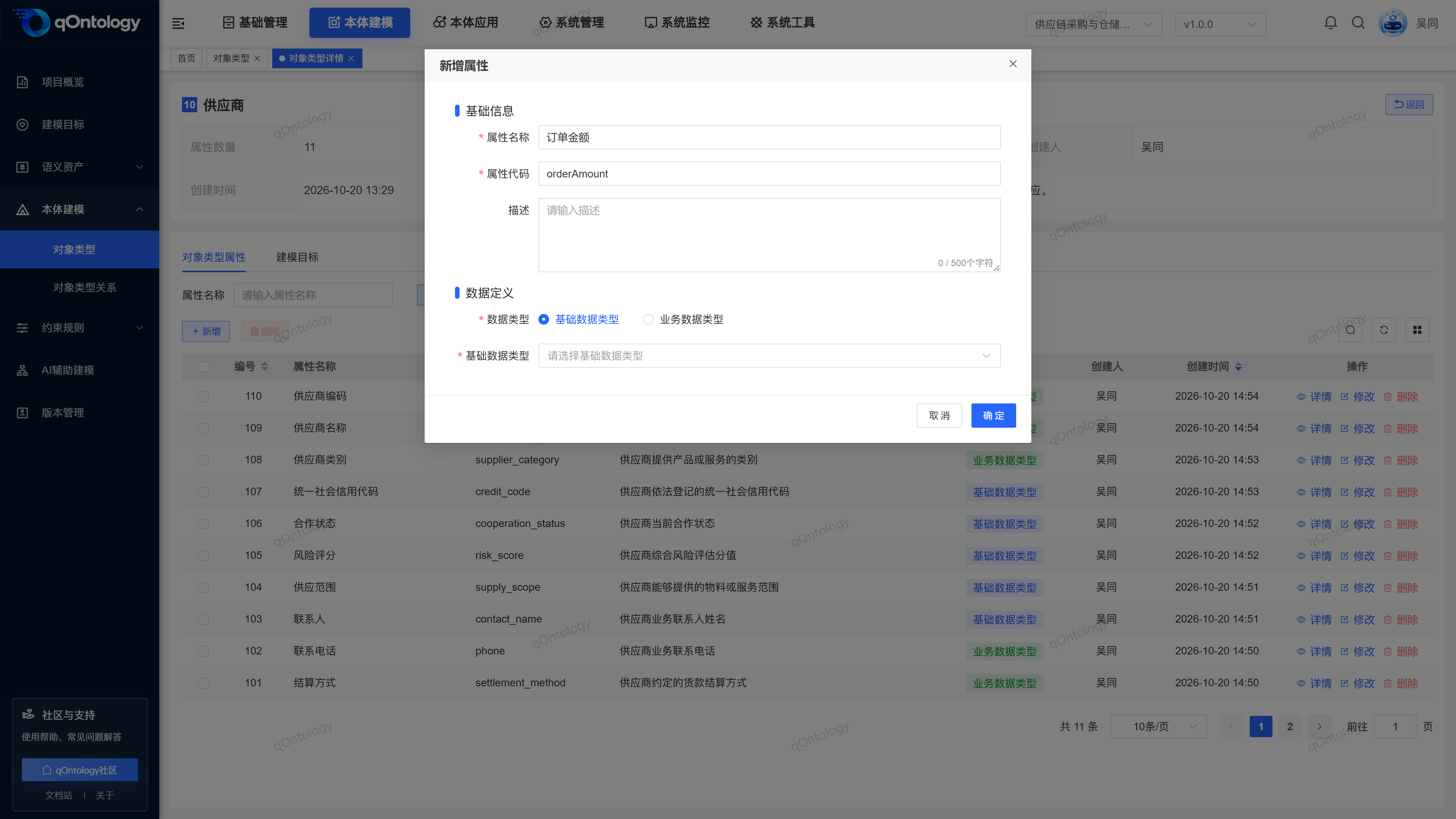
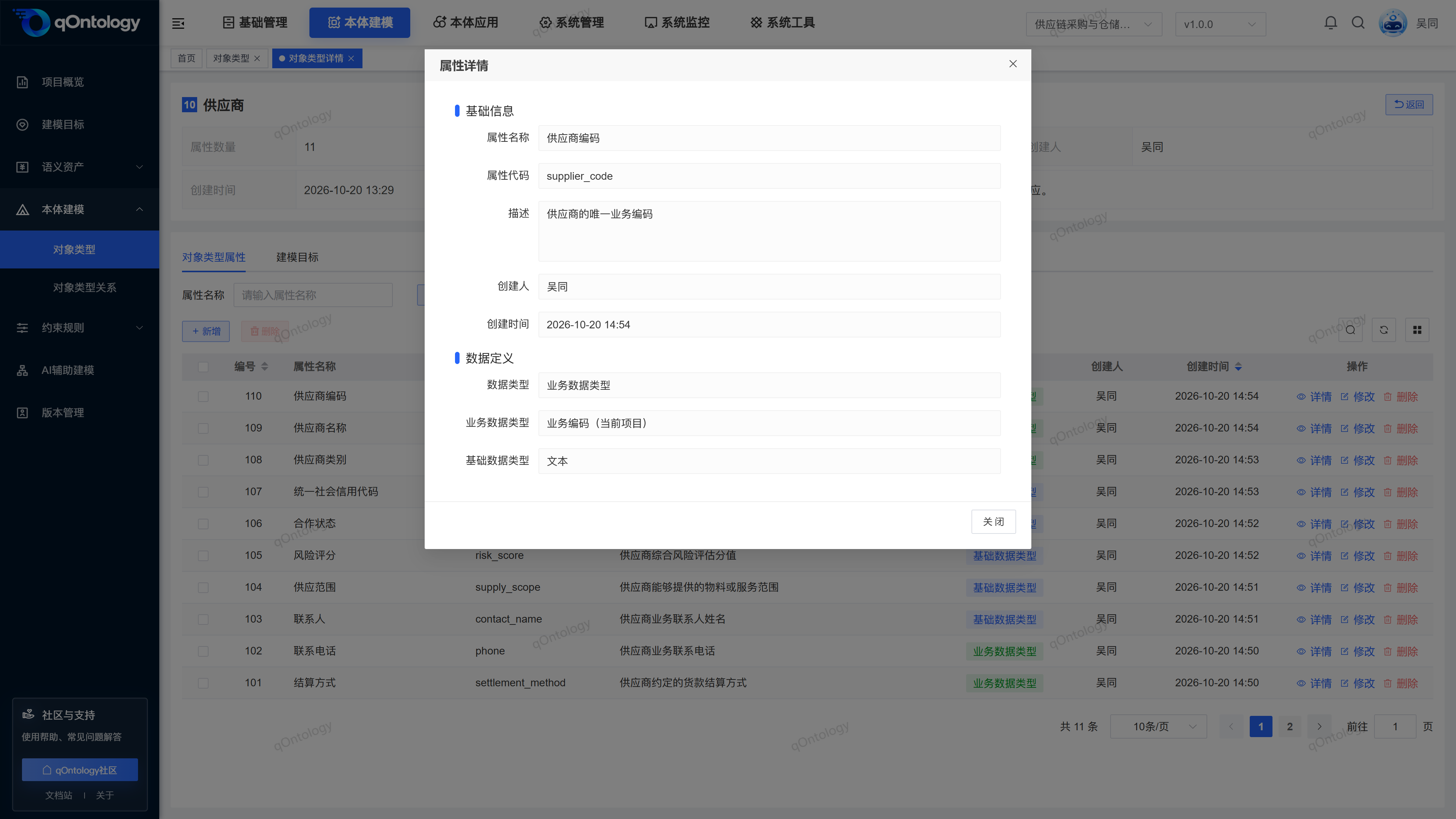
Add object properties
- Click [Details] in the target type row.
- Enter [Object Types Properties].
- Click [Add].
- Fill in the attribute name, attribute code, and description.
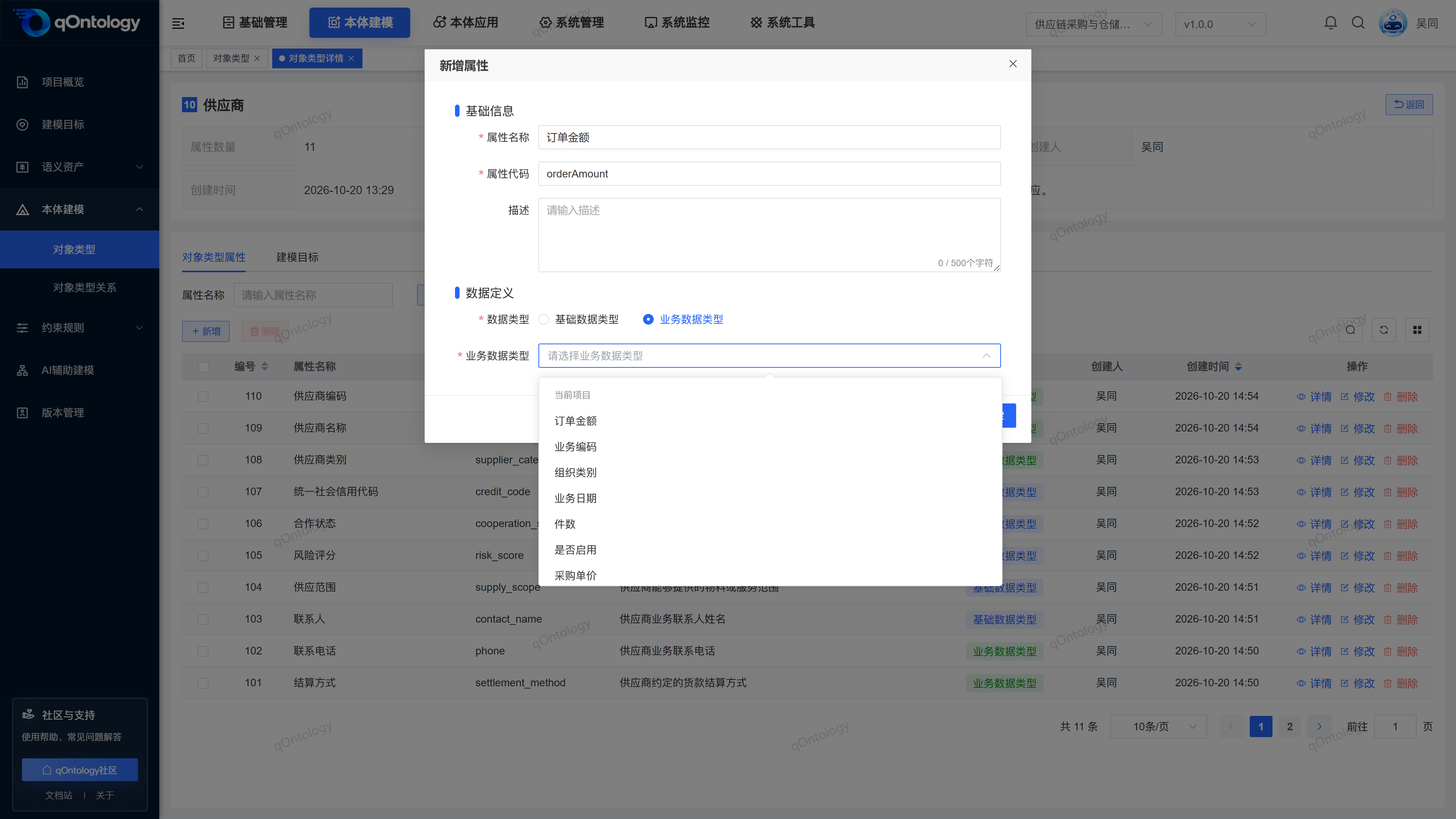
- Select [Basic data type] or [Business Data Types].
- Supplement the corresponding type parameters or select an existing business type.
- Click [OK].
Result: After successful saving, the attribute list of Object Types is refreshed.
Both the attribute name and code are required, with a maximum of 128 characters; the code must start with a letter, only letters, numbers, and underscores are used, and cannot be repeated within the same Object Types. This uniqueness restriction is for property codes, not property names. Description can be up to 500 characters. After selecting the basic type, fill in the parameters such as [Unit], [Decimal Number], and [Format] according to the actual display; when selecting the business type, you can select and view its configuration from the current project or global type.
Verify and maintain properties
- Press [Attribute Name] in the details to query.
- Check the type configuration through the attribute line [Details].
- When adjustments are needed, click [Modify] on the attribute row.
- Click [OK] after modification.
Result: The attributes are saved and then reloaded for subsequent mapping and constraints.
The attribute line [Delete] requires confirmation; before deleting, check whether the Structured Extraction mapping and rules still reference the attribute. If the system prompts that it is referenced by Model Axioms or Data Rules, you need to modify or delete the corresponding definition to unbind it, and then delete the attribute.
View associated goals
- Switch to [Modeling Goals] in the details of Object Types.
- View target issues, priority, and verification status.
Result: Display the associated target list.
This tab is mainly used for viewing; when it is necessary to adjust the association, return to the modification form of Object Types and maintain it in the target selection area.
Modify Object Types
- Click [More] on the target record row.
- Click [Modify].
- Adjust the fields that need to be modified.
- Click [OK].
Result: The list will be refreshed after successful saving; reopen the record to check the modification results.
Delete Object Types
- Click [More] on the target record row.
- Click [Delete].
- Check the target record in the confirmation box.
- Confirm deletion.
Result: After the deletion is successful, the list is reloaded and the target record is no longer displayed.
Warning
Check the business purpose and related information before deleting. When Object Types is referenced by Model Axioms or Data Rules, the system will refuse to delete and prompt the relevant definition name, which needs to be unbound first; simply deactivating the axiom will not remove the reference. This page does not provide a recycle bin recovery entry.
Supplementary page reference
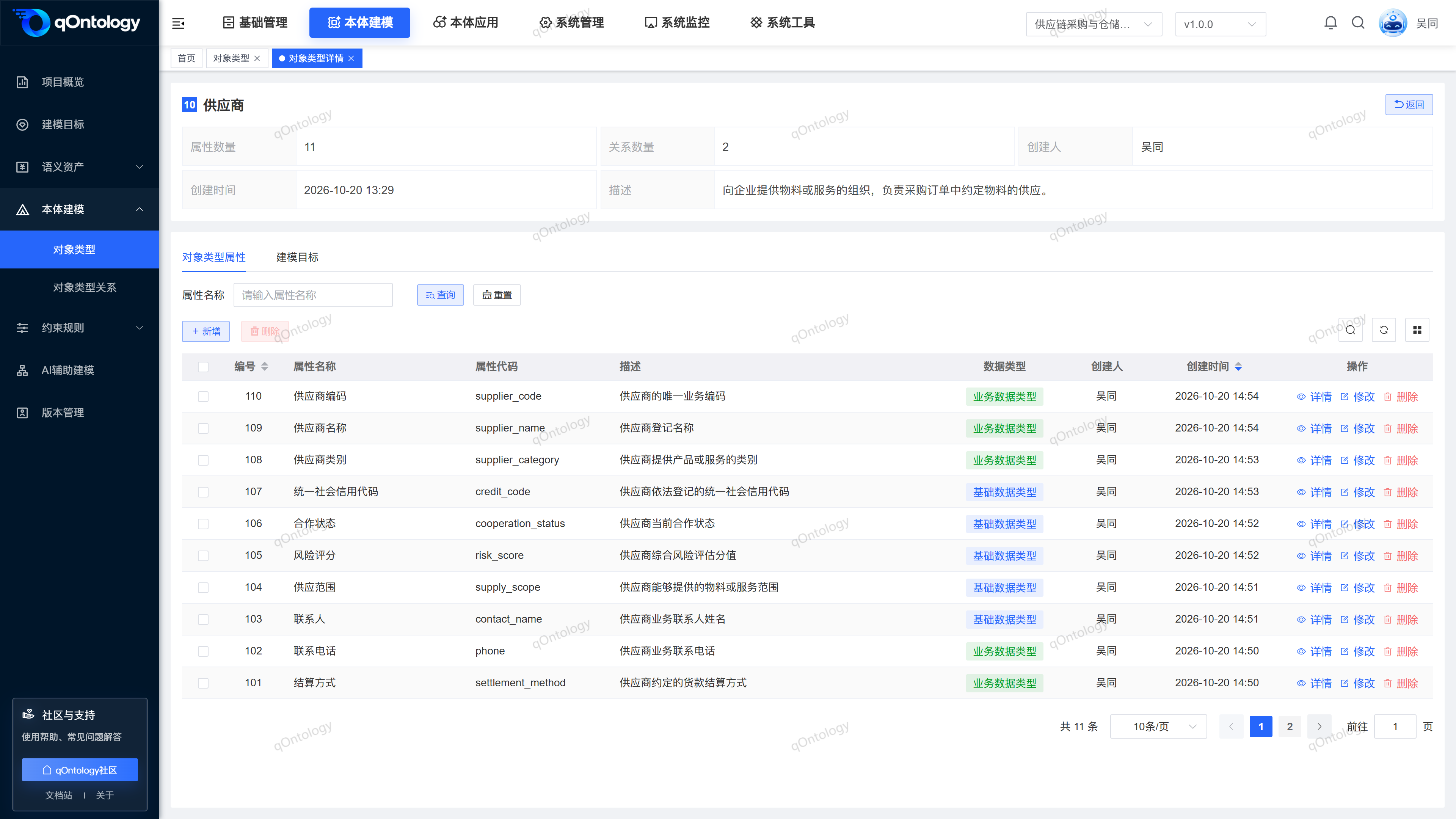
The picture below shows the Object Types property page, which is convenient for checking the property code, data type and creation information.
FAQ
What is the difference between Object Types and map entities?
Object Types describes the category and attribute structure; the graph entity is the specific business object generated by extraction.Is the relationship between parent type and child type equivalent to having all axioms configured?
level and Model Axioms have their own maintenance entrances. You should still go to the Model Axioms page to check the required constraints.
Summarize
First define what categories there are, and then explain what information should be recorded for each type of object. Prepare the target and terminology → Create Object Types → Associate the target → Add attributes → Check the type and attribute information.