Department management
1. Department management page
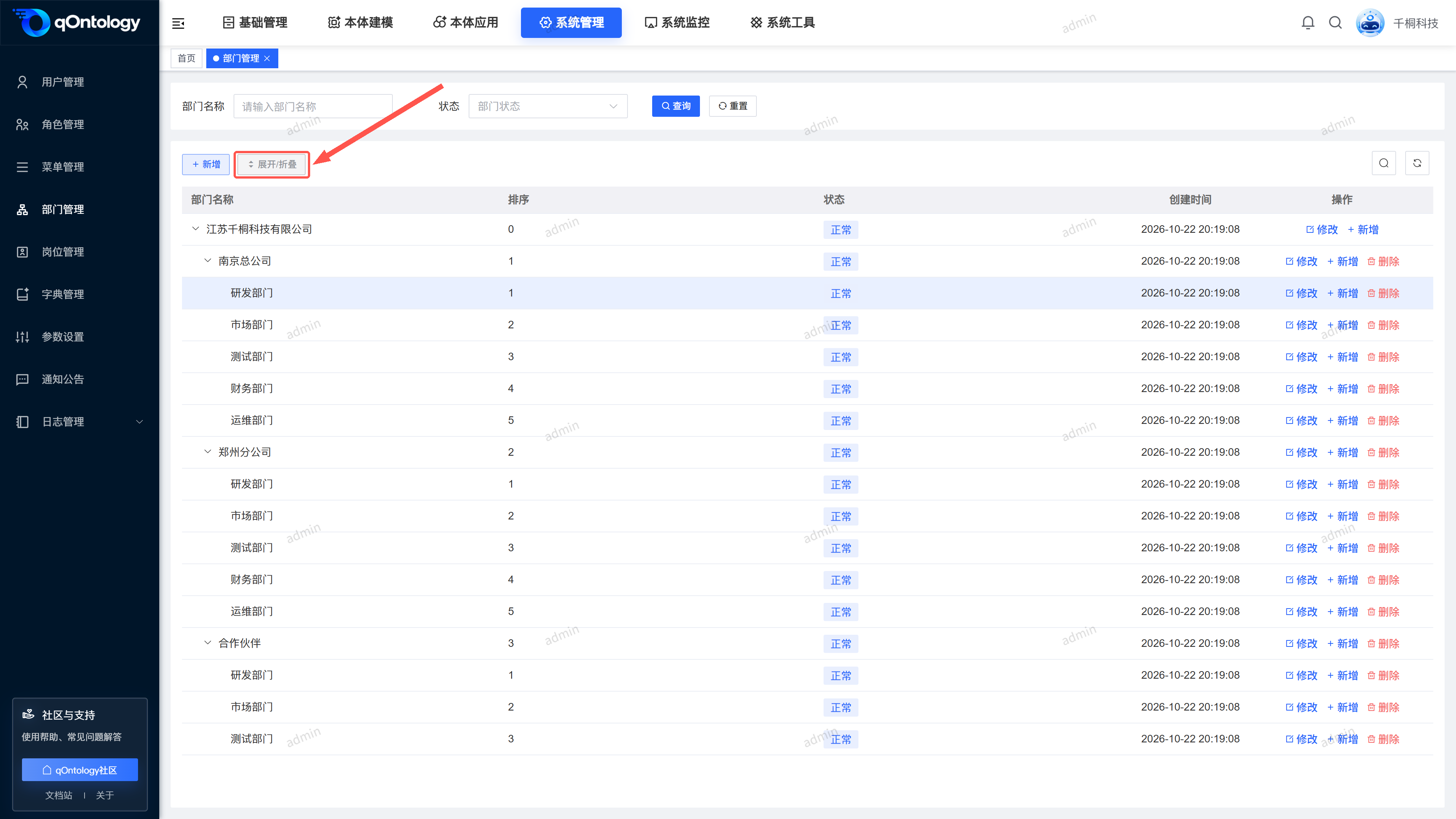
Click [Department Management] under [System Management] to enter the department management page. This page displays a tree structure list containing fields such as department name, sorting, status, and creation time.
2. Add new department information
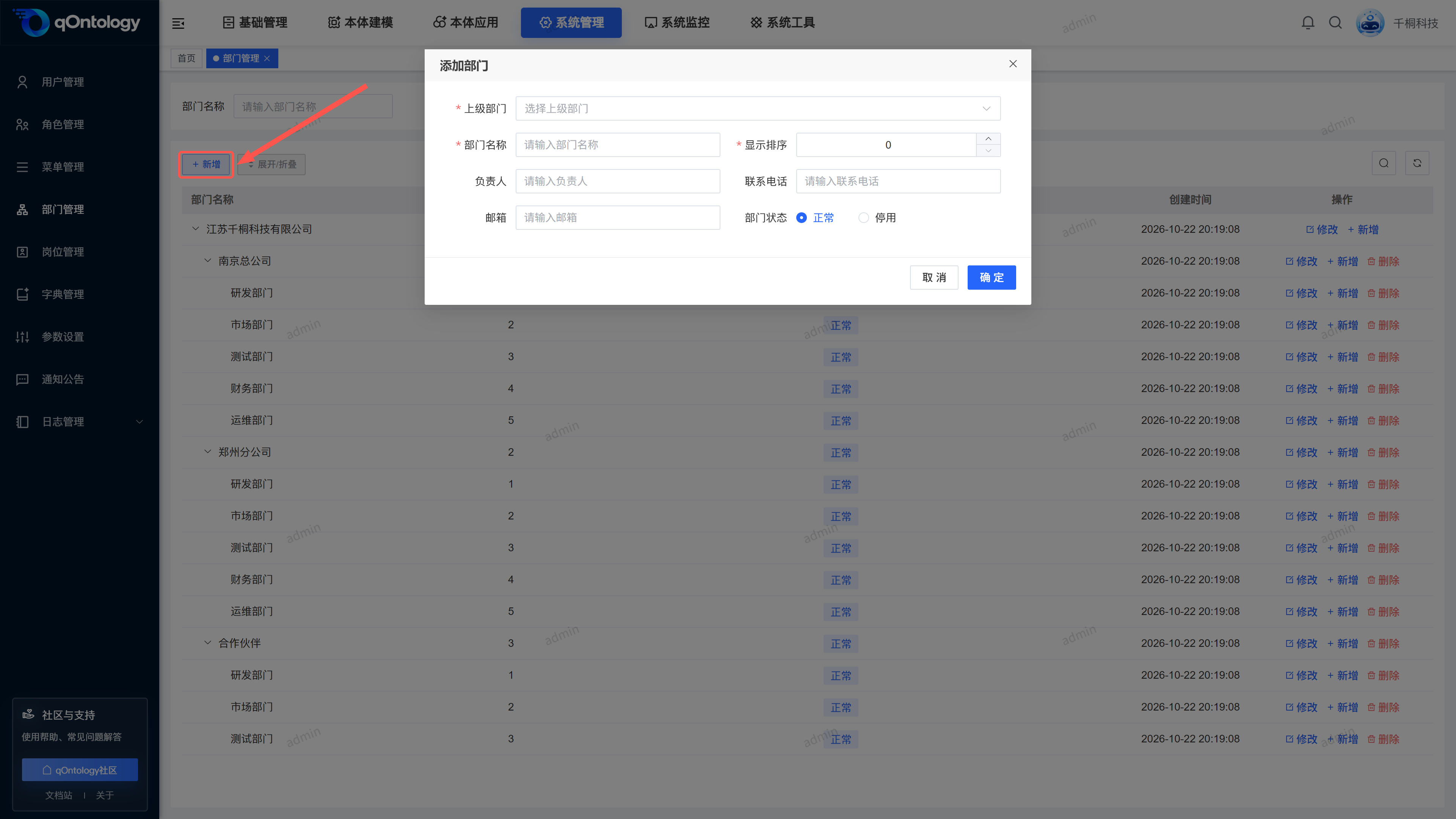
Click the [Add] button on the page, fill in the department information in the pop-up box that appears, and click the [OK] button to complete the addition of department information.
3. Modify department information
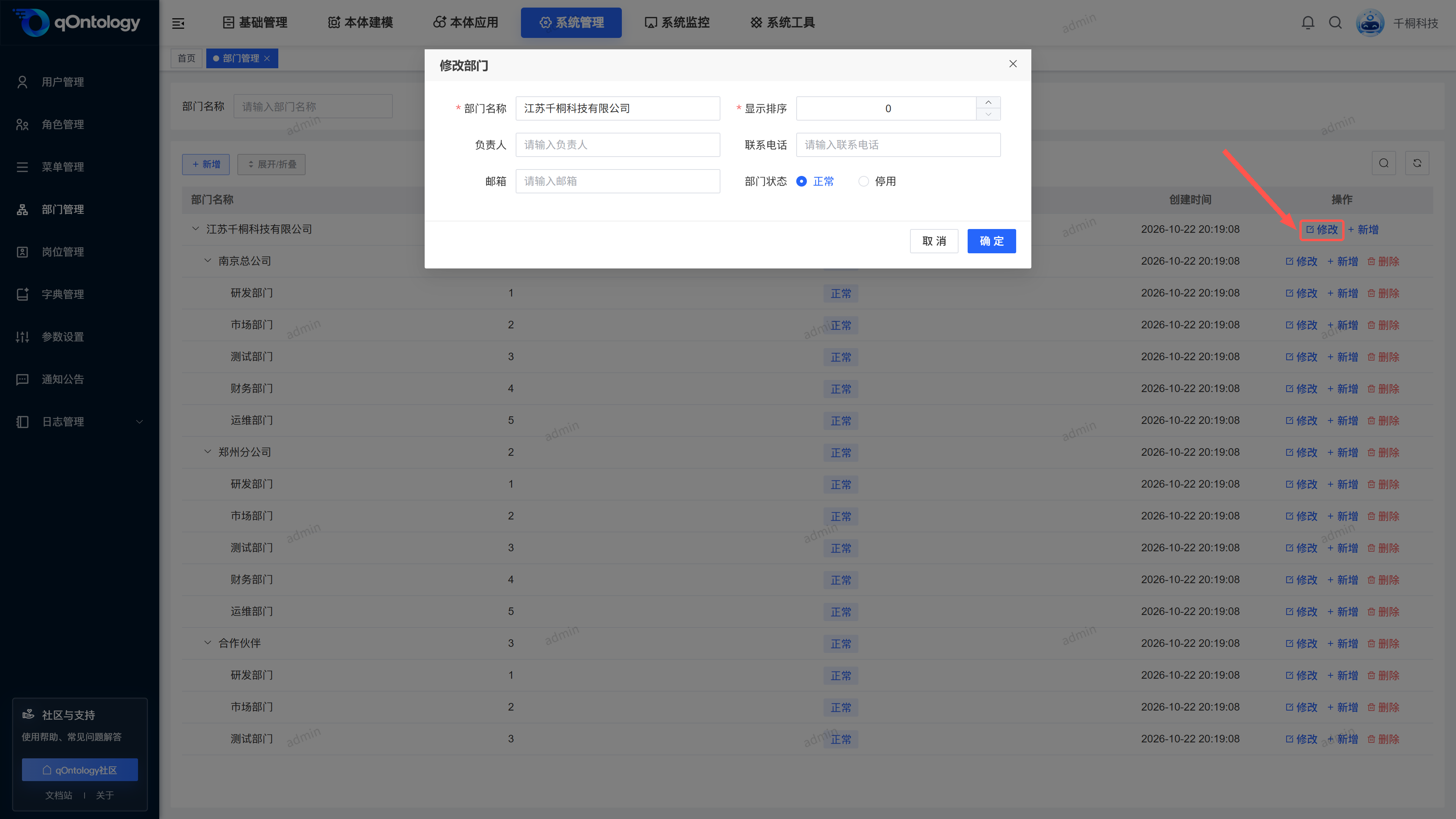
Select the department information to be modified, click the [Modify] button in the operation column, modify the existing department information in the pop-up box that appears, and click the [OK] button to complete the department information modification.
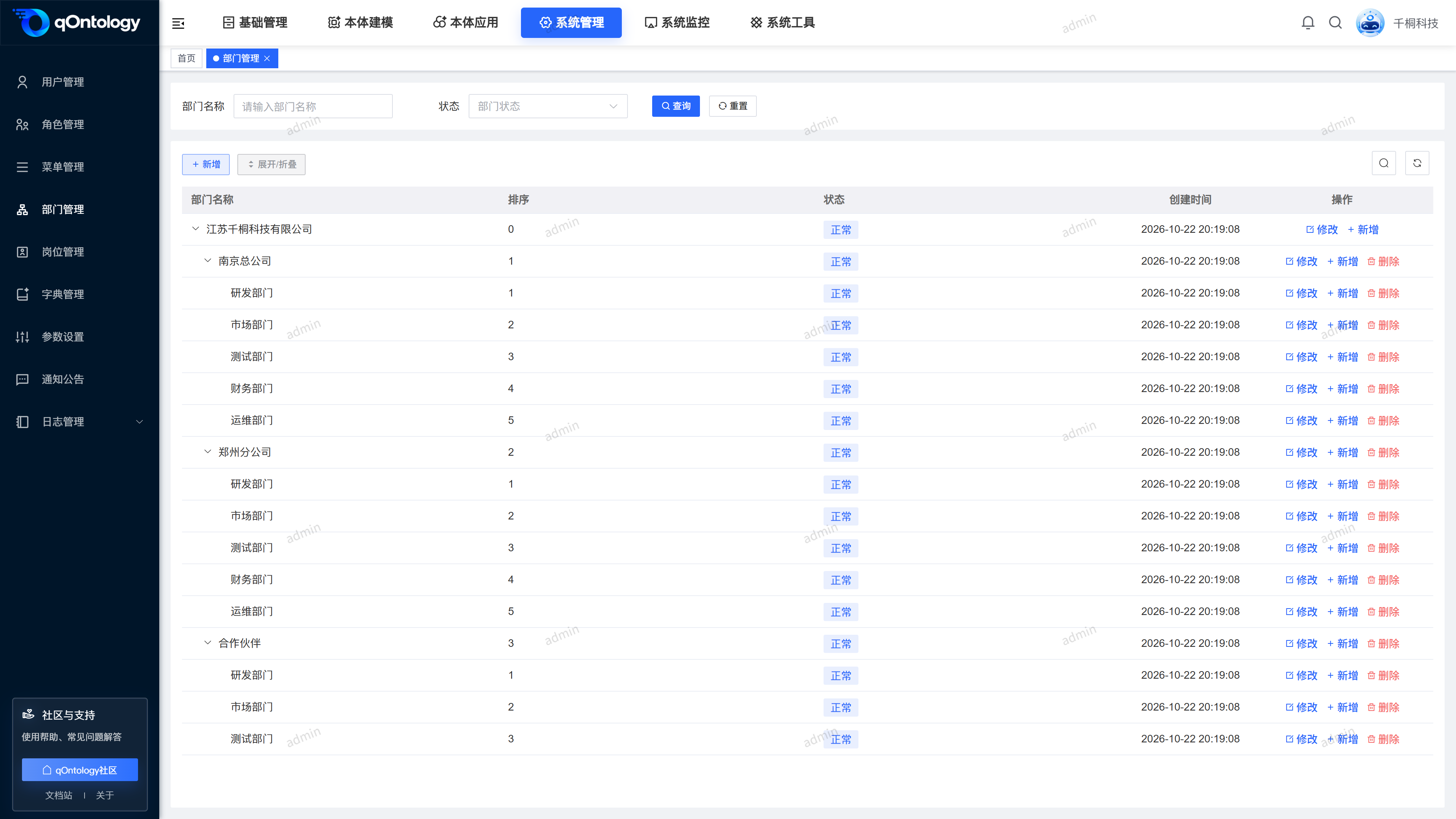
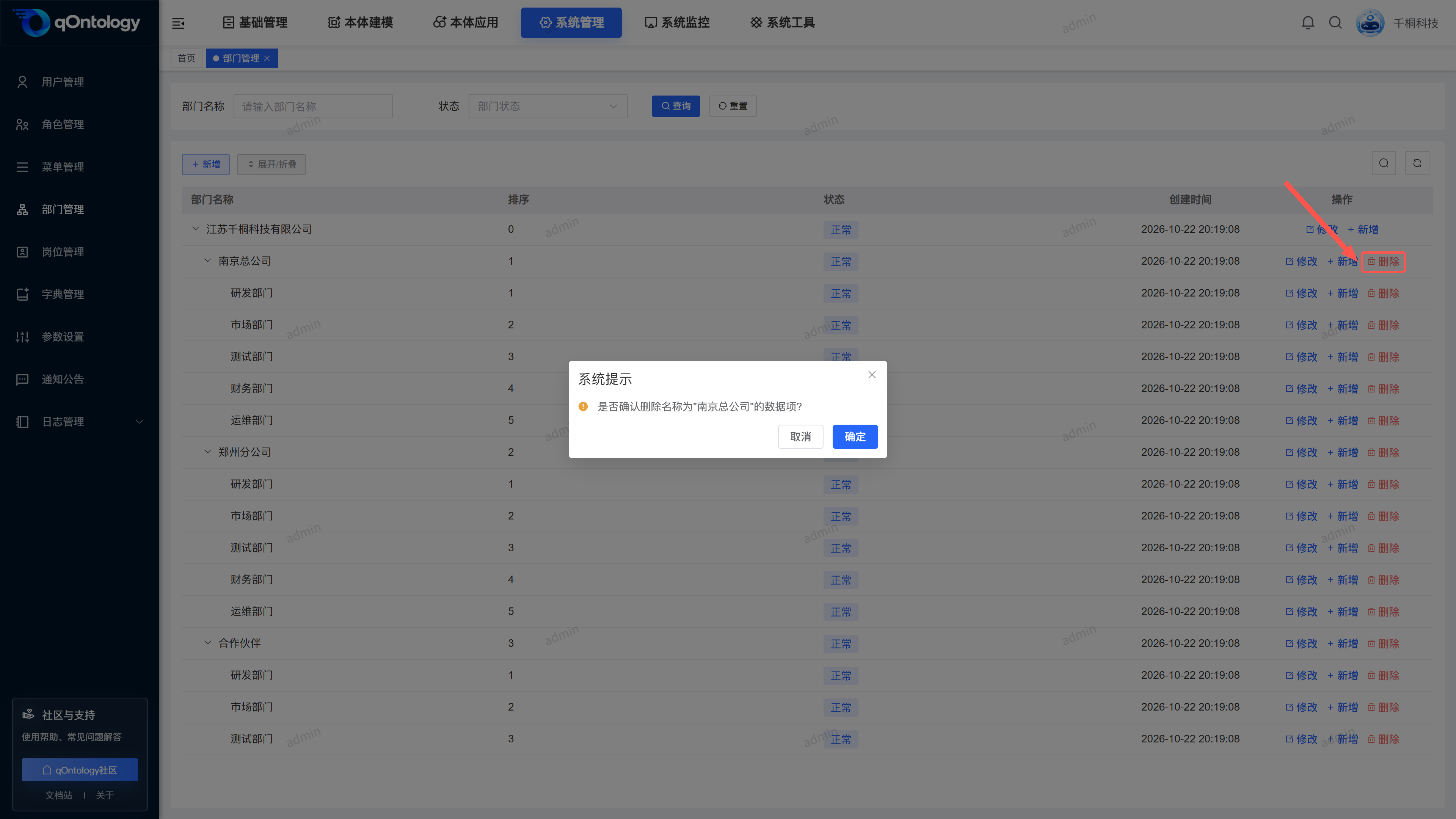
4. Delete department information
Select the department information to be deleted, click the [Delete] button in the operation column, and click the [OK] button. The system will delete the department information.
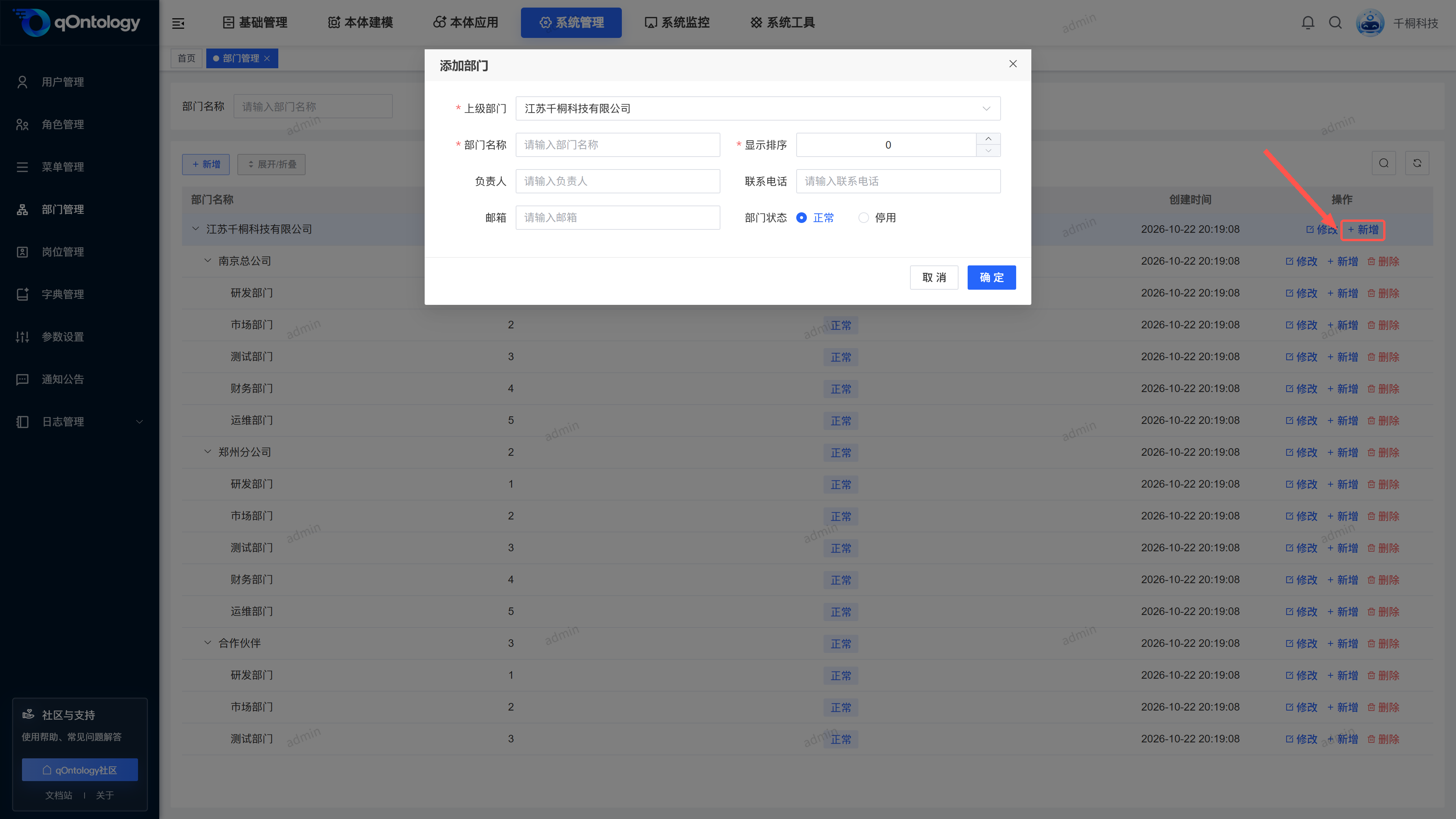
5. Add new sub-departments and automatically fill in superiors
Select the target parent department and click the [Add] button in its operation column. In the pop-up new window, the "Parent Department" field automatically displays the current department. After filling in other information and clicking [OK], you can add sub-departments to it.
6. Expand/collapse
Click the [Expand/Collapse] button to switch the expanded and collapsed state of the tree list.