Login log
1. Login log page
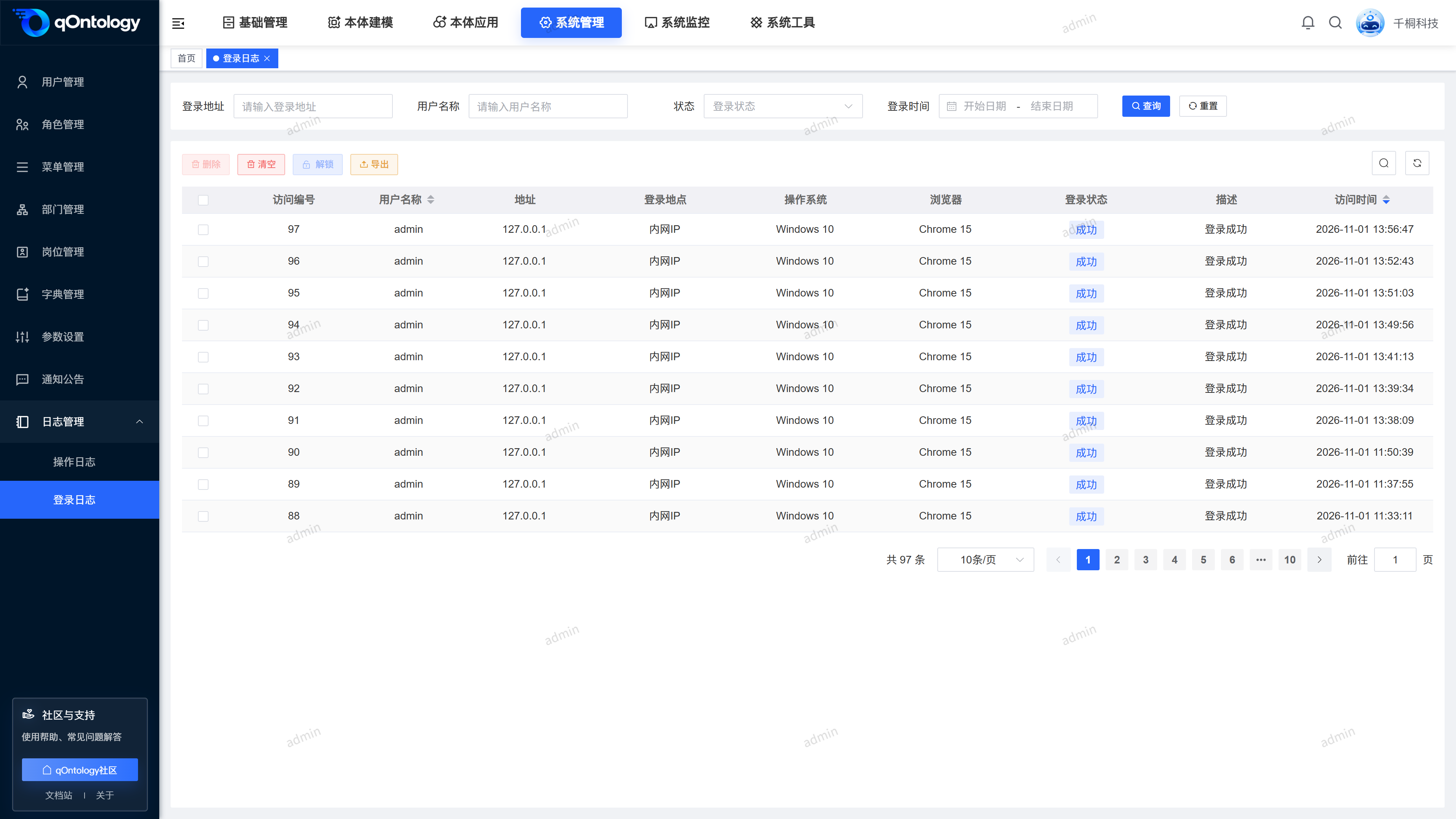
Click [Login Log] under [System Management] to enter the login log page. This page displays a list of fields including access number, user name, address, login location, operating system, browser, login status and description.
2. Unlock function
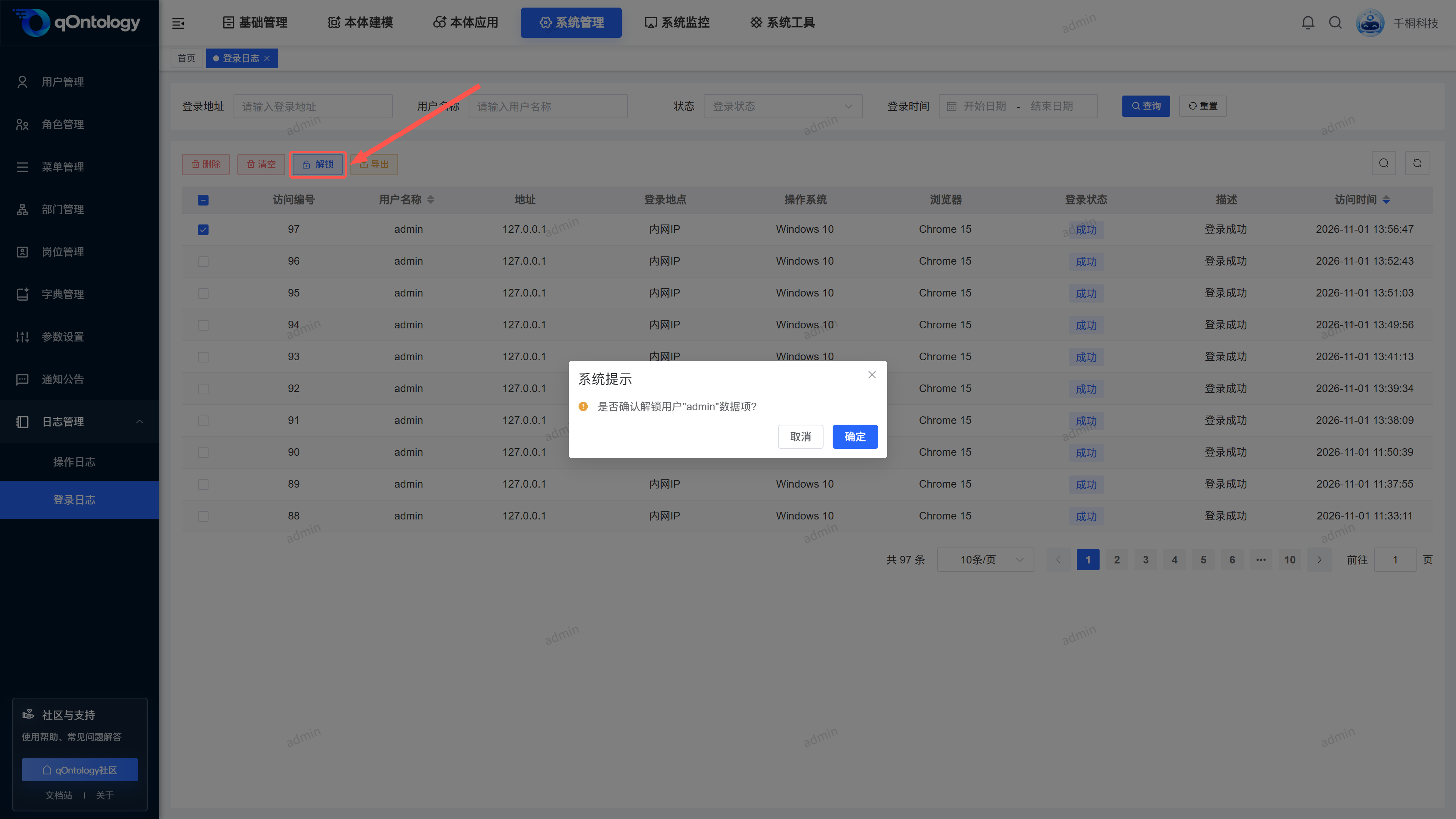
Select the checkbox of the login log to be unlocked, click the [Unlock] button on the page, and click the [OK] button, the system will be unlocked.
3. Delete login logs in batches
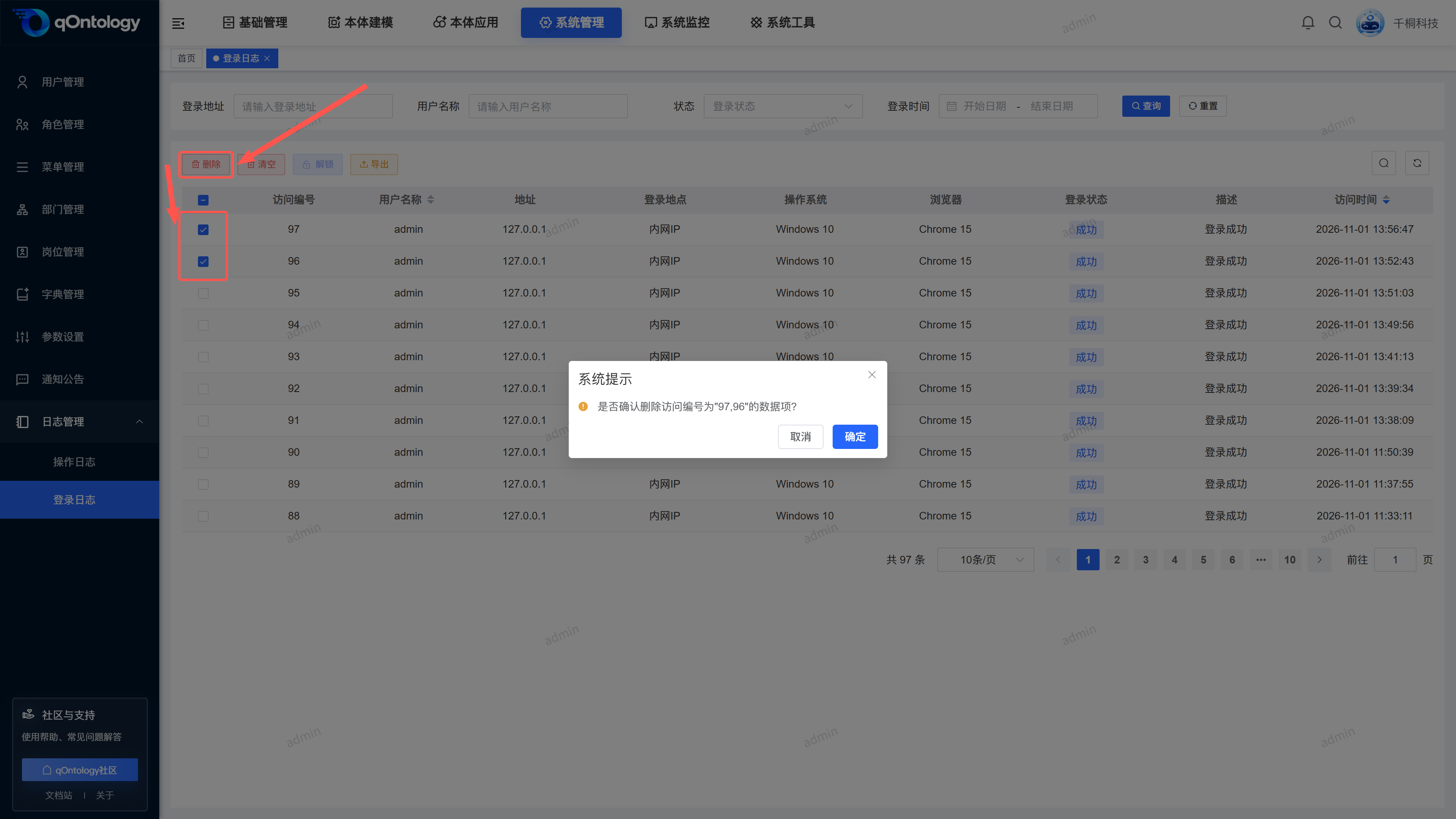
Select multiple login log check boxes in the page list, click the [Delete] button, confirm the deletion in the pop-up box that appears, and click the [OK] button to complete the batch deletion of login logs.
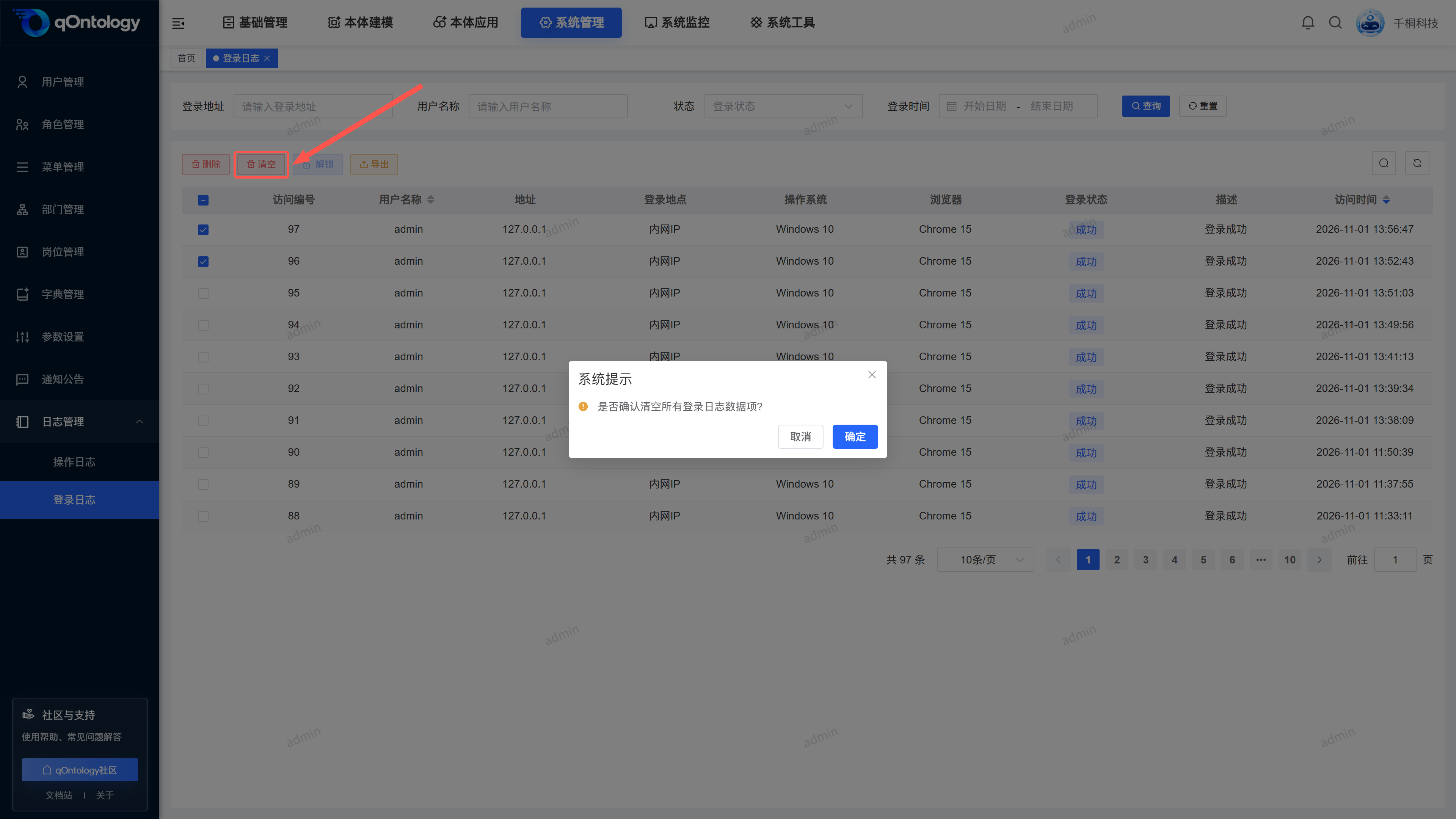
4. Clear the login log
Click the [Clear] button on the page and click the [OK] button to clear the login log.
5. Export operation log
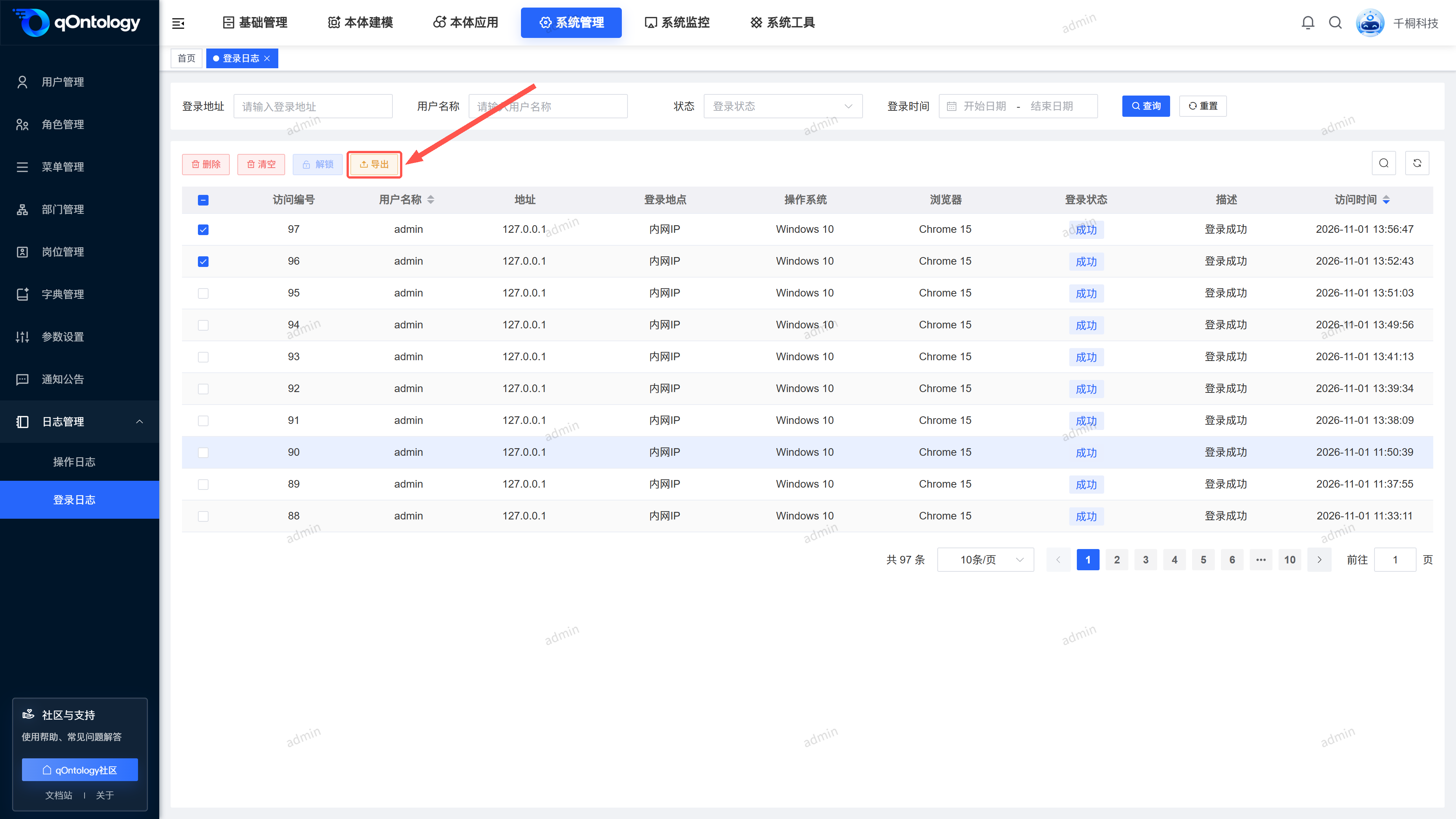
Click the [Export] button on the page, and the exported file will be automatically downloaded and can be viewed in the download list of the browser.