Dictionary management
1. Dictionary management page
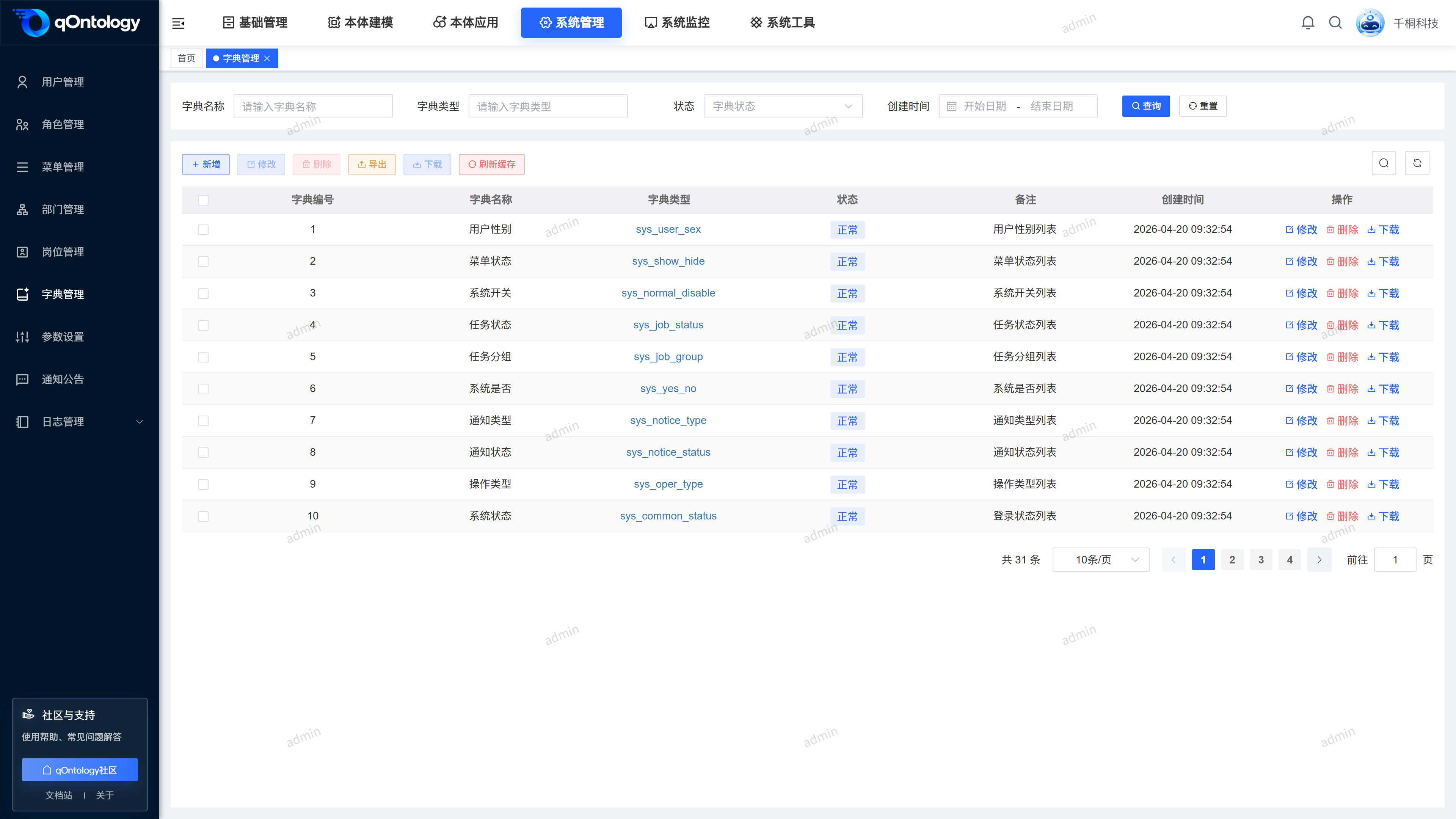
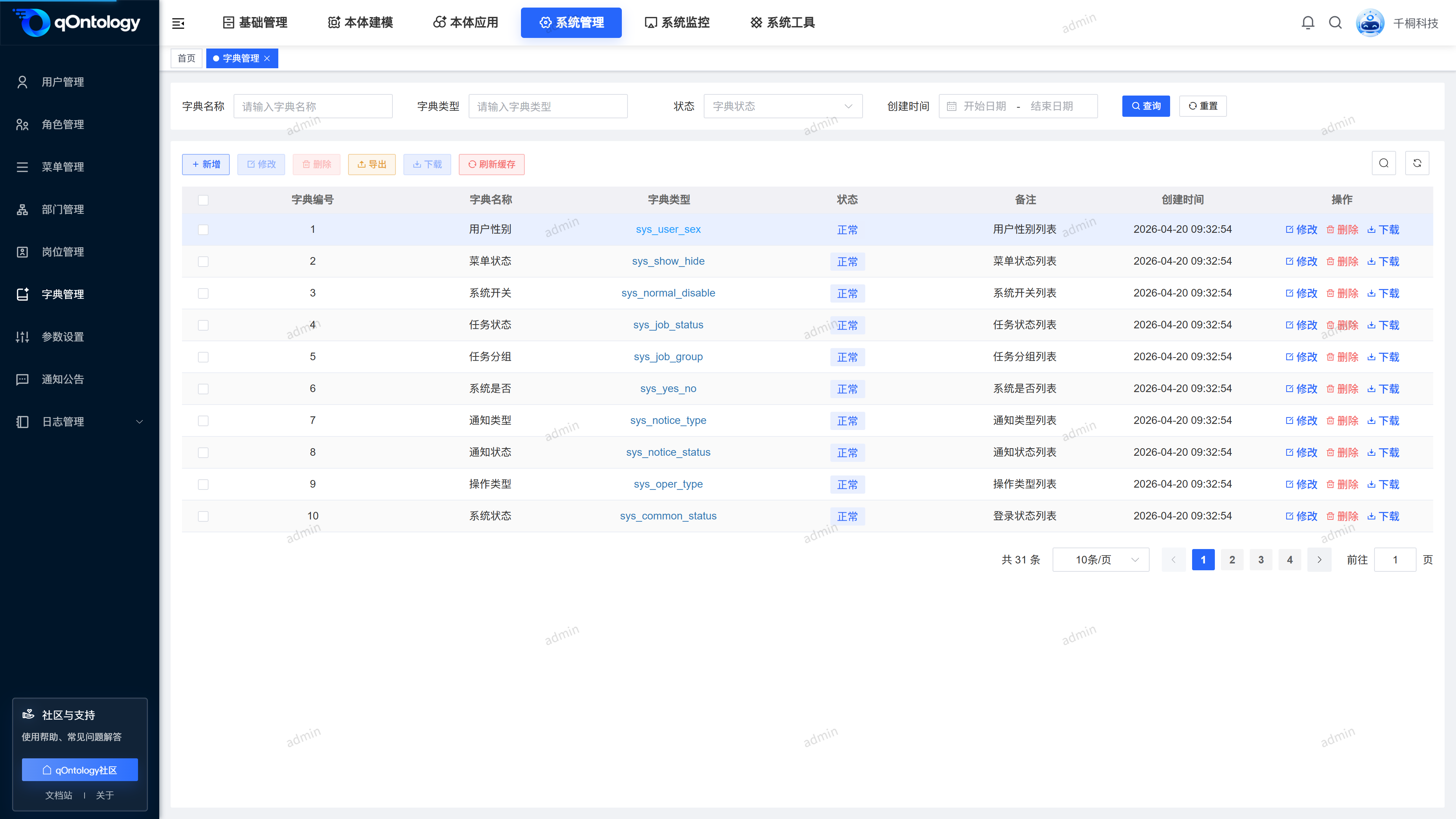
Click [Dictionary Management] under [System Management] to enter the dictionary management page. This page displays a list containing fields such as dictionary number, dictionary name, dictionary type, status, remarks, and creation time.
2. Add dictionary information
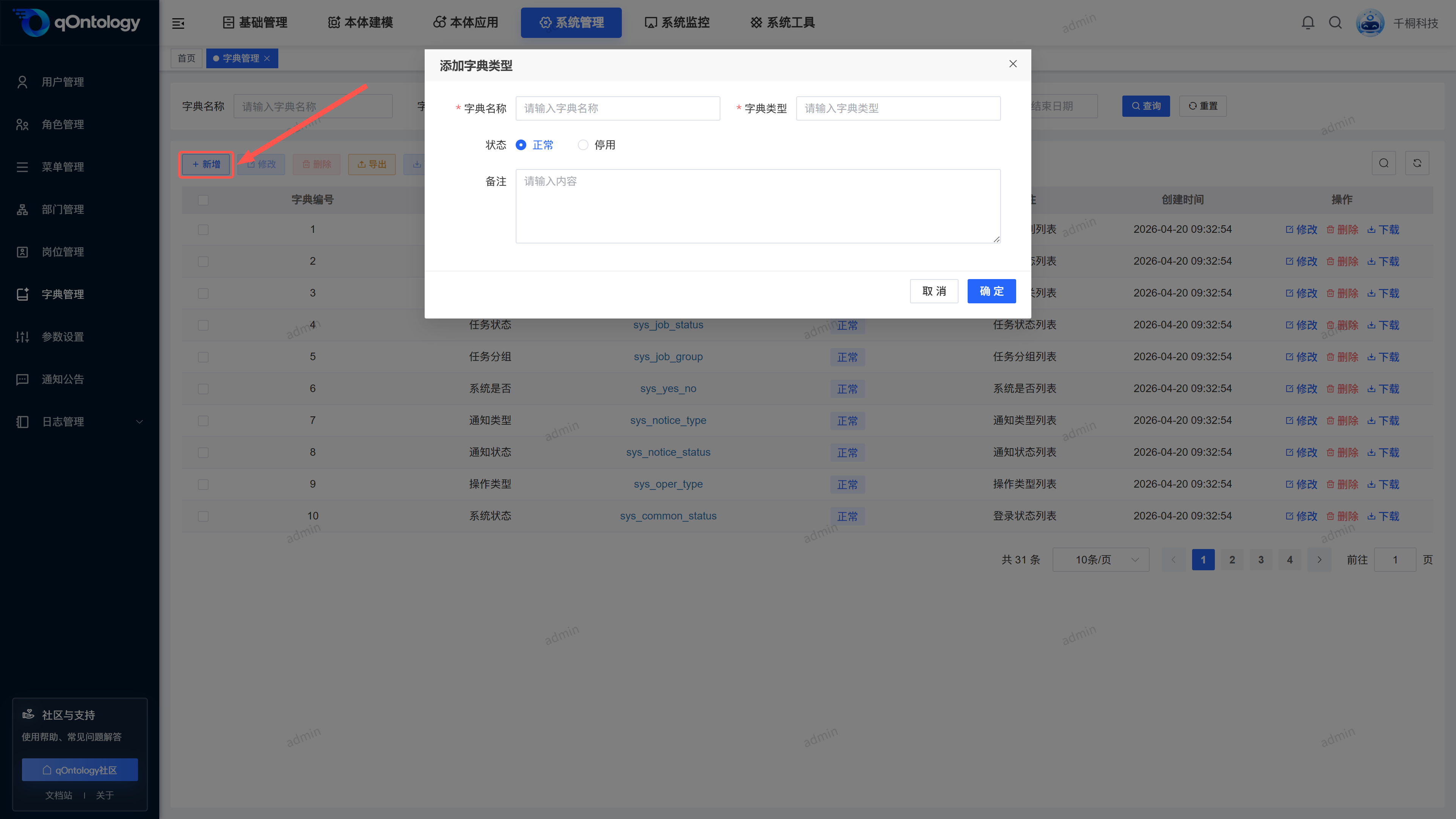
Click the [Add] button on the page, fill in the dictionary information in the pop-up box that appears, and click the [OK] button to complete the addition of the dictionary information.
3. Modify dictionary information
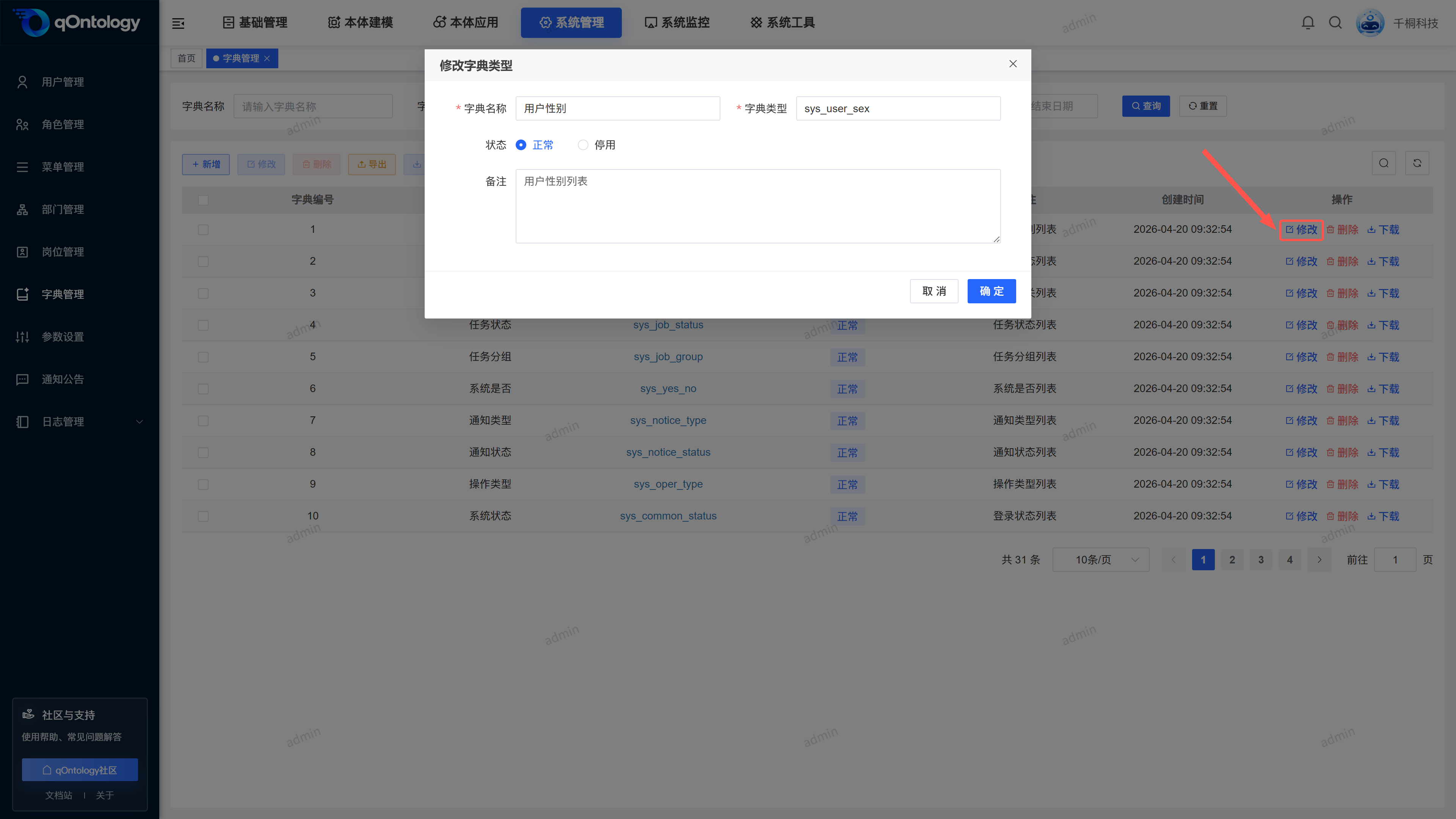
Select the dictionary information to be modified, click the [Modify] button in the operation column, modify the existing dictionary information in the pop-up box that appears, and click the [OK] button to complete the modification of the dictionary information.
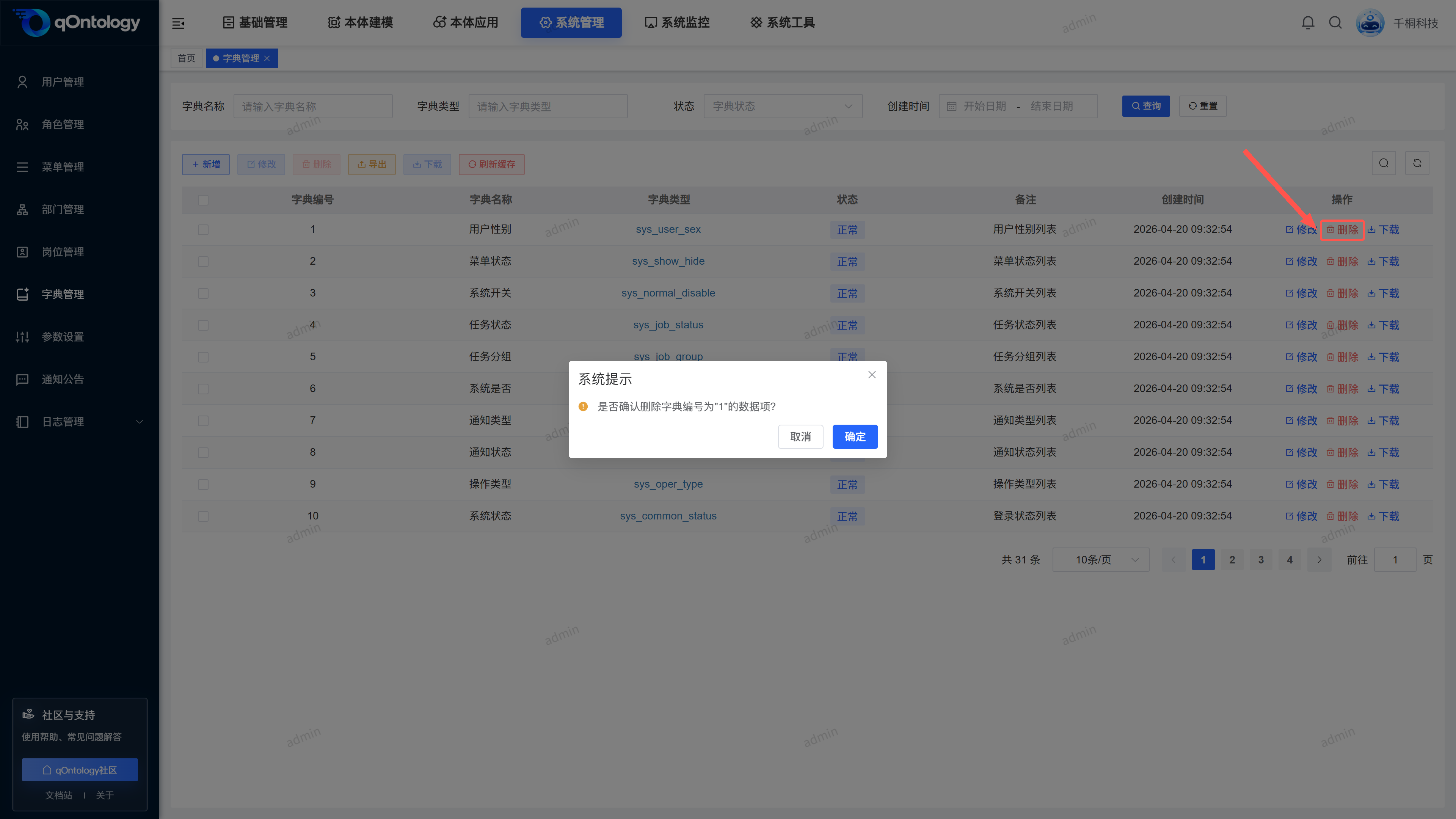
4. Delete dictionary information
Select the dictionary information to be deleted, click the [Delete] button in the operation column, and click the [OK] button. The system will delete the dictionary information.
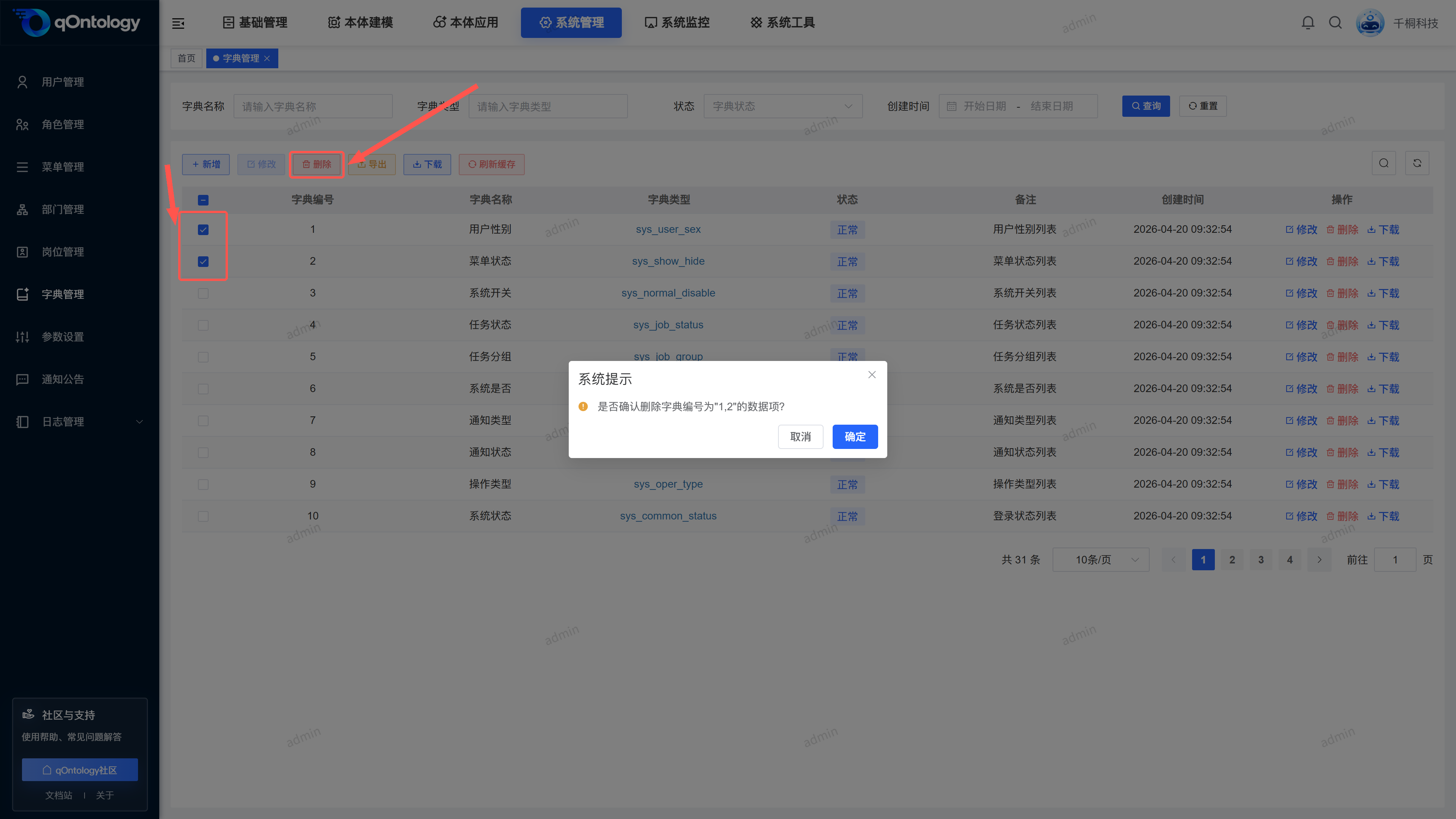
5. Delete dictionary information in batches
Select multiple dictionary information check boxes in the page list, click the [Delete] button, confirm the deletion in the pop-up box that appears, and click the [OK] button to complete the batch deletion of dictionary information.
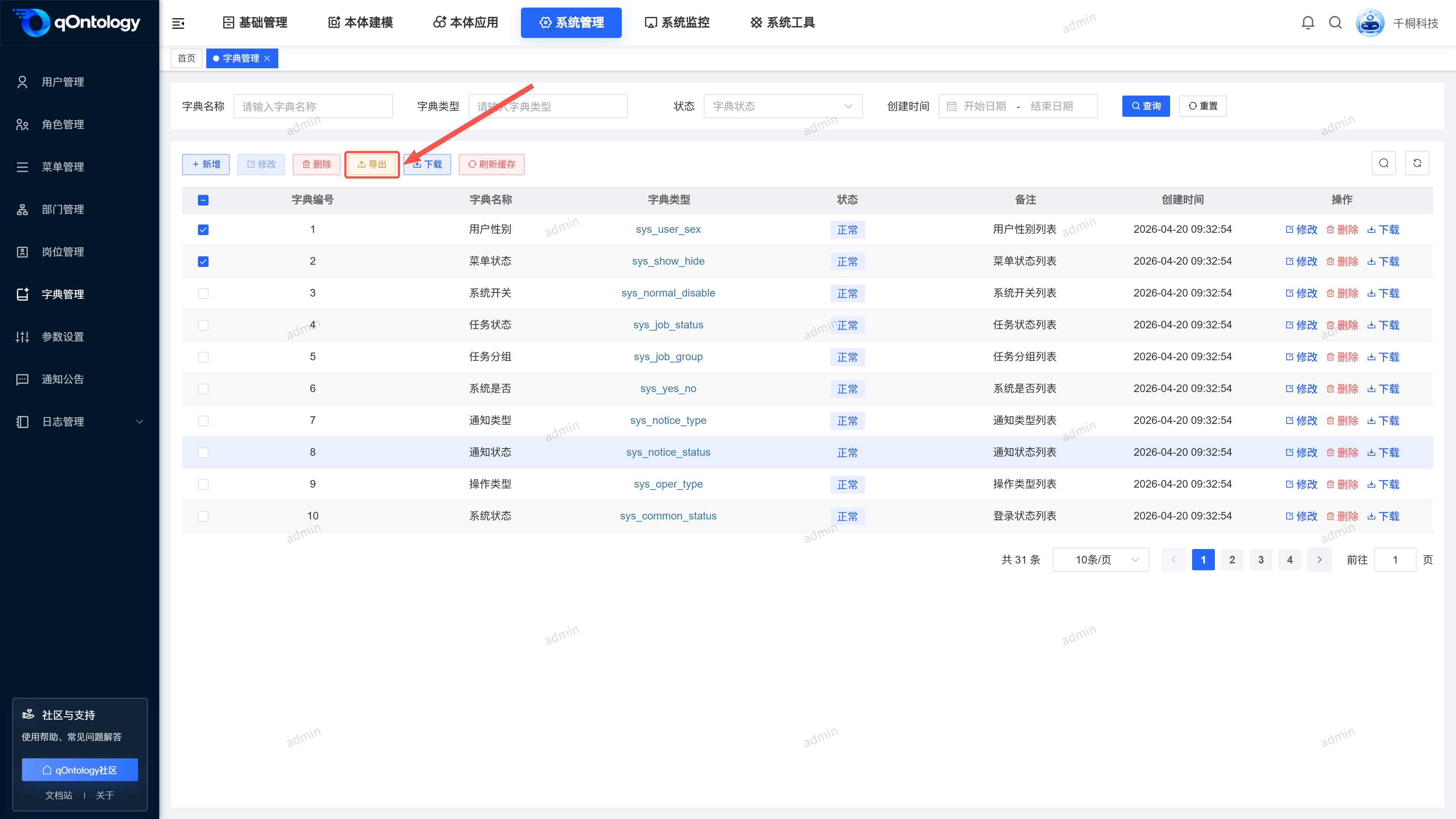
6. Export dictionary information
Click the [Export] button on the page, and the exported file will be automatically downloaded and can be viewed in the download list of the browser.
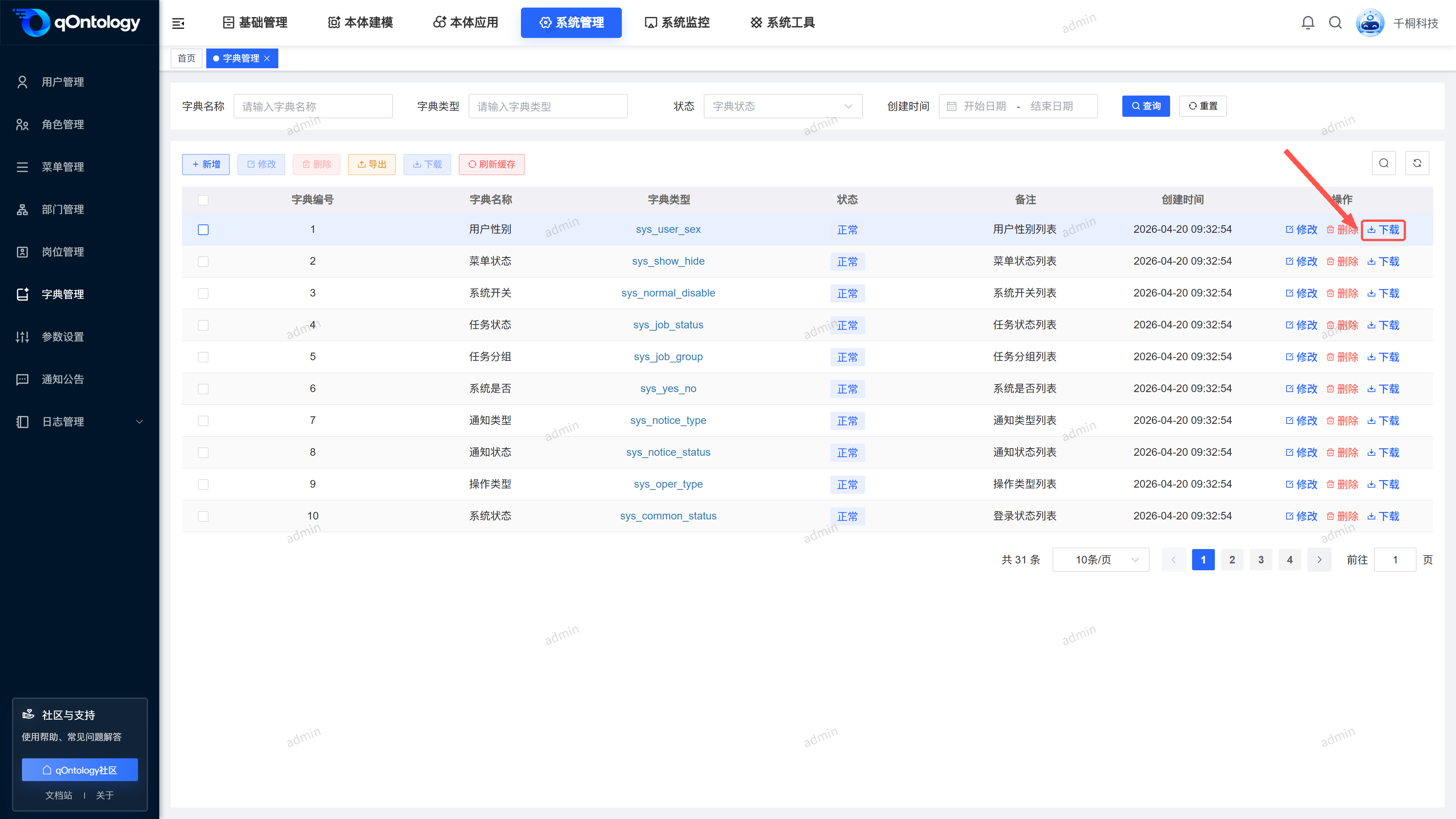
7. Download dictionary information
Select the dictionary information to be downloaded and click the [Download] button in the operation column. The compressed file will be automatically downloaded and can be viewed in the download list of the browser.
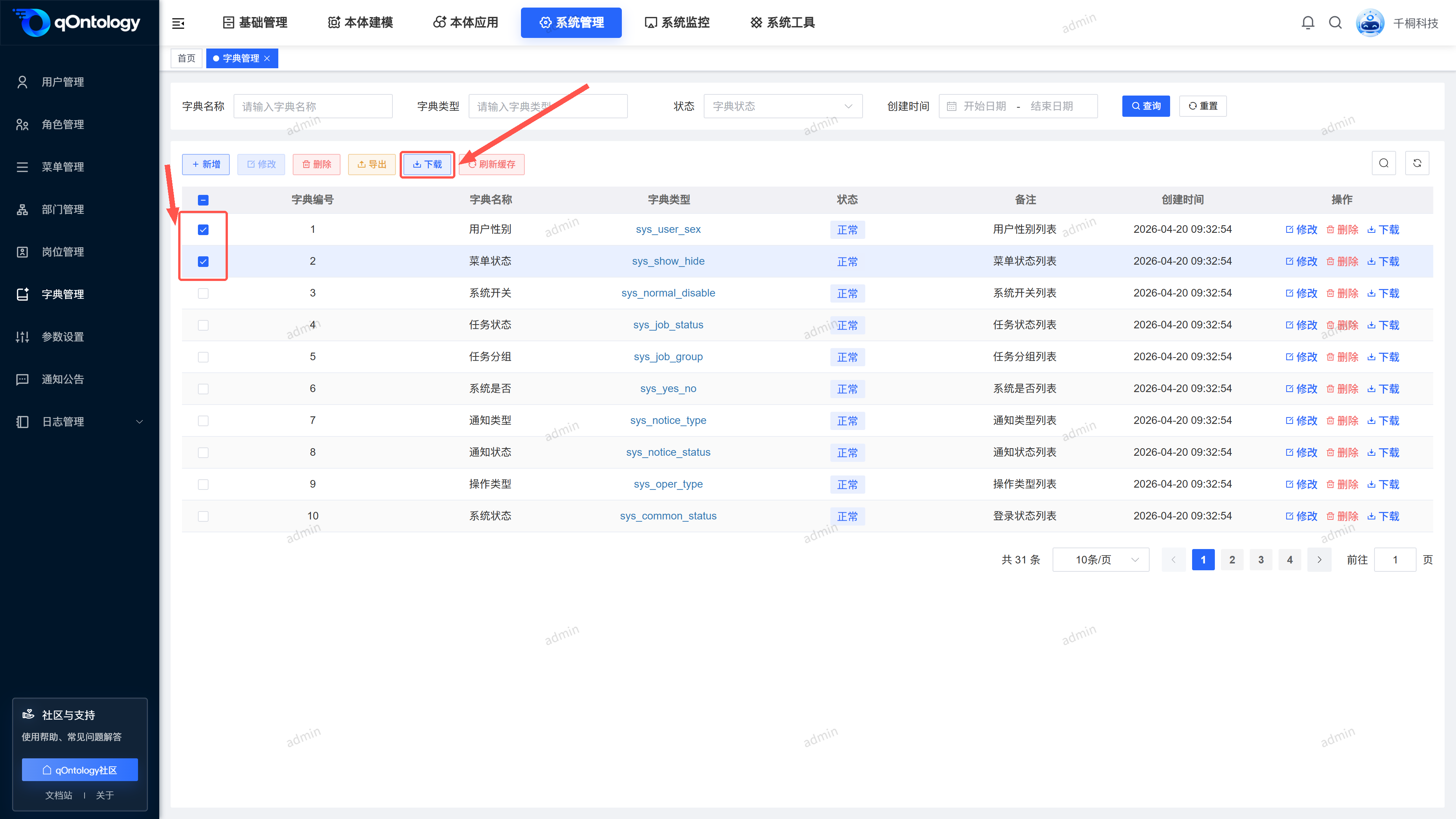
8. Download dictionary information in batches
Select multiple dictionary information checkboxes in the page list and click the [Download] button. The compressed file will be automatically downloaded and can be viewed in the download list of the browser.
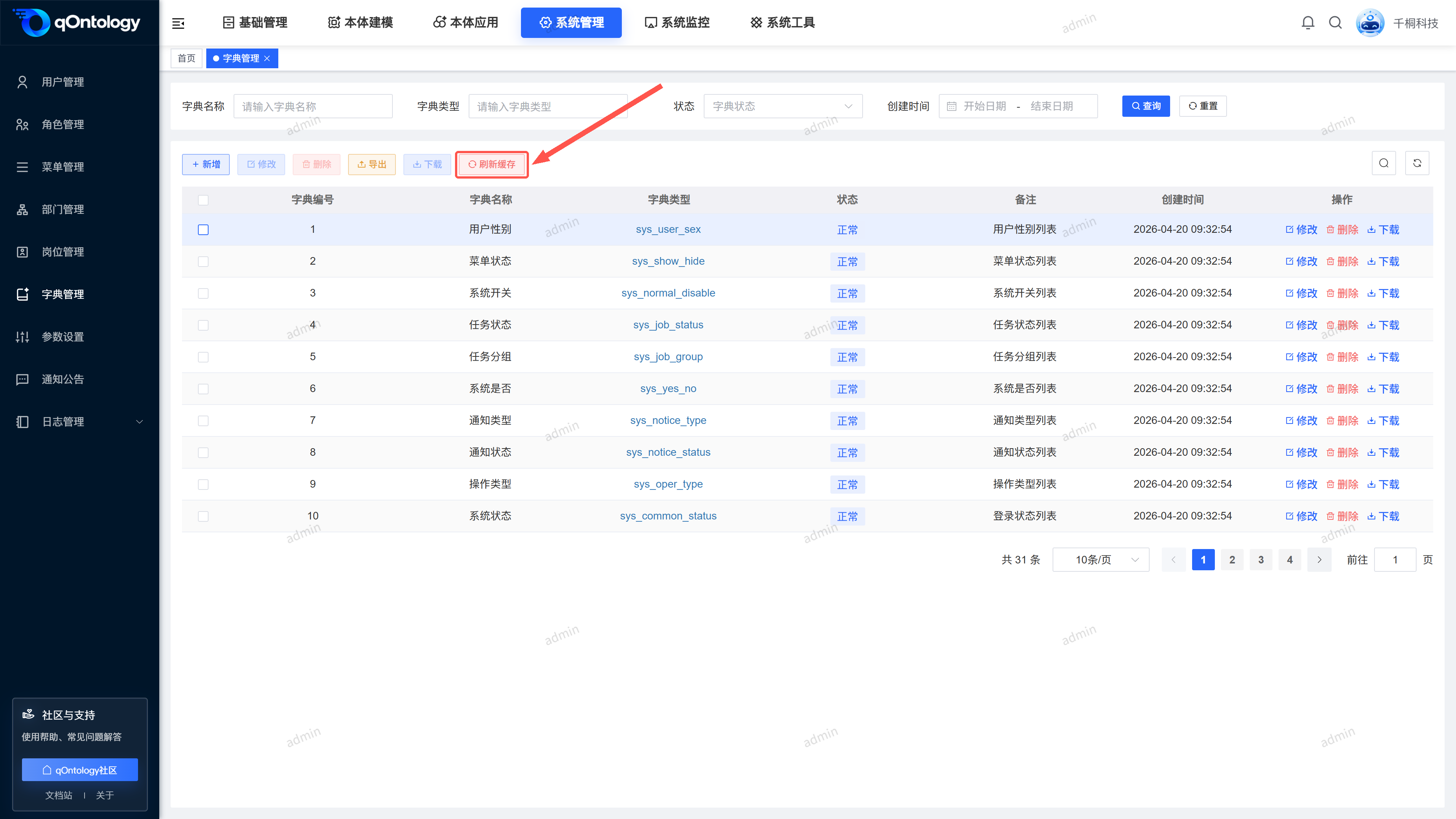
9. Refresh cache
Click the [Refresh Cache] button on the page to refresh the dictionary cache.
10. Dictionary data
10.1. Dictionary data page
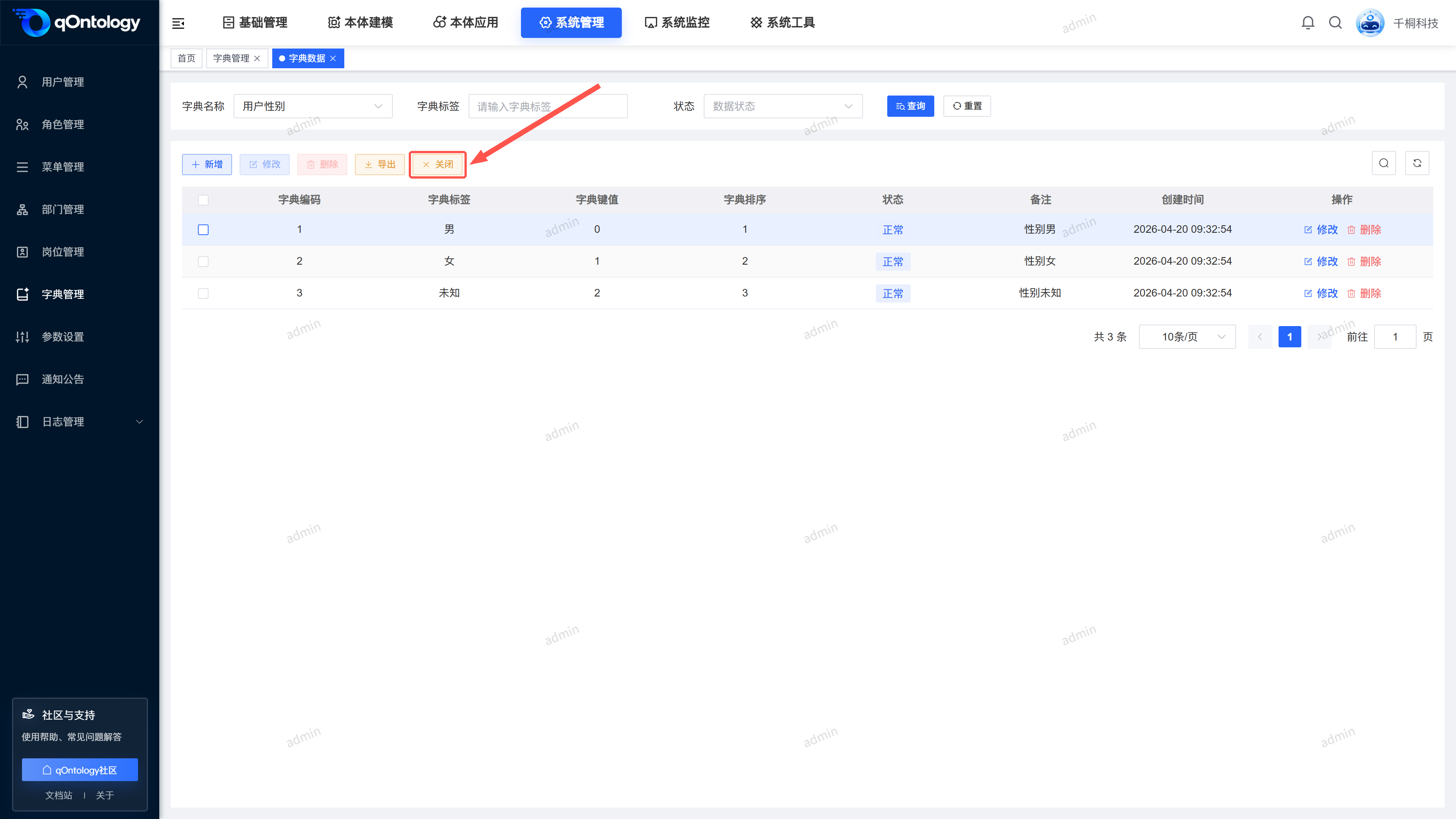
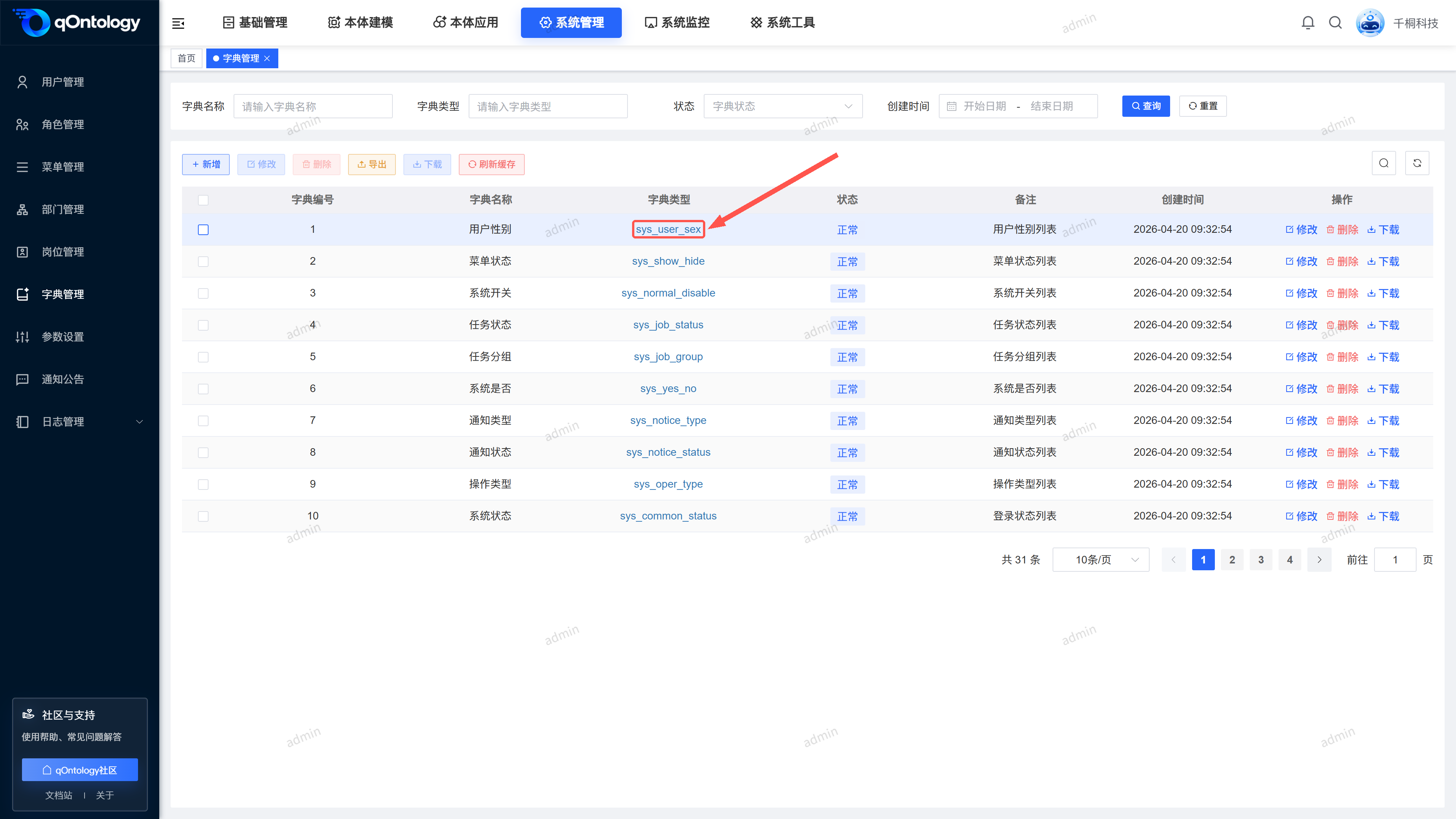
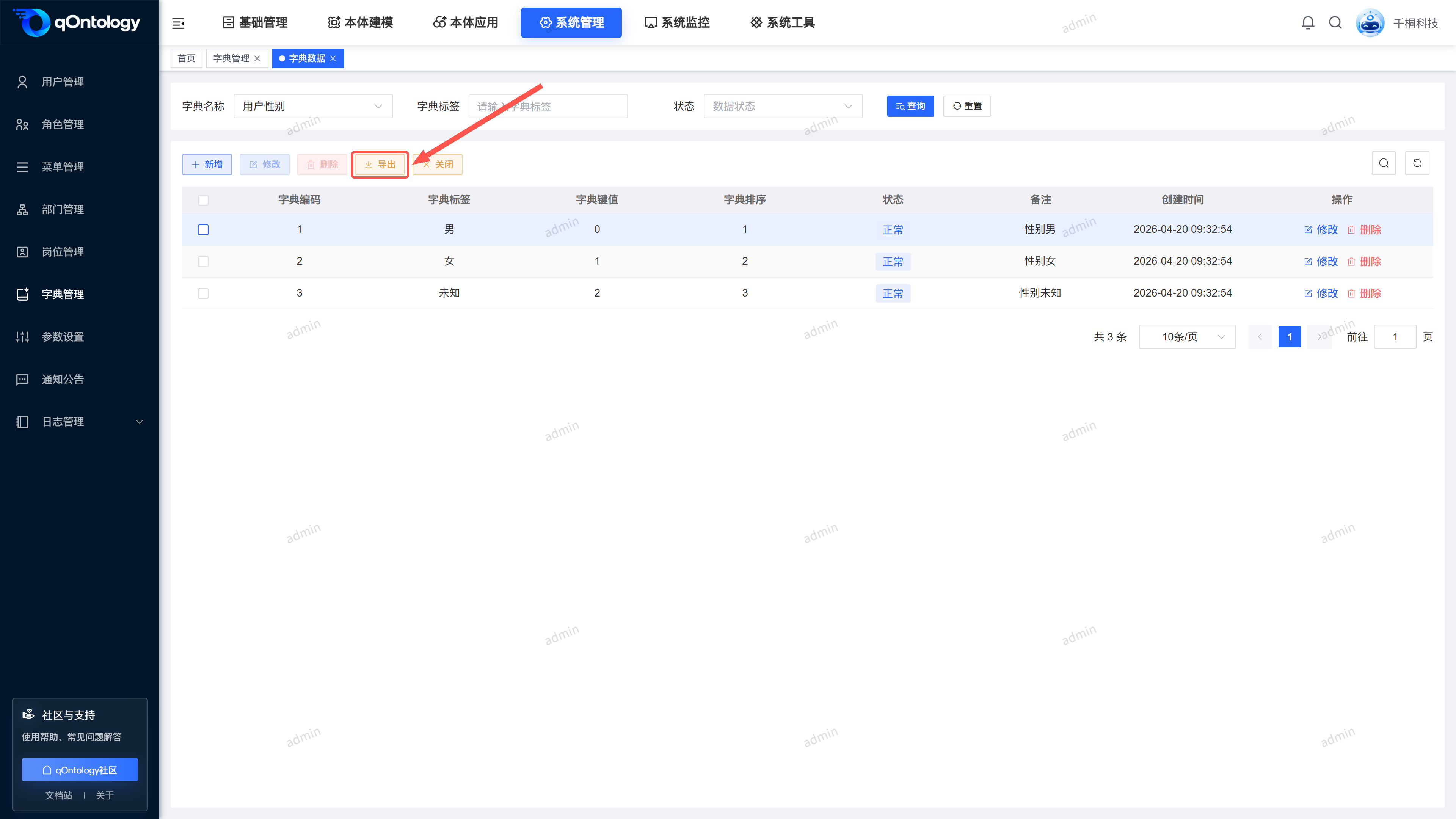
In the dictionary management list, locate the column containing [Dictionary Type], and click the link corresponding to the dictionary type to enter the dictionary data page. The dictionary data page displays a list of fields including dictionary encoding, dictionary tags, dictionary key values, dictionary sorting, status, notes, and creation time.
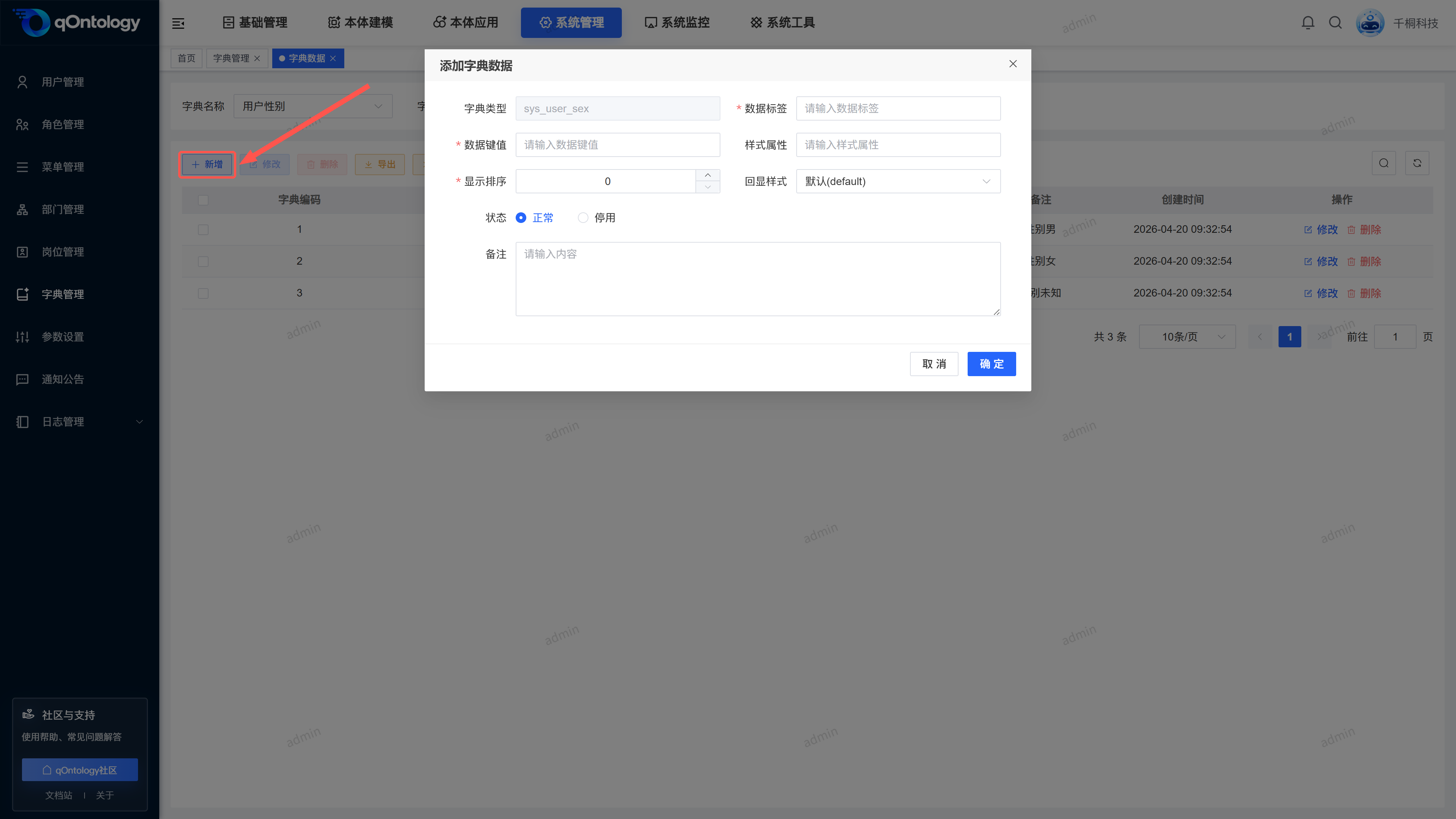
10.2. Add dictionary data
On the dictionary data page, click the [Add] button, fill in the dictionary data in the pop-up box that appears, and click the [OK] button to complete the addition of dictionary data.
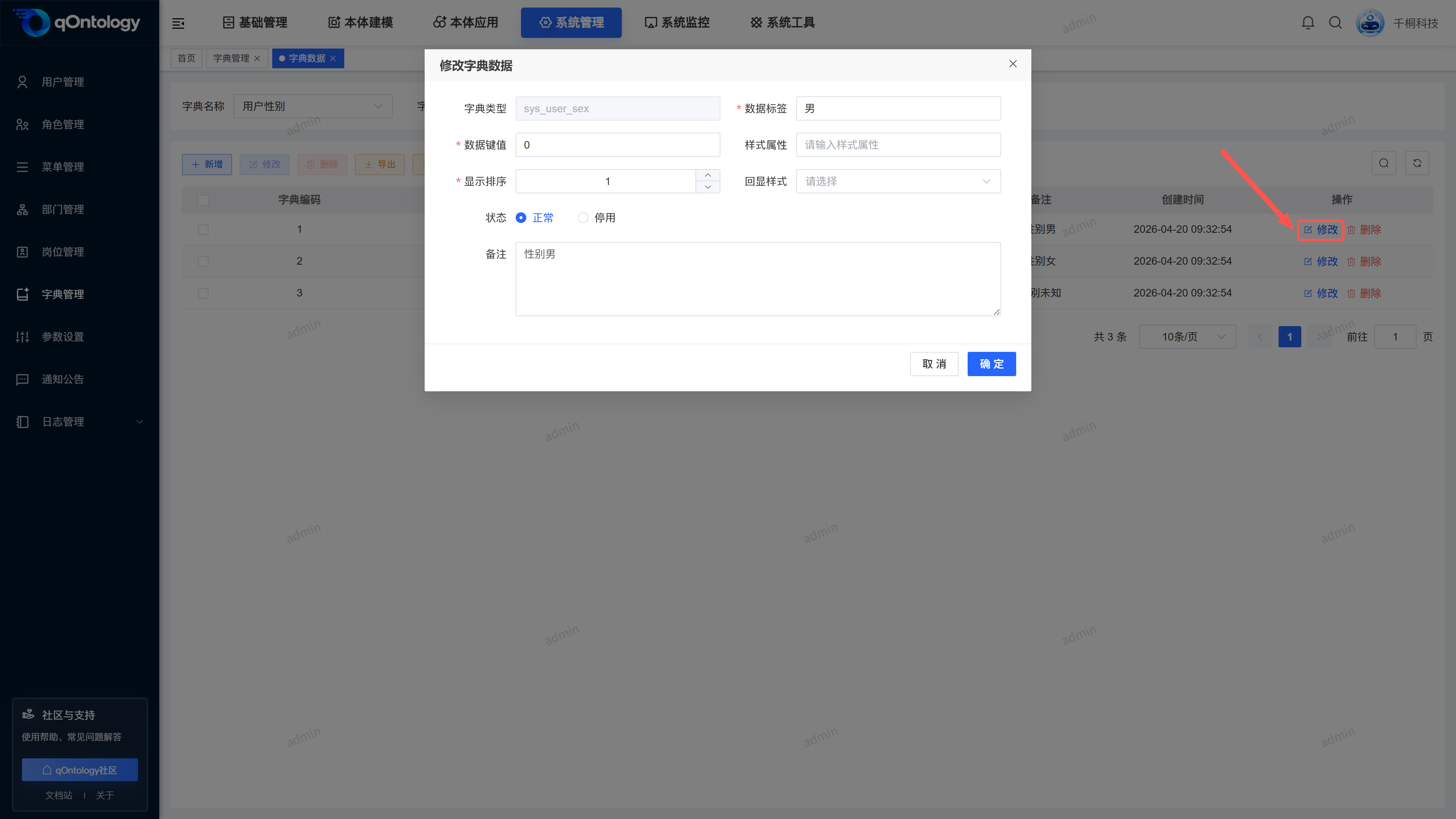
10.3. Modify dictionary data
On the dictionary data page, select the dictionary data to be modified, click the [Modify] button in the operation column, modify the existing dictionary data in the pop-up box that appears, and click the [OK] button to complete the dictionary data modification.
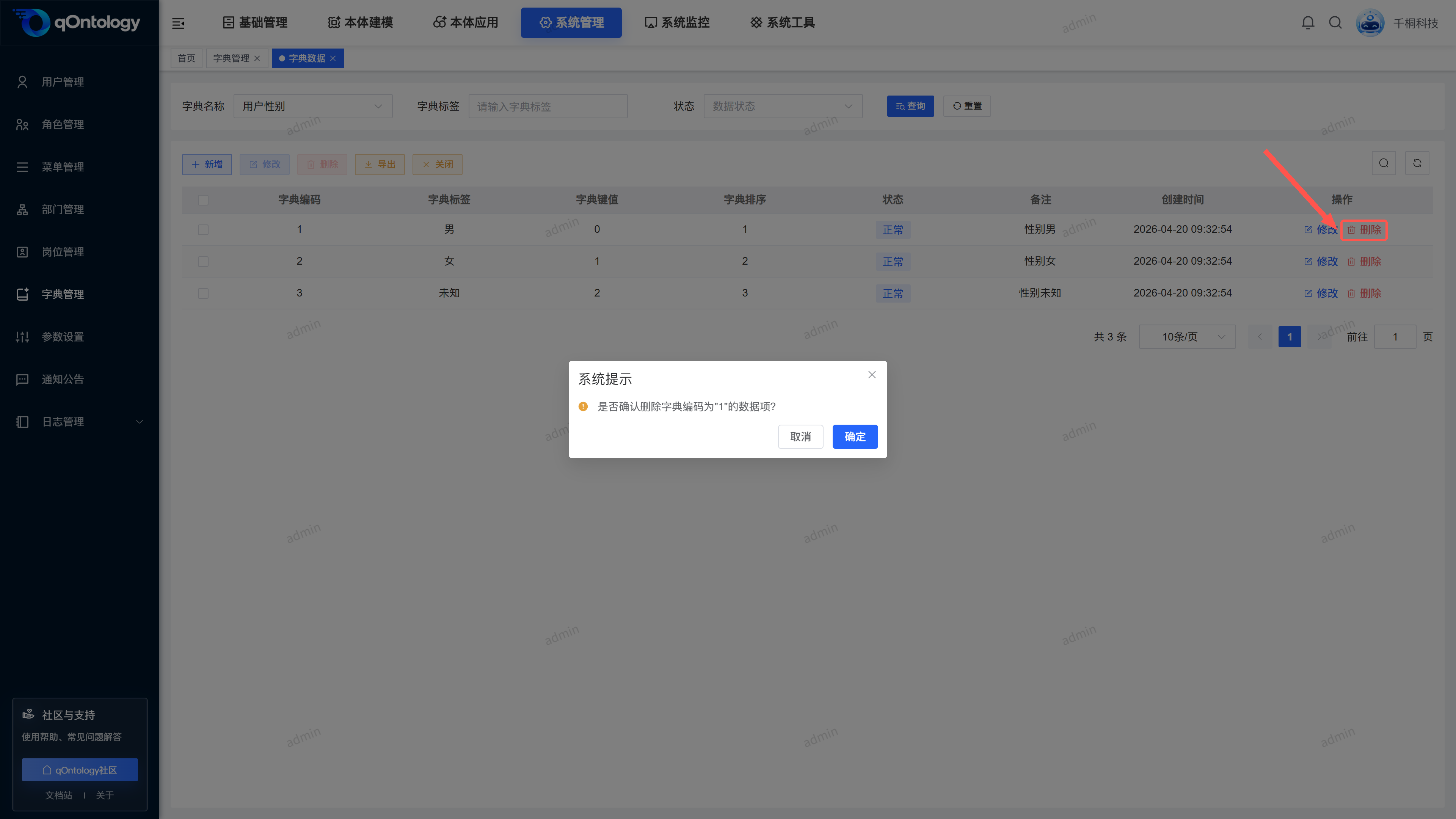
10.4. Delete dictionary data
On the dictionary data page, select the dictionary data to be deleted, click the [Delete] button in the operation column, and click the [OK] button. The system will delete the dictionary data.
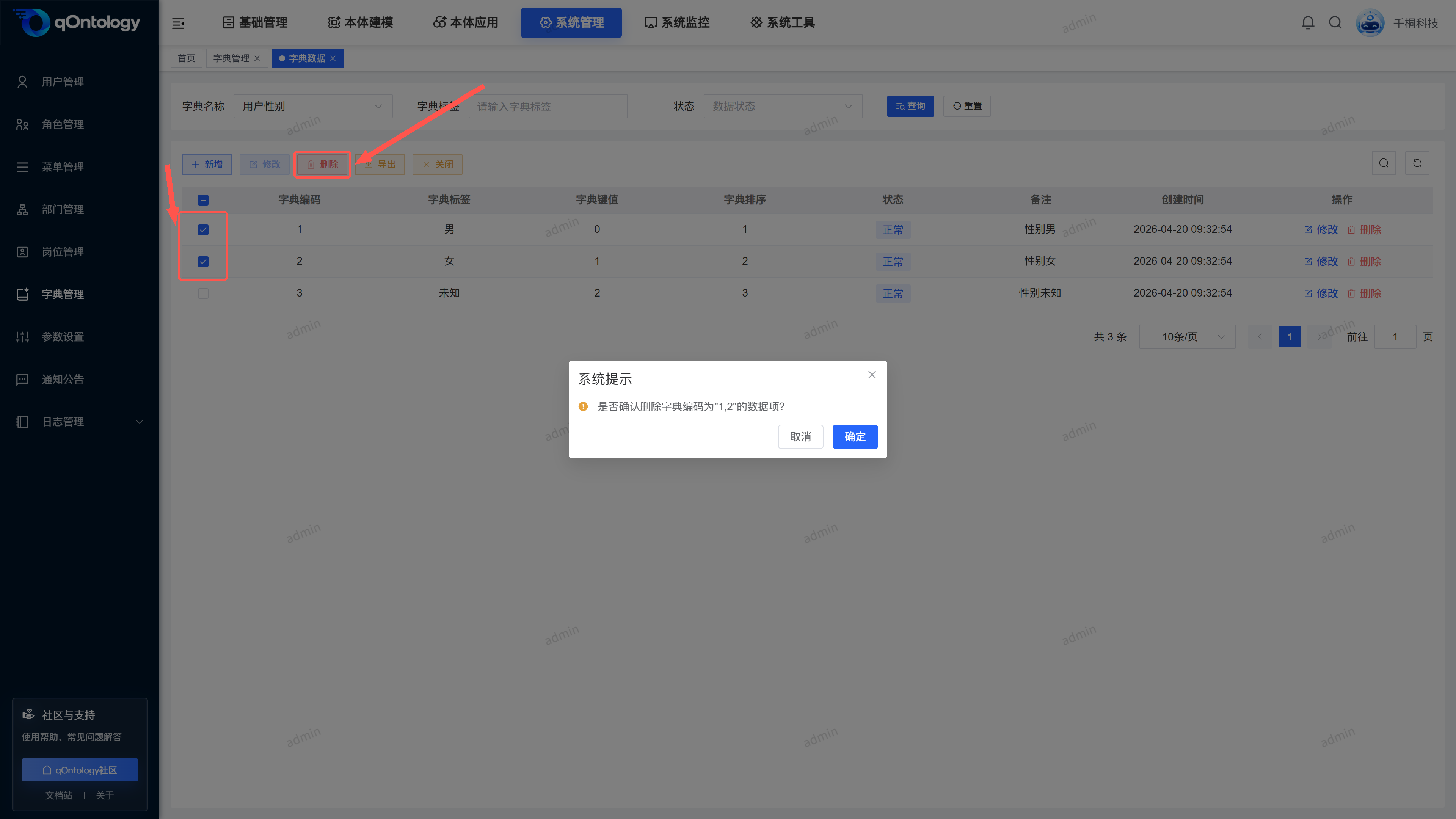
10.5. Delete dictionary data in batches
On the dictionary data page, select multiple dictionary data check boxes in the page list, click the [Delete] button, confirm the deletion in the pop-up box that appears, and click the [OK] button to complete the batch deletion of dictionary data.
10.6. Export dictionary information
On the dictionary data page, click the [Export] button, and the exported file will be automatically downloaded and can be viewed in the download list of the browser.
10.7. Close the dictionary data page
On the dictionary data page, click the [Close] button to close the dictionary data page.