Position management
1. Position management page
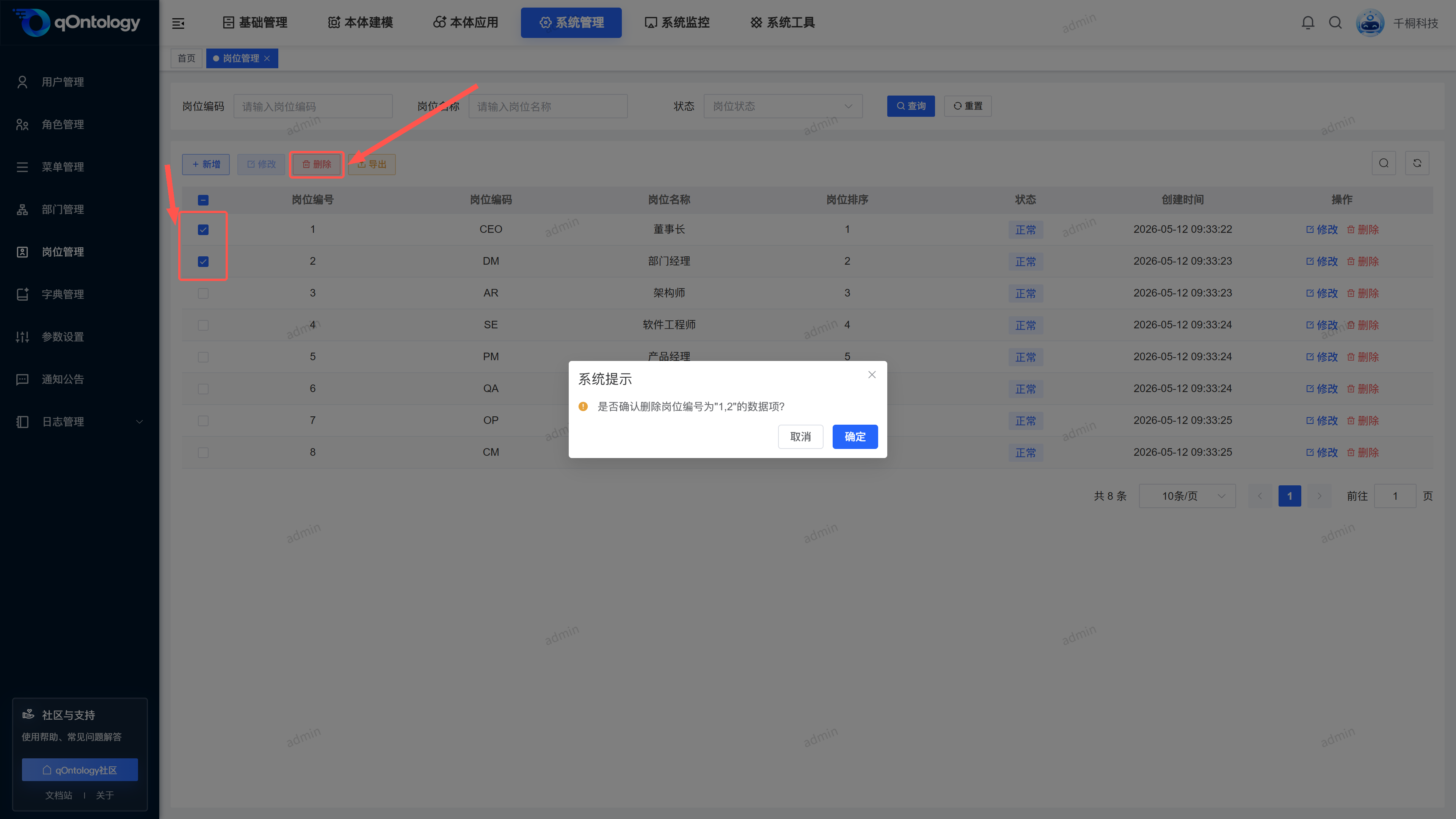
Click [Position Management] under [System Management] to enter the position management page. This page displays a list of fields including position number, position code, position name, position sorting, status, and creation time.
2. Add new position information
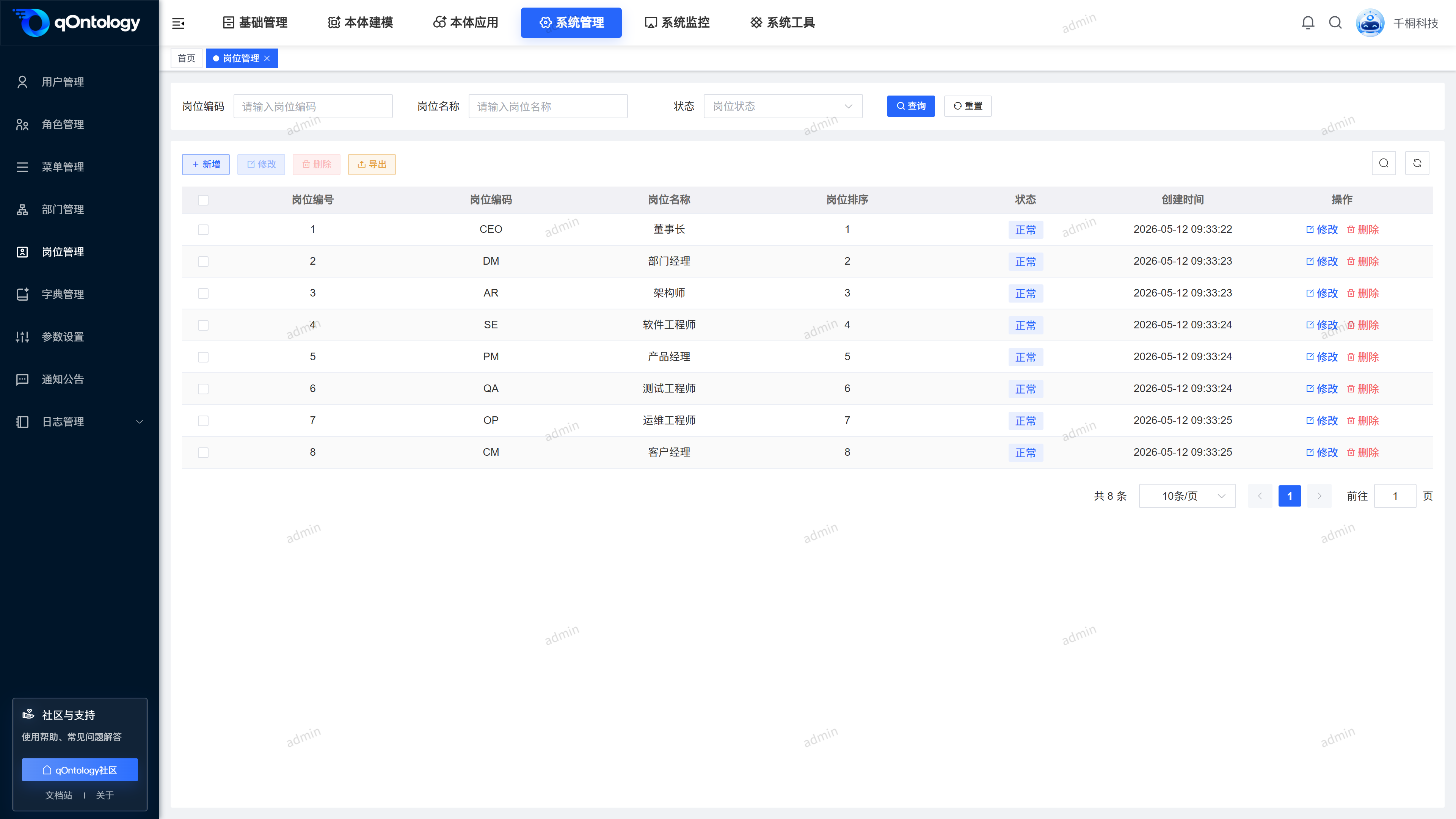
Click the [Add] button on the page, fill in the position information in the pop-up box that appears, and click the [OK] button to complete the addition of the position information.
3. Modify position information
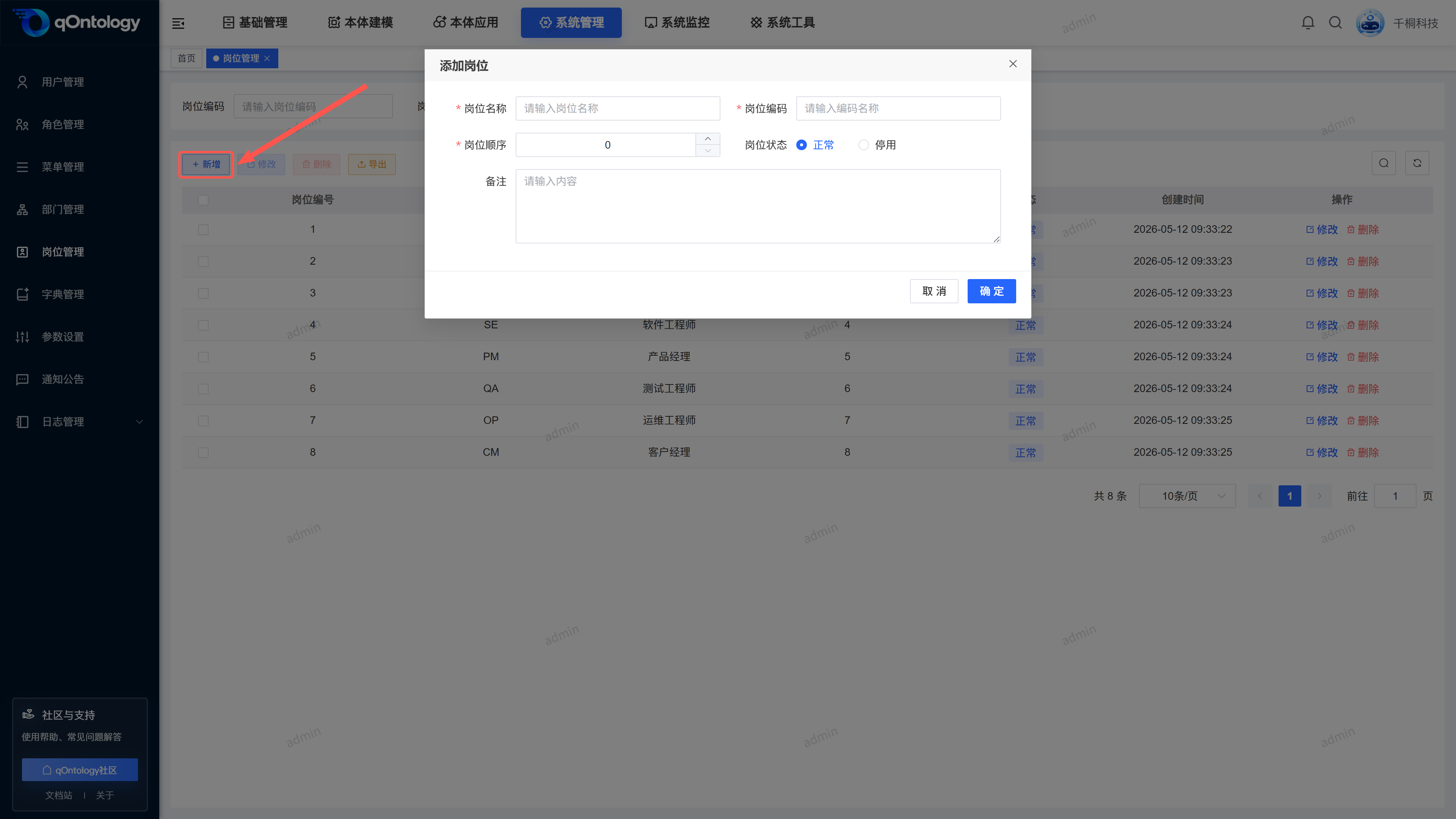
Select the position information that needs to be modified, click the [Modify] button in the operation column, modify the existing position information in the pop-up box that appears, and click the [OK] button to complete the modification of the position information.
4. Delete position information
Select the position information to be deleted, click the [Delete] button in the operation column, and click the [OK] button. The system will delete the position information.
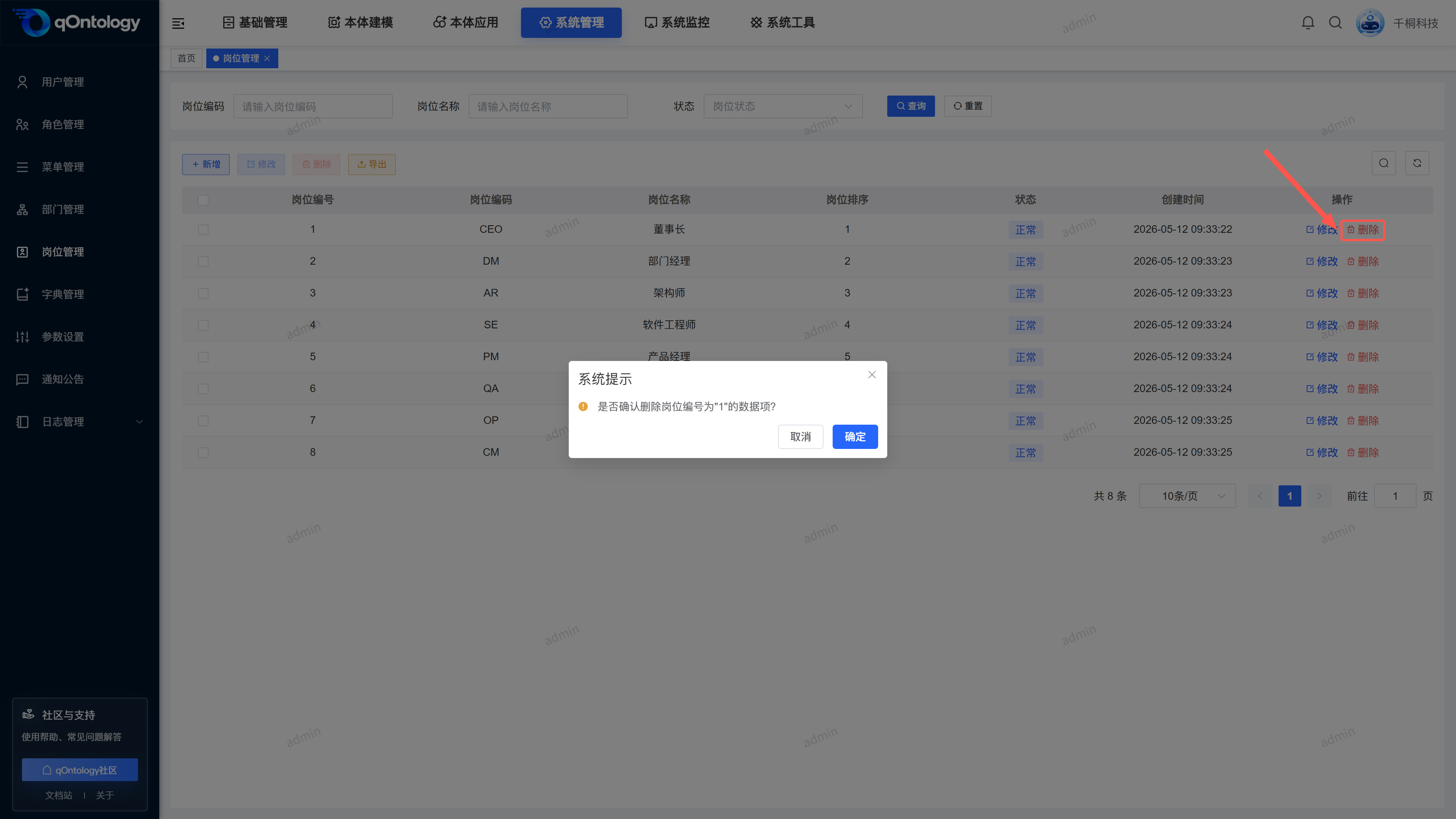
5. Delete job information in batches
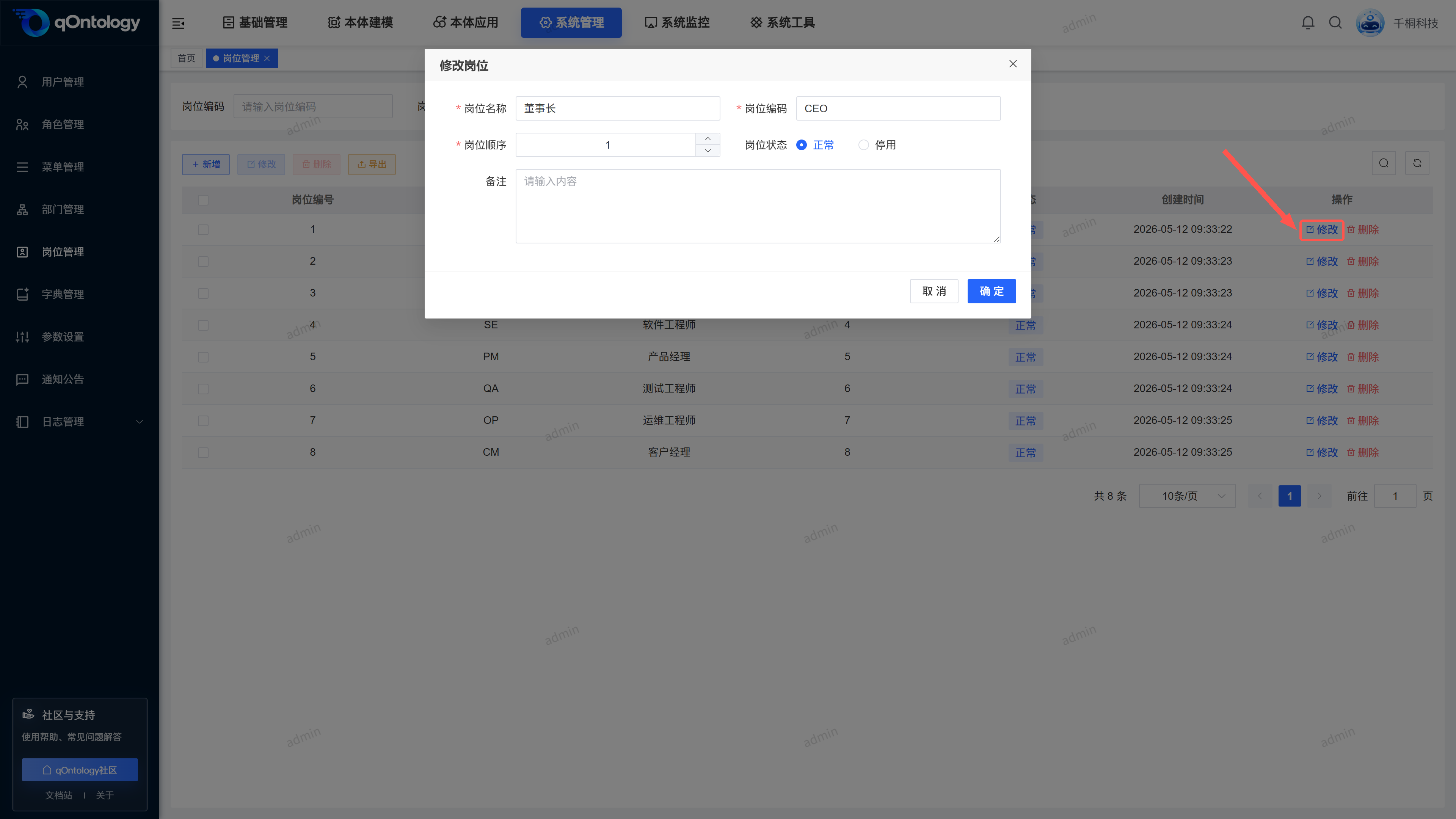
Select multiple role check boxes in the page list, click the [Delete] button, confirm the deletion in the pop-up box that appears, and click the [OK] button to complete the batch deletion of positions.