
Terminology management
Feature overview
Purpose
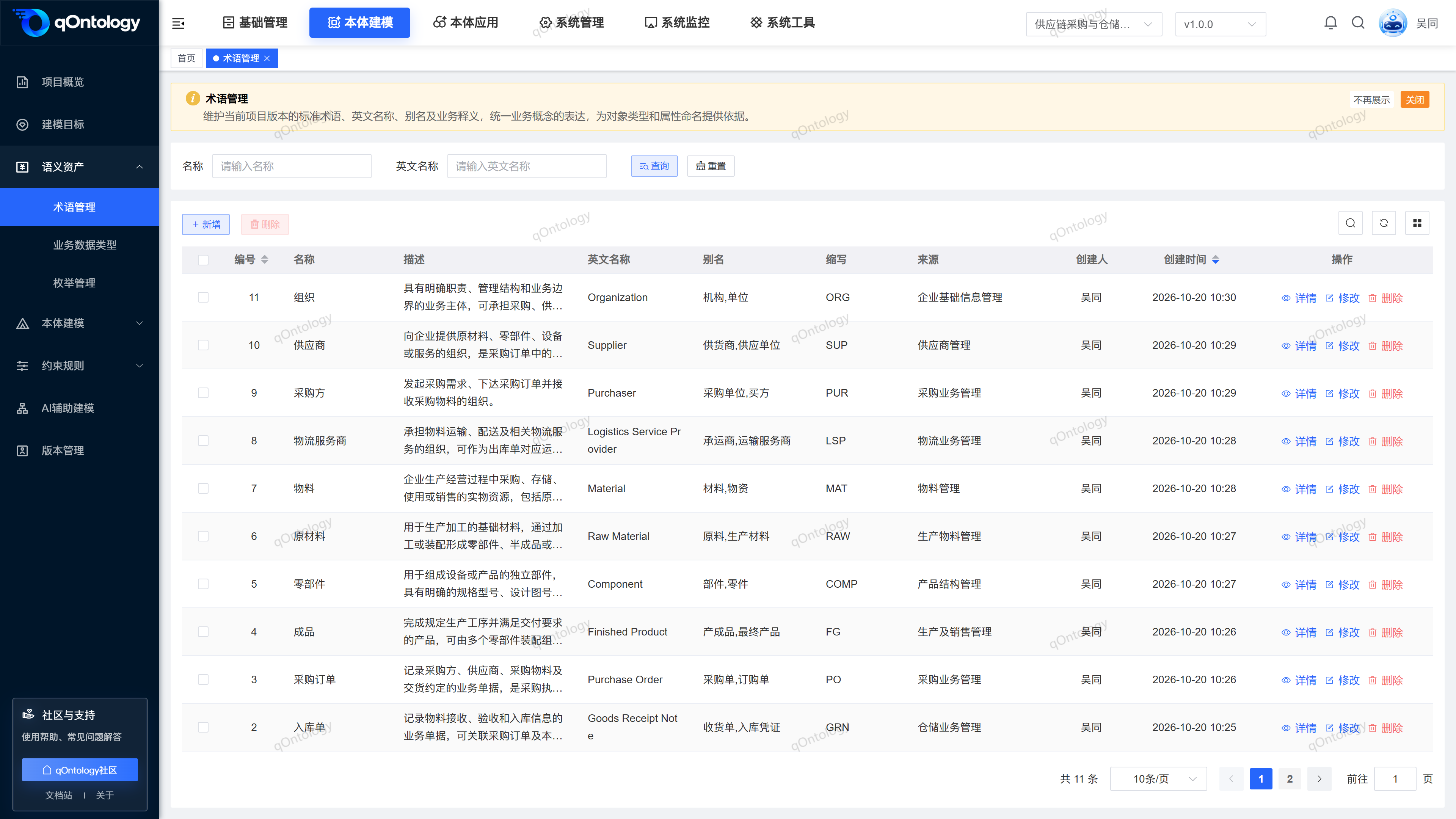
Terminology management establishes a unified business vocabulary for the current project version and records the term name, English name, alias, abbreviation and source. Object type names can be selected from the glossary when modeling.
In practice: Let "different names for the same concept" have a clear correspondence.
Main features
- Uniform name: Maintain Chinese and English names and business descriptions.
- Alias Management: Save common names as alias tags.
- Modeling Reuse: As a reference source when naming Object Types.
Scope
The information on this page belongs to the current project and version; entry, editing, deletion and other operations are subject to corresponding authorization controls. After switching projects or versions, lists and associated objects should be rechecked.
Before you begin
Prerequisites
- You have logged in to qOntology and have obtained the permissions for this page and the required operations.
- The project has been created in [Basic Management], and the correct project and version have been selected at the top of [Ontology Modeling].
- Term definitions, English names, aliases, abbreviations and sources confirmed.
Navigation path
【Ontology Modeling】 > 【Semantic Assets】 > 【Term management】
Page overview
The upper part of the page is the query area, and the lower part lists the name, English name, alias, abbreviation, source and other information, and provides details, modification and deletion entrances.
Recommended workflow
Organize business vocabulary → Add new terms and aliases → Check sources → Quote names in Object Types.
Functional operation instructions
Query and reset
- Fill in the query area or select the name and other conditions provided on the page.
- Click [Query].
- Click [Reset] when you need to restore conditions.
Result: The list is reloaded according to conditions and can be viewed in paging.
New term
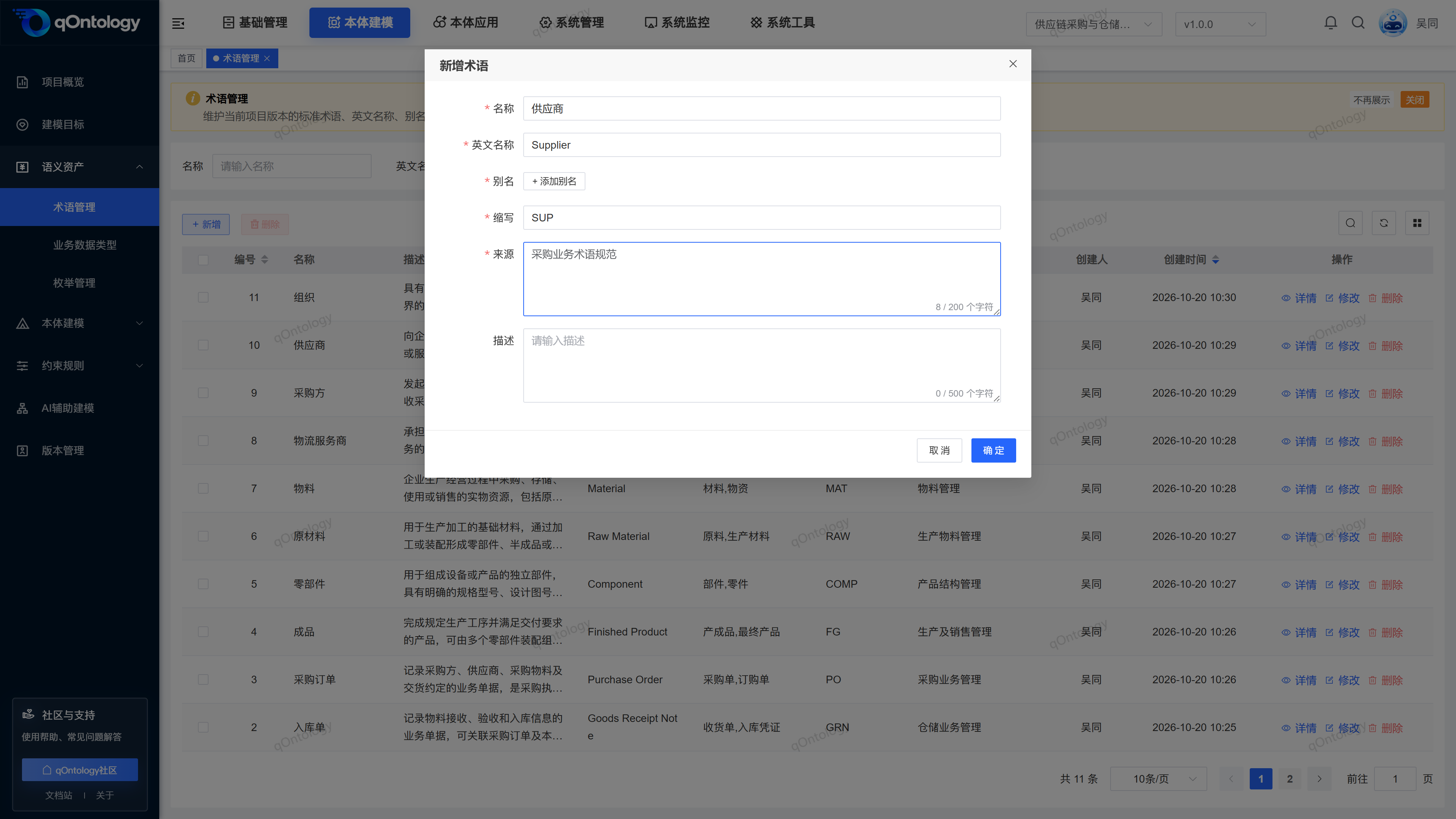
- Click [Add].
- Fill in the name and English name.
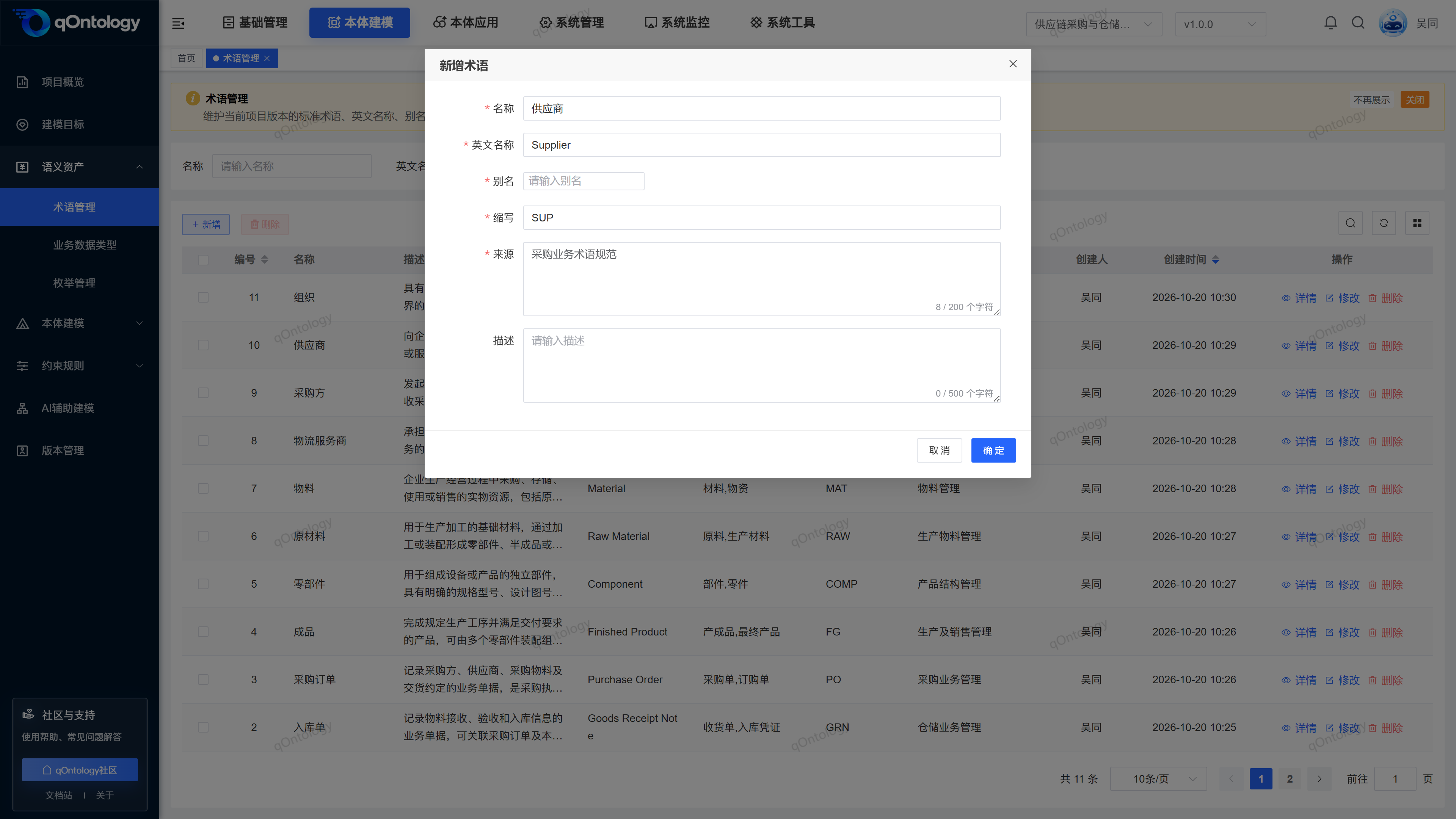
- Click the Add button in the Aliases area.
- Enter an alias.
- Press Enter to confirm the alias label.
- Fill in the abbreviation, source and description.
- Click [OK].
| Field name | illustrate | Is it required? |
|---|---|---|
| name | Business term name, up to 256 characters; cannot be repeated within the same project version. | yes |
| English name | Corresponding English name, up to 256 characters. | yes |
| Alias | Enter at least one alias and the total length should not exceed 1024 characters. | yes |
| abbreviation | Abbreviation or abbreviation of a term, up to 256 characters. | yes |
| source | A description of the term's origin, up to 200 characters. | yes |
| describe | Supplementary definitions and scope, up to 500 characters. | no |
Result: After the addition is successful, the term will be displayed in the list.
Aliases can be removed via the label close button; duplicate aliases will be merged. Check if the alias has become a label before submitting.
Fill in other names in the business in the alias input box, and form a label after confirmation.
View term details
- Click [Details] on the target row.
- Check names, aliases, sources and descriptions.
- Close details.
Result: Display read-only information of the current term.
Modify terms
- Click [Modify] on the target record row.
- Adjust the fields that need to be modified.
- Click [OK].
Result: The list will be refreshed after successful saving; reopen the record to check the modification results.
delete term
- Click [Delete] on the target record row.
- Check the target record in the confirmation box.
- Confirm deletion.
Result: After the deletion is successful, the list is reloaded and the target record is no longer displayed.
You can also check records and use [Delete] above the list to process them in batches.
Warning
Check the business purpose and related information before deleting. This page does not provide a recycle bin recovery entry.
FAQ
Can I save it directly without an alias or abbreviation?
The current form lists aliases and abbreviations as required; please fill in the values confirmed by the business.**Will selecting names from the glossary automatically stay in sync?**The
Object Types form uses the selected name as the fill-in content; it cannot be assumed that subsequent name changes will be automatically synchronized.
Summarize
Let "different names for the same concept" have a clear correspondence. Organize business vocabulary → Add new terms and aliases → Check sources → Quote names in Object Types.