
Data Sources
Feature overview
Purpose
A data source is used to save the connection information of the external database to facilitate subsequent selection of data sources in Structured Extraction. What is maintained here is the connection configuration. The specific tables, fields and mapping relationships extracted are set in the Structured Extraction process.
In practice: First register the database "where it is and which account to use to connect", and then select this connection for subsequent extraction tasks.
Main features
- Centralized maintenance of connection information: Maintain type, address, port, account, database name and schema required for each database type.
- Connection Test: Execute [Test Connection] on the saved Data Sources to view the current connection results.
- Query and Maintenance: Locate Data Sources by name and type, and modify, view details or delete it.
Scope
This page maintains the external Data Sources configuration, and operations are controlled by Data Sources permissions. The connection account should have the access rights required for subsequent business. The successful addition only means that the configuration has been saved. You need to continue to check the test results to see if the connection is available.
Before you begin
Prerequisites
- Data Sources management and corresponding operation permissions have been obtained.
- The connection type, address, port and authentication information have been obtained from the database administrator.
- The database name has been clarified; databases that require a schema should also have a schema name prepared.
Navigation path
【Basic Management】 > 【Data Sources】
Page overview
The current type drop-down options are MySQL, DM8, Oracle, Oracle11, and Kingbase8. The list displays the name, description, address, type and creation information; [Test Connection] [Modify] [More] is provided in the row, and details and single deletion are in [More].
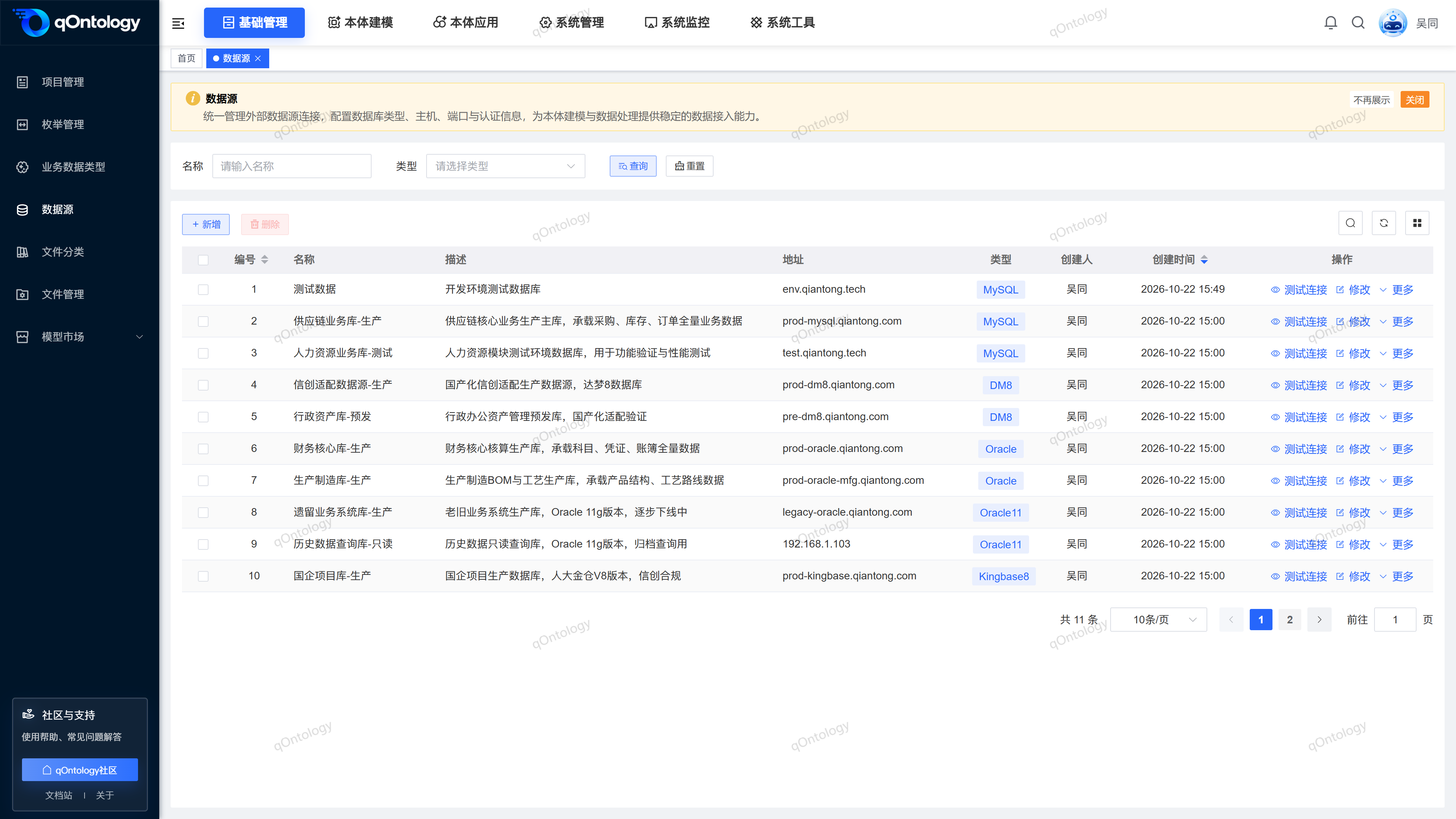
Recommended workflow
Prepare database connection information → Add and save → Test connection → Check feedback → Select Data Sources among Structured Extraction.
Functional operation instructions
Query Data Sources
- Fill in the query content in [Name].
- Select [Type] as needed.
- Click [Query].
- Click [Reset] when you need to restore conditions.
Result: The list is refreshed based on conditions.
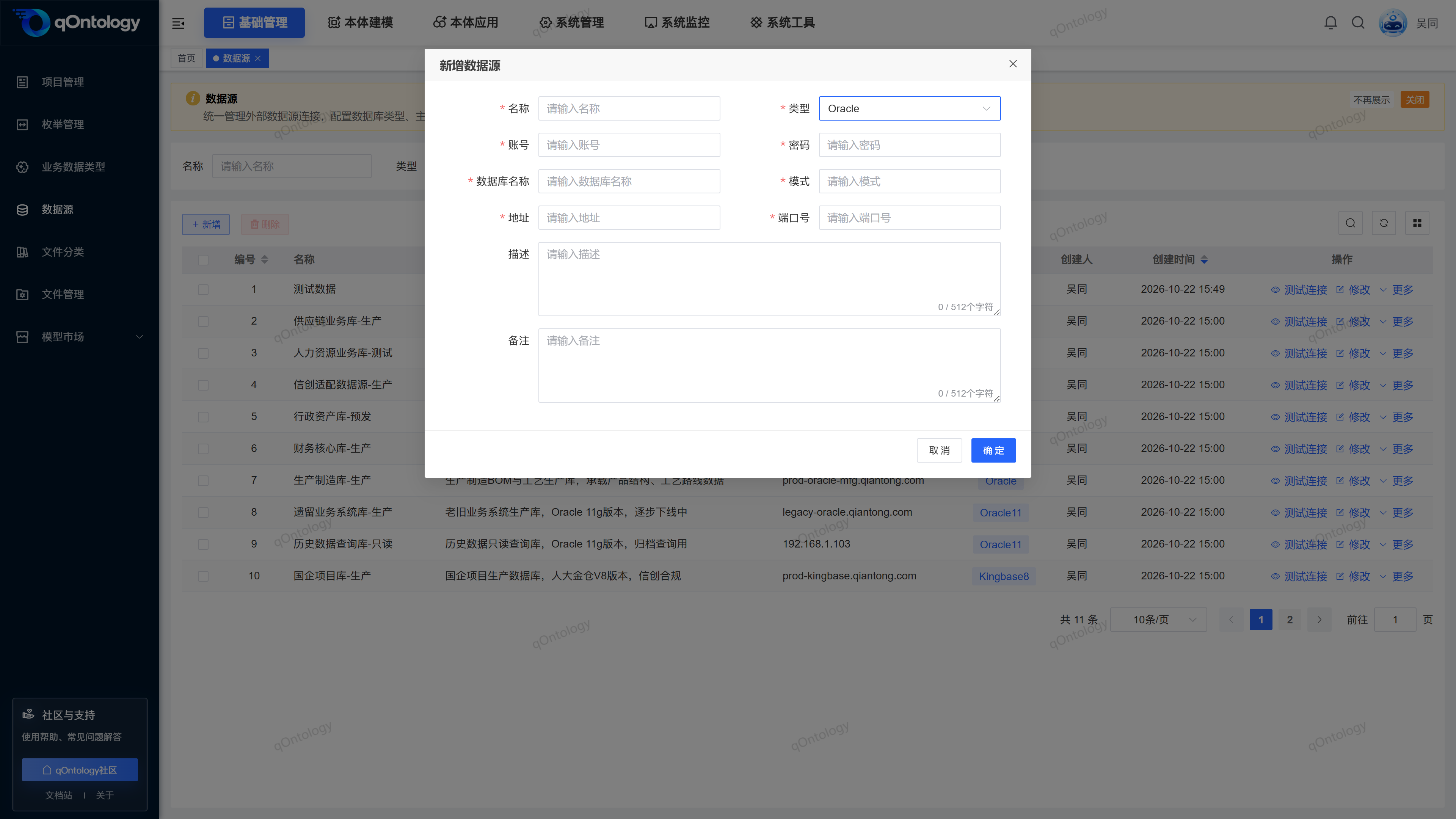
Added Data Sources
- Click [Add].
- Fill in [name].
- Select [Type].
- Fill in [Account] and [Password].
- Fill in [database name].
- If [Schema] appears, fill in the corresponding schema name.
- Fill in the [Address] and [Port Number].
- Fill in [Description] and [Remarks] as needed.
- Click [OK].
| Field name | illustrate | Is it required? |
|---|---|---|
| name | Data Sources name for easy identification. | yes |
| type | Choose a type that is consistent with the target database. | yes |
| account | Database connection account. | yes |
| password | The connection password of the corresponding account. | yes |
| Database name | After selecting the type, fill in the target database. | yes |
| Schema | Displayed and filled in when Oracle, Oracle11, and Kingbase8 are currently selected; MySQL and DM8 are not displayed. | Required when displaying |
| address | Database service address. | yes |
| port number | Database service listening port. | yes |
| describe | Briefly describe the purpose of the connection. | no |
| Remark | Supplementary maintenance instructions. | no |
Result: Close the window and refresh the list after "Add successfully" is displayed. Continue with the connection test to confirm that the configuration is usable for subsequent operations.
test connection
- Click [Test Connection] on the target Data Sources line.
- View the connection feedback returned by the system.
Result: The system uses the saved configuration to initiate a connection test and displays the results returned by the interface.
If the feedback connection fails, check the database type, service address, port, account, password, database name and schema; correct the configuration and test again. Do not equate successful saving with successful connection.
View details and edit
- When viewing details, click on the target row [More].
- Click [Details] to view connection information.
- After closing the details, click [Modify] on the target row if adjustments are needed.
- Modify the corresponding fields.
- Click [OK].
- After saving successfully, click [Test Connection] again.
Result: The list is refreshed after the modification is successful; the test results are used to check whether the new configuration can be connected.
Delete Data Sources
- When deleting a single line, click [More] on the target line.
- Click [Delete]; for batch deletion, select the target records and click [Delete] above.
- Check the Data Sources number in the prompt.
- Confirm deletion.
Result: Refresh the Data Sources list after "Deletion Successful" is displayed.
Check before deletion
First check whether the relevant Structured Extraction task still needs to use this connection to avoid losing the optional data source for subsequent tasks.
FAQ
**Why do some types not have a "schema" field?**The
schema field changes with the type. Currently, MySQL and DM8 do not display it, but Oracle, Oracle11, and Kingbase8 display it.Does the successful addition mean that the database is connected?
is not. After saving, you need to execute [Test Connection] and check the actual returned results.What is the difference between Data Sources and file management?
Data Sources maintains database connections for selection by Structured Extraction; file management maintains document files for selection by Unstructured Extraction and other scenarios.
Summarize
After the connection configuration is saved, the test should be completed and then used for Structured Extraction. During maintenance, focus on checking the database type, target library or schema, and current test feedback.