
project management
Feature overview
Purpose
Project management is used to establish the Ontology Modeling project, maintain the project name, domain, namespace, business scope and status, and export the specified version of ontology model. Subsequent work such as Modeling Goals, Semantic Assets and Object Types need to be carried out in a clear project context.
In practice: First build a "workspace" for a modeling task, explain what business you want to study, and then organize the model in this space.
Main features
- Project Boundaries: Specify modeling boundaries using include ranges, exclude ranges, and descriptions.
- Version Starting Point: Fill in the initial version when creating a project as the starting point for subsequent version management.
- ontology Export: Select a project version and export a Turtle (.ttl) file for use with tools that support this format or subsequent processing.
Scope
This page maintains a list of projects in the platform. Operations such as adding, modifying, detailing, and deleting are controlled by menus and operation permissions. The inclusion and exclusion ranges of items are used to describe business boundaries and should not be considered as conditions for automatically filtering business data.
Before you begin
Prerequisites
- Logged into qOntology and obtained project management and required operation permissions.
- The project name, field and ontologynamespace have been clarified.
- The business scopes included and excluded in this issue have been organized; the optional version must be available when exporting.
Navigation path
【Basic Management】 > 【Project Management】
Page overview
Filter by project name, project field, namespace and status at the top of the page; a list of projects is displayed at the bottom. Each line provides [Export], [Details] and [More], and the entry for modification and deletion is in [More]. After checking the record, you can use [Delete] at the top of the list.
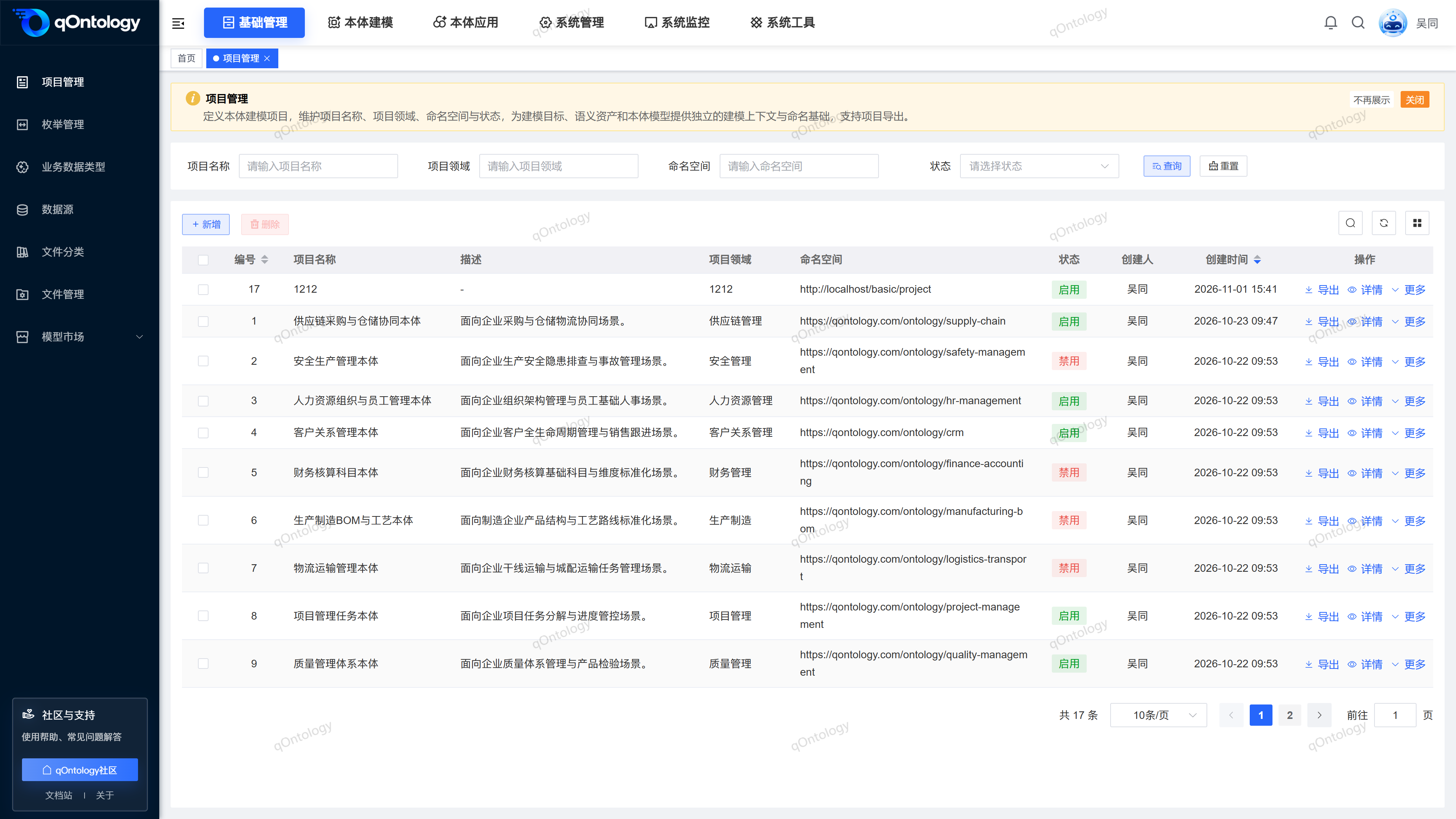
Recommended workflow
Clarify the domain and scope → Add a new project → View details and check information → Continue construction in Ontology Modeling → Select version to export.
Functional operation instructions
Query items
- Fill in the required project name, project field or namespace in the query area.
- If you want to filter by status, select [Status].
- Click [Query].
- When you need to restore the query conditions, click [Reset].
Result: The list is refreshed according to the query conditions; you can continue to view through paging.
Add new items
- Click [Add] above the list.
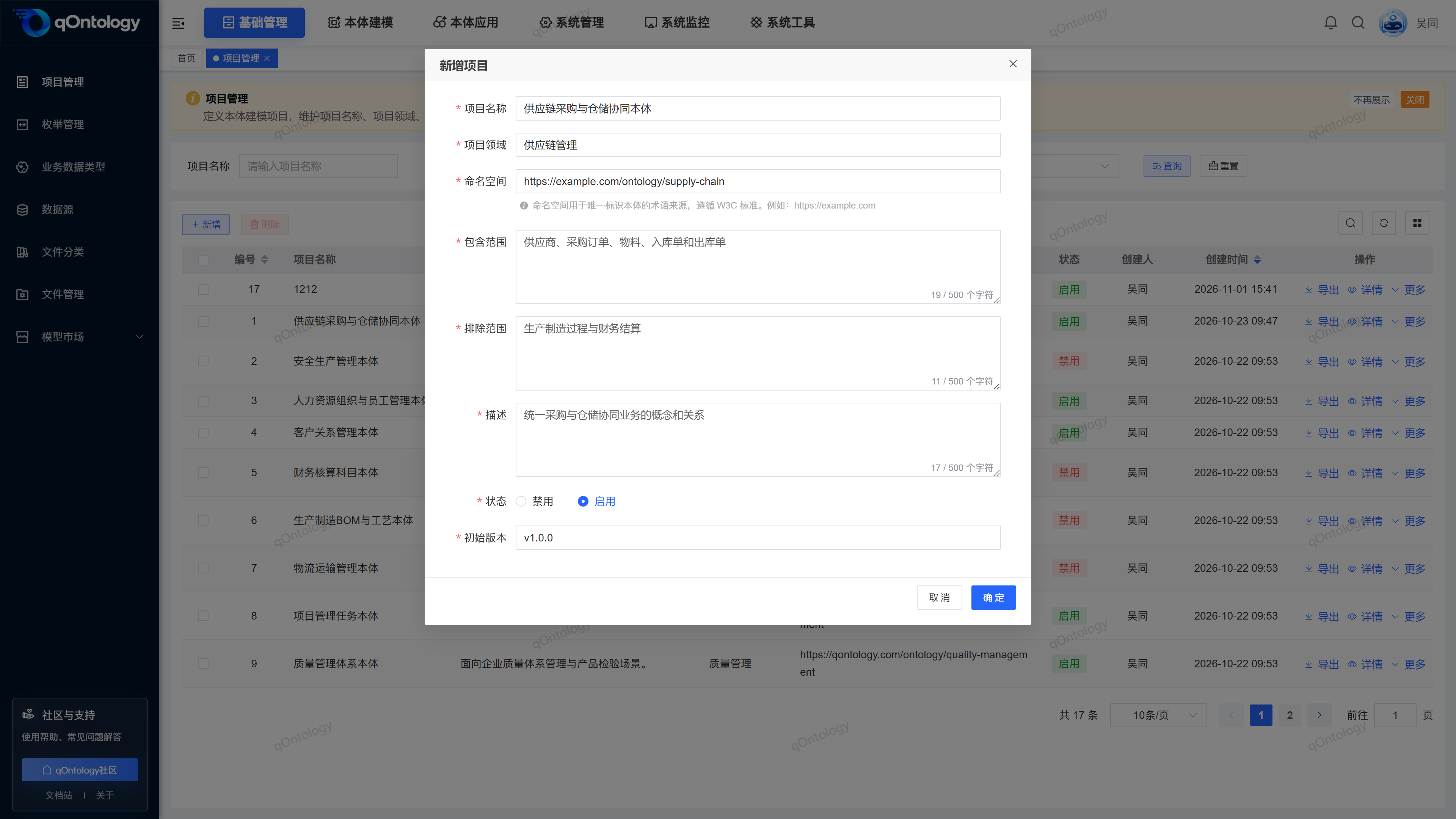
- Complete the project fields as shown below.
- Click [OK].
| Field name | illustrate | Is it required? |
|---|---|---|
| Project name | Fill in a name that can identify the modeling task, such as "Supply Chain Procurement and Warehousing Collaboration ontology". | yes |
| Project area | Fill in the business field, such as "supply chain management". | yes |
| namespace | Fill in the naming identifier of the ontology term, for example https://example.com/ontology/supply-chain。 | yes |
| Inclusion | Describe the objects, relationships and business activities covered in this issue. | yes |
| Exclusion range | Explain what is not covered in this issue to avoid scope confusion. | yes |
| describe | Supplementary project usage. | yes |
| state | Select [Enable] or [Disable]. | yes |
| initial version | Fill in the version ID when creating a new project, such as v1.0.0; it cannot be edited when modifying the project. | yes |
Result: After successful saving, "Add successfully" is displayed, the pop-up window is closed and the project list is refreshed; the system also creates the initial version filled in.
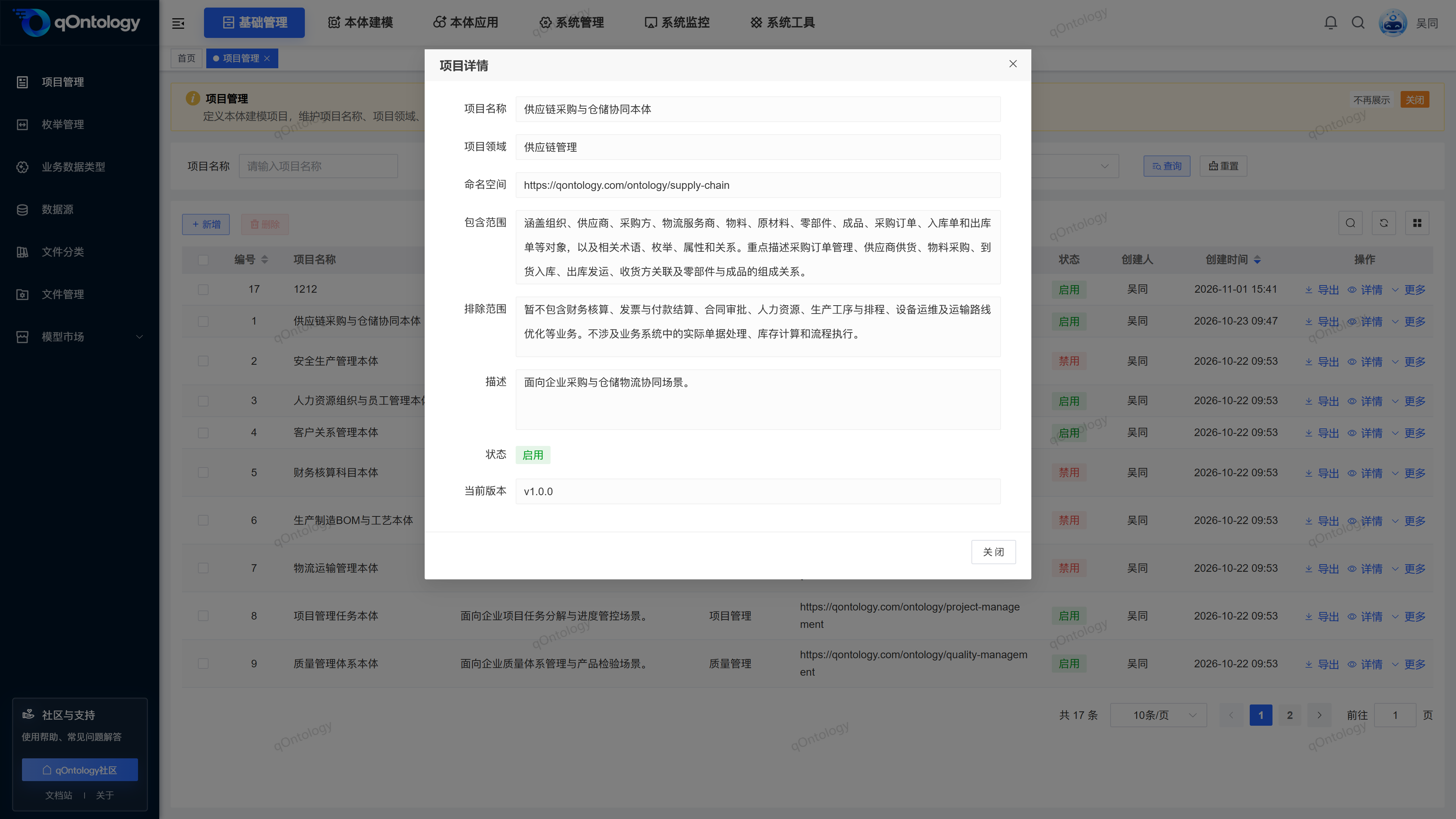
View project details
- Click [Details] in the target project row.
- Check the project area, namespace, inclusion scope, exclusion scope, status and current version.
- Click [Close] to return to the list.
Result: Details display project information in read-only mode.
Modify project and status
- Click [More] in the target project row.
- Click [Modify].
- Adjust the project fields that need to be modified; if you need to adjust the status, select [Enable] or [Disable].
- Click [OK].
Result: After "Modification Successful" is displayed, the list is refreshed with the saved information.
The initial version is not editable in the modification window. When you need to manage versions, please enter [Version Management] under [Ontology Modeling].
Export ontology model
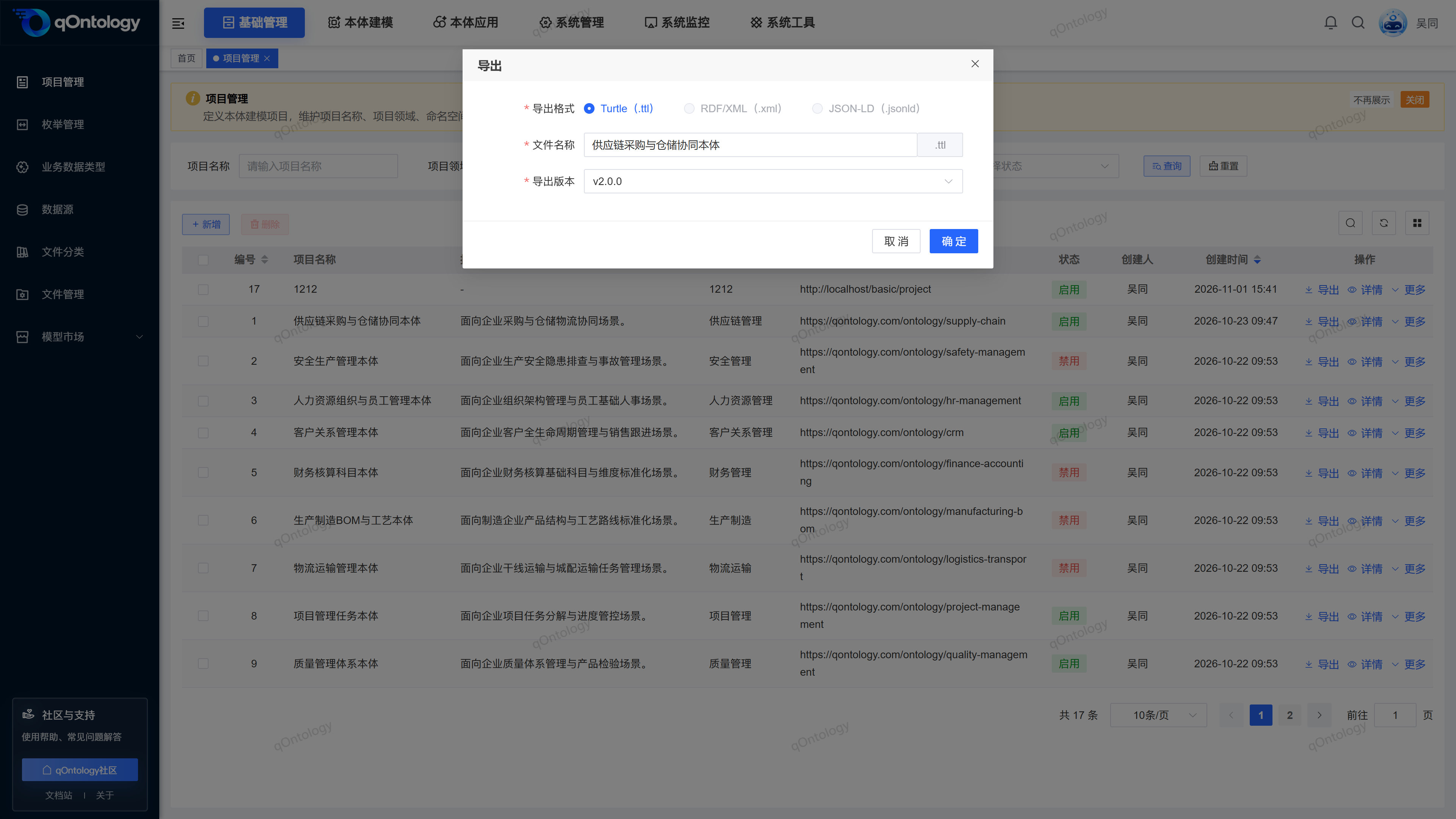
- Click [Export] in the target project row.
- Confirm that the [Export Format] is Turtle (.ttl).
- Check [File Name] and modify it if necessary.
- Select [Export version].
- Click [OK].
- Find the generated .ttl file in your browser's download list.
Result: The system exports the ontology model file of the selected version. The file name is initially backfilled with the project name, and the export version is initially selected as the newly created exportable version.
Export range
The currently selectable format is Turtle; RDF/XML and JSON-LD appear disabled. The file name cannot contain path separators or special characters and cannot exceed 128 characters in length. When the project does not have an exportable version, [OK] is not available. What is exported is ontology model, not a database backup.
Delete project
- When deleting a single item, click [More] in the target item row.
- Click [Delete] to open the confirmation prompt; for batch deletion, first check the target items and then click [Delete] above the list.
- Check the item number in the prompt.
- Confirm deletion.
Result: After "Delete Successfully" is displayed, the item is removed from the current list.
Check before deletion
Confirm the target item and its usage before deleting it. When you need to retain ontology model, you can export the required version first; the exported file is not equivalent to a complete project backup.
FAQ
Will the inclusion range and exclusion range automatically limit the extracted content?
These two fields are used to describe the business boundaries of the project. Don't treat description text as automatically executed data filtering rules.**Why can’t I change the initial version when making modifications?**The initial version of
is used to establish the version starting point when creating a project. The modification window sets this field to uneditable; subsequent versions are maintained in [Version Management].**Why is the exported version not necessarily equal to the current version in the details?**The
export window selects from the exportable versions and initially backfills the most recently created one. The [Export Version] should be manually checked before exporting.
Summarize
After completing the verification of project information and scope, Ontology Modeling can be carried out in the corresponding project. Before exporting, check the project, version and file name.