
File management
Feature overview
Purpose
File management centrally maintains business documents and their classification, name and description, and supports preview and download. The sorted files can be used as material sources for subsequent business such as Unstructured Extraction. The uploaded files themselves will not automatically create or perform extraction tasks.
In practice: Save the business documents you need to use by category, and then you can search, view and select them in the extraction process.
Main features
- Category and name retrieval: The classification tree on the left and the file name query on the right are combined to locate documents.
- Upload and Description: Maintain the file name, description and remarks after uploading the file.
- Preview and Download: View the file by file name or in-line entry, and download it locally on demand.
Scope
This page maintains file information, and addition, modification, deletion, etc. are controlled by corresponding operation permissions. The classification comes from [File Classification], and the configuration of file selection and extraction tasks is completed in the subsequent business pages.
Before you begin
Prerequisites
- File management and required operation permissions have been obtained.
- First prepare the classification of the file in [File Classification].
- Prepare the documents to be uploaded; according to the prompts on the current page, it is recommended that a single file should not exceed 5MB.
Navigation path
【Basic Management】 > 【File Management】
Page overview
The left side is a classification tree that can be filtered by category name. The right side queries and displays file name, description, category, file size, creator and creation time by file name. Each row provides [Preview], [Download] and [More]. Modification and deletion are in [More]; [New] is provided above the list.
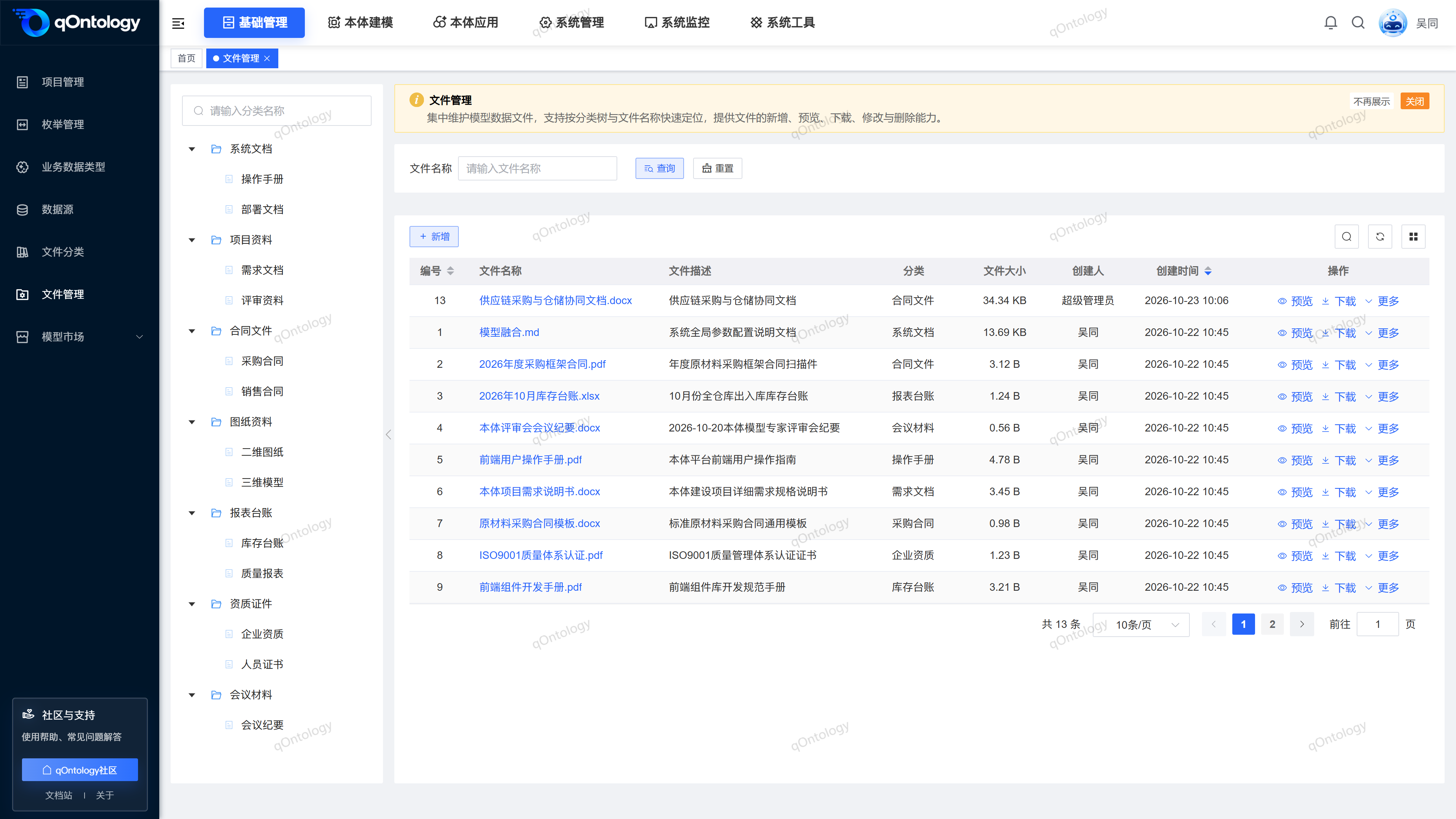
Recommended workflow
Create a category first → add and upload files → check names and attributions → preview and check content → select materials in Unstructured Extraction.
Functional operation instructions
Find files by category and name
- Select a target category on the left.
- Enter the query content in the [File Name] on the right as needed.
- Click [Query].
- When you need to restore all query conditions, click [Reset].
Result: The list on the right displays the files corresponding to the current category and name conditions; [Reset] clears the name and category filters at the same time.
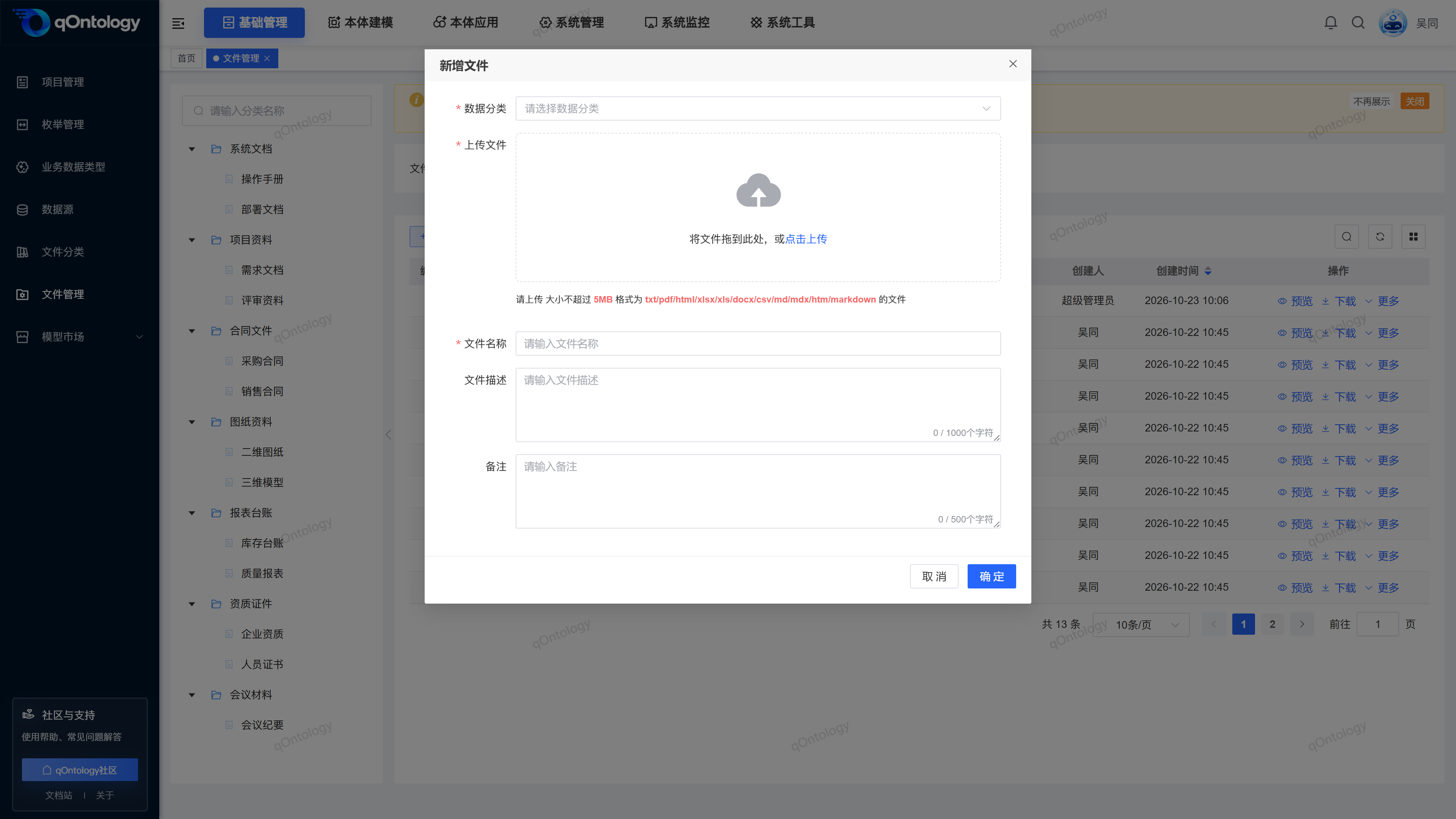
Add and upload files
- Click [Add].
- Select the category in [Data Category].
- Drag the file into the [Upload File] area, or click [Click to Upload] to select the file.
- Wait for the file upload to complete.
- Check the automatically backfilled [File Name] and modify it as needed.
- Fill in the [File Description] as required.
- Fill in [Remarks] as needed.
- Click [OK].
- Data classification: Select the classification from the existing classification tree. (required)
- Upload file: Select a file in a supported format. (required)
- File Name: Backfilled after uploading and can be adjusted as needed. (required)
- File Description: Supplementary content purpose, no more than 1000 characters. (optional)
- Remarks: Supplementary maintenance instructions, no more than 500 characters. (optional)
Result: Close the window and refresh the file list after "Add successfully" is displayed.
Upload format
Currently supports txt, pdf, html, xlsx, xls, docx, csv, md, mdx, htm, markdown, select one file at a time. The interface prompts that the size does not exceed 5MB. It is recommended to prepare the file according to the prompts; if the upload fails, the actual feedback shall prevail.
Preview file
- Click the file name or [Preview] in the target row.
- View the contents of an open file.
- When finished, close the preview interface or return to the file list.
Result: The system opens the corresponding preview. If it prompts "The file address is empty and cannot be previewed", you need to first check whether the file has been completely uploaded and saved.
Preview also depends on file address and preview service availability. Displaying the file name does not necessarily mean that the file contents can be opened.
Download file
- Click [Download] on the target row.
- View the download results in the browser download list.
Result: The system downloads the file to the local area; when the file address is empty, it prompts that it cannot be downloaded. Please check the file record first.
Modify file information
- Click [More] on the target row.
- Click [Modify].
- Adjust data classification, file name, file description or remarks as needed; when you need to replace a file, select a new file in the upload area.
- Click [OK].
Result: Refresh the list after "Modification Successful" is displayed, and then check the saved file content through preview.
Delete files
- Click [More] on the target row.
- Click [Delete].
- Verify the current operation at the "Are you sure you want to delete the file?" prompt.
- Confirm deletion.
Result: After "Delete Successfully" is displayed, the file record is removed from the current list.
Confirm before deletion
Check whether the file is still used for business materials or extraction tasks before deleting; download first if you need to keep a copy.
FAQ
Why are there no files under the category?
First check the category and name filter conditions selected on the left; click [Reset] and query again.Why do you still need to click "OK" after uploading the file?
uploads the file content for processing. [OK] is used to submit the classification, name and other record information of the file. After saving, the record should be checked in the list.Will Unstructured Extraction start automatically after uploading?
will not. This page is responsible for file maintenance. You will need to enter the Unstructured Extraction page later to configure and perform tasks.Why can't some formats be uploaded?
The current upload portal only accepts the extensions listed in the prompt; for example, doc is not in the current list, and a supported file format should be prepared.
Summarize
After saving the file, first check the classification and name, and then confirm the completeness of the content through preview, so as to facilitate the selection of the right materials during subsequent extraction.