
File classification
Feature overview
Purpose
File classification is used to maintain a multi-level classification structure of files. After the classification is established, the file management page can use the same classification tree to collect and search documents, providing a clear organization method for subsequent selection and extraction of materials.
In practice: First create a document "folder directory", and then classify the files into corresponding categories. Categories are maintained here, and the files themselves are maintained in [File Management].
Main features
- Multi-Level Classification: Use parent classifications to organize hierarchies.
- Quickly create subcategories: Click [Add] on an existing category row to automatically bring that row as the parent.
- Expand and collapse: Control the expanded state of the tree list to facilitate browsing of multiple levels.
Scope
Classifications are maintained uniformly in Basic Management for file management. Adding, modifying, and deleting are controlled by corresponding permissions; files are not uploaded on the category management page.
Before you begin
Prerequisites
- File classification access and required operation permissions have been obtained.
- Classification names and superior and subordinate structures have been designed.
- Before adjusting or deleting categories, check the classification of relevant documents.
Navigation path
【Basic Management】 > 【File Classification】
Page overview
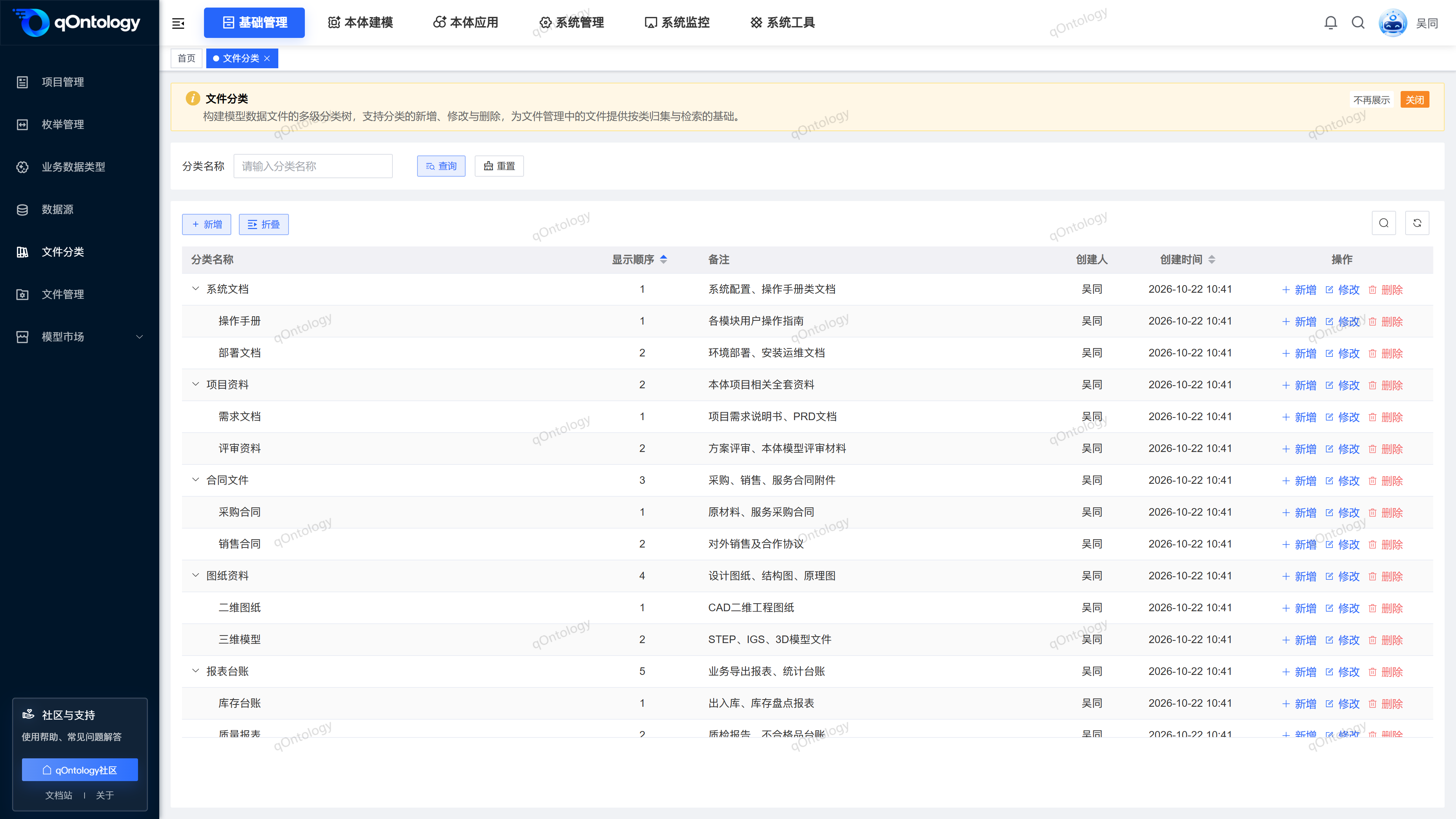
At the top, press [Category Name] to query, and at the bottom is a tree list, showing the category name, display order, remarks, creator and creation time. The toolbar provides [Add] and [Expand]/[Collapse], and the row provides [Add], [Modify] and [Delete].
Recommended workflow
Plan the classification tree → Create top-level classification → Add sub-classification → Classify files in file management → Maintain classification according to business changes.
Functional operation instructions
Query and browse the classification tree
- Enter the search content in [Category Name].
- Click [Query].
- Click [Reset] when you need to restore the query conditions.
- Click [Collapse] when you need to collapse the tree level; click [Expand] when you need to expand it.
Result: The category list is refreshed according to conditions. Expanding or collapsing only changes the current browsing status.
Add top-level categories
- Click [Add] above the list.
- Confirm that the [parent category] is the "top-level category".
- Fill in [Category Name].
- Set the [Display Order] as needed.
- Fill in [Remarks] as needed.
- Click [OK].
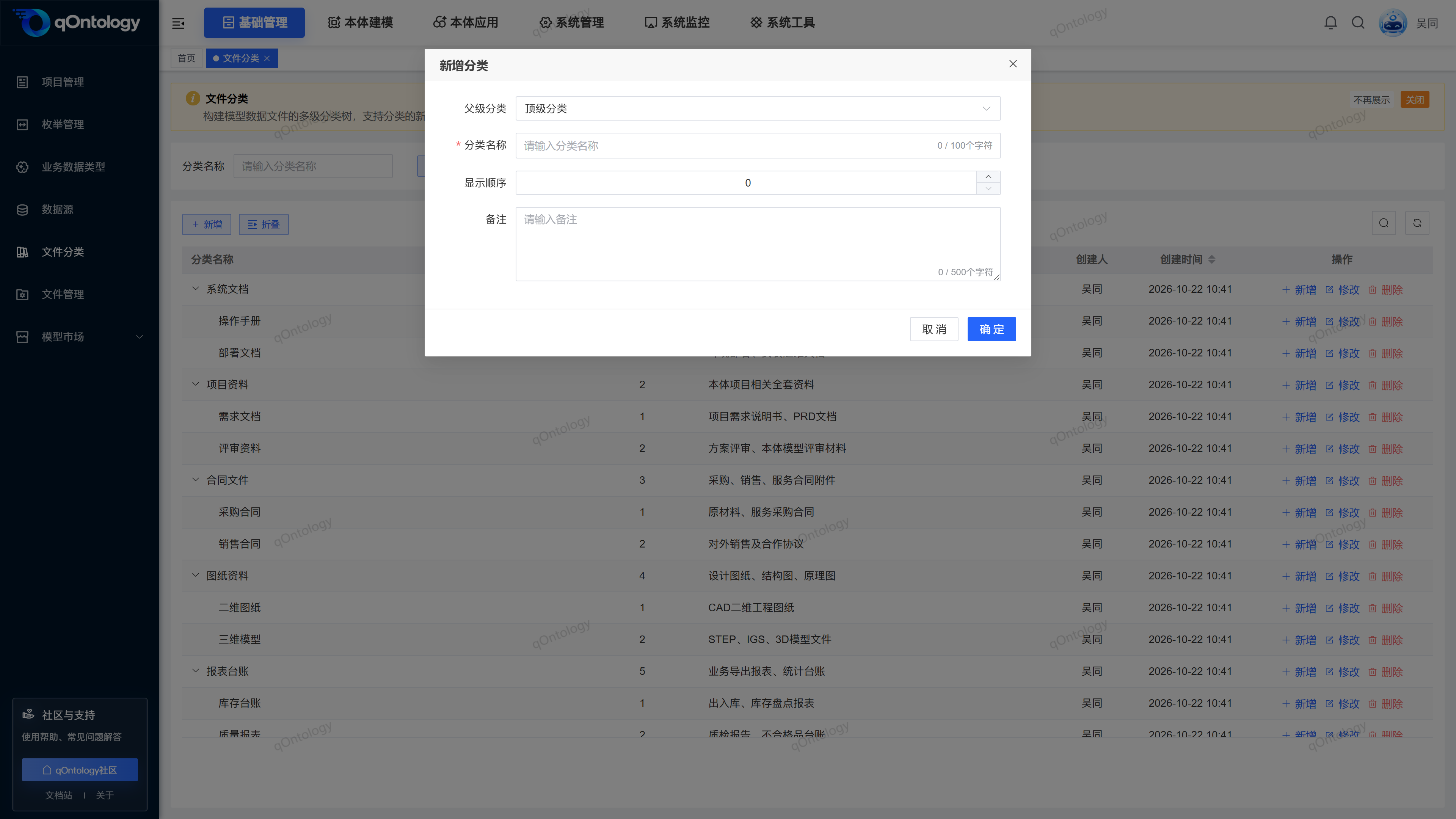
- Parent Category: Select "Top Category" for the top category; select the parent node for the subcategory. (optional)
- Category Name: Fill in the current category name, no more than 100 characters. (required)
- Display order: used for list display order, the page allows input 0-9999. (No, initially 0)
- Remarks: Supplementary classification purpose, no more than 500 characters. (optional)
Result: Close the window and refresh the classification tree after "Add successfully" is displayed.
Add subcategory
- Find the category row you want to parent.
- Click [Add] in this row.
- Check whether [Parent Category] is the selected category.
- Fill in the subcategory name.
- Fill in the display order and remarks as needed.
- Click [OK].
Result: The new category is assigned to the selected parent, and the category tree is refreshed.
Modify classification
- Click [Modify] in the target category row.
- Adjust the parent category, category name, display order or comments.
- Click [OK].
Result: Refresh the classification tree after "Modification Successful" is displayed.
Delete category
- Click [Delete] in the target category row.
- Check the category name in the confirmation prompt.
- Confirm deletion.
Result: Refresh the classification tree after "Delete Successfully" is displayed.
Check and classify first
Before deleting, check whether the category, its subordinates, and related files still need to be retained or adjusted. Don't think of deleting categories as a way to delete files in bulk.
FAQ
What is the difference between "Add" in the toolbar and "Add" in the row?
Toolbar new additions will initially be the top-level category; new additions within a row will bring the current row into the parent category.Where do the categories on the left side of file management come from?
comes from the classification structure maintained on this page. After adding or adjusting, re-enter the page in file management to check the classification tree.Can I upload files directly here?
cannot. This page only maintains categories, and the upload entry is in the [New] window of [File Management].
Summarize
The classification structure should be consistent with the purpose of the document. Organize the hierarchy first, and then maintain file ownership. It will be more straightforward to find and select materials later.