
my model
Feature overview
Purpose
My Models centrally displays configured model providers, making it easy to view maintainable connection configurations and their models. It shares the connection configuration entrance with Model Marketplace and is suitable for daily verification and maintenance after initial access.
In practice: Model Marketplace looks at all access options, and my model looks at the configured parts.
Main features
- Aggregation of configured items: Narrow the browsing scope to facilitate locating connected providers.
- Reuse configuration maintenance: Administrators can continue to maintain names, addresses and keys from the card.
- View specific models: Press the configuration name tab to view the model name, type and activation status.
Scope
This page displays the configured providers returned by the system. It is not equivalent to the list of models trained by an individual, nor should it be understood as data that is only private to the individual. Key settings and model details inherit the administrator role and corresponding operation permission restrictions.
Before you begin
Prerequisites
- Gained access to my models page.
- There is already a provider connection configuration; if it has not been configured yet, enter [Model Marketplace] first.
- Maintaining connection or model enablement status should be done by an authorized administrator.
Navigation path
【Basic Management】 > 【Model Marketplace】 > 【My Model】
Page overview
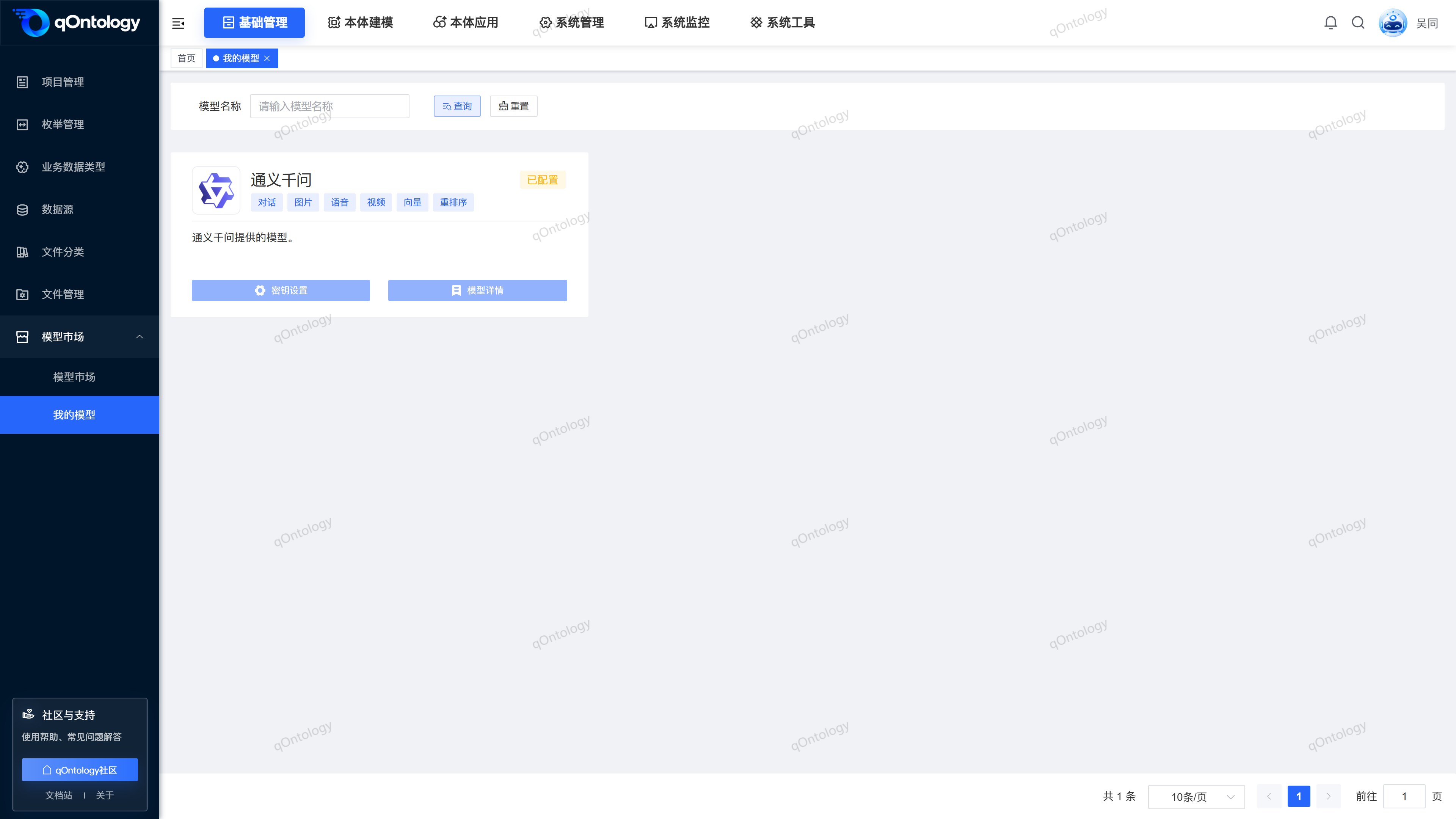
Press [Model Name] to query at the top, and the configured providers are displayed with cards at the bottom. The card includes name, capability label, description, configuration status, and [Key Settings] and [Model Details] entry; the number of lists changes with configured content and filter conditions.
Recommended workflow
Enter My Model → Find the configured provider → The administrator checks the connection or model details → Confirm the target model status → Return to the relevant modeling or extraction business.
Functional operation instructions
View and query configured items
- Enter [My Model] under the [Model Marketplace] group.
- View card name and configuration status.
- Enter the query content in [Model Name] as needed.
- Click [Query].
- Click [Reset] when you need to restore the complete list.
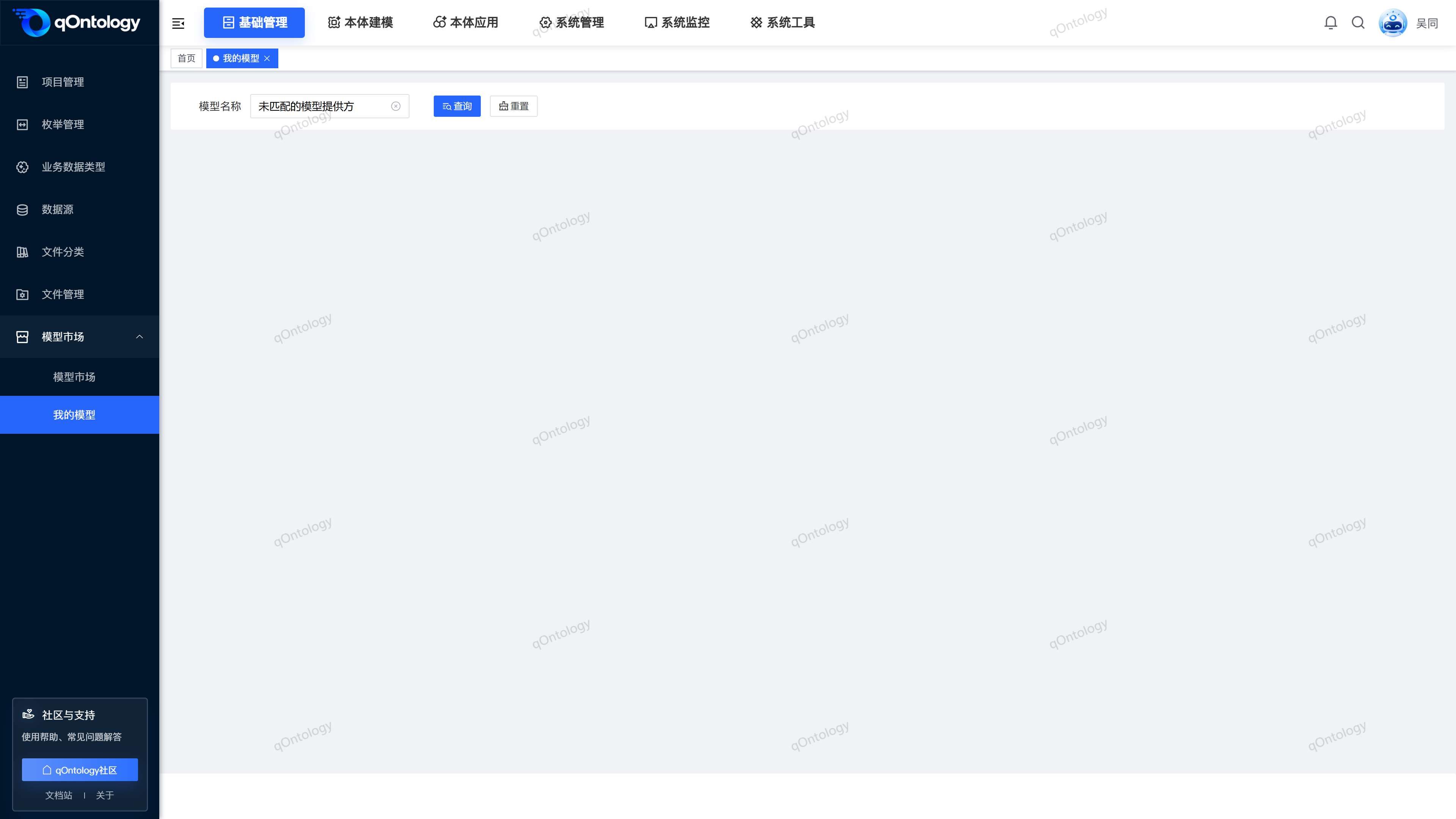
Result: The page displays configured providers that meet the conditions; the card area is empty when there are no matching conditions.
Maintain connection configuration (administrator)
- Click on the available [Key Settings] on the target card.
- Check the configuration names that need to be adjusted.
- Modify the API address or key displayed on the interface as needed.
- When you need to add configuration, click [Add Key] and fill in a new line.
- Click [Submit].
Result: Close the window after "Setup Successful" is displayed and recheck the card status.
The field combinations of different providers are consistent with [Model Marketplace]. When you need to remove the saved configuration, click [Delete] on the corresponding row, check the confirmation prompt, and then click [Submit] to save the configuration list.
View specific models (admin)
- Click on [Model Details] available in the target card.
- Select the corresponding configuration name tab on the details page.
- View model name, model type and enabled/disabled status.
- Click [Return] to return to [My Models].
Result: Details display the specific model list according to the current connection configuration. The [Edit] [Delete] entry for model entries is currently unavailable.
Turn models on or off (Administrator)
- Locate the target model in the model details.
- Toggle the [Enable/Disable] switch.
- Check the system confirmation prompt.
- Confirm the operation.
Result: Display the enable or disable success feedback after success; restore the original switch state when canceled or failed.
Distinguish between configuration and activation
The provider "Configured" and the specific model "Enabled" are two different states. Before adjusting the model status, you should check the model used by the relevant business. Please contact the administrator if the button is unavailable.
FAQ
Why does Model Marketplace have a card but not in my model?
Model Marketplace contains unconfigured items, while my model mainly displays configured items. First click [Reset] to exclude filtering, and then the administrator will check the connection configuration.Why does it show that it has been configured but cannot open the details?
configuration status will not bypass permission restrictions; the current account must also meet the administrator role and corresponding operation permissions.Does "my" here mean that only I can use it?
cannot be judged based on this. This page is used to summarize configured items. Actual access and operations are still controlled by platform permissions.**Can I upload, train or create a new model here?**The current page of
provides the query and maintenance entrance for the configured provider, but there is no entrance for model upload, training or creation.
Summarize
My models are used for daily verification of configured connections and specific model status. When there is no match or the button is disabled, check the filter conditions first, and then ask the administrator to check the configuration and permissions.