
Model Marketplace
Feature overview
Purpose
Model Marketplace summarizes the model providers preset on the platform, displays capability labels and configuration status, and provides administrators with access to key settings and model details. After completing the connection configuration, you can view the configured providers in [My Model].
In practice: First check which model services the platform can connect to, and then the administrator can connect the services that need to be used. Cards represent model providers, not individual model versions.
Main features
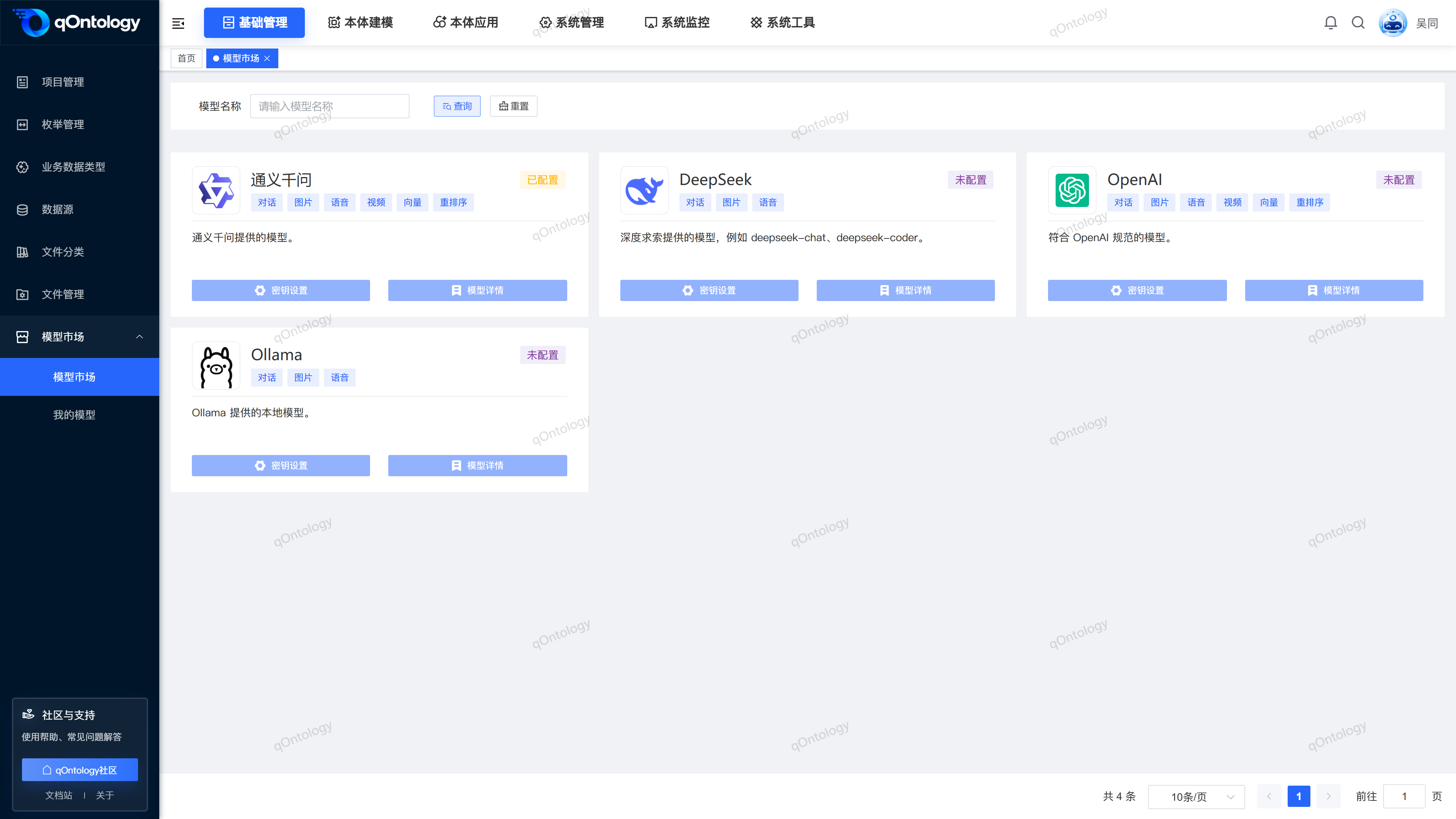
- Provider Card: The current page displays Tongyi Qianwen, DeepSeek, OpenAI and Ollama.
- Configuration Status: Use "Configured" and "Not Configured" to distinguish whether there is a connection configuration.
- Administrator configuration: The administrator maintains the key or API address within the authorization scope and views the model under this configuration.
Scope
Access is required to view the list. The [Key Settings] and [Model Details] of the current interface are also controlled by the administrator role and operation permissions; non-administrator buttons may be displayed but cannot be clicked. Unconfigured providers cannot enter model details.
Before you begin
Prerequisites
- Viewing permission has been obtained for Model Marketplace.
- When configuration is required, it must be handled by an administrator with relevant operating permissions.
- The administrator has obtained the target provider's API key or service address.
Navigation path
【Basic Management】 > 【Model Marketplace】 > 【Model Marketplace】
Page overview
Press [Model Name] to query at the top, and the provider name, capability label, description, and configuration status are displayed as cards at the bottom. Each card has entrances to [Key Settings] and [Model Details]. In the current example, restricted accounts can view the card, but both entrances are unavailable.
Recommended workflow
Find the provider → Check capabilities and configuration status → Administrator configuration connection → View model details → Go to My Model to check configured items.
Functional operation instructions
Query and view model providers
- Enter the provider name in [Model Name].
- Click [Query].
- View the capability label and configuration status in the card.
- Click [Reset] when you need to restore the list.
Result: The card list is refreshed by name. The capability label is used to describe the provider's capability category, which does not mean that each model under the current key has all capabilities.
Set a key or API address (admin)
- Find the target provider card.
- When [Key Settings] is available, click this button.
- Click [Add Key] to add a configuration line.
- Fill in the configuration name for easy identification in [Name].
- According to the provider, fill in the [API Address] or [Key] displayed on the interface.
- Click [Submit].
Result: After "Setup Successful" is displayed, the configuration window is closed and the card status is refreshed.
Fill-in content from different providers:
- Tongyi Qianwen, DeepSeek: Fill in the name and key.
- OpenAI: Fill in the name, API address and key for services that comply with the OpenAI specification.
- Ollama: Fill in the name and API address, and the key column will not be displayed in the window.
permission boundaries
If the button is grayed out, please contact your administrator to complete the configuration. Do not interpret "configured" to mean that the current key has passed the call test or that it is available to all models.
Modify or remove existing connection configurations (administrator)
- Open the [Key Settings] of the target card.
- If modification is required, adjust the information of the corresponding configuration line.
- When you need to remove the existing configuration, click [Delete] on the row.
- Verify the key name and confirm removal.
- Click [Submit] to save this configuration list.
Result: Refresh the configuration status after successful submission. Before modifying or removing the configuration, you should check the services that use the connection.
View model details (admin)
- Confirm that the provider is configured and [Model Details] is available.
- Click [Model Details].
- Select the configuration name tab you want to view in the details.
- View the model name, model type, and enabled/disabled status below.
- Click [Return] when finished.
Result: Details display the model list according to the selected configuration.
[Edit] and [Delete] in the current model details are disabled entries, and models cannot be added, edited, or deleted accordingly; this page does not provide an independent model version maintenance process.
Adjust model enablement status (Administrator)
- Locate the target model in an accessible model detail page.
- Toggle the [Enable/Disable] switch.
- Check the model name and action in the confirmation prompt.
- Confirm the operation.
Result: After success, the corresponding "Enable Success" or "Close Success" is displayed; when canceled or failed, the switch returns to its original state.
FAQ
Why is "Key Settings" gray?
The current interface requires administrator roles and corresponding permissions to operate. Ordinary users can contact the administrator for configuration.Does "Configured" guarantee that the model will be called successfully?
is not. This status indicates that a configuration exists and does not mean that key credits, network connectivity, or model calls have been verified.Are the four cards in Model Marketplace four specific models?
is not. The card corresponds to the model provider or compatible service. The specific model can be viewed by configuration in the accessible model details.Where to manage model versions?
The current page organizes information by provider, connection configuration and model name, and there is no independent model version management operation.
Summarize
The appropriate provider is selected first, and then the administrator configures the connection and checks the model status. Before using business functions, the actual optional models and call results should prevail.